Wildcards and Filters
The wildcards *, ? and [ ] match many names with one pattern, so one Move-Item carries every photo at once, and Get-ChildItem's -Filter, -Include and -Exclude choose which names to list, -Filter the fastest of the three.
Apprentice · PowerShell · Operating System · Updated
After this lesson you can
- Match many names at once with the wildcards *, ? and [ ], and check the matches with Get-ChildItem or -WhatIf before moving them
- Choose -Filter, -Include or -Exclude to narrow Get-ChildItem's list, and say which is fastest
Key takeaways
*(read "star") matches any letters or none,?exactly one character, and[ ]one character from the list inside the brackets.- One command with a wildcard works on every match:
Move-Item *.jpg, *.png photosmoves every photo at once. - A pattern can match more than you meant, folders included. List the matches with Get-ChildItem, or add -WhatIf, before you move them.
-Filtertakes one pattern and is the fastest.-Includekeeps the names that match any of several patterns, and-Excludeleaves them out.
Your phone has backed up six hundred photos into one folder, mixed in with videos and screenshots, and you want every photo in a folder of its own. With a mouse that's Ctrl+click, six hundred times, or sorting by type and hoping you dragged the right block. In PowerShell you describe the names once (every name that ends in .jpg) and one command moves them all. People do this every day: a photographer sorting a shoot, an office assistant filing a month of scanned invoices, a developer copying every .css file of a website.
This lesson finishes sorting the downloads folder from Copy and Move: Copy-Item and Move-Item. Go there first with Set-Location ~\terminal-practice\downloads.
One pattern, many names: *, ? and [ ]
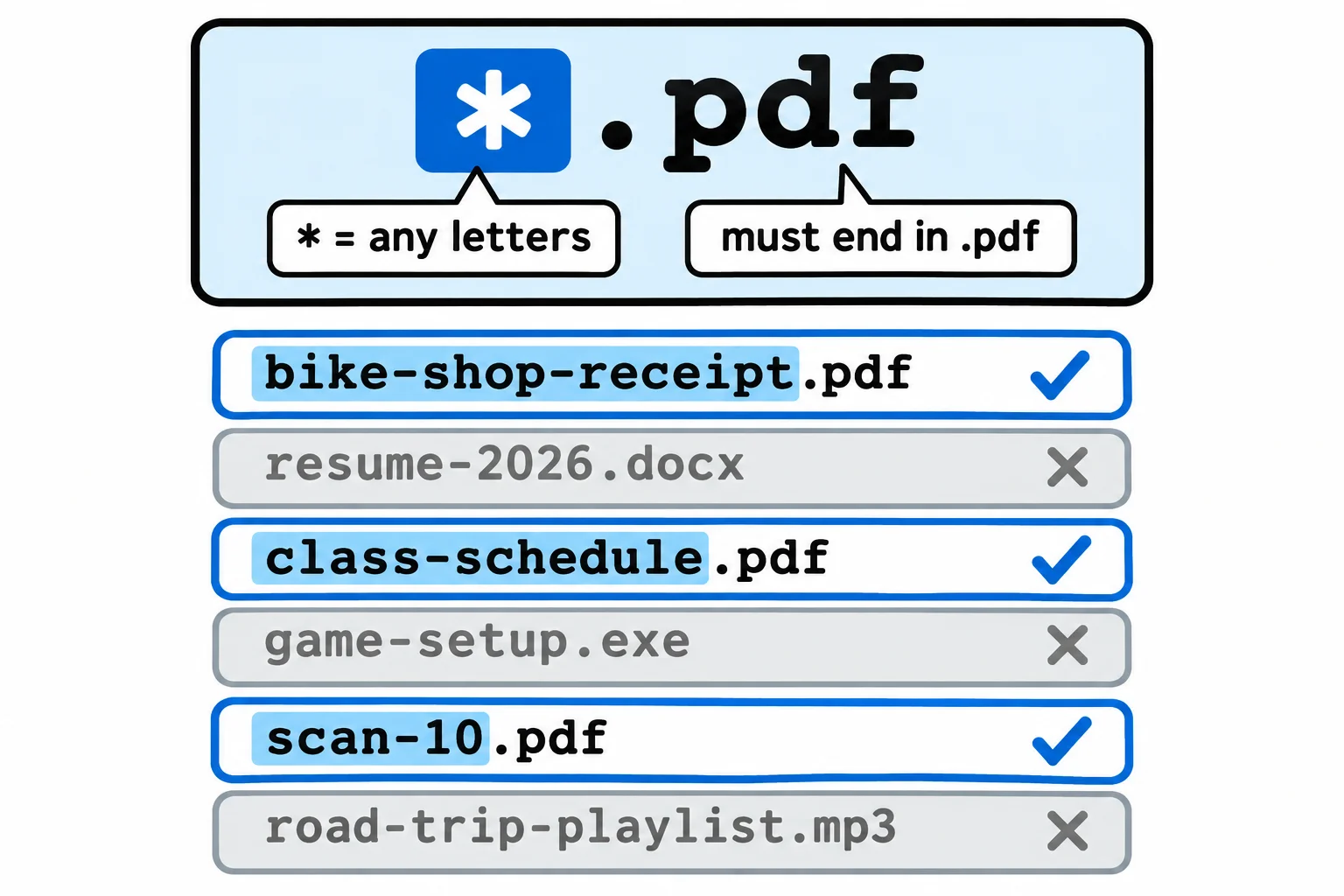
A wildcard is a character that stands for others in a name, like a blank on a crossword. You met * (read "star") in Finding a Command: Get-Command: it matches any letters, or none. So *.pdf, read "star dot pdf", means "any name that ends in .pdf":
Get-ChildItem *.pdf -Name
bike-shop-receipt.pdf
class-schedule-old.pdf
class-schedule.pdf
scan-1.pdf
scan-10.pdf
scan-2.pdf
Two more wildcards match exactly one character each. ? (read "question mark") matches any one character, and [ ] (read "brackets") one character from the list inside:
Get-ChildItem scan-?.pdf -Name
Get-ChildItem scan-[12].pdf -Name
scan-1.pdf
scan-2.pdf
scan-1.pdf
scan-2.pdf
Both find the same two files, and neither finds scan-10.pdf: it has two characters where the pattern has room for one. On Windows, capital letters don't matter, so *.PDF finds the same six files. A name that really has square brackets in it, such as concert[1].pdf, is read as a pattern and matches nothing; -LiteralPath takes a name exactly as written.
Look first, then move them all
Move-Item and Copy-Item take wildcards too, so one command moves every match. Rehearse first with -WhatIf, then run it for real:
Move-Item *.jpg, *.png photos -WhatIf
What if: Performing the operation "Move File" on target "Item: C:\Users\Sam\terminal-practice\downloads\beach-volleyball.jpg Destination: C:\Users\Sam\terminal-practice\downloads\photos\beach-volleyball.jpg".
What if: Performing the operation "Move File" on target "Item: C:\Users\Sam\terminal-practice\downloads\birthday-cake.png Destination: C:\Users\Sam\terminal-practice\downloads\photos\birthday-cake.png".
Move-Item *.jpg, *.png photos
Get-ChildItem photos -Name
beach-sunset.jpg
beach-volleyball.jpg
birthday-cake.png
Two patterns, with a comma between them, and every photo is in one folder. With six hundred photos, the command is the same.
Looking first matters, because a pattern matches everything that fits, not only what you had in mind. The receipts are next:
Get-ChildItem *receipt* -Name
receipts
bike-shop-receipt.pdf
The receipts folder matches too. Move-Item *receipt* receipts moves the PDF and then stops with an error, because it can't move a folder into itself. A tighter pattern names only what you mean:
Move-Item *receipt*.pdf receipts
Get-ChildItem receipts -Name
bike-shop-receipt.pdf
groceries-august.pdf
Choosing the list: -Filter, -Include and -Exclude
Get-ChildItem has three parameters that choose which names to list:
Get-ChildItem -Filter *.pdf -Name
Get-ChildItem -Include *.docx, *.mp3 -Name
Get-ChildItem -File -Exclude *.pdf, *.tmp -Name
class-schedule-old.pdf
class-schedule.pdf
scan-1.pdf
scan-10.pdf
scan-2.pdf
resume-2026.docx
road-trip-playlist.mp3
game-setup.exe
resume-2026.docx
road-trip-playlist.mp3
-Filtertakes one pattern, with*and?only ([ ]finds nothing there). Windows' file system does the matching before PowerShell sees a single name, so it's the fastest.-Includekeeps every name that matches any of several patterns.-Excludeleaves out every name that matches. Here-Fileleaves out the folders too.
In a folder of fourteen files you won't feel the difference. On a test folder of 20,000 files, searched with -Recurse (every folder inside, as with Copy-Item), -Filter *.jpg found the 5,000 photos in under a tenth of a second, and -Include *.jpg took about two seconds. So: one pattern, use -Filter; several patterns, or names to leave out, use -Include or -Exclude.
Windows PowerShell 5.1 runs everything in this lesson the same way. On a Mac or Linux, write paths with /.
Try it. List every file in downloads except the PDFs. Then rehearse moving the two scans whose number is a single digit into a new scans folder, with -WhatIf first.
Try it in the terminal
Terminal Quest: Moving Day, goals 3 to 4: played right on the lesson page.
The bookshelf is up. Put every book on it, then unpack the kitchen box: one Move-Item each, with a wildcard doing the work.
Check yourself
2 questions to try on the lesson page.
So what
A wildcard turns "every photo" into a few characters. Look at what it matches first, and one command does the work of six hundred clicks.