Environment Variables and `PATH`
Environment variables are settings Windows hands to every program, read and set in PowerShell with $env:, and PATH is the one that lists the folders searched for a command, which is why a program outside them is not recognized until you run it by its path or add its folder for this session.
Apprentice · PowerShell · Updated
After this lesson you can
- Read and set an environment variable for this session with $env:, and tell it apart from a PowerShell variable
- Fix a command that is not recognized by running it with its path, or by adding its folder to $env:PATH for this session
Key takeaways
- Environment variables are settings every program can read.
$env:USERNAMEreads one, and$env:POWER = 'on'sets one. - A plain
$POWERstays inside PowerShell. Programs and scripts that read the environment see only$env:POWER. - PATH is the list of folders searched when you type a command's name. A command outside them is not recognized.
- Run it by its path (
.kettle-bot.ps1), or add its folder with$env:PATH += ";<folder>", for this window only.
You install a tool, following its guide step by step. You open PowerShell, type the tool's name, and get red text: is not recognized as a name of a cmdlet, function, script file, or executable program. Or the guide says "set the JAVA_HOME environment variable" as if you'd know how. People reinstall, restart, and give up over these two messages, and both are about the same thing: environment variables, the settings Windows hands to every program it starts. Developers set them up on every new computer, and help-desk techs fix them for other people every week.
This lesson uses the workshop from Variables: $name. If you closed PowerShell since then, run that lesson's practice-folder lines again.
Settings every program can read: `$env:`
Your variables from the last lessons live inside PowerShell. Windows also keeps a set of its own, the environment, and gives a copy to every program it starts: your user name, your temporary folder, where programs are installed. Read one with $env: in front of its name, read "the environment's":
$env:USERNAME
$env:TEMP
Get-ChildItem Env:Program*
Sam
C:\Users\Sam\AppData\Local\Temp

Name                           Value
----                           -----
ProgramFiles(x86)              C:\Program Files (x86)
ProgramW6432                   C:\Program Files
ProgramData                    C:\ProgramData
ProgramFiles                   C:\Program Files
Env: is a drive, like C:, that holds every environment variable, so Get-ChildItem Env: lists them all. On a Mac or Linux the names differ: $env:USER and $env:HOME.
Setting one, for this window
Ada's kettle-bot is a tiny script, and its one line reads the environment. Run a script in the folder you're in with .\ in front of its name, read "this folder's":
Set-Location "$HOME\terminal-practice\workshop"
Get-Content kettle-bot.ps1
.\kettle-bot.ps1
if ($env:POWER -eq "on") { "Pouring tea..." } else { "NO POWER" }
NO POWER
A plain variable called POWER won't do: it's PowerShell's own box, and the kettle-bot looks in the environment. Setting $env:POWER puts it there:
$POWER = 'on'
.\kettle-bot.ps1
$env:POWER = 'on'
.\kettle-bot.ps1
cmd /c "echo POWER is %POWER%"
NO POWER
Pouring tea...
POWER is on
The last line asks a different program, Windows' old Command Prompt (cmd), and it sees POWER too: every program started from this window gets a copy. A setting made this way lasts until you close the window. Remove-Item Env:POWER takes it away sooner.
In Windows PowerShell 5.1, scripts don't run at first, so .\kettle-bot.ps1 stops with an error; Why a Script Won't Run: The Execution Policy, in the next chapter, explains why. On a Mac or Linux, sh -c 'echo POWER is $POWER' stands in for cmd.
PATH: where PowerShell looks for commands
When you type a name, PowerShell checks its own commands, then searches a list of folders for a program or script with that name. The list is the environment variable PATH, with a ; between folders. -split ';' shows it one folder a line:
$env:PATH -split ';'
C:\Program Files\PowerShell\7
C:\Windows\system32
C:\Windows
C:\Windows\System32\Wbem
C:\Windows\System32\WindowsPowerShell\v1.0\
C:\Windows\System32\OpenSSH\
C:\Program Files\PowerShell\7\
C:\Users\Sam\AppData\Local\Microsoft\WindowsApps
Yours is longer: every installer that adds a folder makes it longer. PowerShell 7 puts its own folder first each time it starts. Ada's oil can lives in tools, which isn't on the list:
oil gears
oil: The term 'oil' is not recognized as a name of a cmdlet, function, script file, or executable program.
Check the spelling of the name, or if a path was included, verify that the path is correct and try again.
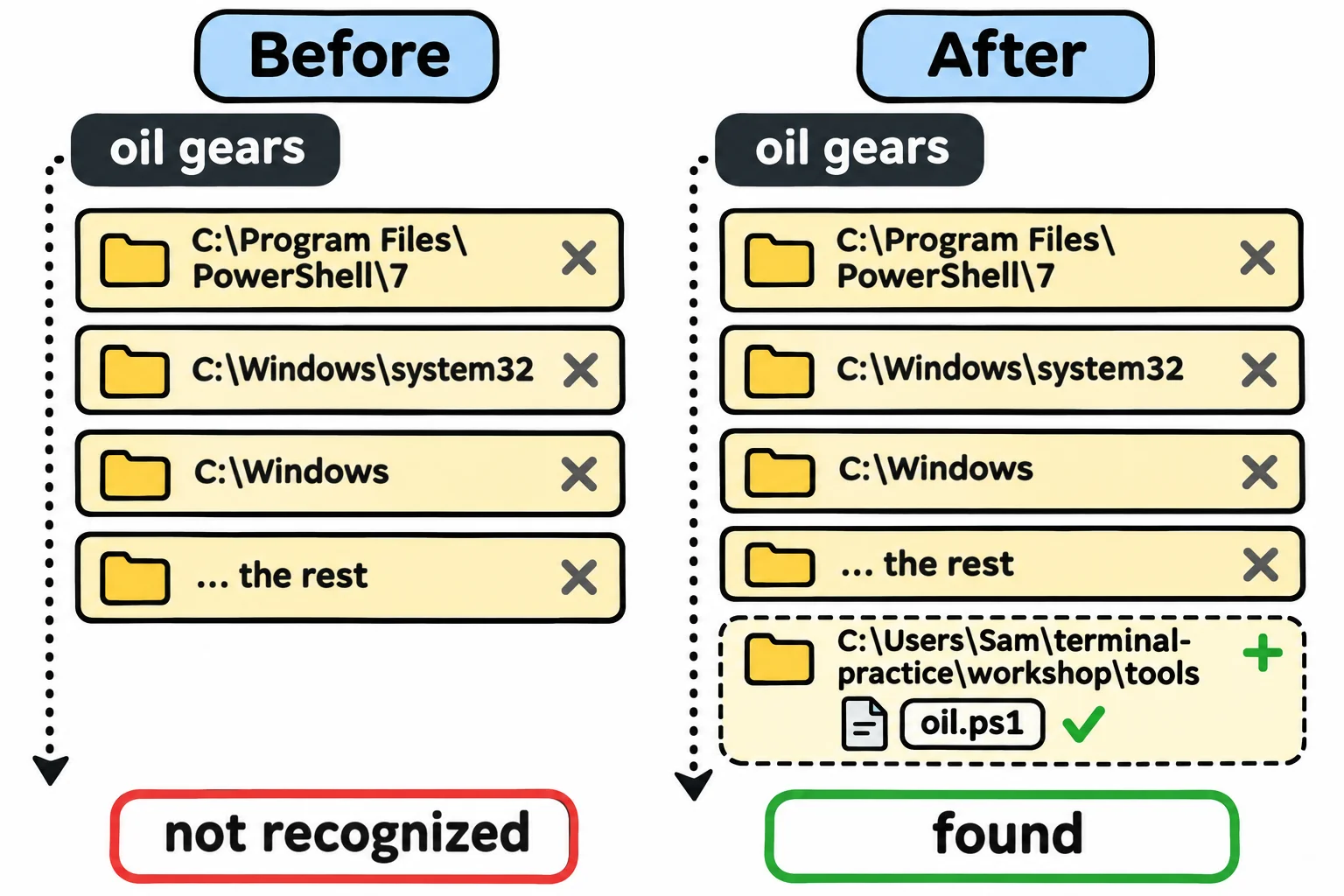
That's the whole meaning of "is not recognized": no command by that name, and no file by that name in any PATH folder. A typo gives it, and so does a program installed into a folder that isn't on the list. PowerShell doesn't even look in the folder you're in, so typing kettle-bot in the workshop gives the same error. That's why the kettle-bot needed .\.
Two fixes, for this window
Give the path, and PowerShell doesn't need to search. Or add the folder to PATH, and the short name works from anywhere. += adds to the end, keeping every folder already there, and the text starts with ; to separate it from the last one:
.\tools\oil.ps1 gears
$env:PATH += ";$HOME\terminal-practice\workshop\tools"
oil gears
(Get-Command oil).Source
Glug, glug. The gears are oiled and shining.
Glug, glug. The gears are oiled and shining.
C:\Users\Sam\terminal-practice\workshop\tools\oil.ps1
Get-Command says where a name was found. Close the window, and PATH is back to what it was. On a Mac or Linux the separator is :, and the name must be written $env:PATH, in capitals.
Installers change PATH for good, for every new window, and an install guide may show a line like this one. You don't need to run it: this course keeps every change for the window you're in. Get it wrong, and every new window loses commands.
[Environment]::SetEnvironmentVariable('Path', [Environment]::GetEnvironmentVariable('Path', 'User') + ";$HOME\tools", 'User')
The mouse way is Windows' Edit environment variables for your account window: search Start for "environment variables". A change made either way reaches only windows opened afterward.
Try it in the terminal
Terminal Quest: The Clockwork Workshop, goals 3 to 4: played right on the lesson page.
You're Ada's apprentice, and her workshop is at $HOME\workshop. Give the kettle-bot POWER with an environment variable and run it with .\kettle-bot.ps1, then put the tools folder on your PATH and oil the gears.
Check yourself
2 questions to try on the lesson page.
So what
"Is not recognized" isn't a mystery anymore: the name isn't a command, and its file isn't in a PATH folder. Give the path, or add the folder, and the settings every program reads are yours to see and set.