Why a Script Won't Run: The Execution Policy
PowerShell's execution policy decides which script files may run; Get-ExecutionPolicy -List shows who set it, RemoteSigned for your own account lets your scripts run, and Unblock-File clears a downloaded script you've read and trust.
Apprentice · PowerShell · Updated
After this lesson you can
- Read the execution policy with Get-ExecutionPolicy -List, and explain what Restricted, RemoteSigned and Unrestricted let run
- Let your own scripts run with Set-ExecutionPolicy -Scope CurrentUser RemoteSigned, and unblock a downloaded script you trust with Unblock-File
Key takeaways
- The execution policy is PowerShell's rule for script files. Restricted runs none, RemoteSigned runs your own and wants a signature on downloads, Unrestricted runs all.
Get-ExecutionPolicy -Listshows the policy at each scope. Read from the top: the first one that isn't Undefined is in charge.Set-ExecutionPolicy -Scope CurrentUser RemoteSignedlets your own scripts run, for your account only, with no administrator window.- Windows marks downloaded files as from the internet. Read a downloaded script first; if you trust it,
Unblock-Fileremoves the mark. - The policy is a seatbelt, not a lock. Never switch it off with Unrestricted or Bypass to make an error go away.
A tutorial gives you a script that renames two hundred vacation photos in one go. You save it, type its name, and PowerShell answers in red: the file cannot be loaded. Or an IT note says "run Setup.ps1" and nothing happens. Nothing is broken. PowerShell is following a rule about which script files may run, its execution policy, and once you can read the rule, the red text tells you what to do.
When PowerShell says no
A script is a text file of PowerShell commands saved with the extension .ps1; running it runs its commands in order, and Module 6 builds whole applications this way. These lines make a practice folder with a one-line script, and are safe to run twice:
New-Item -ItemType Directory -Force -Path "$HOME\terminal-practice\scripts" | Out-Null
Set-Content -Path "$HOME\terminal-practice\scripts\hello.ps1" -Value 'Write-Output "Hello! This script is running."'
Set-Location "$HOME\terminal-practice\scripts"
.\hello.ps1
Hello! This script is running.
.\hello.ps1 is read "dot backslash hello": .\ means "the one right here, in this folder".
Whether a script may run is decided like deliveries at an apartment building's front desk: a house rule says which packages go upstairs. The execution policy is that rule for scripts:
- Restricted: no scripts at all. Commands you type still work.
- RemoteSigned: scripts made on this computer run. A downloaded one needs a digital signature, a seal that proves who made it and that nobody changed it since.
- Unrestricted: every script runs; a downloaded one after a warning. Bypass skips even the warning.
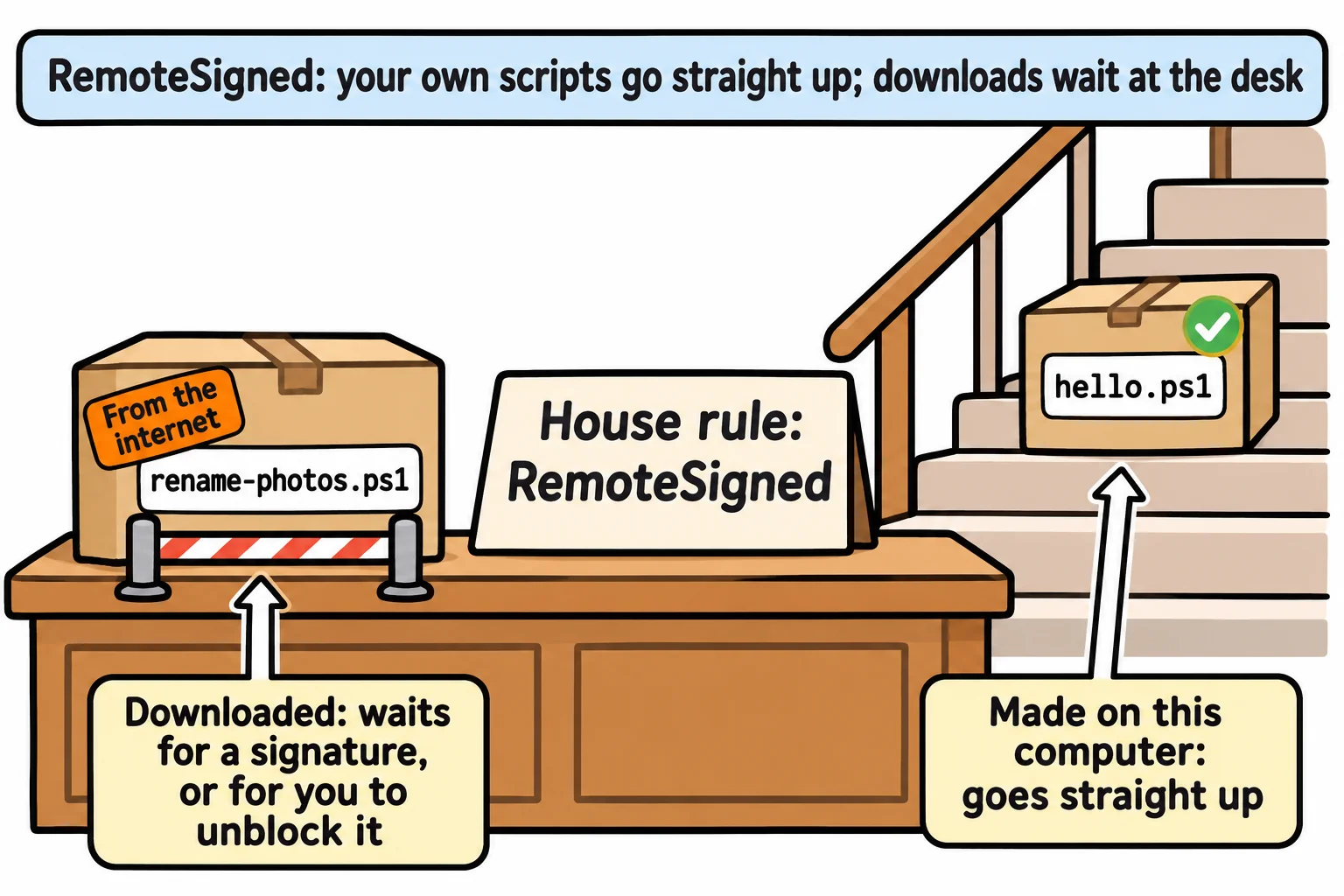
You can see Restricted without changing anything for good. -Scope Process means "this window only": close it, and the setting is gone.
Set-ExecutionPolicy -Scope Process -ExecutionPolicy Restricted
.\hello.ps1
.\hello.ps1: File C:\Users\Sam\terminal-practice\scripts\hello.ps1 cannot be loaded because running scripts is disabled on this system. For more information, see about_Execution_Policies at https://go.microsoft.com/fwlink/?LinkID=135170.
Who's in charge: Get-ExecutionPolicy -List
A policy can be set in five places, called scopes:
Get-ExecutionPolicy -List
        Scope ExecutionPolicy
        ----- ---------------
MachinePolicy       Undefined
   UserPolicy       Undefined
      Process      Restricted
  CurrentUser    RemoteSigned
 LocalMachine    RemoteSigned
Read from the top: the first scope that isn't Undefined wins, so here Process, this window, says Restricted. MachinePolicy and UserPolicy come from an organization's IT department, and on a work computer they overrule everything below them. CurrentUser is your account; LocalMachine is everyone on this PC. Close the window and open a new one to get back to normal.
PowerShell 7 on Windows comes with LocalMachine set to RemoteSigned, so your own scripts run from the start. On this PC CurrentUser was set earlier; on yours it may say Undefined. Windows PowerShell 5.1 keeps a policy of its own, and on most Windows 11 PCs it starts as Restricted.
If Get-ExecutionPolicy says Restricted in a new window, set RemoteSigned for your own account. Here's what this setting does before you change it: your own scripts run, and downloaded ones still need a signature or your OK.
Set-ExecutionPolicy -Scope CurrentUser RemoteSigned
PowerShell 7 prints nothing when it works; Windows PowerShell 5.1 asks you to confirm (type Y). No administrator window is needed. Leave out -Scope CurrentUser, though, and it tries to change the whole computer, which stops with Access is denied unless you're an administrator; the message suggests -Scope CurrentUser itself.
A download you trust: Unblock-File
When a browser saves a file, Windows adds a hidden label to it, from the internet: the Mark of the Web. Files unzipped from a downloaded ZIP get it too. These lines make a pretend download with the same label (ZoneId=3 means the internet):
Set-Content -Path .\rename-photos.ps1 -Value 'Write-Output "Ready to rename your photos. (This practice copy renames nothing.)"'
Set-Content -Path .\rename-photos.ps1 -Stream Zone.Identifier -Value '[ZoneTransfer]', 'ZoneId=3'
.\rename-photos.ps1
.\rename-photos.ps1: File C:\Users\Sam\terminal-practice\scripts\rename-photos.ps1 cannot be loaded. The file C:\Users\Sam\terminal-practice\scripts\rename-photos.ps1 is not digitally signed. You cannot run this script on the current system. For more information about running scripts and setting execution policy, see about_Execution_Policies at https://go.microsoft.com/fwlink/?LinkID=135170.
Not digitally signed is RemoteSigned asking: do you trust this file? Read it with Get-Content .\rename-photos.ps1 first. It only prints a line, so Unblock-File can remove the mark:
Unblock-File .\rename-photos.ps1
.\rename-photos.ps1
Ready to rename your photos. (This practice copy renames nothing.)
For a downloaded folder you've checked, such as an exercise, Get-ChildItem -Recurse | Unblock-File unblocks every file in it.
Never "turn it off"
Forums often say: run Set-ExecutionPolicy Unrestricted, or Bypass, and the error goes away. It does, and so does the check that stops a downloaded script running by accident. The policy is a seatbelt, not a lock: Microsoft says it isn't a security system, since anyone can type the same commands by hand, and it doesn't look for viruses. Keep the habits that cost nothing: RemoteSigned for you, read before you unblock, and -Scope Process for something one window needs.
On a Mac or Linux there's no policy to set: Get-ExecutionPolicy always says Unrestricted.
Try it in the terminal
Terminal Quest: The Clockwork Workshop, goals 1 to 2: played right on the lesson page.
Your turn: Ada's workshop computer runs no scripts at all. Check its policy, then get the kettle-bot running.
Check yourself
2 questions to try on the lesson page.
So what
Red text about running scripts isn't a dead end: read the policy, set RemoteSigned for yourself, read the script, and unblock what you trust.