Your Profile
Your profile is a script PowerShell runs every time it starts, at the path in $PROFILE, so the variables, short names and settings you put in it are ready in every window, and dot-sourcing it loads a change into the window you're in.
Apprentice · PowerShell · Updated
After this lesson you can
- Find your profile with $PROFILE, keep a copy first, and add lines that run in every new PowerShell window
- Load a script into your session by dot-sourcing it, and explain why running it without the dot forgets what it set
Key takeaways
- Your profile is a script that runs every time PowerShell starts.
$PROFILEholds its path, andTest-Path $PROFILEsays whether you have one yet. - Make it with
New-Itemonly when it doesn't exist yet. If it does, keep a copy withCopy-Itembefore you change it. - Running a script forgets what it set when it ends. Dot-sourcing, a dot and a space before the path, runs it in your session, so what it sets stays.
- After you change your profile,
. $PROFILEloads it into the window you're in. pwsh -NoProfilestarts PowerShell without your profile, for the day a line in it goes wrong.
Every morning you open PowerShell and type the same things: go to your project folder, set the variable you always use, maybe a short name or two. Close the window, and it's all gone; tomorrow you type it again. Tutorials have the answer in one line, "add this to your profile", and then never say what a profile is. It's the place your PowerShell setup lives, and this lesson shows you how to find it, change it safely and load it.
A script that runs when PowerShell starts
A café opens the same way every day: lights, coffee machine, the sign on the door, from a checklist taped by the counter. Your profile is PowerShell's opening checklist: a script that runs every time PowerShell starts, before your first prompt. Its path is in the variable $PROFILE:
$PROFILE
C:\Users\Sam\Documents\PowerShell\Microsoft.PowerShell_profile.ps1
If OneDrive backs up your Documents folder, the path has OneDrive in it: that's fine. A new computer has the path but not the file yet. Test-Path, from Is It There? Test-Path, checks:
Test-Path $PROFILE
False
Make it, or keep a copy first
If Test-Path said False, make the file. -Force also makes the PowerShell folder it goes in:
New-Item -ItemType File -Path $PROFILE -Force
    Directory: C:\Users\Sam\Documents\PowerShell

Mode                 LastWriteTime         Length Name
----                 -------------         ------ ----
-a---           11/9/2026  6:15 AM              0 Microsoft.PowerShell_profile.ps1
Run that only after a False: on a file that's already there, New-Item -Force empties it.
If Test-Path said True, an app or an old tutorial made one already. Keep a copy before you change anything, so one wrong line is quick to undo:
Copy-Item $PROFILE "$PROFILE.backup"
Now open it in an editor with edit $PROFILE (Editing in the Terminal: edit), add three lines at the end, save with Ctrl+S and quit with Ctrl+Q. Then look:
Get-Content $PROFILE
# My PowerShell profile: runs every time PowerShell starts.
$practice = "$HOME\terminal-practice"
Write-Output "Welcome back! Today is $(Get-Date -Format dddd)."
A line starting with # is a comment, a note for people that PowerShell skips. Open a new tab (Ctrl+Shift+T), and the welcome line greets you above the prompt, with $practice ready to use.
Run it here: dot-sourcing
The window you already had open doesn't know about the new lines yet. Here's why. When a script runs, it works in a room of its own, called its scope; when it ends, the room is cleared, along with every variable it made. A small settings script in the practice folder shows it:
Set-Location "$HOME\terminal-practice\scripts"
Set-Content -Path .\settings.ps1 -Value '$snackBudget = 25'
.\settings.ps1
$snackBudget
The script ran and set $snackBudget, then its room was cleared: the last line prints nothing. Now put a dot and a space in front:
. .\settings.ps1
$snackBudget
25
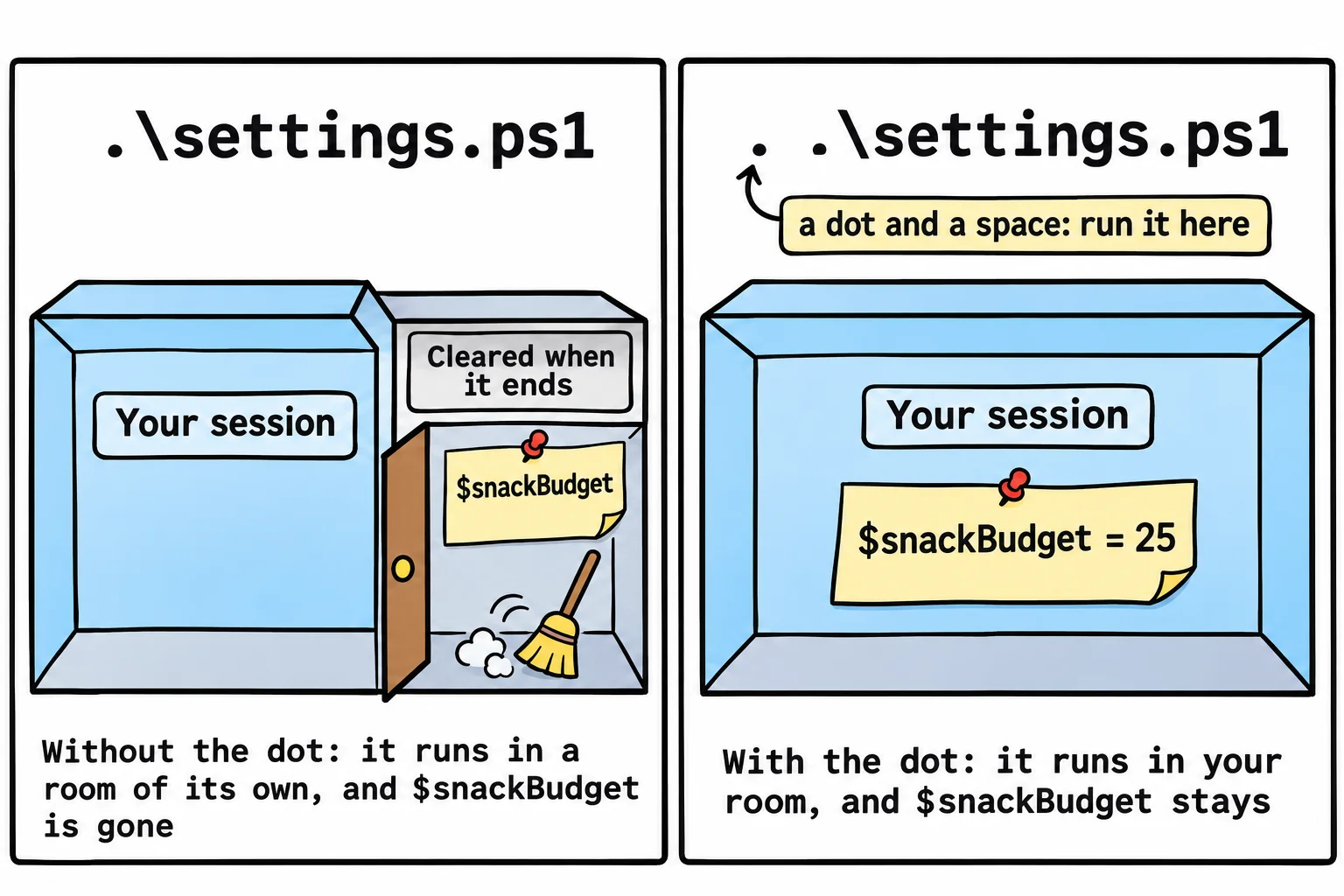
Read . .\settings.ps1 as "dot, space, then the path". That's dot-sourcing: run this script in my room, so what it sets stays. Your profile works the same way, so after you change it, load it into the window you're in:
. $PROFILE
$practice
Welcome back! Today is Monday.
C:\Users\Sam\terminal-practice
When the profile gets in the way
A profile is a script, so the execution policy from Why a Script Won't Run: The Execution Policy applies: if scripts can't run, PowerShell opens with a red cannot be loaded message where your welcome should be. And if a line you added breaks something, start PowerShell without the profile, then fix the line or copy your backup back:
pwsh -NoProfile
PowerShell 7.6.9
PS C:\Users\Sam>
That's a fresh session inside the window, with no profile loaded and no welcome line. Type exit to leave it.
Windows PowerShell 5.1 has a profile of its own, in Documents\WindowsPowerShell, and VS Code's PowerShell has one too: $PROFILE in each shows its path. On a Mac or Linux, it's ~/.config/powershell/Microsoft.PowerShell_profile.ps1.
Try it. Add a line of your own to your profile, such as $downloads = "$HOME\Downloads", then dot-source the profile and type Get-ChildItem $downloads.
Try it in the terminal
Terminal Quest: The Clockwork Workshop, goal 6: played right on the lesson page.
The gearbox needs settings that a plain run forgets. Load them into your own session, the way you load your profile.
Check yourself
2 questions to try on the lesson page.
So what
Anything you type every day can live in your profile: write it once, keep a copy, dot-source it, and every PowerShell window starts ready for you.