Finding Files: Get-ChildItem -Recurse
Get-ChildItem -Recurse looks in a folder and in every folder inside it, so -Filter finds a file by its name wherever it is, Where-Object finds files by size or date, and Select-String can then search the text inside them all.
Apprentice · PowerShell · Operating System · Updated
After this lesson you can
- Find a file by its name in a folder and every folder inside it with Get-ChildItem -Recurse and -Filter
- Find files by size or by date with Get-ChildItem -Recurse -File and Where-Object, using KB, MB and dates
Key takeaways
-RecursemakesGet-ChildItemlook in every folder below the one you name, however deep.-Filter '*budget*'keeps only the names that match, in every folder it visits.Where-Object Length -gt 100KBfinds big files, andWhere-Object LastWriteTime -ge '2026-10-01'recent ones.- Hidden files and folders are skipped unless you add
-Force. - Pipe the files into
Select-Stringto search the text inside every one of them.
You saved the club's budget last month. You're sure of that. But where? It isn't in Documents, and it isn't in Downloads. Clicking into folder after folder in File Explorer is how most people look, and with folders inside folders inside folders, it takes a while. Other days the question isn't a name at all: what's taking up the space on this laptop? What did I change this week? Get-ChildItem already lists a folder; with one more parameter it looks inside every folder below it too, and the filters you know find the file. An IT tech hunting for a lost document on someone's PC does exactly this, and so does a developer looking for a settings file somewhere in a big project.
A practice folder: the hiking club
You keep the files for a hiking club: meeting notes by year, photos, a member list, and a budget saved somewhere it shouldn't be. Copy these lines into PowerShell. The last three give every file a fixed date, so your results match the lesson's. Running them again is safe.
New-Item -ItemType Directory -Force -Path "$HOME\terminal-practice\hiking-club\2025\notes", "$HOME\terminal-practice\hiking-club\2026\notes", "$HOME\terminal-practice\hiking-club\2026\photos" | Out-Null
Set-Content -Path "$HOME\terminal-practice\hiking-club\members.txt" -Value 'Priya Shah', 'Marco Diaz', 'Jordan Lee', 'Ana Silva'
Set-Content -Path "$HOME\terminal-practice\hiking-club\2025\notes\2025-10-meeting.txt" -Value 'Hiking Club meeting, October 8, 2025', 'Present: 14 members', 'Next hike: Falls Trail, Saturday at 8:30 AM', 'Action: Priya brings the first-aid kit'
Set-Content -Path "$HOME\terminal-practice\hiking-club\2025\notes\2025-11-meeting.txt" -Value 'Hiking Club meeting, November 12, 2025', 'Present: 8 members', 'Treasurer: paid order TM-20931 (10 trail maps), $45.00', 'Action: Marco asks about renting a minibus'
Set-Content -Path "$HOME\terminal-practice\hiking-club\2026\notes\2026-09-meeting.txt" -Value 'Hiking Club meeting, September 9, 2026', 'Present: 9 members', 'Treasurer: paid order TS-30577 (12 club T-shirts), $96.00', 'Next hike: Lake Loop, Sunday at 9:30 AM', 'Action: Jordan asks the park about parking'
Set-Content -Path "$HOME\terminal-practice\hiking-club\2026\notes\2026-10-meeting.txt" -Value 'Hiking Club meeting, October 14, 2026', 'Present: 11 members', 'Treasurer: paid order TM-48213 (25 trail maps), $112.50', 'Next hike: Ridge Trail, Saturday at 8:00 AM', 'Action: Priya books the minibus', 'Action: Marco orders first-aid kits, order FA-1190'
Set-Content -Path "$HOME\terminal-practice\hiking-club\2026\photos\budget-2026.csv" -Value 'Item,Amount', 'Club T-shirts,96.00', 'Trail maps,112.50', 'Minibus,180.00'
Set-Content -Path "$HOME\terminal-practice\hiking-club\2026\photos\ridge-trail.jpg" -Value ('.' * 300KB)
Set-Content -Path "$HOME\terminal-practice\hiking-club\2026\photos\lake-loop.jpg" -Value ('.' * 150KB)
Set-Content -Path "$HOME\terminal-practice\hiking-club\2026\photos\group-shot.jpg" -Value ('.' * 40KB)
Get-ChildItem "$HOME\terminal-practice\hiking-club" -Recurse | Set-ItemProperty -Name LastWriteTime -Value '2025-11-20 21:00'
Get-ChildItem "$HOME\terminal-practice\hiking-club\2026" -Recurse | Set-ItemProperty -Name LastWriteTime -Value '2026-09-09 21:00'
Set-ItemProperty -Path "$HOME\terminal-practice\hiking-club\2026\notes\2026-10-meeting.txt", "$HOME\terminal-practice\hiking-club\2026\photos\budget-2026.csv" -Name LastWriteTime -Value '2026-10-14 21:00'
They print nothing when they work. The three photos are pretend ones, filled with dots to give them a size.
Every folder below: -Recurse
First, the way you know. -Filter keeps the names that match a wildcard, and '*budget*' (read "star budget star") means "budget, with anything before or after it":
Set-Location "$HOME\terminal-practice\hiking-club"
Get-ChildItem -Filter '*budget*'
Nothing. Get-ChildItem looked only in hiking-club itself, and the budget isn't there. Add -Recurse, and it looks in every folder inside, and every folder inside those:
Get-ChildItem -Recurse -Filter '*budget*'
    Directory: C:\Users\Sam\terminal-practice\hiking-club\2026\photos

Mode                 LastWriteTime         Length Name
----                 -------------         ------ ----
-a---          10/14/2026  9:00 PM             69 budget-2026.csv
There it is, saved among the photos. The Directory: line says where. To recurse means to do the same thing again, one level deeper, until there's nowhere deeper to go: list this folder, then each folder in it, then each folder in those.
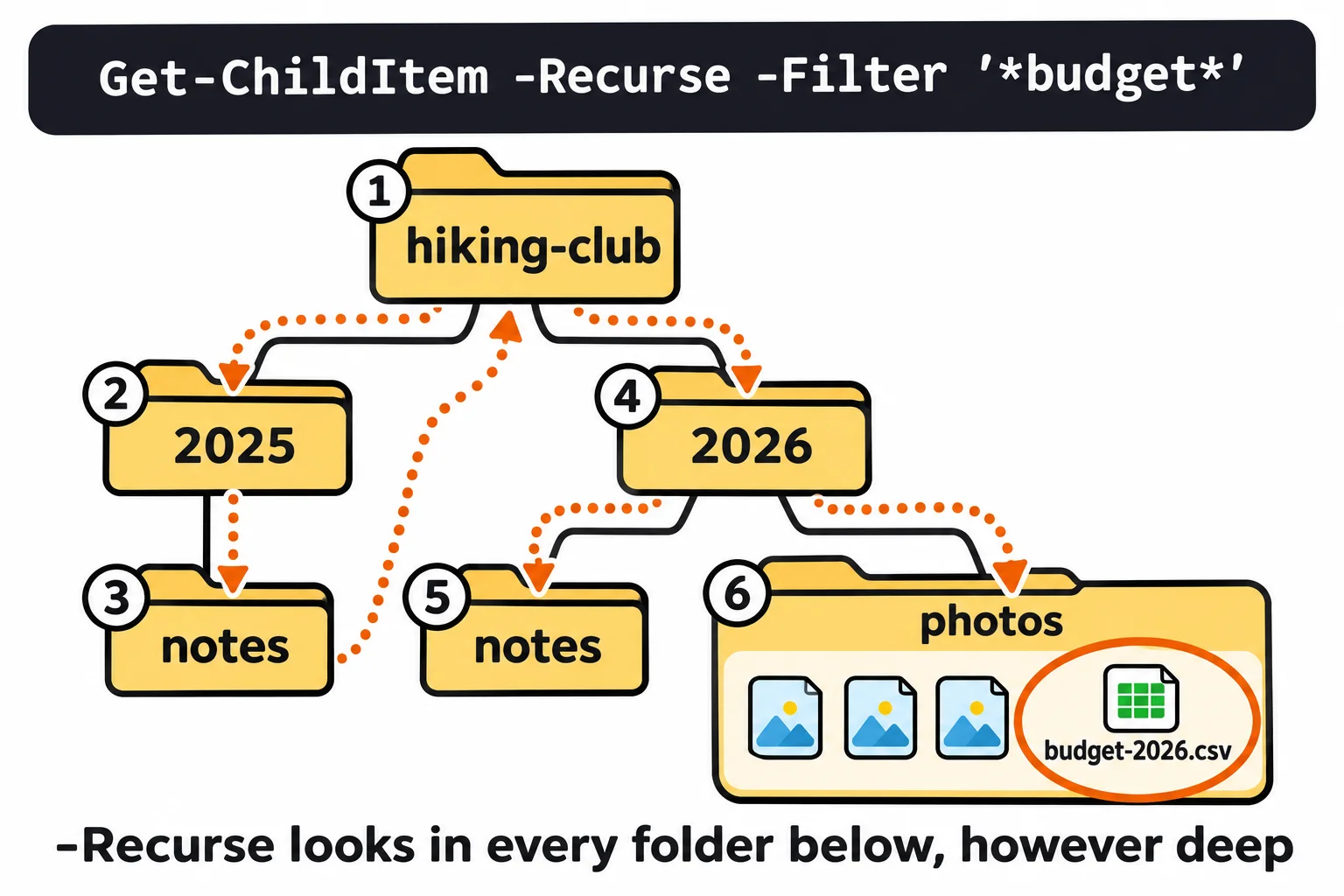
-Filter ignores capital letters on Windows, so '*BUDGET*' finds it too. -Recurse on its own, with no filter, lists everything below, one Directory: block per folder. Try it here; it's short.
By size or by date: Where-Object
When you don't know the name, ask about the facts instead. -File keeps only files, and Where-Object, from Filtering: Where-Object and Comparisons, keeps the ones whose property passes a test. What's taking up the space?
Get-ChildItem -Recurse -File | Where-Object Length -gt 100KB
    Directory: C:\Users\Sam\terminal-practice\hiking-club\2026\photos

Mode                 LastWriteTime         Length Name
----                 -------------         ------ ----
-a---            9/9/2026  9:00 PM         153602 lake-loop.jpg
-a---            9/9/2026  9:00 PM         307202 ridge-trail.jpg
-gt is read "greater than", and 100KB is read "a hundred kilobytes": PowerShell turns it into 102400 bytes for you. MB (megabytes) and GB (gigabytes) work the same way, so -gt 1GB finds the giant videos on a real drive.
What changed since the start of October? Compare LastWriteTime with a date, written year-month-day so it means the same on every computer:
Get-ChildItem -Recurse -File | Where-Object LastWriteTime -ge '2026-10-01'
    Directory: C:\Users\Sam\terminal-practice\hiking-club\2026\notes

Mode                 LastWriteTime         Length Name
----                 -------------         ------ ----
-a---          10/14/2026  9:00 PM            247 2026-10-meeting.txt

    Directory: C:\Users\Sam\terminal-practice\hiking-club\2026\photos

Mode                 LastWriteTime         Length Name
----                 -------------         ------ ----
-a---          10/14/2026  9:00 PM             69 budget-2026.csv
-ge is read "greater than or equal to": on or after October 1. On your own files, (Get-Date).AddDays(-7) in place of the date means "a week ago", whatever today is.
Hidden files, and the text inside
-Recurse skips hidden files, and it doesn't look inside hidden folders. Add -Force, as you did with a single folder in Looking Around: Get-ChildItem, to search those as well.
Last, put the two searches of this chapter together. Find the files, then hand them to Select-String to search the text inside every one. Who has mentioned the minibus?
Get-ChildItem -Recurse -Filter '*.txt' | Select-String minibus
2025\notes\2025-11-meeting.txt:4:Action: Marco asks about renting a minibus
2026\notes\2026-10-meeting.txt:5:Action: Priya books the minibus
Searching a big folder, such as your whole home folder, takes longer, and PowerShell may print a red message for a folder it isn't allowed to open, then carry on with the rest. On a Mac or Linux, paths use /, and hidden files are the ones whose names start with a dot; -Force finds them the same way. Windows PowerShell 5.1 gives the same results.
Try it. Find every .jpg under hiking-club that's smaller than 100KB. Then search your own Downloads folder for the files over 100MB.
Try it in the terminal
Terminal Quest: The Archive, goals 5 to 6: played right on the lesson page.
You know whose badge opened the map room. Now search the archive's maze of lockers for that person's, then look closely at what's inside.
Check yourself
2 questions to try on the lesson page.
So what
"Where did that file go?" has an answer in one line: -Recurse looks everywhere below, and a filter by name, size, date or the text inside picks out the file.