Patterns: Regular Expressions with -match
A regular expression describes the shape of the text you want, such as two letters, a dash and some digits, and -match tests text against it, $Matches holds what it found, and Select-String uses the same patterns across many files.
Journeyman · PowerShell · Operating System · Updated
After this lesson you can
- Build a regular expression a piece at a time from \d, +, [ ], ^ and $, and test text against it with -match
- Get the text a pattern matched, from $Matches after -match or from Select-String's Matches in many files
- Choose between Select-String, Get-ChildItem -Recurse, Where-Object and -match for a search job
Key takeaways
- A regular expression describes a shape of text:
\dis any digit,+is one or more,[A-Z]is any one letter A to Z. ^means "starts here" and$means "ends here"; together they test the whole text.-matchanswers True or False, and after a True,$Matches[0]holds the text that matched.-matchandSelect-Stringignore capital letters;-cmatchand-CaseSensitivedon't.- Write patterns in single quotes, so PowerShell leaves
$and\alone.
The hiking club's treasurer needs every order number from this year's meeting notes for the year-end report. The numbers are all different: TM-48213, TS-30577, FA-1190. You can't search for a word, because there isn't one word they share: "order" finds the lines, not the numbers. Reading the notes and copying each number by hand works until there are fifty. What the order numbers share is a shape: some letters, a dash, then some digits. A regular expression (often shortened to regex, read "REJ-ex") is a way to write a shape like that down. Nearly every programming language understands them, so the same patterns help you check that a form's phone number looks right, pull dates out of a log, or find every email address in an export.
This lesson uses the hiking-club folder from Finding Files: Get-ChildItem -Recurse. If you don't have it, run that lesson's practice-folder lines first.
Does it match? -match
-match (read "matches") is a comparison, like -eq: text on the left, a pattern on the right, and the answer is True or False. A plain word is a pattern too:
'paid order TM-48213' -match 'order'
'paid order TM-48213' -match 'invoice'
True
False
Write patterns in single quotes. Inside double quotes PowerShell reads $ as "the value of", and patterns use $ for something else.
A piece at a time
Build the order number's shape one piece at a time, testing as you go. After a True, PowerShell keeps the text that matched in $Matches[0] (read "dollar matches, zero"):
'paid order TM-48213' -match '\d'
$Matches[0]
True
4
\d (read "backslash D", or "a digit") means any one digit, 0 to 9. It found the first one, the 4. Add + (read "one or more"), which repeats the piece before it as many times as it can:
'paid order TM-48213' -match '\d+'
$Matches[0]
True
48213
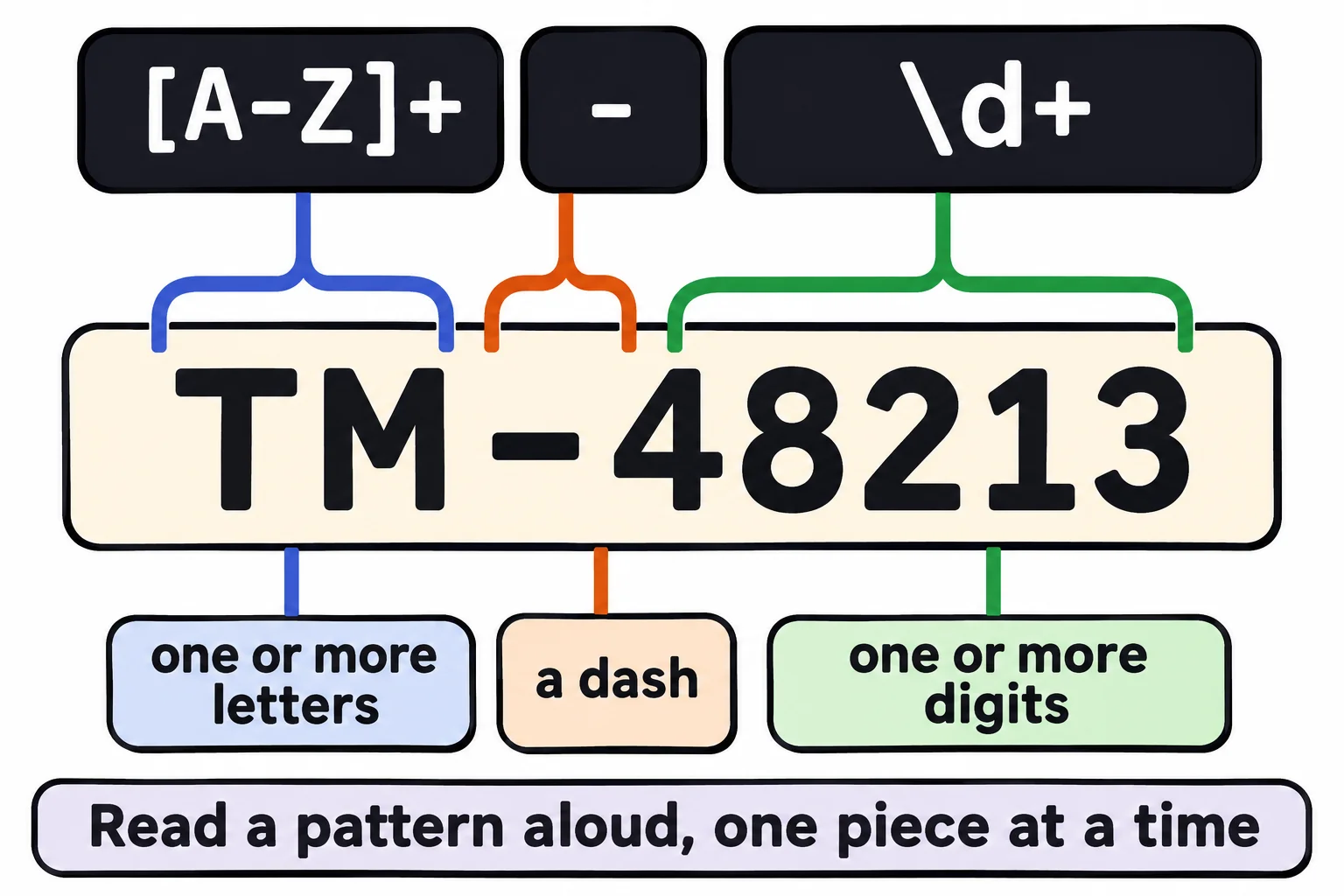
Now the letters and the dash. [A-Z] (read "any one letter from A to Z") is a character set: square brackets hold the characters allowed in that one spot. [A-Z]+ means one or more letters, and a - outside the brackets means a real dash:
'paid order TM-48213' -match '[A-Z]+-\d+'
$Matches[0]
True
TM-48213
The whole order number. Read the pattern aloud: "one or more letters, a dash, one or more digits".
| Piece | Read it as | Matches |
|---|---|---|
\d |
a digit | one of 0 to 9 |
+ |
one or more | the piece before it, repeated |
[A-Z] |
any one letter A to Z | one character from the set |
[0-5] |
any one digit 0 to 5 | one character from the set |
^ |
starts here | the start of the text |
$ |
ends here | the end of the text |
Three things to know. -match ignores capital letters, so [A-Z] matches tm too; use -cmatch (case-sensitive match) when capitals matter. A . in a pattern means any character at all, so write \. for a real dot, as in '112\.50'. And a False leaves $Matches as it was, still holding the last True's text, so read it only after a True.
Start and end: ^ and $
^ (read "caret") pins the pattern to the start of the text, and $ to the end. '^Action' finds only lines that begin with "Action". Used together, they test the whole text: is this a member number, all digits and nothing else?
'48213' -match '^\d+