Tables and Lists: Format-Table and Format-List
PowerShell shows each kind of object with a saved view of a few properties, Format-Table and Format-List show the ones you choose as a table or a list, Format-List * shows every one, and a Format- command goes last because what comes out of it is for the screen, not for other commands.
Apprentice · PowerShell · Updated
After this lesson you can
- Show objects as a table or a list with Format-Table and Format-List, and every property with Format-List *
- Choose between Get-Member, a dot, Select-Object and a Format- command for a job, putting a Format- command last
Key takeaways
- PowerShell keeps a saved view for each kind of object, which shows a few of its properties. The object still has all the others.
Format-Tableshows the properties you name as columns, andFormat-Listshows them one per line.Format-List *shows every property an object has: the whole card.- A Format- command turns objects into instructions for drawing the screen, so it goes last. Only
>orOut-Filemay follow it. - To pick properties and keep working with the objects, use Select-Object instead.
Get-Member says a file knows 17 things and a running program more than 50, yet Get-ChildItem shows four columns and Get-Process seven. Who chose those? And when a help-desk tech on the phone asks "what's the full path of the program that's misbehaving?", or a friend wants every detail about one photo, how do you see more? In File Explorer you'd switch the view between Details and Large icons, or open Properties. PowerShell has the same choice in two commands, plus one rule that saves a lot of confusion.
This lesson uses the vacation-photos folder from What an Object Is: Get-Member. If you don't have it, run that lesson's practice-folder lines first.
Why you see some properties and not others
Search a library's catalog and the results page shows a short entry for each book: the title, the author, whether it's in. Click one, and you get the full record. The book didn't change; the page chose how much to show you.
PowerShell does the same. For each kind of object it keeps a saved view, a layout that names a few useful properties. The object still carries every property Get-Member lists; the view picks what fits on the screen. A date shows one line, but it knows much more, and Format-List * shows all of it:
Get-Date
Get-Date | Format-List *
Monday, November 9, 2026 4:50:46 AM

DisplayHint : DateTime
DateTime    : Monday, November 9, 2026 4:50:46 AM
Date        : 11/9/2026 12:00:00 AM
Day         : 9
DayOfWeek   : Monday
DayOfYear   : 313
Hour        : 4
Kind        : Local
Millisecond : 802
Microsecond : 654
Nanosecond  : 600
Minute      : 50
Month       : 11
Second      : 46
Ticks       : 639297966468026546
TimeOfDay   : 04:50:46.8026546
Year        : 2026
* (read "star") means every property. Your date and time will be your own.
Views are why the same objects can look different. On a Mac or Linux, Get-ChildItem shows UnixMode, User, Group and a Size column, though the property behind it is still Length. In Windows PowerShell 5.1, Get-Process starts with a Handles column and shows memory in kilobytes. Same objects, different saved views.
Lists: Format-List
Format-List shows each object as a block, one property per line, which suits a few objects with many facts. Name the properties you want:
Get-Process -Id $PID | Format-List Name, Id, StartTime, Path
Name      : pwsh
Id        : 68044
StartTime : 11/9/2026 4:50:45 AM
Path      : C:\Program Files\PowerShell\7\pwsh.exe
Path is where the program lives on the disk: the answer to the help-desk question. With no names, Format-List uses the list view's own short set, and with *, every property, the way Properties in File Explorer shows a file's whole card.
Tables: Format-Table
Format-Table shows the properties you name as columns, one row per object, which suits many objects with a few facts each:
Get-ChildItem | Format-Table Name, Length, LastWriteTime
Name            Length LastWriteTime
----            ------ -------------
captions.txt        94 7/18/2026 9:40:00 PM
clock-tower.jpg   4210 7/18/2026 9:40:00 PM
falls.jpg         5180 7/18/2026 9:40:00 PM
sandcastle.jpg    2875 7/18/2026 9:40:00 PM
summit.jpg        3620 7/18/2026 9:40:00 PM
sunset.jpg        3150 7/18/2026 9:40:00 PM
That looks like Select-Object Name, Length, LastWriteTime from Picking Columns: Select-Object, and on the screen it is. The difference shows up as soon as anything comes after it.
Format last
Say you want those names and sizes in a file. Here's a reasonable first try, with Set-Content:
Get-ChildItem | Format-Table Name, Length | Set-Content ..\sizes.txt
Get-Content ..\sizes.txt
Microsoft.PowerShell.Commands.Internal.Format.FormatStartData
Microsoft.PowerShell.Commands.Internal.Format.GroupStartData
Microsoft.PowerShell.Commands.Internal.Format.FormatEntryData
Microsoft.PowerShell.Commands.Internal.Format.FormatEntryData
Microsoft.PowerShell.Commands.Internal.Format.FormatEntryData
Microsoft.PowerShell.Commands.Internal.Format.FormatEntryData
Microsoft.PowerShell.Commands.Internal.Format.FormatEntryData
Microsoft.PowerShell.Commands.Internal.Format.FormatEntryData
Microsoft.PowerShell.Commands.Internal.Format.GroupEndData
Microsoft.PowerShell.Commands.Internal.Format.FormatEndData
No names, no sizes. A Format- command doesn't pass the files on. It turns them into instructions for drawing a table on the screen (where a heading goes, what goes in each row), and those instructions are all that comes out of it. The files' properties are gone. Set-Content wrote down the names of the instructions.
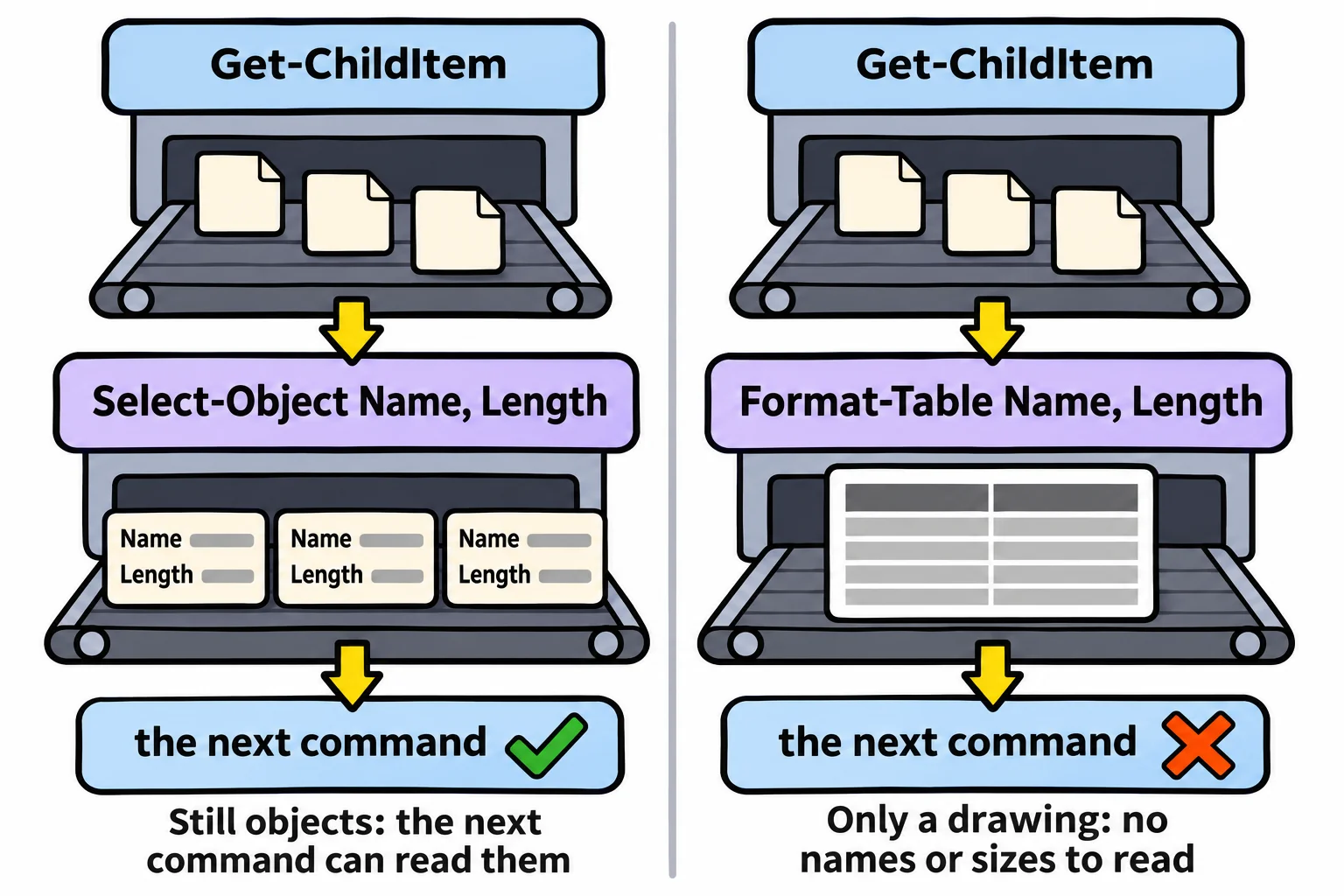
So the rule is format last. A Format- command is the end of the line, and only one thing may follow it: > or Out-File, which save exactly what the screen would show (Writing to Files: Set-Content, Add-Content and > met them). This version works:
Get-ChildItem | Format-Table Name, Length > ..\sizes.txt
Get-Content ..\sizes.txt
Name            Length
----            ------
captions.txt        94
clock-tower.jpg   4210
falls.jpg         5180
sandcastle.jpg    2875
summit.jpg        3620
sunset.jpg        3150
When the objects need to go on to another command (to be sorted, counted, or saved as a plain list), pick the properties with Select-Object instead. It hands on real objects, so everything after it still works.
That gives you four tools from this chapter, each for its own job:
Get-Memberto find out what an object knows: the names of its properties and methods.- A dot, as in
(Get-Item sunset.jpg).Length, for one fact about one object. Select-Objectto keep some facts, or some objects, and pass them on.Format-TableorFormat-Listto choose how the result looks on the screen, always last.
Try it. Run Get-Item sunset.jpg | Format-List *. Find FullName, BaseName and Directory. Then try Get-Process -Id $PID | Format-List *: how long is that card?
Check yourself
2 questions to try on the lesson page.
So what
The screen shows a view, never the whole object. Format-Table and Format-List choose the view for your eyes, at the very end; Select-Object chooses the facts that travel on.