Background Jobs and Parallel Work
Start-ThreadJob runs a script block in the background while you keep working, Get-Job shows its State, and Receive-Job hands over what it printed; ForEach-Object -Parallel does each item in its own runspace, -ThrottleLimit 4 at a time, which resizes 500 photos in a quarter of the time, with $using: to bring in a variable from outside.
Freelancer · PowerShell · Operating System · Updated
After this lesson you can
- Run a script block in the background with Start-ThreadJob, check it with Get-Job, and collect its output with Receive-Job
- Process many items at once with ForEach-Object -Parallel and -ThrottleLimit, bringing in outside variables with $using:
Key takeaways
- Start-ThreadJob { ... } runs a script block in the background and gives the prompt back at once. Get-Job shows each job's State: Running, Completed or Failed.
- Receive-Job hands over what a job printed, once. -Wait waits for it to finish first, and -AutoRemoveJob tidies the finished job away.
- ForEach-Object -Parallel -ThrottleLimit 4 works on four items at a time. Their lines come back in the order they finish, not the order they went in.
- A -Parallel block can't see your variables: write $using:name to bring one in.
- Parallel work pays off when each item takes a while and doesn't share a file with the others. For tiny jobs, starting the extra workers costs more than it saves.
Your hiking club needs the 500 photos from its summer trip on its website, each one made smaller first. A photo resizer takes a moment for every photo, and a moment times 500 is minutes. Run it the usual way and your PowerShell window is stuck for the whole time, while your computer, which has several processor cores, keeps all but one of them idle. Two fixes: send the work to the background and keep using your window, or do several photos at once. Administrators use the same two fixes to check a hundred PCs or copy a thousand files, and developers to download or test many things at once.
The stand-in, one at a time
Resizing for real needs an image tool installed. This lesson uses a stand-in that pretends: like a real resizer it takes a moment, longer for some photos than others, then it puts a copy in the small folder and says which photo it did. Make 500 empty pretend photos, named the way a camera names them, and the stand-in:
New-Item -ItemType Directory -Force -Path "$HOME\terminal-practice\photos\small" | Out-Null
Set-Location "$HOME\terminal-practice\photos"
1..500 | ForEach-Object { New-Item -ItemType File -Force -Name "IMG_$(1000 + $_).jpg" } | Out-Null
Set-Content -Path resize-photo.ps1 -Value '# resize-photo.ps1: a stand-in for a photo resizer. Like a real one, it takes a moment,', '# longer for some photos than others. It puts a copy in the small folder and says which photo it did.', 'param([string] $Path)', 'Start-Sleep -Milliseconds (Get-Random -Minimum 150 -Maximum 350)', 'Copy-Item -Path $Path -Destination "$PSScriptRoot\small"', '"Resized $(Split-Path -Path $Path -Leaf)"'
.\resize-photo.ps1 -Path .\IMG_1001.jpg
Resized IMG_1001.jpg
How long do 20 photos take, one after another? Measure-Command runs the script block in braces and times it:
(Measure-Command { Get-ChildItem -Filter *.jpg | Select-Object -First 20 | ForEach-Object { .\resize-photo.ps1 -Path $_.FullName } }).TotalSeconds
5.7694268
About a quarter of a second each, so all 500 would hold your window for two and a half minutes. Your times will differ a little; the stand-in picks a random time for each photo.
Into the background: Start-ThreadJob
A background job is work PowerShell does out of sight while the prompt stays yours, like dropping a bag at the dry cleaner's and picking it up later. Start-ThreadJob starts one from a script block. -Name gives it a name to ask for it by:
$job = Start-ThreadJob -Name resize -ScriptBlock { Get-ChildItem -Path "$HOME\terminal-practice\photos" -Filter *.jpg | ForEach-Object { & "$HOME\terminal-practice\photos\resize-photo.ps1" -Path $_.FullName } }
Get-Job
Id     Name            PSJobTypeName   State         HasMoreData     Location             Command
--     ----            -------------   -----         -----------     --------             -------
1      resize          ThreadJob       Running       False           PowerShell            Get-Chil.
The prompt is back at once. The job runs in a runspace of its own, a separate PowerShell inside the one you're using. It starts in this window's folder, but it can't see this window's variables. State says how it's going: Running, then Completed, or Failed. HasMoreData turns True once it has printed something you haven't collected. Receive-Job collects it; here only the last two lines, after ten seconds:
Receive-Job -Name resize | Select-Object -Last 2
Resized IMG_1036.jpg
Resized IMG_1037.jpg
Thirty-seven done, and the job carries on. Receive-Job hands each line over only once, so ask again later for the lines since. When you're ready to wait for the rest, add -Wait, and -AutoRemoveJob to tidy the job away once it's done:
Receive-Job -Name resize -Wait -AutoRemoveJob | Select-Object -Last 2
Resized IMG_1499.jpg
Resized IMG_1500.jpg
Get-Job now prints nothing: no jobs left. An error inside a job doesn't show up on your screen; it waits, like everything else, until you Receive-Job. Stop-Job stops a job you no longer want, and Remove-Job clears away a finished one.
Four at a time: ForEach-Object -Parallel
The job freed your window, but the photos still went one at a time. ForEach-Object -Parallel runs its script block for several items at once, each in its own runspace. -ThrottleLimit says how many at a time; 4 is a sensible start on most laptops, and 5 is what you get if you leave it out. Because each runspace starts empty, your variables don't reach it unless you say so: $using: in front of a name (read "using the value of") brings one in:
$resizer = "$HOME\terminal-practice\photos\resize-photo.ps1"
Get-ChildItem -Filter *.jpg | Select-Object -First 8 | ForEach-Object -Parallel { & $using:resizer -Path $_.FullName } -ThrottleLimit 4
Resized IMG_1004.jpg
Resized IMG_1002.jpg
Resized IMG_1003.jpg
Resized IMG_1001.jpg
Resized IMG_1007.jpg
Resized IMG_1005.jpg
Resized IMG_1008.jpg
Resized IMG_1006.jpg
Each line comes back as its photo finishes, so the order is mixed; yours will be mixed differently. Leave out using: and the block gets an empty $resizer: the error says the expression after & produced an object that was not valid. Now the same 20 photos as before, timed:
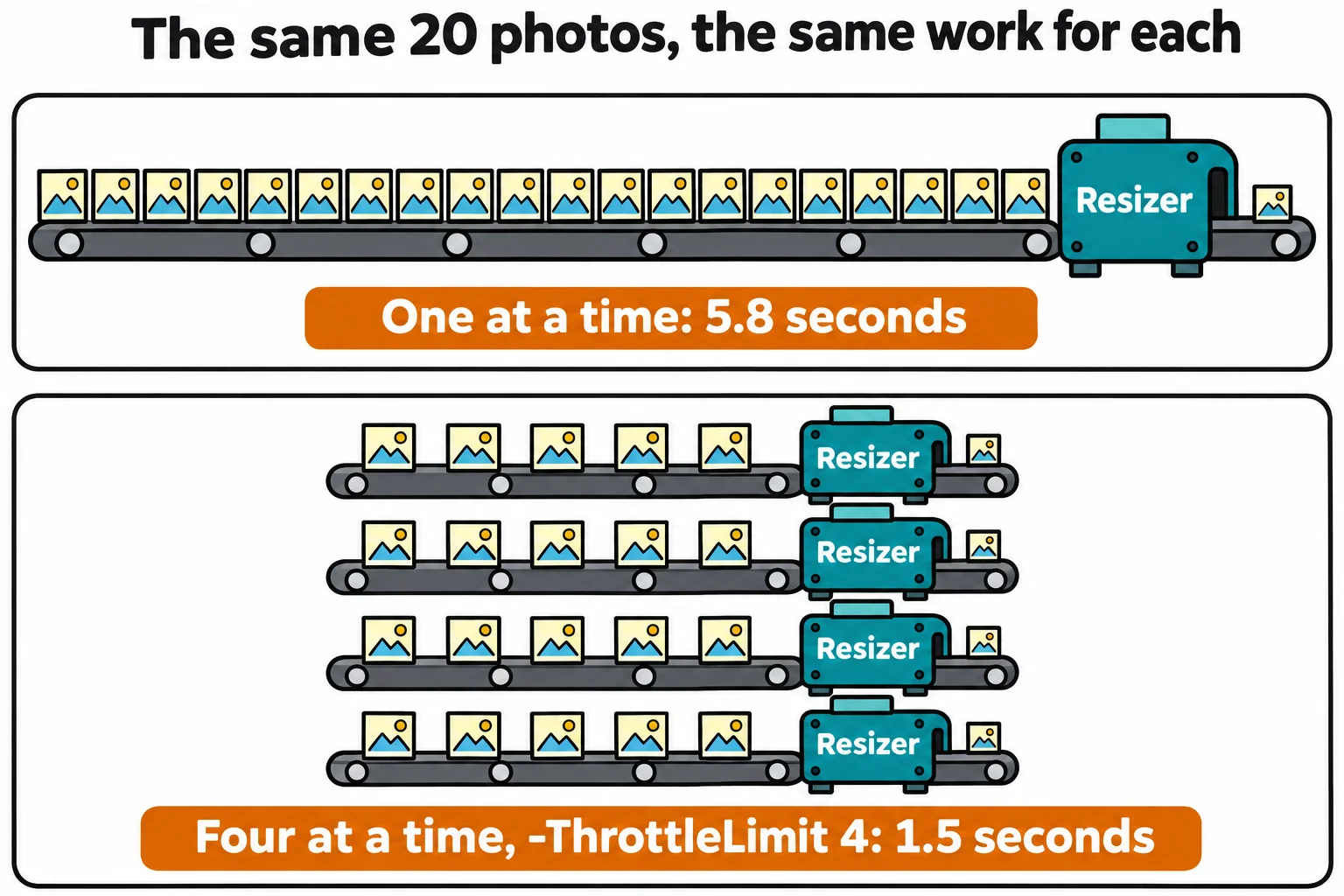
(Measure-Command { Get-ChildItem -Filter *.jpg | Select-Object -First 20 | ForEach-Object -Parallel { & $using:resizer -Path $_.FullName } -ThrottleLimit 4 }).TotalSeconds
1.4704839
From 5.8 seconds to 1.5: about four times faster, because four photos were in progress at every moment.
All 500 photos took 34 seconds this way, instead of two and a half minutes. Add -AsJob to the end, and the whole parallel run becomes one background job, so you get both: four at a time, and your prompt back.
Which one, when
| You want | Use |
|---|---|
| your prompt back while one long task runs | Start-ThreadJob, then Receive-Job -Wait |
| many separate items done sooner, and you'll wait | ForEach-Object -Parallel -ThrottleLimit 4 |
| both | ForEach-Object -Parallel ... -AsJob |
Parallel pays off when each item takes a while, waiting for a disk, a network or a tool, and no two items write to the same file. When each item is tiny, starting the extra runspaces costs more than it saves, and a plain ForEach-Object wins. You'll also meet Start-Job, which starts a whole new PowerShell process for each job: slower to start, but kept fully apart from your window.
Start-ThreadJob and -Parallel work the same on a Mac or Linux. Windows PowerShell 5.1 has neither built in: it has Start-Job, and a plain ForEach-Object.
Check yourself
2 questions to try on the lesson page.
So what
When work is slow, you don't have to sit and watch it: a background job gives your window back, and -Parallel puts the computer's other cores to work, so 500 photos take seconds instead of minutes.