Keyboard Shortcuts at the Prompt
Home and End jump to either end of the command line, Ctrl+Left and Ctrl+Right move a word at a time, Ctrl+Backspace deletes a word, Ctrl+Z undoes an edit, Esc clears the line, and Ctrl+Space shows every choice that fits where you're typing.
Apprentice · PowerShell · Updated
After this lesson you can
- Move along a command line with Home, End, Ctrl+Left and Ctrl+Right
- Fix a command line with Ctrl+Backspace, Ctrl+Z and Esc, and see every choice with Ctrl+Space
Key takeaways
- Home and End jump to the start and the end of the line, so a fix at the far end of a long command takes one key.
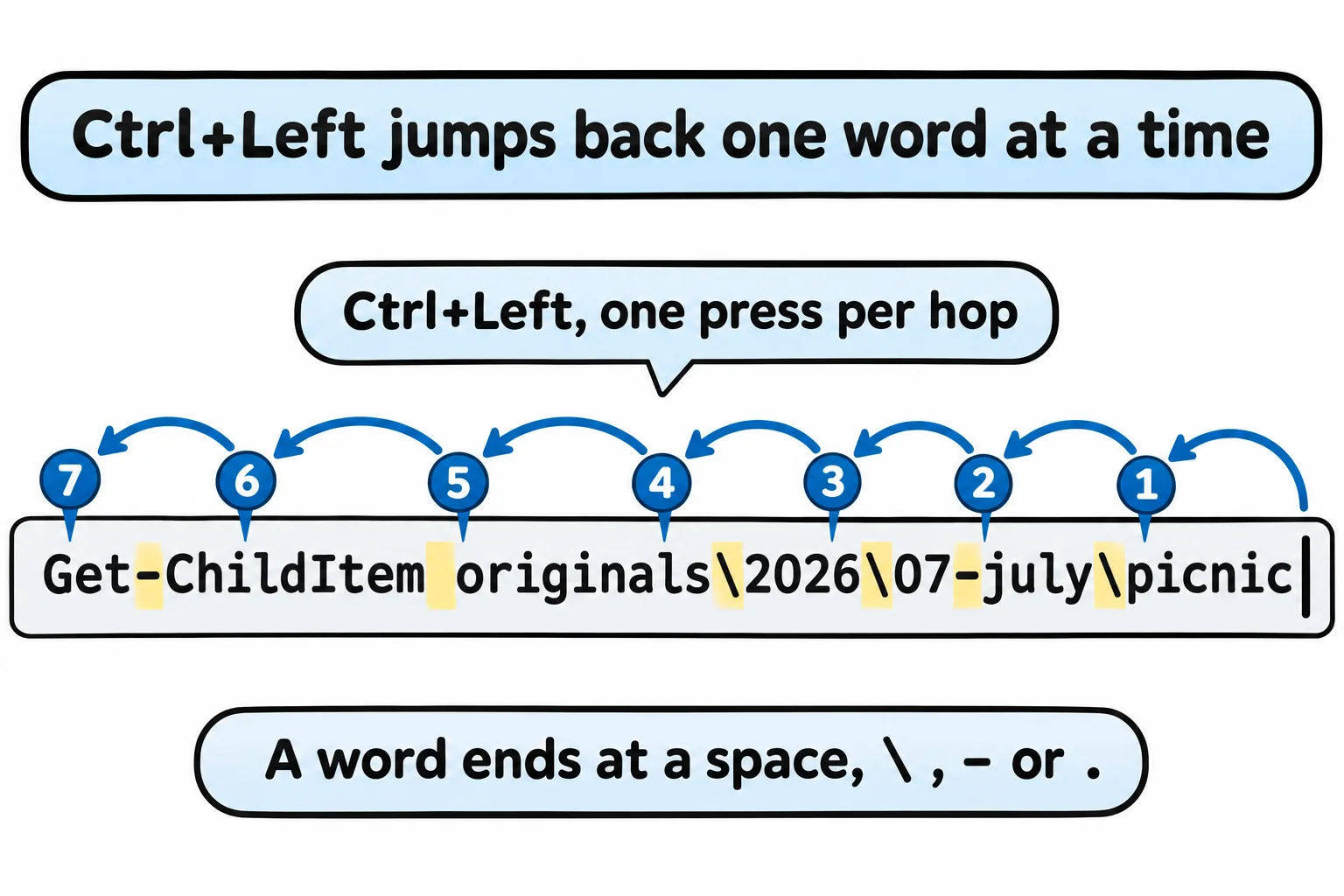
- Ctrl+Left and Ctrl+Right move a word at a time. A word ends at a space or at , - or ., so each folder in a path is a word.
- Ctrl+Backspace deletes the word before the cursor, and Ctrl+Z undoes your edits one at a time.
- Esc throws the whole line away. Ctrl+Space shows every folder, file or parameter that fits where you're typing.
- On a Mac or Linux, Set-PSReadLineOption -EditMode Windows turns these keys on for that window.
Grandma turns 80 this fall, and you're making her a photo book. The photos sit four folders deep, so every command is long: the line that copies one picnic photo for editing is 97 characters. Then you spot a mistake near the start. Hold the left arrow and the cursor crawls back a letter at a time; hold Backspace and it eats the good parts too. People who spend their day at the prompt, such as a help-desk tech fixing a PC remotely or a developer on a web server, don't crawl: a handful of keys jump to either end, move a word at a time and delete a word at once. They come from PSReadLine, the part of PowerShell 7 that reads what you type (Your Command History).
The practice folder: a photo book
This chapter's lessons share one project: Grandma's photo book, with the originals sorted by year, month and event, the edited copies beside them, and folders for the book and a backup. The photos are empty files with photo names, which is all the keys need. Copy these lines into PowerShell. Running them again is safe.
$book = "$HOME\terminal-practice\photo-book"
'originals\2026\07-july\picnic\IMG_0712.jpg', 'originals\2026\07-july\picnic\IMG_0713.jpg', 'originals\2026\07-july\picnic\IMG_0714.jpg',
    'originals\2026\07-july\lake\IMG_0730.jpg', 'originals\2026\07-july\lake\IMG_0731.jpg',
    'originals\2026\08-august\birthday\IMG_0815.jpg', 'originals\2026\08-august\birthday\IMG_0816.jpg', 'originals\2026\08-august\birthday\IMG_0817.jpg',
    'edited\2026\07-july\picnic\IMG_0712-edit.jpg', 'edited\2026\08-august\birthday\IMG_0815-edit.jpg', 'edited\2026\08-august\birthday\IMG_0817-edit.jpg' |
    ForEach-Object { New-Item -ItemType File -Force -Path "$book\$_" } | Out-Null
New-Item -ItemType Directory -Force -Path "$book\book\pages", "$book\backup" | Out-Null
Set-Content -Path "$book\notes.txt" -Value 'Photo book for Grandma''s 80th birthday', 'Edited so far: IMG_0712, IMG_0815, IMG_0817', 'Still to edit: IMG_0713 (picnic), IMG_0730 (lake)'
Set-Location $book
They print nothing when they work, and leave you in the photo-book folder.
Both ends: Home and End
Home jumps to the start of the line and End to the end, as they do in a document. How many birthday photos are there? Type this, and don't press Enter yet:
Get-ChildItem originals\2026\08-august\birthday
A list of files has a Count, the number of things in it, and parentheses with a dot read one property (Properties and Methods). Press Home and type (, then press End and type ).Count. Now press Enter:
(Get-ChildItem originals\2026\08-august\birthday).Count
3
Wherever the cursor is, Enter runs the whole line. On many laptops, Home and End are Fn with the left and right arrows.
A word at a time: Ctrl+Left and Ctrl+Right
In between, move a word at a time. Ctrl+Left (hold Ctrl, press the left arrow) jumps back to the start of a word, and Ctrl+Right forward to the start of the next. For PSReadLine, a word ends at a space and at punctuation such as \, - and .. In a path, each folder is a word, and 07-july is two: 07 and july.
Forget the month in a path, and PowerShell says so:
Get-ChildItem originals\2026\picnic
Get-ChildItem: Cannot find path 'C:\Users\Sam\terminal-practice\photo-book\originals\2026\picnic' because it does not exist.
Press the up arrow to bring the line back, then Ctrl+Left once: the cursor jumps to the start of picnic. Type 07-july\ right there, and press Enter:
Get-ChildItem originals\2026\07-july\picnic
    Directory: C:\Users\Sam\terminal-practice\photo-book\originals\2026\07-july\picnic

Mode                 LastWriteTime         Length Name
----                 -------------         ------ ----
-a---           8/20/2026  7:30 PM              0 IMG_0712.jpg
-a---           8/20/2026  7:30 PM              0 IMG_0713.jpg
-a---           8/20/2026  7:30 PM              0 IMG_0714.jpg
Your dates will be the day you made the files.
Delete, undo, start over: Ctrl+Backspace, Ctrl+Z and Esc
Rehearse the picnic copy with -WhatIf first (Copy and Move: Copy-Item and Move-Item):
Copy-Item originals\2026\07-july\picnic\IMG_0713.jpg edited\2026\07-july\picnic\IMG_0713-edit.jpg -WhatIf
What if: Performing the operation "Copy File" on target "Item: C:\Users\Sam\terminal-practice\photo-book\originals\2026\07-july\picnic\IMG_0713.jpg Destination: C:\Users\Sam\terminal-practice\photo-book\edited\2026\07-july\picnic\IMG_0713-edit.jpg".
That's the copy you meant. Press the up arrow, then Ctrl+Backspace: it deletes the word before the cursor, WhatIf, in one press. The dash is a word of its own, so press Backspace once for it; the space left at the end does no harm. Press Enter, and the copy is made, with nothing printed.
Pressed Ctrl+Backspace twice by mistake? The second press takes jpg - too, leaving the line ending in IMG_0713-edit.. Ctrl+Z undoes your last edit, the way it does in a document, and each press undoes one more:
Copy-Item originals\2026\07-july\picnic\IMG_0713.jpg edited\2026\07-july\picnic\IMG_0713-edit.jpg -
Ctrl+Backspace works wherever the cursor is. To list the edited picnic photos instead of the originals, bring back Get-ChildItem originals\2026\07-july\picnic, press Home, then Ctrl+Right three times to land on 2026. Ctrl+Backspace deletes originals\; type edited\, and the line is Get-ChildItem edited\2026\07-july\picnic.
Changed your mind about the whole line? Esc throws it away. Nothing you already ran is lost: your history still has it.
Every choice at once: Ctrl+Space
Tab fills in one name at a time (Moving Around: Set-Location, .. and Tab), and in Parameters, Values and Switches Ctrl+Space showed a command's parameters as a menu. Ctrl+Space works for folders and files too. Type Get-ChildItem originals\2026\07-july\ and press Ctrl+Space: a menu under the prompt shows lake and picnic. Pick one with the arrow keys and press Enter to put it on the line, as .\originals\2026\07-july\picnic (.\ is "in the folder I'm in", as with Tab). When only one name fits, Ctrl+Space fills it in, as Tab does.
On a Mac or Linux, PSReadLine starts with a different set of keys (its Emacs mode), where Home, End and Ctrl+Space work but Ctrl+Left, Ctrl+Right, Ctrl+Backspace, Ctrl+Z and Esc don't do what this lesson says. Set-PSReadLineOption -EditMode Windows switches to this lesson's keys for that window, and Your Profile shows how to keep it. A Mac may also keep Ctrl+Left and Ctrl+Right for switching desktops. Windows PowerShell 5.1 has every key in this lesson.
Try it. Bring back the Copy-Item line with the up arrow, and turn it into the copy for IMG_0714 without retyping a path: Ctrl+Left to get close to each 0713, Backspace or Ctrl+Backspace to remove it, then type the new number. Count your keystrokes, then count the 97 characters you didn't type.
Check yourself
2 questions to try on the lesson page.
So what
Home, End, Ctrl+Left, Ctrl+Right, Ctrl+Backspace, Ctrl+Z and Esc turn fixing a long command from a crawl into a few keystrokes. Pick two to use this week, and add another next week.