Shortcuts to Files: Symbolic Links and Junctions
A link is a signpost to a real file or folder that every program follows; a junction links to a folder with no special rights, while a symbolic link can also point at a file but needs administrator rights or Developer Mode on Windows.
Journeyman · PowerShell · Operating System · Updated
After this lesson you can
- Make a junction to a folder with New-Item -ItemType Junction, and spot a link in Get-ChildItem's output
- Choose between a zip, a copy, a junction and a symbolic link for a job, and say why Windows limits symbolic links
Key takeaways
- A link is a second name for a real file or folder, and every program follows it. A desktop shortcut only works in File Explorer.
New-Item -ItemType Junction -Path <link> -Target <folder>links to a folder with no administrator. The target must be a full path.- A symbolic link can point at a file or a folder, but Windows lets you make one only as administrator or with Developer Mode on.
- In
Get-ChildItem, a link haslin its Mode and->before what it points at. Removing a link leaves the real folder alone.
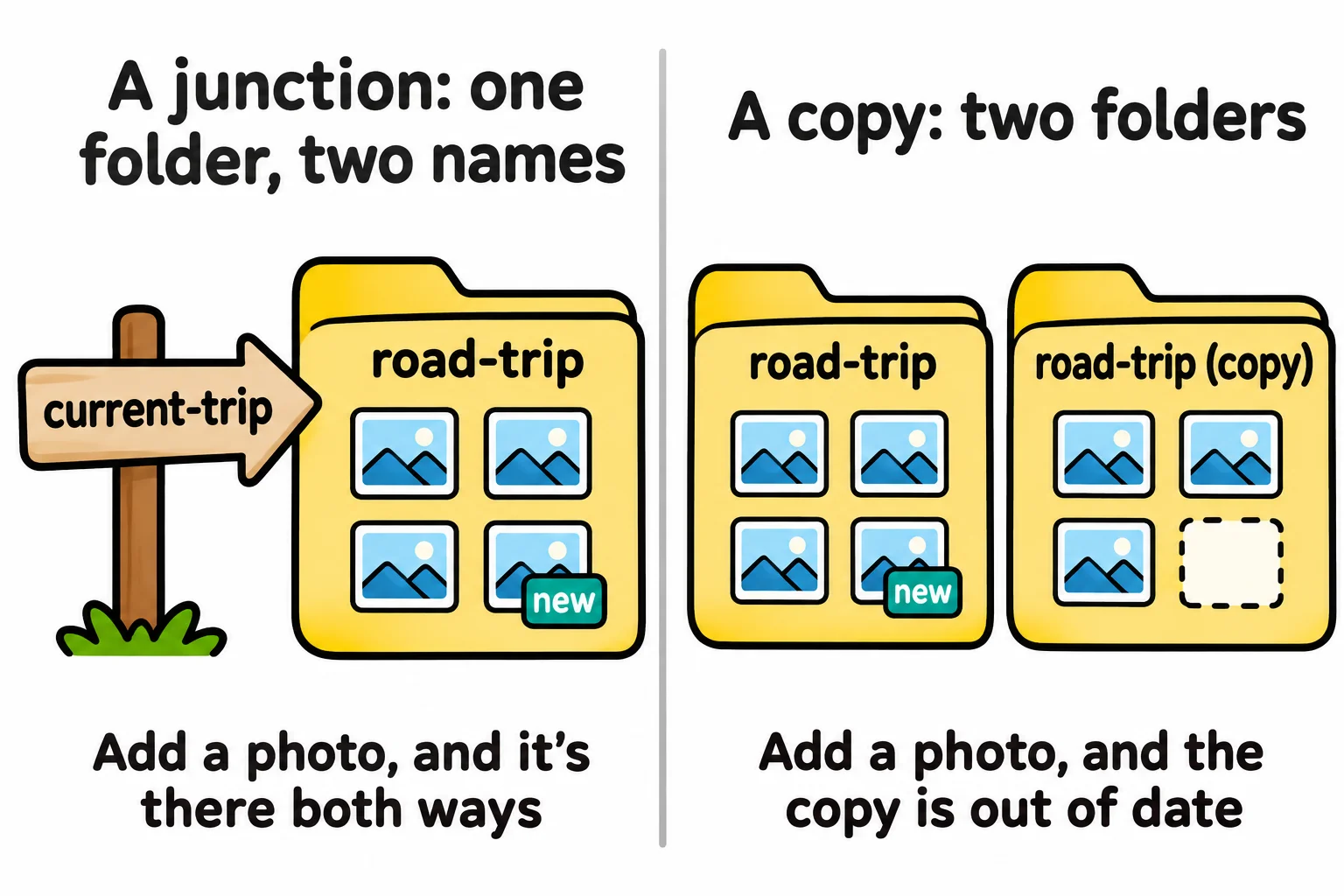
Your backup app saves one folder every night, but this trip's photos live somewhere else. A game keeps its saves in Documents, and you'd rather they lived on your bigger drive. Each time, a program wants a folder in one place, and the real folder is in another. You could copy it, but then there are two, and the moment you add a photo to one, they stop matching. A desktop shortcut won't do it either: File Explorer follows a shortcut when you double-click, but every other program, PowerShell included, sees only a small file ending in .lnk. What you need is a signpost that every program follows. IT help-desk techs use one to move a full folder to a bigger drive without breaking the programs that use it, and developers use them to share one settings file between projects.
A signpost, not a copy
A link is a name in one folder that points to a real file or folder somewhere else. Open the link and you're in the real thing; save a file through the link and it lands in the real folder. Nothing is copied, so there's nothing to drift apart. Windows has two kinds you'll use: junctions and symbolic links.
This lesson uses the road-trip folder from Many Files as One: Compress-Archive and Expand-Archive.
A junction: a link to a folder
Say you plan a trip a year. You'd like one name, current-trip, that always means the trip you're packing for now, so the commands you type every day never change. A junction is that name. New-Item makes it, with -Target (read "target": what it points at):
New-Item -ItemType Junction -Path "$HOME\terminal-practice\current-trip" -Target "$HOME\terminal-practice\road-trip"
    Directory: C:\Users\Sam\terminal-practice

Mode                 LastWriteTime         Length Name
----                 -------------         ------ ----
l----           11/9/2026  4:01 AM                current-trip -> C:\Users\Sam\terminal-practice\road-trip
Two new things in the row: l in the Mode column means a link, and -> (read "points to") shows where it leads. Go through it, and you're in road-trip:
Get-ChildItem "$HOME\terminal-practice\current-trip\documents"
Set-Content -Path "$HOME\terminal-practice\current-trip\documents\weather.txt" -Value 'Sunny, with rain on Sunday.'
Test-Path "$HOME\terminal-practice\road-trip\documents\weather.txt"
    Directory: C:\Users\Sam\terminal-practice\current-trip\documents

Mode                 LastWriteTime         Length Name
----                 -------------         ------ ----
-a---           8/14/2026  7:30 PM             60 campsite.txt
-a---           8/14/2026  7:30 PM             58 packing-list.txt

True
The weather note was written through the link and landed in the real folder. Next year, point current-trip at the new trip by running the same line with the new folder and -Force.
A junction links folders only, on this computer's own drives, and anyone can make one. Its target must be a full path: with -Target road-trip, PowerShell answers Creating a junction requires an absolute path for the target.
Symbolic links, and why Windows asks first
A symbolic link (people say "symlink") is the more flexible signpost: it can point at a file as well as a folder, or at a shared folder on another computer. This line makes one for the packing list:
New-Item -ItemType SymbolicLink -Path "$HOME\terminal-practice\packing-list.txt" -Target "$HOME\terminal-practice\road-trip\documents\packing-list.txt"
On most Windows computers, PowerShell stops with a red message: New-Item: Administrator privilege required for this operation. That's Windows protecting you. A link quietly sends a program somewhere else, and a program with more rights than you could be pointed at a file you shouldn't be able to touch. So, out of the box, making symbolic links is a right only an administrator has. Junctions are older and can only reach folders on this computer, so Windows lets everyone make them.
There are two ways to get the right, and both are your choice to make:
- Developer Mode, a Windows setting for people who write software: open Settings, search for Developer Mode and turn it on. It lets your own account make symbolic links, and it relaxes a few other protections meant for app developers (Settings says it lets you install apps from any source, including loose files), so turn it on only on a computer that's yours. On a work computer, it may be locked.
- Run as administrator: right-click Windows Terminal and choose Run as administrator. That's fine for one link, but not as a habit, because everything you type in that window can change anything on the computer.
With Developer Mode on, the same line works:
    Directory: C:\Users\Sam\terminal-practice

Mode                 LastWriteTime         Length Name
----                 -------------         ------ ----
la---           11/9/2026  4:01 AM              0 packing-list.txt -> C:\Users\Sam\terminal-practice\road-trip\documents\packing-list.txt
On a Mac or Linux, anyone can make a symbolic link with the same line, and there are no junctions.
Removing a link, and choosing one
Remove-Item on a link removes the signpost and nothing else:
Remove-Item "$HOME\terminal-practice\current-trip"
Test-Path "$HOME\terminal-practice\current-trip"
Test-Path "$HOME\terminal-practice\road-trip\documents\weather.txt"
False
True
One surprise in PowerShell 7.6: on a link to a folder, -WhatIf doesn't stop at a rehearsal, it really removes the link. Your real folder stays safe either way, but look with Get-ChildItem first, and remove a link only when you mean it. In Windows PowerShell 5.1, Remove-Item on a junction fails with Object reference not set to an instance of an object; there, cmd /c rmdir current-trip removes the link and leaves the real folder alone.
Which one fits?
- Send or keep a folder as one file: a zip.
- Two folders that should change separately: a copy, with
Copy-Item. - One folder, reachable from a second place: a junction.
- One file, reachable from a second place, or any link on a Mac or Linux: a symbolic link.
Try it. Make the current-trip junction again, add a file through it, then find that file in road-trip with Get-ChildItem.
Check yourself
2 questions to try on the lesson page.
So what
A link lets one real folder live in two places at once, with nothing copied and nothing to keep in step. When a program insists on a folder where yours isn't, a junction is the signpost that sends it there.