Many Files as One: Compress-Archive and Expand-Archive
Compress-Archive packs a folder or a few files into one zip file you can send or keep, and Expand-Archive unpacks a zip into a folder, replacing nothing that's already there unless you ask it to.
Apprentice · PowerShell · Operating System · Updated
After this lesson you can
- Pack a folder or files into one zip file with Compress-Archive
- Unpack a zip into a folder with Expand-Archive, and use -Update or -Force when the zip or its files are already there
Key takeaways
- A zip file holds many files and folders in one file, often smaller, that you can attach, upload or keep.
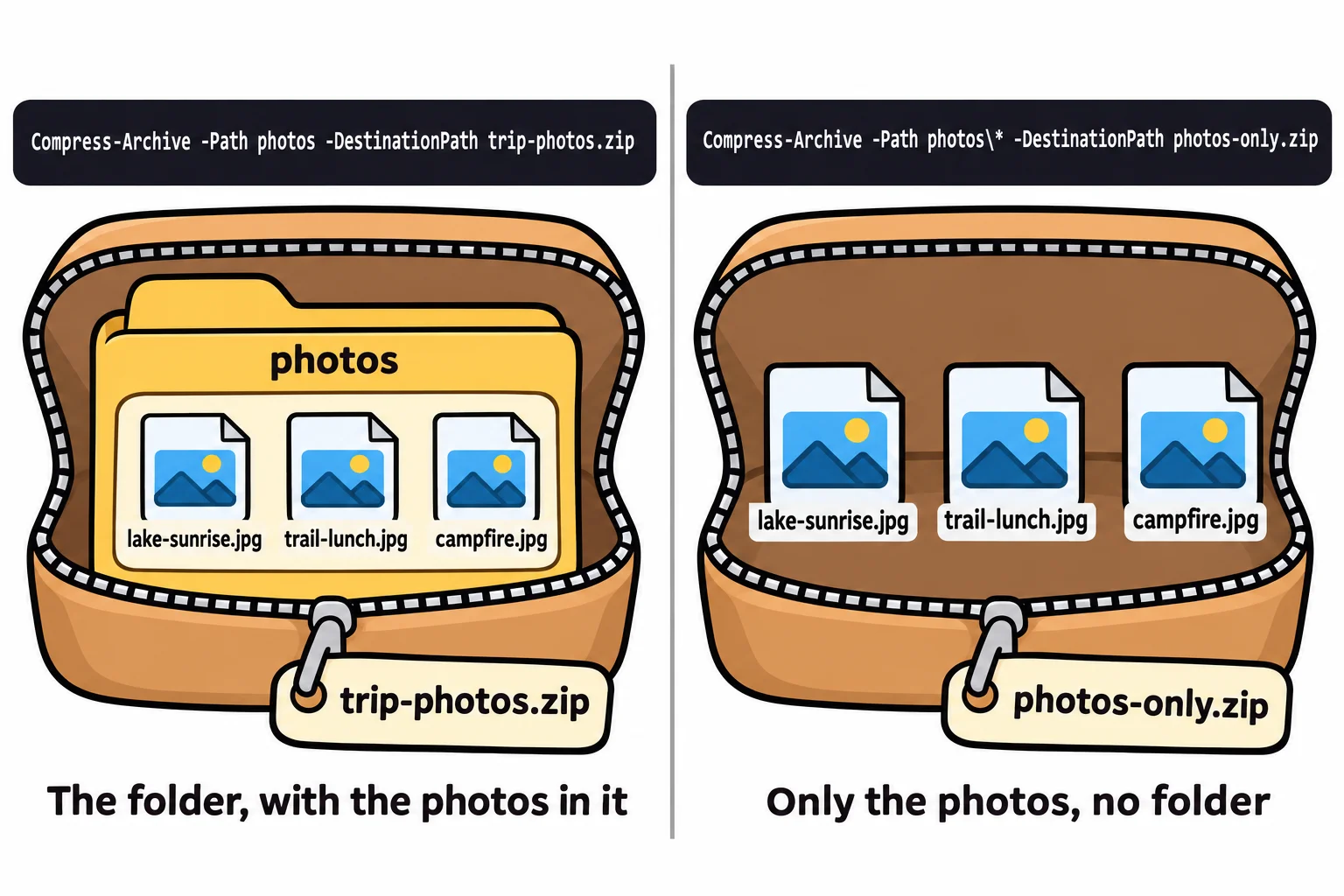
Compress-Archive -Path photos -DestinationPath trip-photos.zippacks the photos folder. Withphotos\*, the zip holds only what's inside it.Expand-Archive -Path trip-photos.zip -DestinationPath from-the-zipunpacks a zip, and makes the folder if it isn't there yet.- Neither command replaces what's already there unless you add
-Updateor-Force.
A friend asks for the photos from last weekend's camping trip. There are forty of them, in one folder, and the chat app takes one file at a time. Or a class says "hand in your project folder as one file", or a web host wants your whole site uploaded as a single package. Picking forty files by hand is slow, and sooner or later one gets missed. People everywhere solve this the same way: they send a zip file, one file that holds a whole folder, the way a suitcase holds everything you're taking on a trip.
A practice folder for the trip
This chapter packs for a weekend at a lake. Copy these lines into PowerShell to make a road-trip folder with three pretend photos (empty files with photo names) and two notes. Running them again is safe.
New-Item -ItemType Directory -Force -Path "$HOME\terminal-practice\road-trip\photos", "$HOME\terminal-practice\road-trip\documents" | Out-Null
New-Item -ItemType File -Force -Path "$HOME\terminal-practice\road-trip\photos\lake-sunrise.jpg", "$HOME\terminal-practice\road-trip\photos\trail-lunch.jpg", "$HOME\terminal-practice\road-trip\photos\campfire.jpg" | Out-Null
Set-Content -Path "$HOME\terminal-practice\road-trip\documents\packing-list.txt" -Value 'Tent', 'Sleeping bag', 'Flashlight', 'Bug spray', 'Phone charger'
Set-Content -Path "$HOME\terminal-practice\road-trip\documents\campsite.txt" -Value 'Pine Lake Campground, site 14. Check in Friday after 2 PM.'
They print nothing when they work.
Pack a folder: Compress-Archive
The name reads like the others in PowerShell: compress means squeeze smaller, and an archive is a collection of files kept together. -Path says what to pack, and -DestinationPath (read "destination path") says where the new zip goes:
Set-Location "$HOME\terminal-practice\road-trip"
Compress-Archive -Path photos -DestinationPath trip-photos.zip
Get-ChildItem
    Directory: C:\Users\Sam\terminal-practice\road-trip

Mode                 LastWriteTime         Length Name
----                 -------------         ------ ----
d----           8/14/2026  7:30 PM                documents
d----           8/14/2026  7:30 PM                photos
-a---           8/14/2026  7:32 PM            378 trip-photos.zip
The whole folder is now one file you can attach, upload or keep. Your dates and times will be when you made the files. A zip also squeezes what it can: text gets much smaller, while photos and videos hardly shrink, because they're squeezed already.
To pack a few files instead of a folder, list them with commas: Compress-Archive -Path documents\packing-list.txt, documents\campsite.txt -DestinationPath for-jordan.zip.
Unpack: Expand-Archive
Expand is the opposite of compress. Give it the zip and a folder to unpack into:
Expand-Archive -Path trip-photos.zip -DestinationPath from-the-zip
Get-ChildItem from-the-zip
    Directory: C:\Users\Sam\terminal-practice\road-trip\from-the-zip

Mode                 LastWriteTime         Length Name
----                 -------------         ------ ----
d----           8/14/2026  7:30 PM                photos
Expand-Archive made the from-the-zip folder for you. Inside is photos, because you packed the folder itself. To pack only what's inside a folder, add \* (read "everything in"): Compress-Archive -Path photos\* -DestinationPath photos-only.zip. Unpacked, that zip gives the three photos with no folder around them. Send the folder when your friend should get one tidy folder; send photos\* when the files should land right where they unpack.
When the name is taken
Run the same Compress-Archive line a second time, and PowerShell stops instead of replacing your zip:
Compress-Archive -Path photos -DestinationPath trip-photos.zip
Compress-Archive: The archive file C:\Users\Sam\terminal-practice\road-trip\trip-photos.zip already exists. Use the -Update parameter to update the existing archive file or use the -Force parameter to overwrite the existing archive file.
The message names your two choices. -Update keeps the zip and adds new files or replaces changed ones, which suits a zip you top up as photos arrive. -Force throws the old zip away and packs a new one.
Expand-Archive is as careful. Unpack into from-the-zip again, and it refuses for each file that's already there, with a long message that ends Use the -Force parameter if you want to overwrite…. -Force replaces those files with the zip's copies. The safer habit is to unpack into a new, empty folder, so nothing gets replaced at all.
With the mouse, and on other computers
In File Explorer, right-click a folder and choose Compress to, then ZIP File, or right-click a zip and choose Extract All. For one folder, now and then, the mouse is quick. The commands pay off when you zip the same folder every week, or when a script does it for you (Module 6 shows how).
On a Mac or Linux, both commands work the same in PowerShell 7. Windows PowerShell 5.1 has them too, but its zips store folder names with \, which some Mac and Linux tools don't read as folders, so make zips you'll share in PowerShell 7.
Try it. Pack the documents folder into documents.zip, unpack it into a new folder called check-it, and list what's inside with Get-ChildItem.
Check yourself
2 questions to try on the lesson page.
So what
A zip turns a folder into something you can hand over in one piece. Two commands, one to pack and one to unpack, and neither replaces your files unless you tell it to.