The Pipeline: |
The pipe, |, hands every object one command makes to the next command whole, with all its properties, so you can build a job out of small steps and read it from left to right.
Apprentice · PowerShell · Operating System · Updated
After this lesson you can
- Pass objects from one command to the next with the pipe, and read a pipeline from left to right
- Explain why an object that arrives through the pipe still has all its properties, such as Length and LastWriteTime
Key takeaways
|(read "pipe") hands what one command makes to the next command. A pipeline is read from left to right.- The objects that arrive are whole. A file still has its Name, Length and LastWriteTime, so the next command can sort or filter by them.
- Build a pipeline one step at a time. Run the first command, look at what it gives you, then add the next step.
- Commands that change things, such as Remove-Item and Stop-Process, take what arrives through the pipe. Rehearse them with -WhatIf.
Your laptop says the disk is almost full. In File Explorer you can sort one folder by size, then the next folder, then the next, and try to keep the biggest files in your head. What you want is one list: the biggest files anywhere on the drive. No single command gives you that, but three small ones in a row do, each handing its results to the next. That handing-on is the pipeline, and this whole chapter is built on it. An IT help-desk tech uses it to find what's filling someone's drive; a web developer uses it to find the images that make a page slow.
First, a practice drive
This chapter works in a pretend drive: a drive folder with five folders inside and eighteen made-up files of different sizes. Copy these lines into PowerShell and press Enter. They make the folder, go into it and fill it. Running them again is safe: they write the same files again.
New-Item -ItemType Directory -Force -Path "$HOME\terminal-practice\drive" | Out-Null
Set-Location "$HOME\terminal-practice\drive"
New-Item -ItemType Directory -Force -Path documents, downloads, music, photos, videos | Out-Null
Set-Content documents\budget-2026.xlsx ('x' * 48KB) -NoNewline
Set-Content documents\resume.docx ('x' * 36KB) -NoNewline
Set-Content documents\shopping-list.txt 'milk, eggs, bread, apples, coffee'
Set-Content documents\tax-return-2025.pdf ('x' * 420KB) -NoNewline
Set-Content downloads\class-notes.pdf ('x' * 610KB) -NoNewline
Set-Content downloads\game-setup.exe ('x' * 2300KB) -NoNewline
Set-Content downloads\phone-backup.zip ('x' * 1900KB) -NoNewline
Set-Content downloads\unfinished-download.tmp ('x' * 1100KB) -NoNewline
Set-Content music\rain-sounds.mp3 ('x' * 1300KB) -NoNewline
Set-Content music\ringtone.mp3 ('x' * 150KB) -NoNewline
Set-Content music\road-trip-mix.mp3 ('x' * 1700KB) -NoNewline
Set-Content photos\beach-sunset.jpg ('x' * 850KB) -NoNewline
Set-Content photos\birthday-cake.png ('x' * 520KB) -NoNewline
Set-Content photos\dog-in-the-snow.jpg ('x' * 960KB) -NoNewline
Set-Content photos\recipe-screenshot.png ('x' * 130KB) -NoNewline
Set-Content videos\birthday-party.mp4 ('x' * 1500KB) -NoNewline
Set-Content videos\cat-and-the-cucumber.mp4 ('x' * 700KB) -NoNewline
Set-Content videos\graduation.mp4 ('x' * 2800KB) -NoNewline
They print nothing when they work. Each pretend file holds only the letter x, over and over: 'x' * 2800KB is 2,800 kilobytes of x's, standing in for a real video. KB (read "kilobytes") and MB ("megabytes") are sizes PowerShell knows: 1KB is 1,024 bytes and 1MB is 1,024 KB. The drive takes about 17 MB; delete the drive folder when you finish the chapter.
One command's results into the next: |
In a restaurant kitchen, one cook puts the food on a plate and slides it through the pass, a shelf between two stations. The next cook picks up the plate and adds the sauce. The pipe, | (read "pipe"; on most keyboards it's Shift and the backslash key), is that pass: it hands everything the command on its left makes to the command on its right.
Get-ChildItem -Recurse -File | Select-Object -First 3
    Directory: C:\Users\Sam\terminal-practice\drive\documents

Mode                 LastWriteTime         Length Name
----                 -------------         ------ ----
-a---           9/14/2026  6:30 PM          49152 budget-2026.xlsx
-a---           9/14/2026  6:30 PM          36864 resume.docx
-a---           9/14/2026  6:30 PM             35 shopping-list.txt
Read it from left to right: get every file in this folder and in every folder inside it (-Recurse), then keep the first three. Select-Object -First is from Picking Columns: Select-Object. Your dates will be the moment you made the files.
The whole plate, not a photo of it
The cook hands over the plate itself, not a photo of the plate. What arrives after a pipe is the same: the file itself, with every fact it had. Get-Member, from What an Object Is: Get-Member, shows it:
Get-ChildItem -Recurse -File | Select-Object -First 1 | Get-Member -Name Name, Length, Extension, LastWriteTime
   TypeName: System.IO.FileInfo

Name          MemberType Definition
----          ---------- ----------
Name          Property   string Name {get;}
Length        Property   long Length {get;}
Extension     Property   string Extension {get;}
LastWriteTime Property   datetime LastWriteTime {get;set;}
After two pipes, it's still a FileInfo, a file, with its Length and LastWriteTime. That's what makes PowerShell's pipeline special, and why it's called an object pipeline. In many other shells a pipe passes lines of text, and the next command has to dig the size out of each line by where it sits. In PowerShell the next command asks for Length by name.
Build it one step at a time
Here are the three biggest files on the drive:
Get-ChildItem -Recurse -File | Sort-Object Length -Descending | Select-Object -First 3 Name, Length
Name              Length
----              ------
graduation.mp4   2867200
game-setup.exe   2355200
phone-backup.zip 1945600
Read it aloud: "Get every file, pipe, sort them by Length, biggest first, pipe, keep the first three, with their Name and Length." Sorting: Sort-Object, two lessons on, teaches the middle step.
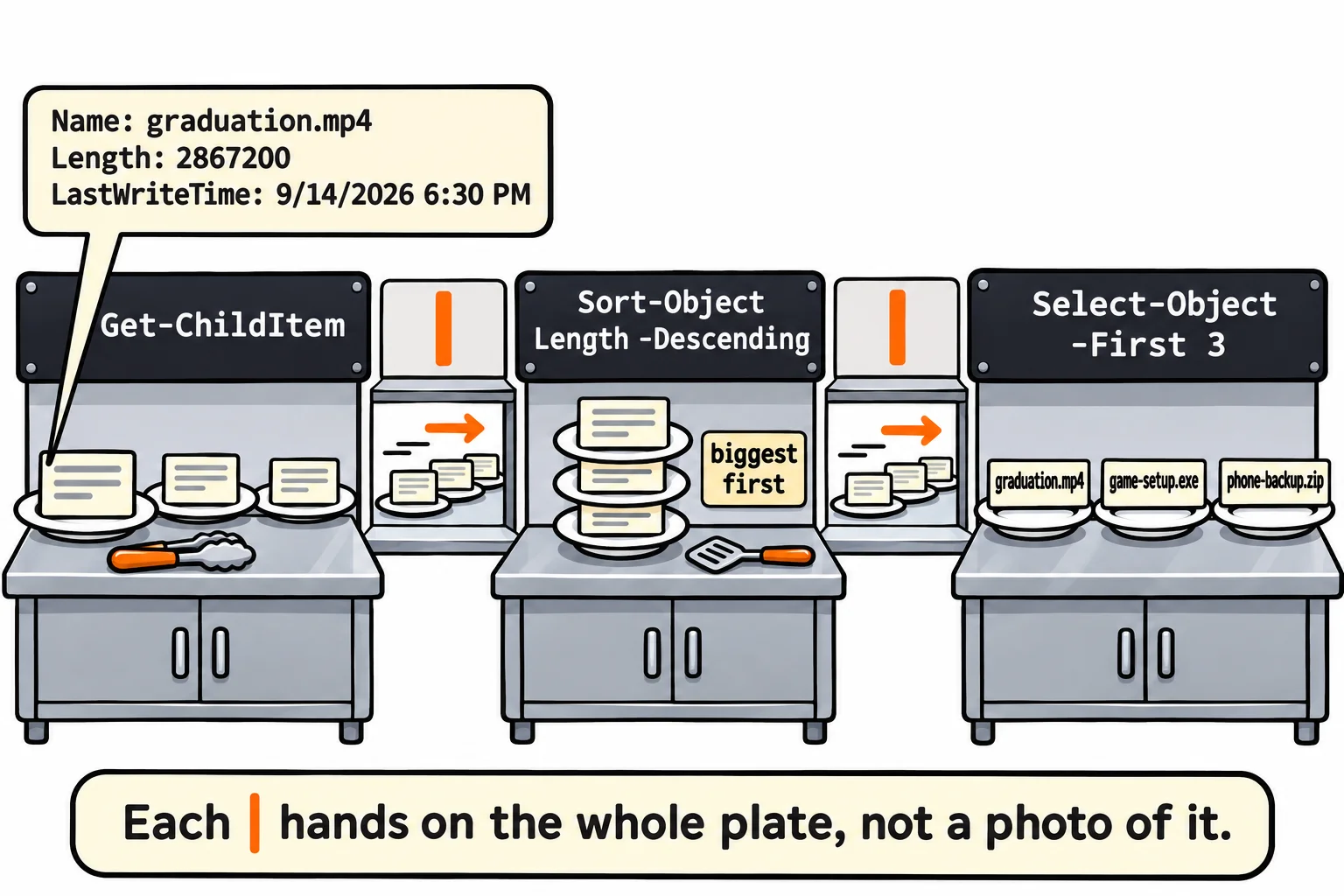
Nobody writes that in one go. Run Get-ChildItem -Recurse -File alone and look. Press the up arrow, add | Sort-Object Length -Descending, and look again. Then add the last step. When a result looks wrong, the step you added last is where to look. A long pipeline can also go over several lines: end a line with | and press Enter, and PowerShell shows >> and waits for the rest.
Commands that act on what arrives
Commands that change things take what arrives through the pipe, too. Remove-Item removes every file it's handed, so rehearse with -WhatIf first, as in Deleting Safely: Remove-Item, -WhatIf and -Confirm:
Get-ChildItem downloads\*.tmp | Remove-Item -WhatIf
What if: Performing the operation "Remove File" on target "C:\Users\Sam\terminal-practice\drive\downloads\unfinished-download.tmp".
Running programs are objects too. Get-Process -Name explorer gets File Explorer, which also draws the taskbar, and Stop-Process stops whatever it's handed:
Get-Process -Name explorer | Stop-Process -WhatIf
What if: Performing the operation "Stop-Process" on target "explorer (7404)".
What if: Performing the operation "Stop-Process" on target "explorer (61600)".
What if: Performing the operation "Stop-Process" on target "explorer (87772)".
The number in brackets is each program's Id; you may have one explorer or several, with other numbers. Keep -WhatIf on this one: without it, your Explorer windows and the taskbar close until Windows starts them again.
Windows PowerShell 5.1 runs all of this the same way. On a Mac or Linux there's no explorer: try Get-Process -Name pwsh | Stop-Process -WhatIf instead, and write paths with /.
Try it. Build the pipeline for the three smallest files, one step at a time: start with Get-ChildItem -Recurse -File, then add the sort (without -Descending), then the last step.
Check yourself
2 questions to try on the lesson page.
So what
One command answers one question. The pipe lets small commands answer a big one together, and because each step hands on whole objects, the next step can use any fact about them.