Writing to Files: Set-Content, Add-Content and >
Set-Content writes a file, replacing whatever it held, Add-Content adds lines to its end, and > and >> save a command's output into a file the same two ways, in UTF-8 text.
Novice · PowerShell · Operating System · Updated
After this lesson you can
- Write a file with Set-Content and add lines to its end with Add-Content
- Save a command's output with > or Out-File, and add to a file with >> or Out-File -Append, knowing > replaces what was there
Key takeaways
Set-Contentwrites text into a file, making the file if it's new and replacing everything in it if it isn't.Add-Contentadds lines to the end of a file and keeps what was there.>(read "into") saves a command's output in a file, replacing it.>>(read "add to") adds to the end.Out-FileandOut-File -Appenddo the same.- PowerShell 7 writes text files in UTF-8, so accents such as é and emoji are kept.
Moving week comes with lists: things to unpack, people to call, a note for the door. You could open Notepad for each one, but when you're already at the prompt, writing the line where you stand is quicker. The same skill is how scripts keep a log of what they did, and how you save a command's answer to send to someone ("here's what's in that folder"). This lesson writes files two ways: replace everything, or add to the end.
It works in the moving-day folder from Deleting Safely: Remove-Item, -WhatIf and -Confirm. If you don't have it yet, run that lesson's practice-folder lines first. Start with Set-Location ~\terminal-practice\moving-day.
Write a file: Set-Content
Set-Content (read "set content") puts text into a file. Give it the file's name, then the text in quotes:
Set-Content door-sign.txt 'Apartment 4B'
Get-Content door-sign.txt
Apartment 4B
If the file doesn't exist, Set-Content makes it. Commas between pieces of text write one line each, so a to-do list is one command:
Set-Content todo.txt '- unpack the kitchen', '- find the TV remote', '- say hi to the neighbors'
Get-Content todo.txt
- unpack the kitchen
- find the TV remote
- say hi to the neighbors
Now the catch. If the file already exists, Set-Content replaces everything in it, with no question asked:
Set-Content door-sign.txt 'Sam lives here'
Get-Content door-sign.txt
Sam lives here
Apartment 4B is gone. That's what you want for a sign. For a list you're building, it isn't.
Add to the end: Add-Content
Add-Content (read "add content") writes its text after the last line and keeps everything that was there:
Add-Content todo.txt '- water the plants'
Get-Content todo.txt
- unpack the kitchen
- find the TV remote
- say hi to the neighbors
- water the plants
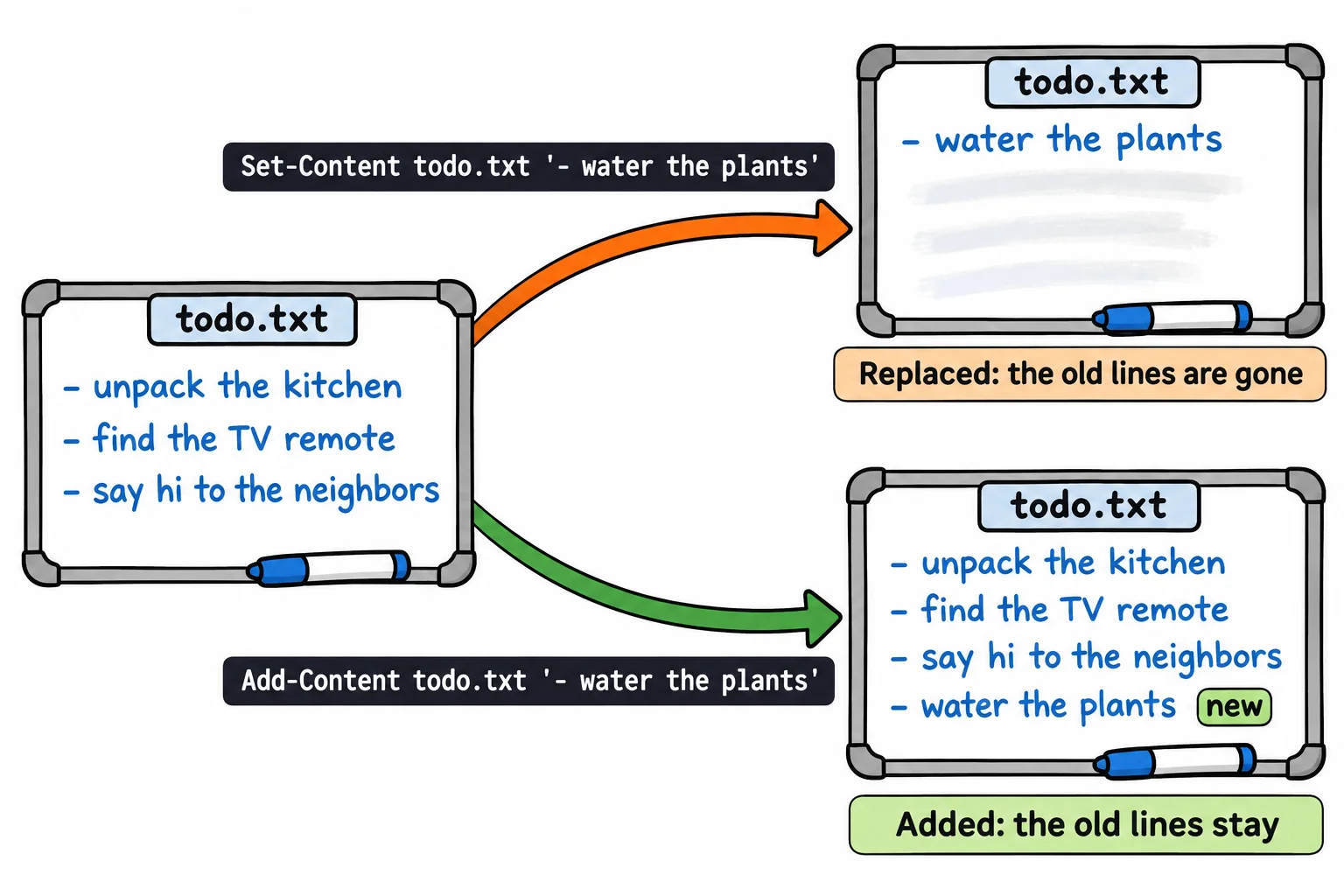
So: Set-Content to start a file fresh, Add-Content to grow one. Both make the file if it isn't there yet. If you ever replace a list by mistake, nothing brings it back; a copy with Copy-Item first is cheap insurance.
> and >>: into, and add to
Most commands print their answer on the screen. > (read "into") sends it into a file instead. Get-ChildItem hallway > hallway-list.txt prints nothing, and the file holds exactly what you'd have seen. After Deleting Safely, the hallway holds only the spare key:
Get-ChildItem hallway > hallway-list.txt
Get-Content hallway-list.txt
    Directory: C:\Users\Sam\terminal-practice\moving-day\hallway

Mode                 LastWriteTime         Length Name
----                 -------------         ------ ----
-a---            8/1/2026 10:15 AM             50 spare-key.txt
>> (read "add to") adds to the end instead. Text in quotes on its own line prints itself, so >> can add it to a file:
'- call the internet company' >> todo.txt
Get-Content todo.txt
- unpack the kitchen
- find the TV remote
- say hi to the neighbors
- water the plants
- call the internet company
The two marks are one key press apart, and they behave like Set-Content and Add-Content: one > replaces the whole file. '- buy a doormat' > todo.txt would leave a to-do list with one line on it.
Behind the marks is a command, Out-File. Get-ChildItem hallway | Out-File hallway-list.txt is the same as >, and Out-File -Append is the same as >>. You'll see both in other people's scripts. As a rule of thumb, use Set-Content and Add-Content for text you write yourself, and > or Out-File to save a command's output exactly as it looks on the screen.
Letters as numbers: encoding
A file stores letters as numbers, and the text encoding is the code that says which number is which letter. PowerShell 7 writes UTF-8, the encoding the web and most apps use, so a line such as Café on the corner: open at 7 keeps its é.
Windows PowerShell 5.1 differs here: its > and Out-File write UTF-16 and its Set-Content writes an older Windows encoding, so some apps show its files with odd characters. Add -Encoding utf8 there when that happens. On a Mac or Linux, everything in this lesson works the same, with / in paths.
Try it in the terminal
Terminal Quest: Moving Day, goals 8 to 9: played right on the lesson page.
Your new apartment needs a name sign for the door, and there's one more thing for the to-do list. Make the sign, then add "water the plants" to the list without losing what's on it.
Check yourself
2 questions to try on the lesson page.
So what
A file you can write from the prompt is a note, a list or a log that's always one line away. Knowing which commands replace and which add is what keeps your lists safe.