Deleting Safely: Remove-Item, -WhatIf and -Confirm
Remove-Item deletes files and folders with no Recycle Bin to catch them, so you rehearse a delete with -WhatIf, approve each item with -Confirm, and add -Recurse only for a folder you've looked inside.
Novice · PowerShell · Operating System · Updated
After this lesson you can
- Delete files and folders with Remove-Item, using -Recurse for a folder that isn't empty
- Rehearse a delete with -WhatIf, or approve each item with -Confirm, before anything is removed
Key takeaways
Remove-Itemdeletes files and folders for good. There's no Recycle Bin in PowerShell: removed means gone.-WhatIf(read "what if I did this?") lists what a command would remove and removes nothing. Run it before every delete.-Confirmasks before each item: Y removes it, N keeps it.- An empty folder goes straight away. A folder with things in it needs
-Recurse, which removes everything inside it too.
The movers have gone, and the hallway of your new apartment is full of things to throw out: a vase that didn't survive the stairs, a mountain of bubble wrap, and a drawer of take-out menus the last tenant left behind. Your computer has its own hallway to clear: a Downloads folder of old installers, a folder of test files, a log that grew too big. In File Explorer you'd select them and press Delete. In PowerShell, deleting is one command, and it doesn't come with a safety net, so this lesson teaches the safe habit first.
Deleting can't be undone, so everything here happens in a practice folder of made-up files.
A practice apartment
Copy these lines into PowerShell and press Enter. They make a folder called moving-day in your practice folder, with a hallway holding three files, an empty box and a junk drawer of old menus:
New-Item -ItemType Directory -Force -Path "$HOME\terminal-practice\moving-day\hallway\box-books", "$HOME\terminal-practice\moving-day\hallway\junk-drawer" | Out-Null
Set-Location "$HOME\terminal-practice\moving-day"
Set-Content hallway\broken-vase.txt 'Three pieces of what was once a vase.'
Set-Content hallway\bubble-wrap.txt 'So. Much. Bubble wrap.'
Set-Content hallway\spare-key.txt 'A spare key on a ring with a little plastic dog.'
Set-Content hallway\junk-drawer\menu-pizza.txt 'Corner Pizza: two large pizzas for $20.'
Set-Content hallway\junk-drawer\menu-noodles.txt 'Noodle Bar: free delivery on Tuesdays.'
Set-Content hallway\junk-drawer\menu-tacos.txt 'Taco Stand: three tacos for $7.'
They print nothing when they work, and they leave you in the moving-day folder. Each Set-Content line writes a small file; Writing to Files: Set-Content, Add-Content and >, the next lesson, explains how. Running the lines again puts back everything you delete, so you can practice as often as you like.
Throwing things out: Remove-Item
Look before you throw anything out. Get-ChildItem shows what's in the hallway:
Get-ChildItem hallway
    Directory: C:\Users\Sam\terminal-practice\moving-day\hallway

Mode                 LastWriteTime         Length Name
----                 -------------         ------ ----
d----            8/1/2026 10:15 AM                box-books
d----            8/1/2026 10:15 AM                junk-drawer
-a---            8/1/2026 10:15 AM             39 broken-vase.txt
-a---            8/1/2026 10:15 AM             24 bubble-wrap.txt
-a---            8/1/2026 10:15 AM             50 spare-key.txt
Your dates and times will be the moment you made the files. Now throw out the vase. Remove-Item (read "remove item") deletes an item, PowerShell's word for anything Get-ChildItem lists, a file or a folder:
Remove-Item hallway\broken-vase.txt
It prints nothing, and the vase is gone. Not in a bin: gone. When you press Delete in File Explorer, Windows moves the file to the Recycle Bin, a holding folder where you can still get it back. Remove-Item doesn't use the Recycle Bin, so there's nothing to restore.
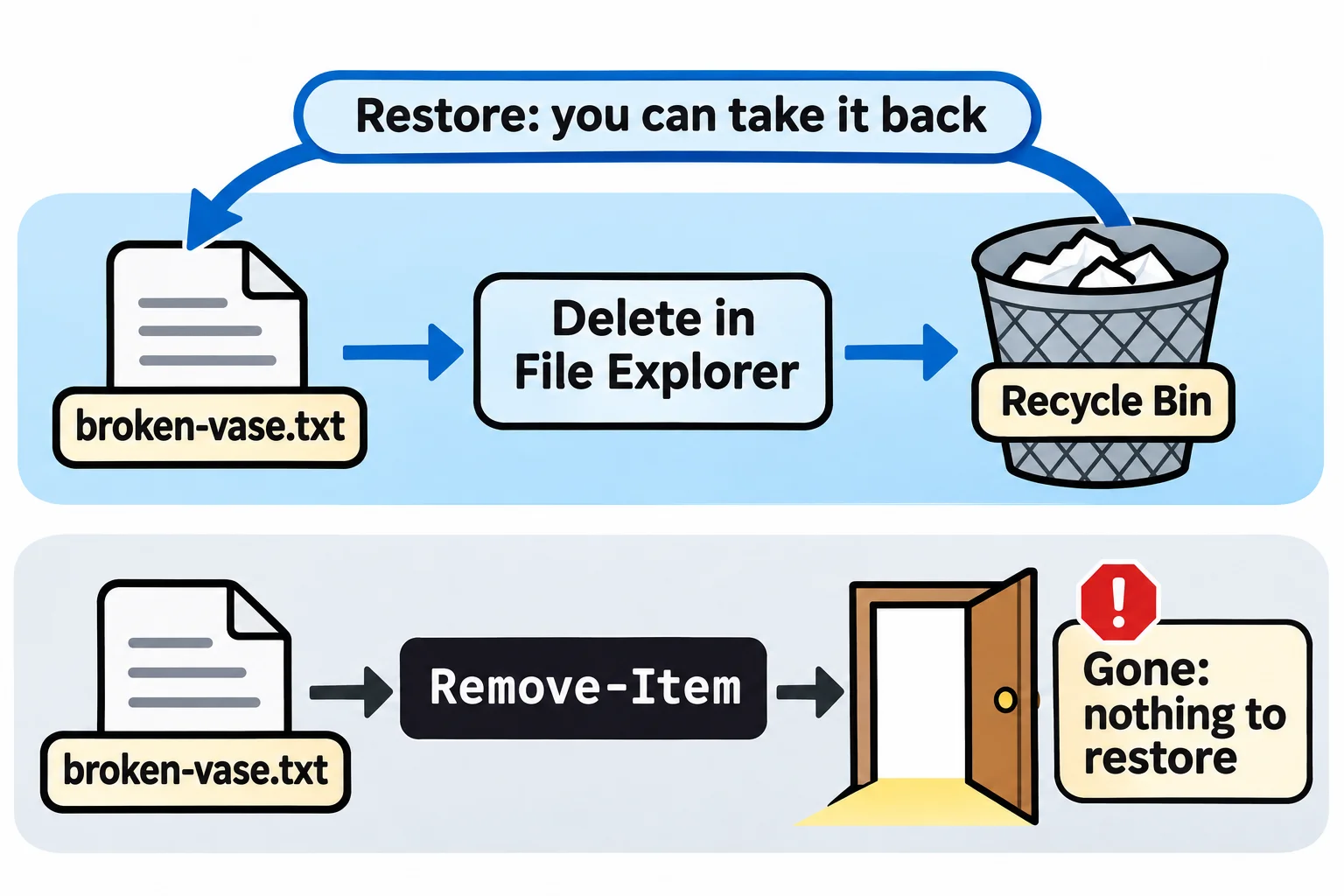
A typo is harmless: Remove-Item hallway\bubble-rap.txt answers Cannot find path 'C:\Users\Sam\terminal-practice\moving-day\hallway\bubble-rap.txt' because it does not exist. and removes nothing. Commas between paths remove several items at once. The short names for Remove-Item are del and rm, among others.
Rehearse first: -WhatIf, then -Confirm
A wildcard can take more than you meant. *.txt (read "star dot t x t") matches every name ending in .txt, as Wildcards and Filters showed. Before you run a delete like that, add -WhatIf, read "what if I did this?". PowerShell lists what it would remove, and removes nothing:
Remove-Item hallway\*.txt -WhatIf
What if: Performing the operation "Remove File" on target "C:\Users\Sam\terminal-practice\moving-day\hallway\bubble-wrap.txt".
What if: Performing the operation "Remove File" on target "C:\Users\Sam\terminal-practice\moving-day\hallway\spare-key.txt".
The rehearsal caught a mistake: the spare key would go out with the bubble wrap. -Confirm lets you decide item by item. Here the answers are y for the bubble wrap and n for the key:
Remove-Item hallway\*.txt -Confirm
Confirm
Are you sure you want to perform this action?
Performing the operation "Remove File" on target "C:\Users\Sam\terminal-practice\moving-day\hallway\bubble-wrap.txt".
[Y] Yes  [A] Yes to All  [N] No  [L] No to All  [S] Suspend  [?] Help (default is "Y"): y

Confirm
Are you sure you want to perform this action?
Performing the operation "Remove File" on target "C:\Users\Sam\terminal-practice\moving-day\hallway\spare-key.txt".
[Y] Yes  [A] Yes to All  [N] No  [L] No to All  [S] Suspend  [?] Help (default is "Y"): n
Type a letter and press Enter. Y removes this item and N keeps it; A (Yes to All) removes the rest without asking, and L (No to All) keeps them all. Enter on its own means Y, the default, so read each line before you press it.
Make it a habit: before any delete with a wildcard or a folder in it, run it with -WhatIf. If the list is right, press the up arrow, take -WhatIf off the end, and press Enter.
Folders, and -Recurse
An empty folder goes straight away, like an empty box:
Remove-Item hallway\box-books
A folder with things in it makes PowerShell stop and ask, because everything inside would go too. Answering n keeps it:
Remove-Item hallway\junk-drawer
Confirm
The item at C:\Users\Sam\terminal-practice\moving-day\hallway\junk-drawer has children and the Recurse parameter was
not specified. If you continue, all children will be removed with the item. Are you sure you want to continue?
[Y] Yes  [A] Yes to All  [N] No  [L] No to All  [S] Suspend  [?] Help (default is "Y"): n
Children are the things inside, as in Get-ChildItem. -Recurse (read "recurse": go down into every folder inside) says "yes, the folder and everything in it". Rehearse it first:
Remove-Item hallway\junk-drawer -Recurse -WhatIf
What if: Performing the operation "Remove Directory" on target "C:\Users\Sam\terminal-practice\moving-day\hallway\junk-drawer".
The rehearsal names only the folder, not the three menus inside it, so look inside with Get-ChildItem hallway\junk-drawer before you go on. When you're sure, run Remove-Item hallway\junk-drawer -Recurse. Now Get-ChildItem hallway lists one thing: the spare key you kept.
On a Mac or Linux, there's no bin in PowerShell either, and paths use /. Windows PowerShell 5.1 deletes, rehearses and asks the same way.
Try it in the terminal
Terminal Quest: Moving Day, goals 6 to 7: played right on the lesson page.
The movers left a broken vase and a lot of bubble wrap in the hallway of your new apartment. Throw them out, then get rid of the empty boxes.
Check yourself
2 questions to try on the lesson page.
So what
Every cleanup, from an old Downloads folder to the files a program leaves behind, ends with a delete. Rehearse it with -WhatIf first, and a wildcard or a full folder never takes more than you meant.