Many Files as One: tar and zip
An archive packs a whole folder into one file you can send, back up or download; tar -czf makes a .tar.gz, tar -tzf lists one, tar -xzf unpacks it, and zip makes the .zip files any computer opens.
Apprentice · Unix · Linux · Updated
After this lesson you can
- Pack a folder with tar -czf, and list or unpack a .tar.gz with tar -tzf and tar -xzf
- Choose tar or zip for an archive, and make a .zip with zip -r
Key takeaways
- An archive is one file that holds many files and folders, usually squeezed smaller, like a vacuum-packed suitcase.
- Read tar's letters aloud: -czf is create, zip, file; -tzf lists (t for table of contents); -xzf extracts.
- The f comes last, right before the archive's name. tar -cfz makes an archive called z.
- List an archive before you unpack it. Unpacking puts its files in the folder you're in and replaces any with the same names.
- zip -r makes a .zip that opens with a double-click on Windows and macOS; unzip -l lists one and unzip unpacks it.
Diego is coming on the trip, and he needs the tickets and the hotel booking from your documents folder. You can't attach a folder to an email or a chat message, and sending seven files one at a time is how one gets left behind. You already use the answer whenever you click Download ZIP on GitHub: an archive, a whole folder in one file. Developers meet archives every day, in backups, in software downloads, and in every website they send to a server.
These examples use the packing folder from What's Filling My Disk? du and df. Go into it with cd ~/terminal-practice/packing.
One file instead of many
Packing for a trip, you put everything in one suitcase, and squeeze the clothes in a vacuum bag so they take less room. An archive is the suitcase: one file that holds many files and folders, names and folder structure included. Compression is the vacuum bag: it makes the file smaller. tar (from tape archive, from the days when backups went on tape) packs a folder:
tar -czf trip-documents.tar.gz documents
ls
documents music packing-list.txt photos trip-documents.tar.gz videos
Read the letters aloud: c create, z zip it smaller (with a tool called gzip), f file: the archive's name comes next. Then the folder to pack. The name ends in .tar.gz: a tar archive, gzipped.
The f must come last, because the very next word is the archive's name. Swap the letters and tar takes the wrong word as the name:
tar -cfz oops.tar.gz documents
tar: oops.tar.gz: Cannot stat: No such file or directory
tar: Exiting with failure status due to previous errors
tar named the archive z and went looking for a file called oops.tar.gz to pack. If you tried it, delete the stray z with rm z. (These are Ubuntu's messages; a Mac words them differently, and the letters work the same there.)
Look before you unpack
t lists what's inside, like a table of contents:
tar -tzf trip-documents.tar.gz
documents/
documents/2026/
documents/2026/summer-trip/
documents/2026/summer-trip/hotel.txt
documents/2026/summer-trip/tickets/
documents/2026/summer-trip/tickets/flight.txt
documents/2026/summer-trip/tickets/train.txt
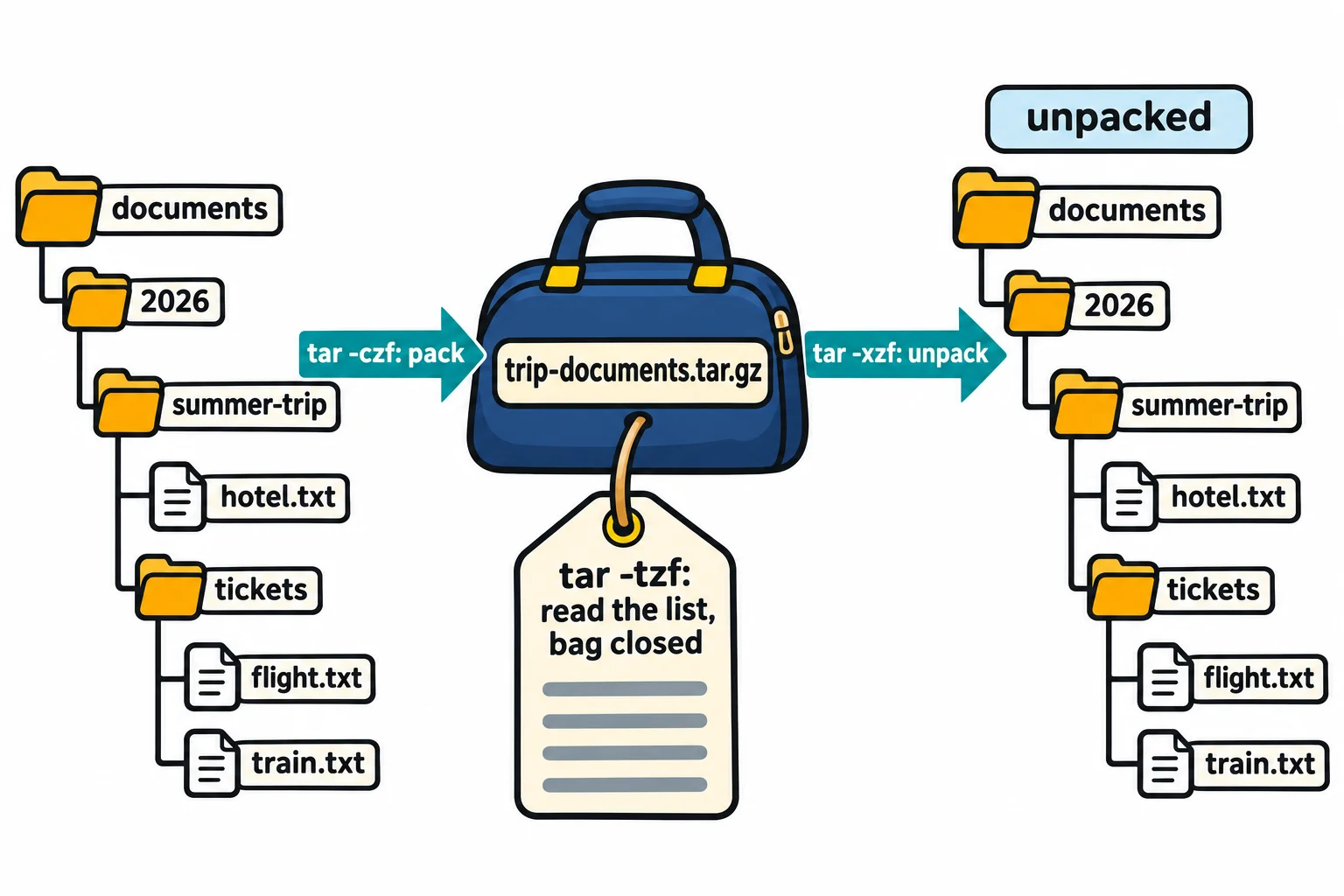
Names ending in / are folders. Everything sits inside one documents/ folder, so unpacking makes one folder and nothing spills out. That's why you look first: tar unpacks into the folder you're in, and replaces any file with the same name without asking. So unpack into a new, empty folder. x is for extract:
mkdir unpacked
cd unpacked
tar -xzf ../trip-documents.tar.gz
ls
ls documents/2026/summer-trip
cd ..
documents
hotel.txt  tickets
../trip-documents.tar.gz is the archive one folder up. Unpacking copies files out of it; the archive itself stays as it was.
What shrinks and what doesn't
ls -lh trip-documents.tar.gz
tar -czf photos.tar.gz photos
ls -lh photos.tar.gz
du -sh photos
-rw-r--r-- 1 sam sam 348 Nov  9 04:01 trip-documents.tar.gz
-rw-r--r-- 1 sam sam 7.7M Nov  9 04:01 photos.tar.gz
7.7M	photos
The whole documents folder fits in 348 bytes, because text squeezes well. The photos are 7.7M before and after: photos, videos and music are already compressed by the camera or the app, and the stand-ins are random bytes, which don't squeeze either. Packing photos gives you one file to send, not a smaller one. Your sizes may differ by a few bytes.
zip: for anyone, on any computer
A .tar.gz is at home on Linux and on a Mac. For a friend on Windows, or anyone who'll double-click it, send a .zip: Windows and macOS both open one without extra software. zip -r packs a folder (r for recursive, the folder and everything in it, as in cp -r), with the archive's name first and then what to pack:
zip -r photos-to-share.zip photos
Command 'zip' not found, but can be installed with:
sudo apt install zip
That's Ubuntu telling you zip isn't installed yet, which is common, and giving you the line that installs it. Run that line (sudo asks for your password; Installing Tools: Homebrew and apt, in Module 4, explains it), then the zip line again. It prints one line for each folder and file as it adds them. A Mac has zip and unzip already.
The other direction has the same habit, list first: unzip -l photos-to-share.zip lists what's inside (-l for list), and unzip photos-to-share.zip -d from-sam unpacks it into a new folder called from-sam.
Which one to send? A .zip for sharing with anyone, on any computer. A .tar.gz for backups, Linux servers and software downloads, where it's the usual choice.
Check yourself
2 questions to try on the lesson page.
So what
A whole folder becomes one file you can email, download or keep as a backup, and you can always look inside before you let it unpack.