Shortcuts to Files: ln -s
ln -s makes a symbolic link, a short name that points to a file or folder somewhere else, and the link works until the real thing moves or is deleted.
Apprentice · Unix · Linux · Updated
After this lesson you can
- Make a symbolic link with ln -s and recognize one in ls -l
- Tell when a symbolic link is broken, and fix or remove it
Key takeaways
- A symbolic link is a signpost. It holds the address of a file or folder somewhere else, and opening it opens that.
- ln -s takes the real thing first and the new name second, the same order as cp: ln -s documents/2026/summer-trip/tickets tickets.
- In ls -l, a link's line starts with l, and an arrow (->) shows the address it points to.
- When the real file or folder moves or is deleted, the link breaks. Putting the real thing back, or making a new link, fixes it.
- rm and the link's name, with no / at the end, deletes only the link, never the real thing.
Your boarding passes are four folders down, in documents/2026/summer-trip/tickets, and you'll want them often this week. Typing that path every time gets old fast. On a Windows desktop you'd make a shortcut, and on a Mac an alias. The terminal has the same idea, and people use it every day at work: a web server's current folder that leads to the newest version of a website, or one settings file that several programs share.
These examples use the packing folder from What's Filling My Disk? du and df; its setup lines make it in a few seconds. Then go into it with cd ~/terminal-practice/packing.
A signpost to the real thing
A shortcut works like a signpost: it isn't the place, it tells you where the place is. In the terminal it's called a symbolic link, or symlink. ln -s makes one (read it "L N dash S": ln for link, -s for symbolic). The real thing comes first and the link's new name second, the same order as cp: from, then to.
ln -s documents/2026/summer-trip/tickets tickets
ls
documents music packing-list.txt photos tickets videos
ln -s prints nothing when it works. There's a new name, tickets, right in the packing folder.
Spotting a link: ls -l
ls -l
total 20
drwxr-xr-x 3 sam sam 4096 Nov  9 04:01 documents
drwxr-xr-x 2 sam sam 4096 Nov  9 04:01 music
-rw-r--r-- 1 sam sam   44 Nov  9 04:01 packing-list.txt
drwxr-xr-x 4 sam sam 4096 Nov  9 04:01 photos
lrwxrwxrwx 1 sam sam   34 Nov  9 04:01 tickets -> documents/2026/summer-trip/tickets
drwxr-xr-x 2 sam sam 4096 Nov  9 04:01 videos
In Looking Around: ls, the first character was d for a folder or - for a file. A link gets l, and the arrow -> (read "points to") shows the address it holds. Its size, 34, is the length of that address in characters, not the size of the tickets. Many terminals also give links a color of their own.
Use it like the real thing
Commands go through the link to the real folder, as if you'd typed the long path:
ls tickets
cat tickets/flight.txt
flight.txt  train.txt
Flight to Lisbon, June 12, seat 14C
cd works too. pwd then shows the short way you came, and pwd -P (for physical) shows where you really are:
cd tickets
pwd
pwd -P
cd ..
/home/sam/terminal-practice/packing/tickets
/home/sam/terminal-practice/packing/documents/2026/summer-trip/tickets
When the real folder moves
A link holds an address, not the folder itself. Rename the trip's folder, the way you might once you know where you're going, and try the link again:
mv documents/2026/summer-trip documents/2026/lisbon-trip
cat tickets/flight.txt
ls -l tickets
cat: tickets/flight.txt: No such file or directory
lrwxrwxrwx 1 sam sam 34 Nov  9 04:01 tickets -> documents/2026/summer-trip/tickets
The signpost still points to documents/2026/summer-trip/tickets, and nothing is there anymore. This is a broken link (some people say dangling), and many terminals show one in red. Deleting the real folder breaks a link the same way.
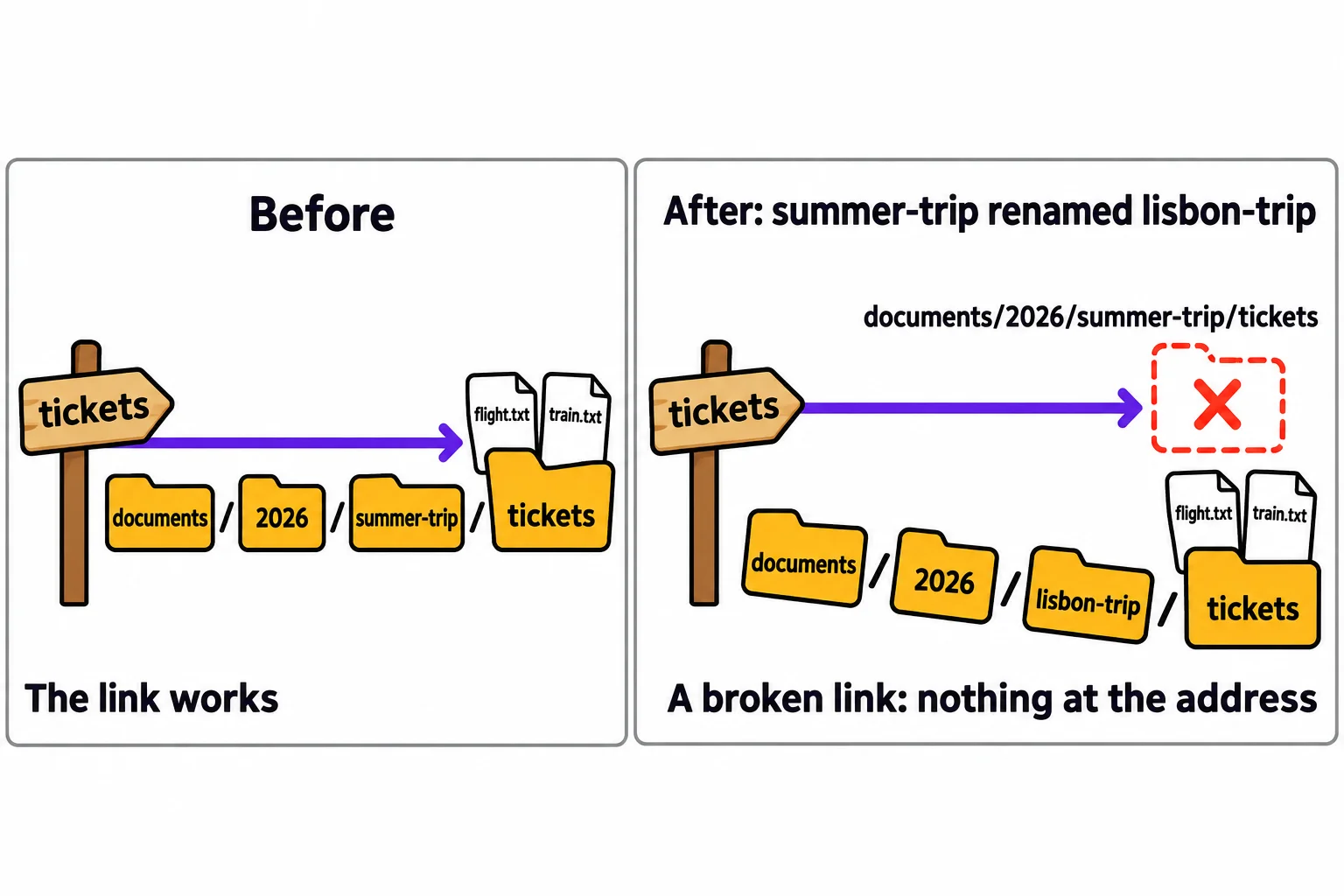
There are two fixes: put the real thing back where the link points, or delete the link and make a new one that points to the new place. Move the folder back, and the same link works again:
mv documents/2026/lisbon-trip documents/2026/summer-trip
cat tickets/flight.txt
Flight to Lisbon, June 12, seat 14C
The error messages in this lesson come from Ubuntu 26.04. Other systems word them a little differently, but they mean the same thing.
Removing a link
rm and the link's name deletes the signpost and leaves the real folder alone. Type the name with no / at the end. With a slash, rm looks through the link at the real folder, and refuses:
rm tickets/
rm tickets
ls
ls documents/2026/summer-trip/tickets
rm: cannot remove 'tickets/': Is a directory
documents  music  packing-list.txt  photos  videos
flight.txt  train.txt
The link is gone, and the tickets are still there. One more surprise: ln -s doesn't replace a link that's already there. When the name already leads into a folder, it quietly makes the new link inside that folder instead. So remove the old link first, then make the new one. On a Mac, ln -s works the same way.
Check yourself
2 questions to try on the lesson page.
So what
A link gives a long path a short name, anywhere you like. Once you know it holds an address and not the thing itself, a broken link is a quick fix instead of a mystery.