JSON with jq
jq reads JSON, the labeled data that web APIs and cloud tools answer with: dots follow the labels in, .[] goes through every item in a list, select keeps the items you want, and -r prints plain lines a bash loop can read.
Journeyman · Unix · Linux · Updated
After this lesson you can
- Pick values out of JSON with jq, using .name, .[] and select
- Turn JSON into plain lines with jq -r, and loop over them with while read
Key takeaways
- JSON is labeled data: { } holds named values, [ ] holds a list, and either can sit inside the other.
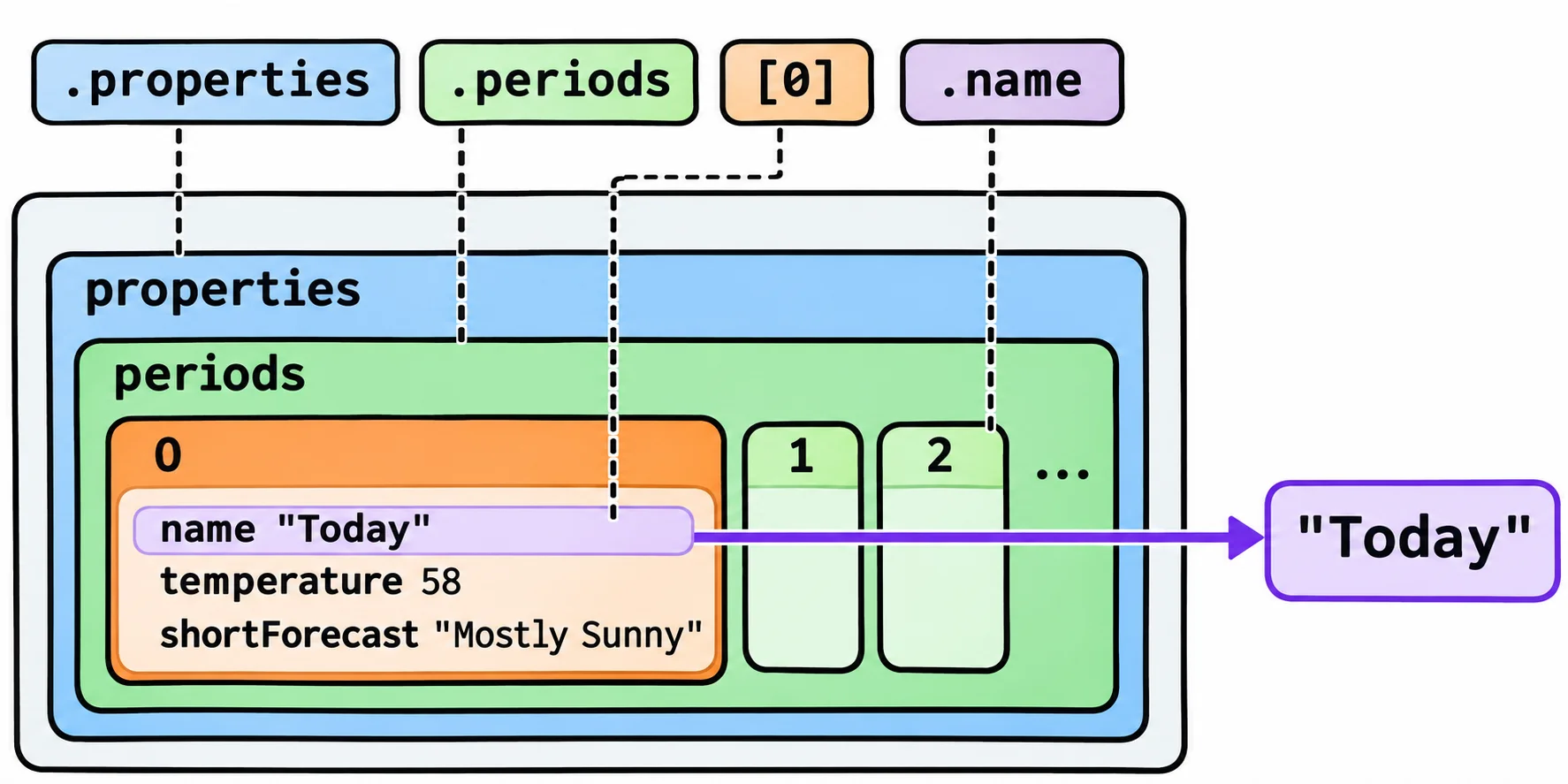
- jq '.properties.periods[0].name' follows the labels in from the outside, one dot at a time. A list's items count from 0.
- .[] goes through every item in a list, and the pipe inside jq's quotes hands each item to the next step.
- select( ) keeps only the items whose test is true, such as select(.probabilityOfPrecipitation.value >= 50).
- -r prints text without its quotes, so jq's lines can feed a while read loop.
Before you bike to class, you want one answer: will it rain this week, and when? Weather services answer that question for programs too, through an API, a web address made for programs instead of people (Talking to the Web: curl asks one live). The answer comes back as JSON, the text format most of the web's data travels in. Cloud tools answer in JSON too: an administrator who lists a company's cloud servers from the terminal gets pages of it. grep and awk see JSON as lines of text, but it isn't shaped in lines. jq reads it the way it's built. If jq --version doesn't print a version number yet, install it as in Installing Tools: Homebrew and apt: sudo apt install jq, or brew install jq on a Mac.
A saved forecast
This is a real forecast from the US National Weather Service, for New York's Central Park, cut down to the parts this lesson uses and saved in a file, so it works without the internet and gives the same answers every time. The lines are safe to run again.
mkdir -p ~/terminal-practice/weather && cd ~/terminal-practice/weather
printf '%s\n' '{ "properties": { "periods": [' \
  '{"name": "Today", "temperature": 58, "temperatureUnit": "F", "probabilityOfPrecipitation": {"value": 4}, "shortForecast": "Mostly Sunny"},' \
  '{"name": "Tonight", "temperature": 45, "temperatureUnit": "F", "probabilityOfPrecipitation": {"value": 1}, "shortForecast": "Mostly Clear"},' \
  '{"name": "Tuesday", "temperature": 61, "temperatureUnit": "F", "probabilityOfPrecipitation": {"value": 1}, "shortForecast": "Mostly Sunny"},' \
  '{"name": "Tuesday Night", "temperature": 47, "temperatureUnit": "F", "probabilityOfPrecipitation": {"value": 0}, "shortForecast": "Clear"},' \
  '{"name": "Veterans Day", "temperature": 61, "temperatureUnit": "F", "probabilityOfPrecipitation": {"value": 0}, "shortForecast": "Sunny"},' \
  '{"name": "Wednesday Night", "temperature": 47, "temperatureUnit": "F", "probabilityOfPrecipitation": {"value": 1}, "shortForecast": "Mostly Cloudy"},' \
  '{"name": "Thursday", "temperature": 59, "temperatureUnit": "F", "probabilityOfPrecipitation": {"value": 45}, "shortForecast": "Mostly Cloudy then Chance Light Rain"},' \
  '{"name": "Thursday Night", "temperature": 45, "temperatureUnit": "F", "probabilityOfPrecipitation": {"value": 79}, "shortForecast": "Light Rain"},' \
  '{"name": "Friday", "temperature": 52, "temperatureUnit": "F", "probabilityOfPrecipitation": {"value": 79}, "shortForecast": "Light Rain"},' \
  '{"name": "Friday Night", "temperature": 39, "temperatureUnit": "F", "probabilityOfPrecipitation": {"value": 54}, "shortForecast": "Chance Light Rain"},' \
  '{"name": "Saturday", "temperature": 51, "temperatureUnit": "F", "probabilityOfPrecipitation": {"value": 29}, "shortForecast": "Chance Light Rain"},' \
  '{"name": "Saturday Night", "temperature": 38, "temperatureUnit": "F", "probabilityOfPrecipitation": {"value": 12}, "shortForecast": "Partly Cloudy"},' \
  '{"name": "Sunday", "temperature": 53, "temperatureUnit": "F", "probabilityOfPrecipitation": {"value": 4}, "shortForecast": "Mostly Sunny"},' \
  '{"name": "Sunday Night", "temperature": 39, "temperatureUnit": "F", "probabilityOfPrecipitation": {"value": 0}, "shortForecast": "Partly Cloudy"}' \
  '] } }' > forecast.json
jq . forecast.json | head -n 12
{
  "properties": {
    "periods": [
      {
        "name": "Today",
        "temperature": 58,
        "temperatureUnit": "F",
        "probabilityOfPrecipitation": {
          "value": 4
        },
        "shortForecast": "Mostly Sunny"
      },
Think of JSON as a storage box with labeled boxes inside, and more boxes inside those. { } (read "braces") holds named values: a label in double quotes, a colon, and the value. [ ] (read "square brackets") holds a list. Here the whole file is one box holding properties, which holds periods, a list of 14 forecasts, one for each day and night of the week. jq . (read "jq dot") prints the whole thing laid out with indents, and in colors on a terminal; the dot means "all of it".
Following the labels: dots
What jq should pick out is its filter, in single quotes before the file name. A dot and a label goes into that label, and [0] (read "item zero") takes a list's first item, because lists count from 0:
jq '.properties.periods[0].name' forecast.json
jq '.properties.periods[0].probabilityOfPrecipitation.value' forecast.json
"Today"
4
Read the first filter aloud: "properties, then periods, item zero, then its name". Text comes back in double quotes, numbers without. Misspell a label and jq prints null, its word for "nothing there"; check the spelling against jq ..
Every item: .[] and jq's own pipe
[] with nothing inside means every item in the list, one after another:
jq '.properties.periods[].name' forecast.json | head -n 4
"Today"
"Tonight"
"Tuesday"
"Tuesday Night"
The | head -n 4 is bash's pipe, outside the quotes. jq has its own pipe, inside the quotes, and it works the same way: .properties.periods[] | .name hands each item to the next step, which takes its name. With one step that's the same filter as above; with more steps, the pipe keeps a filter readable. Leave out the [] and jq stops with an error instead: periods is a list, and a list has no name of its own.
Only some: select
Now the question you opened the forecast for. select( ) keeps the items whose test is true and drops the rest. >= is read "is at least":
jq '.properties.periods[] | select(.probabilityOfPrecipitation.value >= 50) | .name' forecast.json
"Thursday Night"
"Friday"
"Friday Night"
Rain from Thursday night through Friday night: take the bus on Friday. == tests for "is equal to", so select(.name == "Friday") | .shortForecast gives "Light Rain".
Lines for bash: -r
The quotes get in the way of a script. -r (read "raw") prints text without them. And "\(.temperature) \(.name)" builds one line for each item: \( ) (read "backslash parentheses") puts a value into the text, the way $ does in a bash string in double quotes. Those lines are ready for while read from Line by Line: while read, with the first word going into temp and the rest of the line into name:
jq -r '.properties.periods[] | "\(.temperature) \(.name)"' forecast.json | while read -r temp name; do
  if [[ $temp -lt 40 ]]; then
    echo "Coat weather: $name, $temp°F"
  fi
done
Coat weather: Friday Night, 39°F
Coat weather: Saturday Night, 38°F
Coat weather: Sunday Night, 39°F
The number goes first on purpose: a name such as Friday Night has a space in it, and the last name in read keeps the rest of the line, space and all. This is the usual shape of a script that works with JSON: jq picks the data out and makes lines of it, and bash does something with each line.
Check yourself
2 questions to try on the lesson page.
So what
APIs, cloud tools and many apps speak JSON. With jq, a few dots and a select pick out exactly what you need, and -r turns it into lines your script can work through.