Looking Around: ls
ls lists what's in a folder, ls -a adds the hidden names that start with a dot, and ls -l shows each one's details, such as whether it's a folder, its size and when it last changed.
Novice · Unix · Linux · Updated
After this lesson you can
- List a folder's files and folders with ls, hidden ones included with ls -a
- Read ls -l to tell a folder from a file and to find a file's size and date
Key takeaways
- ls lists the files and folders in the folder you're in, or in a folder you name after it.
- Names that start with a dot are hidden. ls -a shows them too, with . (this folder) and .. (the folder it's in).
- ls -l gives one line per name. A d at the start means a folder, and the size in bytes comes just before the date it last changed.
- Options such as -a, -l and -h change what a command shows, and they can be combined, as in ls -la.
Your Downloads folder has 600 files in it, and you need to know whether last month's phone bill is one of them. Or a program asks for its settings file, and the folder looks empty in your file manager. Looking inside a folder is the thing you'll do most often in a terminal, and it takes two letters.
These examples use the practice folder from Where Am I? pwd and Paths. If you don't have it yet, the setup lines in that lesson make it in a few seconds. Then go into it with cd ~/terminal-practice/trip.
ls: what's in here?
ls (short for list) lists what's in the folder you're in:
ls
 day-1-beach   day-3-mountains   packing-list.txt
 day-2-city    itinerary.txt    'photos to print'
Six names, sorted alphabetically and laid out in columns to fit the window. The ones ending in .txt are files; the rest here are folders, and most terminals color folders blue to tell them apart. ls puts quotes around 'photos to print' to show that the spaces are part of one name. (Let the Shell Type for You: Tab shows how to type a name like that.) On a Mac, ls shows the same names without the quotes, laid out a little differently.
Name a folder after ls to look inside it without going there:
ls day-2-city
museum.jpg receipts street-food.jpg
Hidden files: ls -a
Some files are hidden on purpose, usually settings that programs keep for themselves, so they don't clutter your folders. On Linux and on a Mac, a name that starts with a dot is a hidden file, and plain ls skips it. Add -a (for all) to see everything:
ls -a
 .    .trip-notes.txt   day-2-city        itinerary.txt     'photos to print'
 ..   day-1-beach       day-3-mountains   packing-list.txt
Three new names. .trip-notes.txt is a hidden file in the practice folder. The other two are in every folder: . (read "dot") means this folder, and .. (read "dot dot") means the folder it's inside. You'll use .. all the time in Moving Around: cd, .. and ~.
The -a is an option, also called a flag: a dash and a letter after the command that changes what it does. Most commands have several.
The details: ls -l
-l (for long) gives one line per name, with its details:
ls -l
total 24
drwxr-xr-x 2 sam sam 4096 Nov  8 17:11  day-1-beach
drwxr-xr-x 3 sam sam 4096 Nov  8 17:11  day-2-city
drwxr-xr-x 2 sam sam 4096 Nov  8 17:11  day-3-mountains
-rw-r--r-- 1 sam sam   54 Nov  8 17:11  itinerary.txt
-rw-r--r-- 1 sam sam   37 Nov  8 17:11  packing-list.txt
drwxr-xr-x 2 sam sam 4096 Nov  8 17:11 'photos to print'
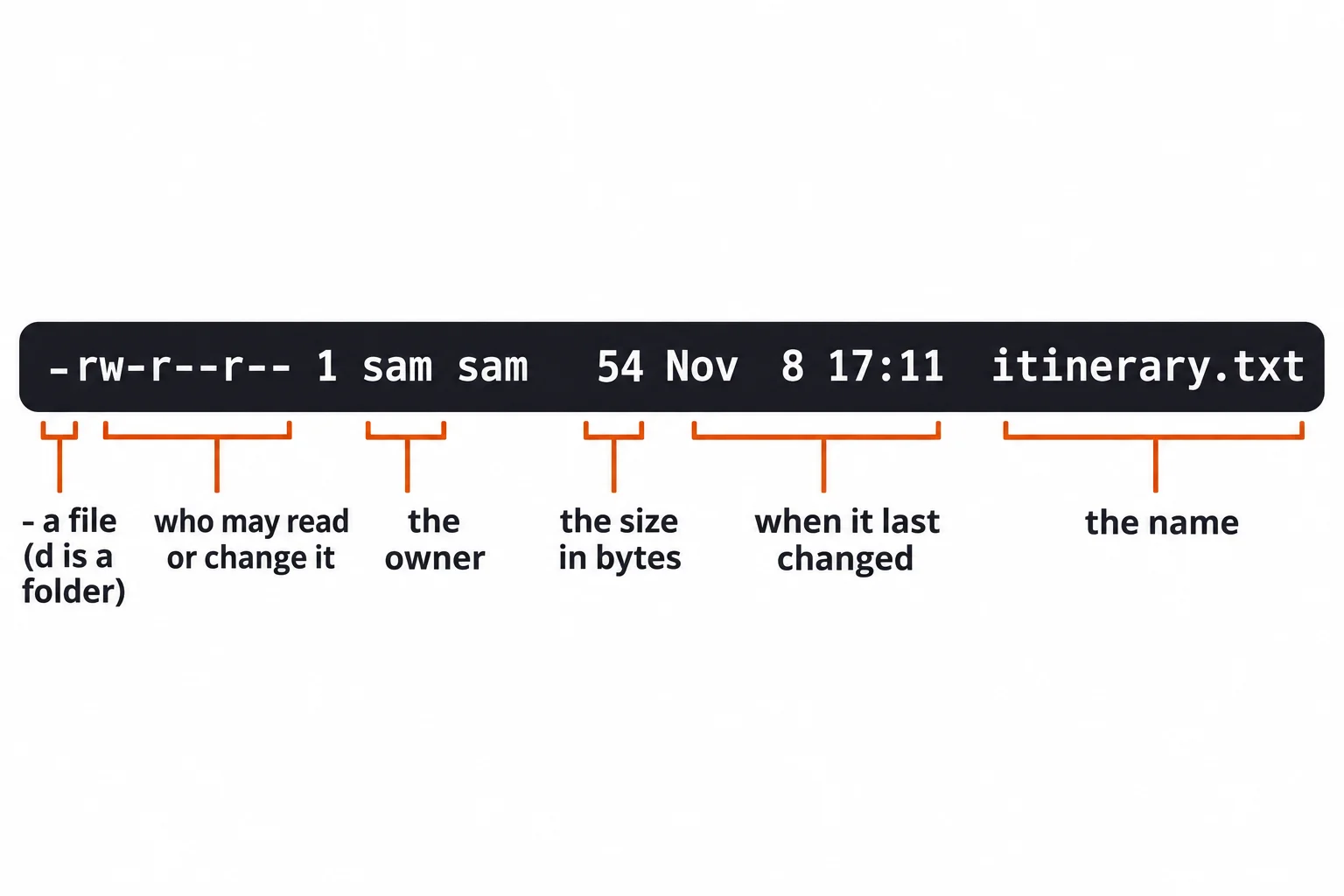
Read a line from the left:
- The first character is
dfor a directory (a folder) or-for a file. - The rest of the first column says who may read and change it. Permissions: Read, Write and Run, in Module 4, explains it; skip it for now, along with the number after it.
sam samis the owner and the owner's group.- The number before the date is the size in bytes. A byte is about one letter of plain text, so
itinerary.txt, with its three short lines, is 54 bytes. A folder always shows a size like 4096: that's the room its list of names takes up, not the size of what's inside. - The date and time say when it last changed. Yours will show the day you made the folder.
- The name comes last.
Big sizes, and options together
Big files have long sizes in bytes. -h (for human-readable) writes them with K, M and G for kilobytes, megabytes and gigabytes. Here it's used on bash itself, the program reading your commands:
ls -lh /usr/bin/bash
-rwxr-xr-x 1 root root 1.5M Feb 13 2026 /usr/bin/bash
1.5 megabytes, owned by root, the computer's administrator account. The photos in the practice folder are empty stand-ins, so they show a size of 0.
Options can be combined: ls -l -a and ls -la do the same thing, details and hidden files together, and the order of the letters doesn't matter. Try ls -la yourself and find .trip-notes.txt in the long list.
Try it in the terminal
Terminal Quest: The Lighthouse, goal 2: played right on the lesson page.
You know where you are on the lighthouse grounds. Now look around and see what's there.
Check yourself
2 questions to try on the lesson page.
So what
A file manager shows you what it decides to show. ls and its options show everything in a folder, hidden settings included, along with the size and date of each file.