PATH: How a Command Is Found
When you type a command's name, the shell looks for a program file of that name in each folder of PATH, in order, so "command not found" means none of them has it, and adding a folder to PATH lets you run its programs by name from anywhere.
Apprentice · Unix · Linux · Updated
After this lesson you can
- Explain command not found by reading PATH, and find a command's program file with which and type
- Add a folder to the end of PATH with export, keeping the folders already in it
Key takeaways
- PATH is an environment variable that holds a list of folders, separated by colons. The shell looks through them in order for the program you name.
- When the shell says command not found, no folder in PATH has a program by that name, or the name is misspelled.
- which name prints the program file a command runs. type name also says when a command is an alias or a shell builtin.
- export PATH="$PATH:/a/new/folder" adds a folder to the end of the list and keeps the folders already there.
- The shell doesn't look in the folder you're in, so a program there is run with ./ in front of its name.
You install a tool a tutorial needs, type its name, and the terminal says command not found. The tutorial's next line says, a little unhelpfully, "make sure it's on your PATH." Or you write a small program of your own and want to run it by name from any folder, the way you run ls. Both come down to one environment variable, PATH, and once you can read it, that error message tells you exactly what went wrong. Developers and IT administrators meet it every time they set up a new tool.
This lesson uses the workshop from Variables in the Shell. Go into it with cd ~/terminal-practice/workshop.
command not found
Ada's oil can is a small program in the workshop's tools folder. Try running it by name:
oilcan
ls tools
oilcan: command not found
oilcan
The file is right there in tools, and the shell still can't find it. Picture a shop assistant with a list of storerooms to check when you ask for something, always in the same order: the first room, then the second, and so on. If the thing isn't in any room on the list, the answer is "we don't have it", even if it's sitting in a room that isn't on the list.
PATH: the list of places to look
That list is the environment variable PATH. Print it:
echo $PATH
/usr/local/sbin:/usr/local/bin:/usr/sbin:/usr/bin:/sbin:/bin:/usr/games:/usr/local/games:/snap/bin
It's a list of folders, with a : (read "colon") between each one. That's hard to read on one line, so tr, from Columns and Characters: cut and tr, can turn each colon into a new line:
echo "$PATH" | tr ':' '\n'
/usr/local/sbin
/usr/local/bin
/usr/sbin
/usr/bin
/sbin
/bin
/usr/games
/usr/local/games
/snap/bin
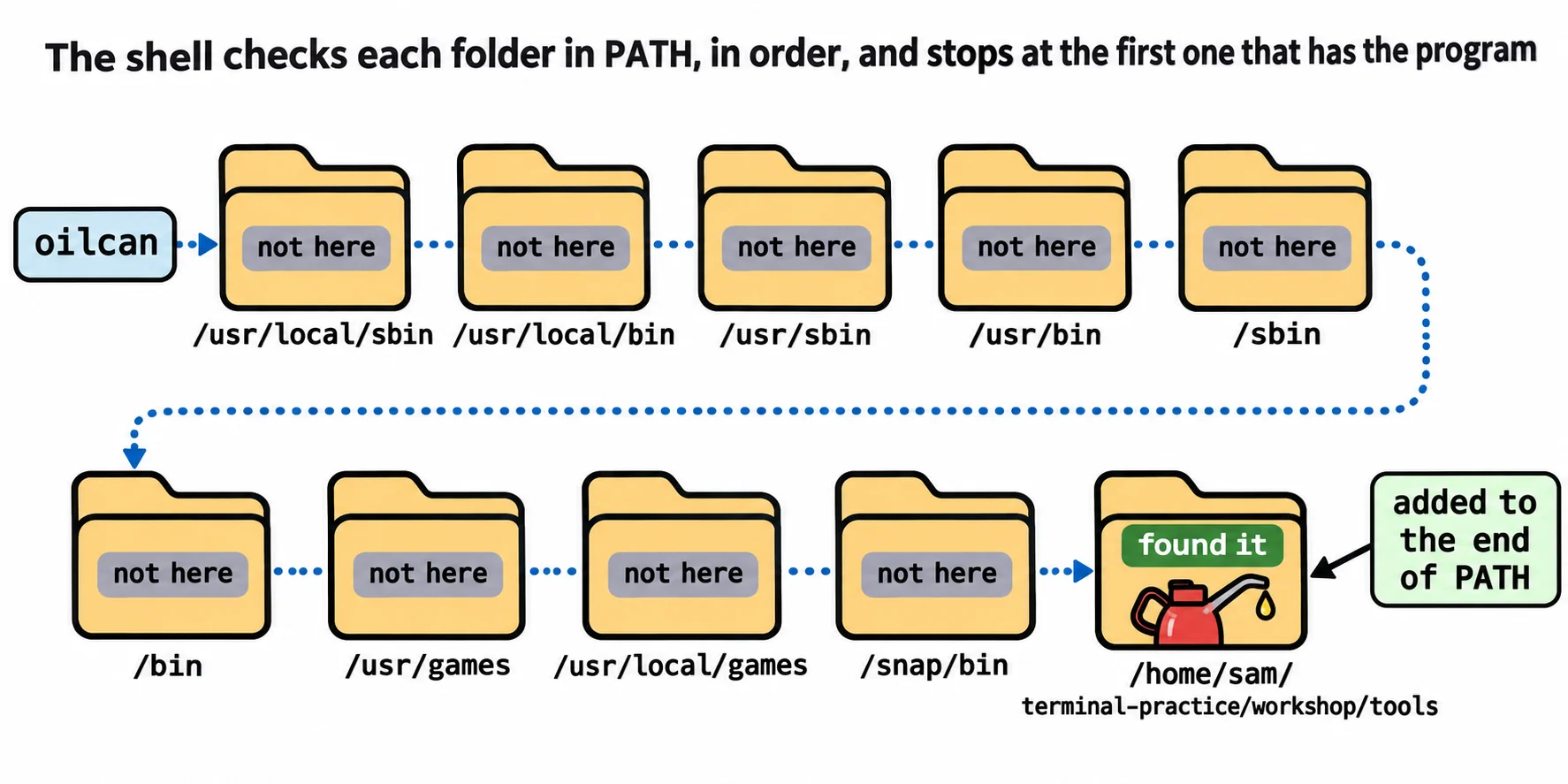
When you type ls, the shell checks /usr/local/sbin for a program called ls, then /usr/local/bin, then /usr/sbin, then /usr/bin, where it finds it and stops. Yours may be longer. In WSL, it also ends with Windows folders that start with /mnt/c, so you can run Windows programs from Ubuntu, and a Mac's list starts with different folders. command not found means the shell checked every folder on the list and none had a program by that name. Either the program is somewhere else, or the name is misspelled.
which and type: where a command lives
which names the program file a command runs. type says what kind of command it is:
which ls
type ls
type cd
/usr/bin/ls
ls is aliased to `ls --color=auto'
cd is a shell builtin
ls is the file /usr/bin/ls, and on Ubuntu type adds that ls is an alias: a short name standing for ls --color=auto, which is why folders show in color. (Aliases and Small Functions, in the next chapter, shows how to make your own.) cd is a shell builtin, a command that's part of bash itself, so which cd prints nothing.
Add a folder to PATH
One more thing before the oil can will run: its file has to be marked as a program that may run. chmod +x does that, and Permissions: Read, Write and Run, next, explains it. Then any path with a / in it runs that exact file, without searching:
chmod +x tools/oilcan
tools/oilcan
Glug, glug. The gears are oiled.
To run it by name, add the tools folder to the end of PATH:
export PATH="$PATH:$HOME/terminal-practice/workshop/tools"
cd ~
oilcan
which oilcan
Glug, glug. The gears are oiled.
/home/sam/terminal-practice/workshop/tools/oilcan
Read the new value from the right side of the =: the old list ($PATH), a colon, then the new folder. Now oilcan works from your home folder or anywhere else. The one mistake to avoid: without $PATH:, the line replaces the whole list, and ls, cat and nearly everything else stop working until you open a new window. (PATH is already an environment variable, so the export isn't strictly needed. Tutorials write it anyway, and it does no harm.)
This lasts until you close the window. To keep it, the line goes in a startup file, the subject of Startup Files: .bashrc, .zshrc and source.
You may wonder why the shell didn't find oilcan while you were in the workshop. By design, the shell doesn't search the folder you're in, so a file named ls that someone left in a downloaded folder can't pretend to be the real ls. To run a program in the folder you're in, you write ./ in front of its name, read "dot slash": this folder, this file.
Try it in the terminal
Terminal Quest: The Clockwork Workshop, goal 4: played right on the lesson page.
The oil can is in the workshop's tools folder. Put that folder on your PATH, keeping what's already there, then oil the gears.
Check yourself
2 questions to try on the lesson page.
So what
command not found is never a mystery once you can read PATH: the program isn't in any folder on the list. Add its folder, and it runs by name from anywhere, the way every tool you install does.