Pictures from CSS: Background Images
background-image puts a decorative picture behind an element's content, on top of its background-color, and background-repeat, background-size and background-position decide whether it tiles, how big it is and where it sits.
Novice · CSS · Updated
After this lesson you can
- Put a decorative picture behind an element with background-image and url(), over a background-color that keeps the text readable
- Size, place and repeat a background picture with background-size, background-position and background-repeat
Key takeaways
- A picture that tells the reader something belongs in the HTML as an
<img>with alt text. A picture that only decorates goes in the CSS, withbackground-imageandurl(). - The background-color sits under the picture. It shows wherever the picture is see-through, and it fills the whole box when the picture doesn't load.
- A background picture repeats like floor tiles unless you say otherwise.
no-repeatshows it once, andrepeat-xmakes one row of copies, a strip. background-size: coverfills the whole box and crops what doesn't fit,containshows the whole picture, and a length such as16pxsets its width.background-positionsets where the picture sits, such ascenterorleft center, and which part stays in view whencovercrops it.
Walk up to Sol Taco Truck and you see the truck before you read a word: orange paint, a string of paper flags over the window, and the menu chalked on a blackboard. The owner wants the website to feel the same, with a photo of the truck behind the name, a chalkboard behind the menu and flags over each section. CSS can put pictures like these behind any element, from the stylesheet. You'll use it for the big photo behind a site's name, a paper or wood texture behind a page, a small icon beside a label, and a decorative strip along an edge.
A picture to read, or a picture to set the mood?
A restaurant has two kinds of pictures. The photos on the menu show what the tacos look like: they're part of what you came to read. The wallpaper only sets the mood, and nobody would miss any information if it were gone. Web pages sort pictures the same way:
- A picture that tells the reader something, such as a photo of a dish, a chart, or a pet up for adoption, is content. It goes in the HTML as an
<img>element with alt text, so people using a screen reader hear what it shows. - A picture that only decorates, such as a texture, a banner of flags or a mood photo behind a heading, goes in the CSS as a background image. Screen readers skip it, which is right for decoration, and you can swap it without touching the HTML.
When you can't decide, ask: if this picture didn't load, would the reader miss information? If they would, it's an <img>.
background-image and url()
background-image hangs a picture behind an element's content, inside its box. The picture comes from a file, named inside url(), read "U R L". A URL is an address, and here it's the address of the picture file:
body {
  background-image: url("images/chalkboard.png");
}
The address is a relative path, directions that start from where the stylesheet is: go into the images folder and find chalkboard.png. In this course styles.css sits beside index.html, so that's the page's folder too. The quotes are optional, but they're a good habit: a file name with a space in it works only inside quotes.
chalkboard.png is a small square of chalkboard, 200 by 200 pixels. (A pixel, written px, is one of the tiny dots a screen is made of.) The page is far bigger, so the browser does what a tiler does with a kitchen floor: it lays copy after copy, in rows, until the box is covered. A picture drawn so its edges meet with no visible seam is called a tile, or a texture, and its copies look like one big chalkboard. Every background picture tiles until you say otherwise, with background-repeat, below.
Try it. In your sol-taco-truck folder from Type, Class and ID Selectors, make a folder named images, and copy a small photo of your own into it as tile.jpg. Add the rule above to styles.css, with url("images/tile.jpg"), and save. The page fills with copies of your photo in rows. A photo shows its seams; a texture made for tiling doesn't.
The color underneath
Hang a poster with a torn corner on a painted wall, and the paint shows through the gap. An element's background works in the same two layers: the background-color is the paint, and the background-image is the poster on top of it. The color shows wherever the picture doesn't cover:
- where the picture is transparent (see-through). A PNG file can have see-through parts, such as the space around a pepper cut out of its photo;
- where the picture doesn't reach, when it isn't repeated;
- everywhere, when the picture doesn't load: a misspelled file name, a file left out when the site was uploaded, or a slow connection.
body {
  color: white;
  background-color: #2f3b35;
  background-image: url("images/chalkboard.png");
}
Without the background-color, a missing picture would leave white text on a white page, with nothing to read. With it, the page is still a dark board. So whenever text sits on a picture, give the element a background color close to the picture's own, one that keeps the text readable by itself.
A missing picture shows no error on the page. To find out why, press F12 (Cmd+Option+I on a Mac) and open the developer tools' Console: a red line ending in 404 (Not Found) names the address the browser tried. Compare it with the file's real name, capital letters included.
Try it. Misspell the file name in your url() and save. The copies disappear, and only the background color is left (white, if you haven't set one). Find the 404 line in the Console, then fix the name.
background-repeat: tiles, one copy, or a strip
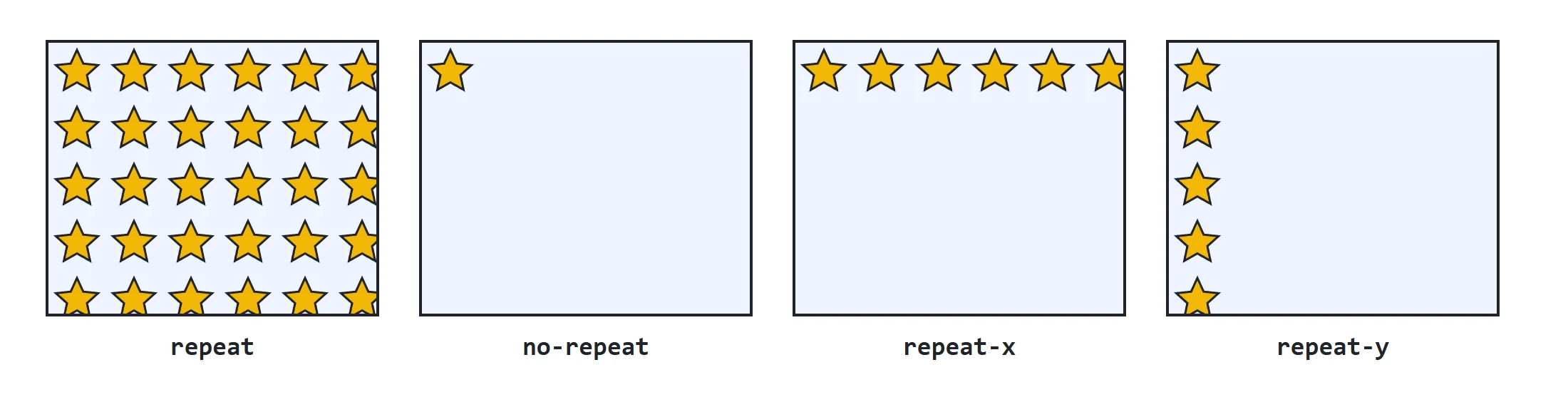
Tiling suits a texture, but most pictures should appear once. background-repeat decides:
| Value | What it does | Good for |
|---|---|---|
repeat |
copies in rows and columns, filling the box (the default) | textures and patterns |
no-repeat |
one copy, no more | a photo, a logo, an icon |
repeat-x |
one row of copies, across | a strip along the top or the bottom |
repeat-y |
one column of copies, down | a strip down one side |
Read repeat-x as "repeat across" and repeat-y as "repeat down": x is the across direction and y the up-and-down one, as on a graph in math class.
The truck's flags are a strip. They're papel picado, the cut-paper flags hung at Mexican celebrations, and papel-picado.png is a short piece of the string, 40 pixels tall, see-through between the flags. repeat-x strings copies of it across each section heading:
h2 {
  padding-top: 48px;
  background-image: url("images/papel-picado.png");
  background-repeat: repeat-x;
}
padding-top adds 48 pixels of room inside the heading, above its words, so the flags hang over the text instead of behind it. Padding is part of The Box Model: Content, Padding, Border and Margin, in the next chapter; here, it makes space for the picture.
background-size: cover, contain or a length
A picture comes at its own size. A photo from a phone can be 4,000 pixels wide, much wider than the screen, and the box shows only its top-left corner. background-size scales it:
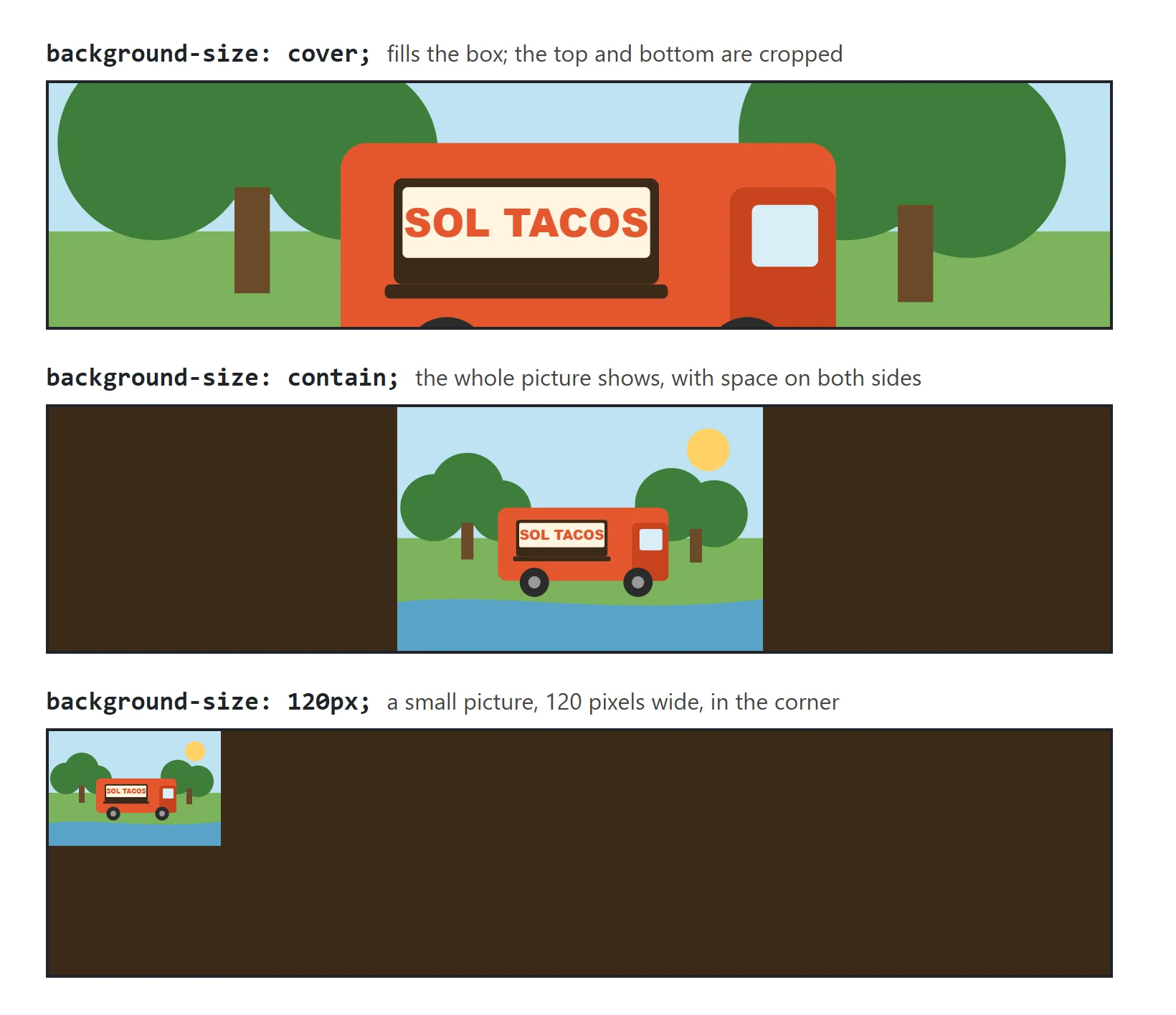
cover, like wallpaper that must cover the whole wall: the picture grows or shrinks, keeping its shape, until it covers the entire box. Whatever hangs over the edges is cut off, or cropped. No gaps, but some of the picture may be hidden.contain, like a photo in a frame that must show all of it: the picture grows or shrinks, keeping its shape, until the whole picture fits inside the box. Nothing is cropped, but there may be empty space on two sides.- A length, such as
16px: the picture's width. Its height follows, so it keeps its shape.
The big banner at the top of a page is called a hero, and the hero is where cover shines. The truck's name and today's special sit in a header:
<header class="hero">
  <h1>Sol Taco Truck</h1>
  <p id="todays-special">Today's special: pineapple al pastor tacos</p>
</header>
.hero {
  padding: 80px;
  color: white;
  background-color: #3b2a1a;
  background-image: url("images/truck.jpg");
  background-size: cover;
}
The 80 pixels of padding give the banner some height, and the truck photo fills it edge to edge on any screen: a phone crops more of the photo's sides, a wide screen more of its top and bottom. Choose a photo that's dark where the words sit, and keep the dark brown underneath, so the white text stays readable while the photo arrives.
contain has one surprise: the picture still repeats into the empty space beside it, unless you add background-repeat: no-repeat.
A length suits small pictures, such as an icon beside a word:
.spicy {
  padding-left: 22px;
  background-image: url("images/jalapeno.png");
  background-repeat: no-repeat;
  background-size: 16px;
}
The jalapeño picture is 512 pixels wide, and 16px shrinks it to sit beside the word Spicy, while padding-left makes room for it so it isn't under the letters. Around the pepper, the PNG is see-through, so the label's dark red background-color from Color: Names, Hex, rgb() and hsl() shows all around it.
To see what a length does to a big photo, give the hero's truck photo one in place of cover:
.hero {
  background-repeat: no-repeat;
  background-size: 120px;
}
The photo shrinks to a small picture, 120 pixels wide, in the banner's top-left corner, with the dark brown all around it. Without no-repeat, copies of it would tile across the banner. A small length suits an icon; for a hero, cover is the better choice.
background-position: where it sits
A background picture starts in the box's top-left corner. background-position moves it, with words you'd use to give directions: left, center or right across, and top, center or bottom down.
.hero {
  background-position: center;
}

.spicy {
  background-position: left center;
}
centerputs the middle of the picture in the middle of the box. Withcover, that decides which part survives the crop: the middle of the truck stays in view, and the edges are cut. If the truck's window were near the top of the photo,center topwould keep the top in view instead.left centerputs the pepper at the left edge, halfway down: right wherepadding-leftmade room for it.
Give one word, and the other direction is centered: top alone means center top. A position can also be lengths, such as 20px 10px (20 pixels from the left, 10 from the top), but the words cover most needs.
One line for all of it. You'll see the background property in other people's CSS. It's a shorthand that sets the color, the picture, the repeat and the position in one declaration: background: #2f3b35 url("images/chalkboard.png");. Its trap: anything you leave out goes back to its default, so a later background: white; takes the picture away too. One property per line is clearer while you're learning.
Try it. Copy a wide photo of your own into images. In index.html, wrap the <h1> and today's special in the <header class="hero"> above, and add the .hero rule to styles.css with your photo's name. Make the browser window narrow, then wide, and watch cover crop the sides, then the top and bottom. Then change cover to contain, and add background-repeat: no-repeat.
Check yourself
2 questions to try on the lesson page.
So what
A texture behind a page, a photo behind a name, a strip of flags over a heading and an icon beside a label are all background-image with a color underneath, plus three properties that tile, size and place it. Gradients, in Finishing Touches: Rounded Corners, Shadows and Gradients, are background images too: pictures the browser draws for you instead of loading from a file.