The Box Model: Content, Padding, Border and Margin
Every element on a page is a box with four layers, content, padding, border and margin, and knowing them is how you control every bit of space on a page.
Novice · CSS · Web Development · Updated
After this lesson you can
- Name the four parts of the box model and say what each one does
- Tell block boxes from inline boxes and predict how they share a line
Key takeaways
- Every element on a page is a box, even when it doesn't look like one.
- The box has four layers, from the inside out: content, padding, border and margin.
- Padding is space inside the border, and the box's background shows through it. Margin is space outside the border, and it's see-through.
- Block boxes start on a new line and stretch across the space they're in. Inline boxes sit side by side inside a line of text.
- The developer tools draw any element's four layers, with their sizes, in the box model diagram.
A button whose words touch its edges. A photo jammed against the text beside it. Two sections that run together with no breathing room. Every one of those is fixed the same way: with the box model. When a class assignment says "add some space between the sections", or a designer's mockup says "16 pixels inside the card, 24 between cards", this lesson is what you reach for.
The running example for this chapter is Forest Friends, a made-up trading card game. Its first three cards are Mossy the Tortoise, Fern the Fox and Pip the Owl, and by the end of the chapter each one will look like it came out of a fresh pack.
A framed picture on a wall
Think of a framed photo hanging in a hallway. It has four layers:
- The photo itself, in the middle.
- The mat: the plain border of card around the photo, inside the frame. It gives the photo room to breathe.
- The frame: the wood or metal edge around the mat.
- The wall space between this frame and the next one, so the pictures don't crowd each other.
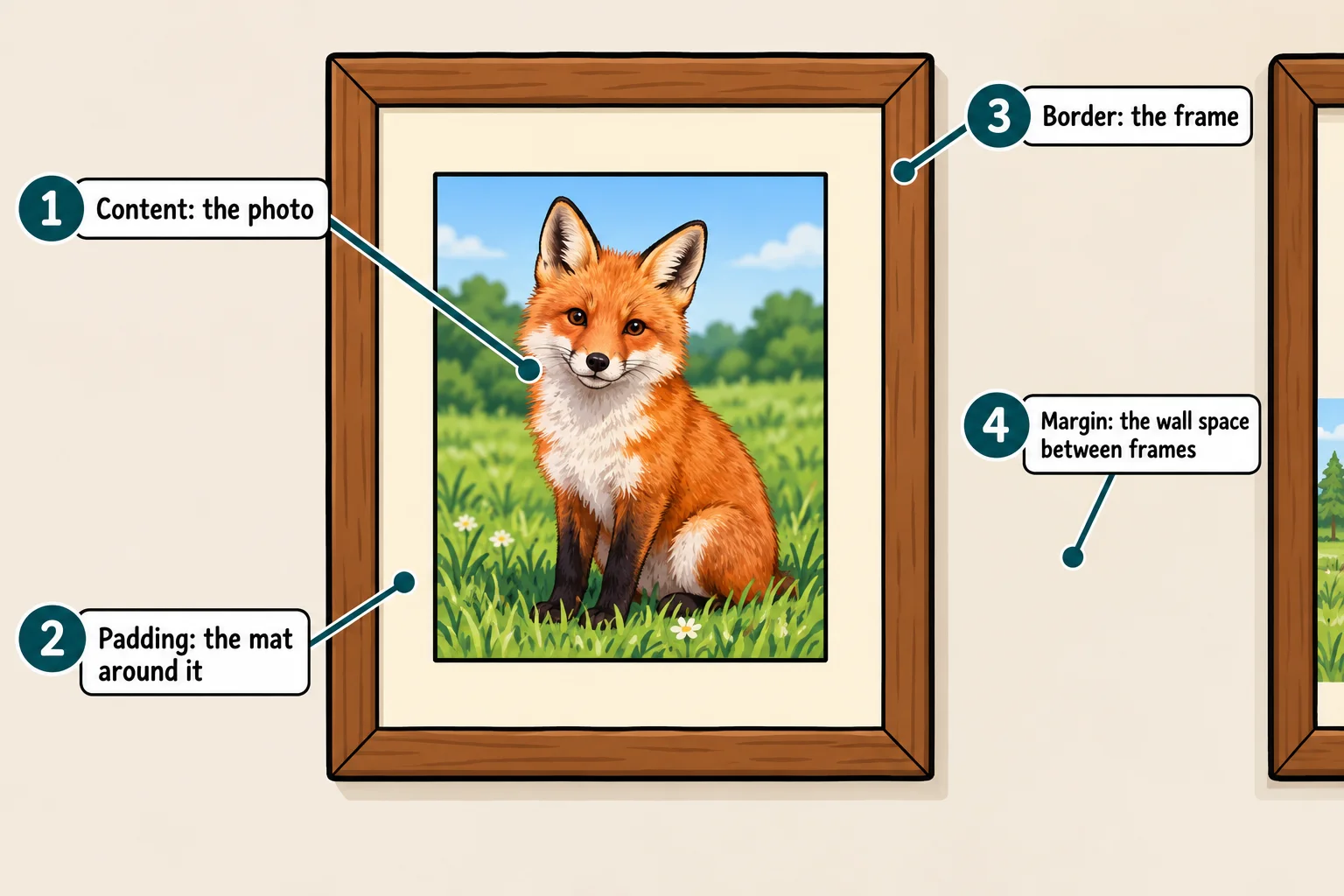
Every element on a web page is built the same way, as a rectangle with those four layers. CSS calls the idea the box model, and it's the same for a heading, a paragraph, a picture or a whole card.
Every element is a box
Here's the HTML for Mossy's card: an <article> with a heading and a paragraph inside it. (An <article> is a self-contained piece of a page, such as one card or one post.)
<article class="card">
  <h2>Mossy the Tortoise</h2>
  <p>Slow, steady and very hard to knock over.</p>
</article>
On the page you see a heading and a line of text. The browser sees three boxes: one for the card, and one each for the heading and the paragraph, inside it. Most boxes have nothing to show where their edges are, so you can't see them until you give them a background or a border.
Try it. In your css-in-depth folder, make a folder named forest-friends with an index.html holding the card above inside a page skeleton, and a styles.css linked from it. Add this rule to styles.css, save, and open the page with Live Server:
* {
  outline: 2px dashed tomato;
}
The * (read "star") picks every element, and outline draws a dashed line around each box without changing its size. Now you can see all three boxes, nested inside each other. It's a tool for seeing, not a style for a finished page, so delete it when you're done looking.
The four parts, in CSS
Each layer of the framed picture has a CSS name:
| The framed picture | The box model | What it is |
|---|---|---|
| The photo | Content | What the element holds: its text, or its picture |
| The mat | Padding | Space inside the border, around the content |
| The frame | Border | A line around the padding |
| The wall space | Margin | Space outside the border, between this box and its neighbors |
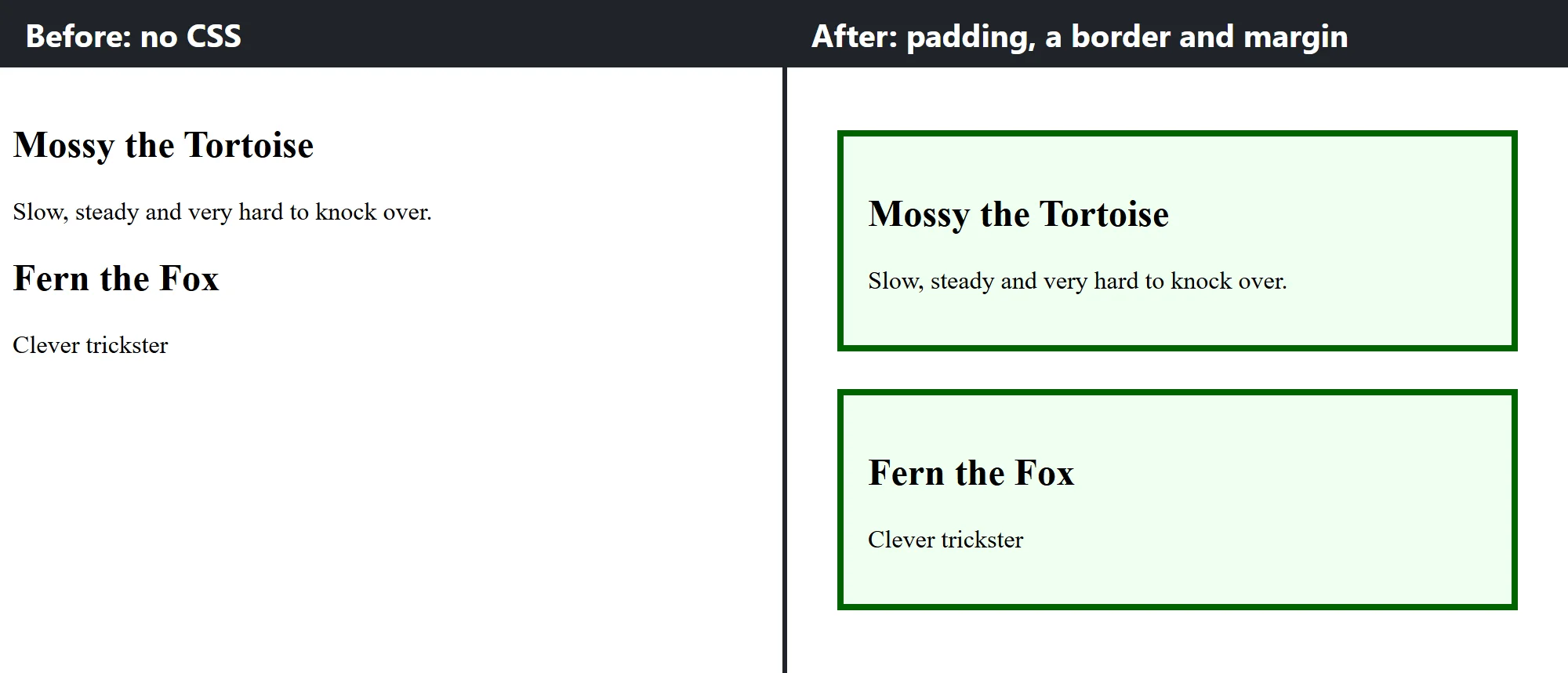
Here are all four on Mossy's card:
.card {
  background-color: honeydew;
  padding: 16px;
  border: 4px solid darkgreen;
  margin: 24px;
}
padding: 16px;puts 16 pixels of space between the card's words and its border, on every side.pxis read "pixels": a pixel is a tiny dot of the screen, and Units: px, rem, em, % and Viewport Units compares it with the other units later in this chapter.border: 4px solid darkgreen;draws a solid dark green line, 4 pixels thick, around the padding.margin: 24px;keeps 24 pixels of empty space around the outside of the border, so the next card can't touch this one.- The content is the heading and the paragraph. You don't set it with a property: it's whatever the element holds.
Padding or margin?
Both make space, so which one do you want? Ask two questions:
- Inside the border or outside it? Padding is inside, margin is outside.
- Should the background show there? The box's background color fills the content and the padding, and stops at the border. Margin is always see-through: you see whatever is behind the box.
.play-button {
  background-color: darkgreen;
  color: white;
  padding: 12px;
  margin: 8px;
}
The button's 12 pixels of padding are green, so the button itself gets bigger, and so does the area a finger can tap. The 8 pixels of margin are empty space around it, which keeps the next button from touching this one.
Try it. On your card, swap the numbers: padding: 24px; and margin: 16px;. The card grows, because padding is part of the card, and the space around it shrinks.
Block boxes and inline boxes
A book has two kinds of things in it. Paragraphs are stacked one under another, each on its own lines. Words sit side by side inside a line, and wrap onto the next line when they run out of room. Boxes come in the same two kinds:
- A block box starts on a new line and stretches across all the width it has. Headings (
<h1>to<h6>),<p>,<ul>,<li>,<article>,<section>and<div>are block boxes. Two block boxes never share a line: they stack. - An inline box sits inside a line of text, next to the words around it.
<strong>,<em>,<a>and<span>are inline boxes. Many of them can share one line, and a long one wraps onto the next line like words do.
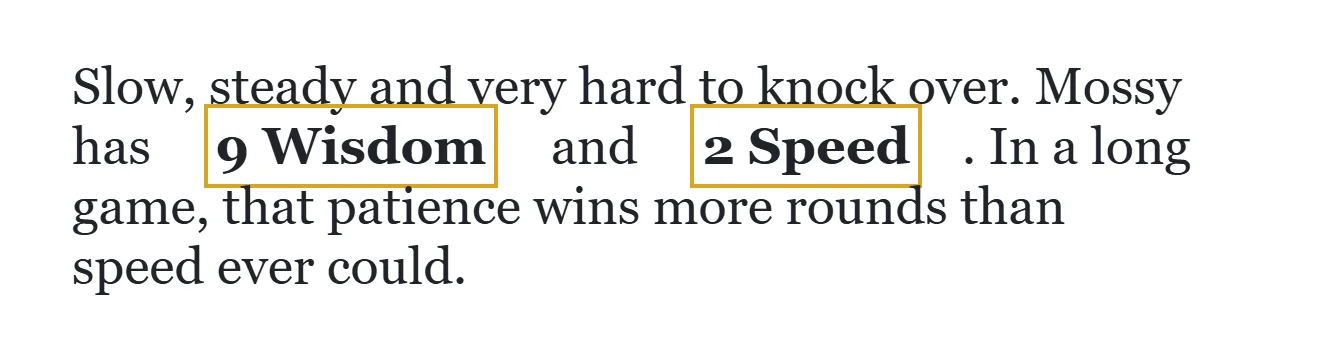
<p>Mossy has <strong class="stat">9 Wisdom</strong> and <strong class="stat">2 Speed</strong>.</p>
.stat {
  padding: 4px;
  border: 2px solid goldenrod;
  margin: 20px;
}
Both stats stay inside the sentence, each with a gold frame around its words. On an inline box, padding, border and margin behave a little differently:
- Left and right work as you'd expect: the 20 pixels of margin push the words beside each stat away from it.
- Top and bottom don't move anything: the margin above and below adds no space between the lines, and the padding and border spill over the lines above and below instead of pushing them apart.
widthandheightare ignored. An inline box is as wide as its words.
A picture (<img>) sits in a line of text like an inline box, but you can give it a width and a height. Module 3's Normal Flow and the display Property shows how to turn an inline box into a block one, and back.
See the box in the developer tools
The developer tools draw the box model for any element, on any site. Right-click an element and choose Inspect, as in Look Inside Any Page with Developer Tools:
- Chrome and Edge: in the panel beside the HTML, open the Computed tab. At the top is the box model diagram: four rectangles inside each other, labeled margin, border and padding, with the content's width and height in the middle. Each side shows its size in pixels, and a
-means zero. Double-click a number to try a new value. - Firefox: open the Layout tab and find the Box Model section.
Hold the mouse over a layer of the diagram, and the browser lights up that layer on the page: the content, the padding and the margin each in their own color, so you can see exactly where each one is.
Try it. Open a site you use every day, right-click a button, and choose Inspect. Find its box model diagram. How much padding does the button have? Is there any margin around it?
Check yourself
2 questions to try on the lesson page.
So what
Every space on every page you'll ever build, inside a button, around a photo, between two sections, is padding or margin around a box. Once you can see the boxes, you can control the space.