Custom Properties: Variables in CSS
A custom property gives a value such as a brand color a name you choose, once, and every rule that reads it with var() follows when that one value changes.
Apprentice · CSS · Updated
After this lesson you can
- Declare a custom property and read it with var(), with a fallback for when it isn't set
- Predict the value var() gets from where the custom property is declared and how it inherits
Key takeaways
- A custom property is a name you make up, starting with two dashes, that holds a value, as in --brand: #6f4e37;.
- var(--brand) reads the value wherever a property needs it, and var(--brand, brown) adds a fallback for when it isn't set.
- Declared on :root, a custom property reaches the whole page. Declared on one element, it reaches only that element and what's inside it.
- Custom properties are inherited, so an element gets the value from the nearest element around it that declares one.
- Change a custom property in the developer tools, and every rule that reads it updates at once.
The Daily Grind is a neighborhood coffee shop, and its website uses one warm coffee brown, #6f4e37, for the buttons, the headings, the price tags and the links. In the stylesheet that color is typed out fourteen times. Then the owner repaints the shop a darker roast and asks for the website to match. You could search for #6f4e37 and replace it fourteen times, and hope you didn't miss one written as #6F4E37. Or the color could have a name, written once, that every rule reads.
That name is a custom property, and you'll use them everywhere: a brand color that changes, a class project that asks for "a consistent color scheme", a dark theme, or someone else's stylesheet, since nearly every modern site and framework (Bootstrap included) is built on them. This lesson shows how to make one, read it, give it a backup, and decide how much of the page it reaches.
A name for a value
A paint store mixes a color from a formula, but the label on the can says Daily Grind Brown. When the painter needs more, they ask for the name, not the formula. A custom property is that label: a name you choose, holding a value. People also call them CSS variables, and in a class you may hear either.
:root {
  --brand: #6f4e37;
  --page: #fbf6ee;
}
- The two dashes are what make it a custom property. Read
--brandas "dash dash brand". After the dashes, the name is yours: letters, numbers and dashes, no spaces. - Capital letters count.
--Brandand--brandare two different custom properties, unlike color names. :root, read "colon root", selects the page's outermost element,<html>. Declared there, the names reach every element on the page.
Declaring a custom property doesn't change anything you can see yet. It only stores the value, like a label on a can nobody has opened.
Reading it with var()
To use the value, write var() with the name inside. Read var(--brand) as "var dash dash brand"; var is short for variable.
.btn-primary {
  background-color: var(--brand);
  color: var(--page);
}

.menu-card h3 {
  color: var(--brand);
}
The button's background and the card's heading both read --brand. Change #6f4e37 to #5a3e2b on the :root line, and both follow. That's the whole idea: the value lives in one place, and every rule that needs it asks for it by name.
var() works only where a value goes, after the colon. It can't stand in for a property's name or a selector: var(--brand): red; doesn't work.
Try it. In your css-in-depth folder, make a folder named daily-grind with a file named brand.html, paste this in, and open it with Live Server. Then change --brand to #1f7a72, a teal, save, and watch the heading and the button change together.
<!DOCTYPE html>
<html lang="en">
<head>
  <meta charset="utf-8">
  <title>The Daily Grind</title>
  <style>
    :root { --brand: #6f4e37; --page: #fbf6ee; }
    body { background-color: var(--page); font-family: Georgia, serif; }
    h1 { color: var(--brand); }
    .btn-primary { background-color: var(--brand); color: var(--page); padding: 0.5rem 1rem; border: none; }
  </style>
</head>
<body>
  <h1>The Daily Grind</h1>
  <button class="btn-primary" type="button">Order ahead</button>
</body>
</html>
A fallback for when it isn't set
A barista's order ticket might say "oat milk, or whole milk if we're out". var() can carry the same backup plan: after the name, a comma and a fallback value, used only when the custom property isn't set.
.badge {
  color: var(--accent, brown);
}
Read it as "var dash dash accent, or brown". If --accent is declared somewhere above the badge, the badge uses it. If it isn't, because nobody declared it or because the name has a typo, the badge is brown. The fallback can even be another var(): var(--accent, var(--brand)).
Without a fallback, a missing name doesn't fail loudly. The browser treats the property as if it had never been set at all: color takes the color of the element around it, and background-color turns see-through. That holds even when an earlier rule gave the element a perfectly good color, which is why a typo such as var(--bran) can make a button's background vanish. When something you styled with var() looks wrong, check the spelling first.
Where it applies: the whole page or one component
A house might have one thermostat for every room, and a small space heater in the room where someone always feels cold. A custom property works the same way: declare it on :root and it reaches the whole page; declare it on one element and it reaches only that element and everything inside it.
:root {
  --brand: #6f4e37;
}

.seasonal {
  --brand: #1f7a72;
}

.btn {
  background-color: var(--brand);
}
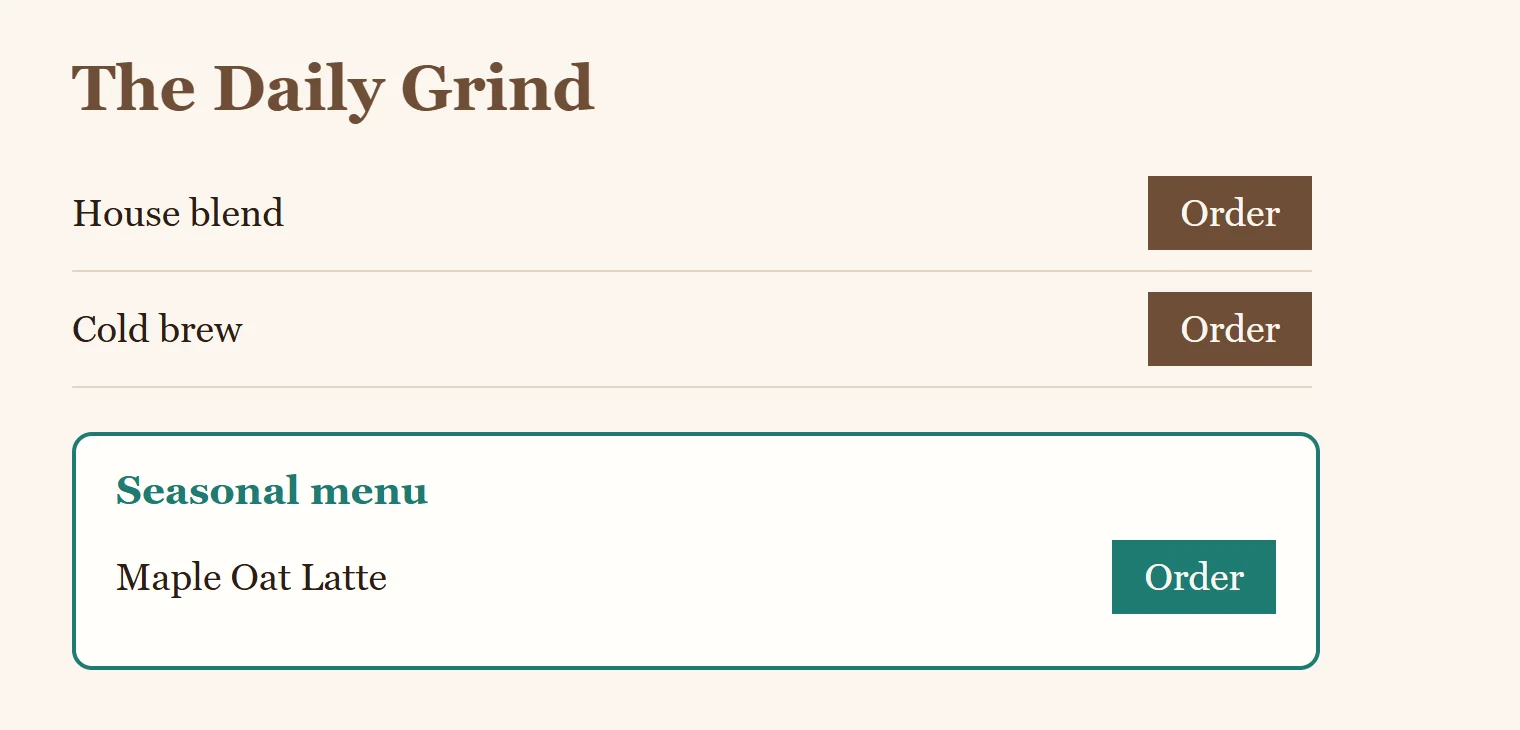
Every button on the page is coffee brown, except the buttons inside an element with the class seasonal: those are teal. The .btn rule didn't change at all. This is how one component, such as the menu card for a seasonal drink, gets its own look without a single extra button rule.
It's inherited
Custom properties pass down from parent to child, as color and font-family do (Inheritance: What Children Get from Their Parents covers which properties do). So when var(--brand) runs on a button, the browser looks at the button itself, then the element around it, then the one around that, and uses the nearest declaration it finds. In the example above, a button inside .seasonal finds teal before it ever reaches :root.
One thing surprises almost everyone the first time. A custom property that reads another one gets its value where it is declared:
:root {
  --brand: #6f4e37;
  --button-bg: var(--brand);
}

.seasonal {
  --brand: #1f7a72;
}

.btn {
  background-color: var(--button-bg);
}
The button inside .seasonal is still brown. --button-bg worked out "brown" on :root, and the button inherited that finished answer, not the instruction "read --brand". To make the seasonal button teal, .seasonal would redefine --button-bg itself.
Change one live in the developer tools
The developer tools let you try a new value on the real page before you touch your file.
- Open your page with Live Server and press F12 (Cmd+Option+I on a Mac) to open the developer tools.
- In the Elements panel (Firefox: Inspector), click the
<html>line at the top. The Styles pane (Firefox: Rules) shows your:rootrule with--brandin it. - Click the value
#6f4e37, type#c0562c, and press Enter. Every button and heading that reads--brandchanges at once. - Now select a button. Its rule shows
var(--brand): hover over it to see the value it got.
Nothing is saved: reload, and the page goes back to your file. When you find a value you like, copy it into your stylesheet.
Check yourself
2 questions to try on the lesson page.
So what
A custom property turns a value you'd copy fourteen times into one decision with a name. Name the values your design repeats, and a rebrand, a seasonal look or a whole dark theme becomes a change to a few lines.