Positioning: relative and absolute
Nudge an element from its normal place with position relative, and pin one to a corner of its parent with position absolute, the pattern behind every badge, close button and photo caption on the web.
Apprentice · CSS · Updated
After this lesson you can
- Nudge an element from its normal place with position: relative and top or left, keeping its space in the page
- Place an element in a corner of its parent with position: absolute inside a position: relative parent, using top, right, bottom, left or inset
Key takeaways
- position: relative moves an element from its normal place by its top, right, bottom and left values, and keeps its space, so nothing around it moves.
- position: absolute lifts an element out of normal flow. Its space closes up, and it's placed by its offsets inside its containing block.
- The containing block of an absolute element is its nearest ancestor whose position isn't static. With none, it's the page, and the element scrolls with the page.
- The badge pattern is a position: relative parent with a position: absolute child, such as top 8px and right 8px for the top right corner.
- inset sets top, right, bottom and left at once. inset: 0 stretches an absolute element over its whole containing block.
Open any shopping site and look at the product cards. A "Sale" tag hangs in one corner, a heart button sits on top of the photo, and the photo has a caption across its bottom edge. None of those is in normal flow: each one is pinned to a spot on its card, and it goes wherever the card goes. Every pop-up's close button works the same way. This lesson is how they're built, with two values of one property.
On Paws & Whiskers' adoption list, the pets who arrived this week get a New! badge in the top right corner of their card. By the end of this lesson, you can put it there.
Positioning: moving things on purpose
The position property chooses how an element is placed, which is called its positioning scheme. Its starting value is static: the element sits where normal flow puts it, and top, right, bottom and left do nothing. Every other value makes those four properties work. They're called offsets, and each one is a distance from an edge:
.example {
  position: relative;
  top: 20px;
  left: 10px;
}
Read top: 20px; as "20 pixels from the top": it pushes the element 20 pixels down, away from the top edge. left: 10px; pushes it 10 pixels away from the left edge, so to the right. A negative value goes the other way: top: -20px; moves it up.
Each value of position measures the offsets from something different, and that's the whole difference between them. This lesson covers two of them, relative and absolute. Positioning: fixed and sticky covers the other two.
relative: a nudge
Picture a magnet on a fridge. Slide it a little to the side, and imagine it leaves its outline behind: nothing else on the fridge moves into that outline, because the spot is still taken.
That's relative positioning. The element moves by its offsets, measured from where normal flow put it, and its space stays reserved:
.paw-icon {
  position: relative;
  top: 2px;
}
The paw-print icon beside each pet's name sat a little too high next to the words, so this moves it 2 pixels down. The name and everything else on the card stay exactly where they were. A small nudge like this is one use of relative. Its bigger job comes next: an element with position: relative; and no offsets doesn't move at all, but it becomes the frame that absolute elements inside it are placed in.
absolute: lifted out of the flow
Now picture a sticker you peel off a page and stick back down somewhere else. It no longer takes up room in the text: the words close up where it used to be.
That's absolute positioning. The element is taken out of normal flow, so the boxes after it move up into its space, and it's placed by its offsets inside its containing block: the box it's measured from. For an absolute element, the containing block is its nearest ancestor (an element around it, however far out) whose position isn't static.
.badge {
  position: absolute;
  top: 0;
  right: 0;
}
If no element around the badge is positioned, its containing block is the page itself, so every badge lands in the top right corner of the page, piled on top of each other. That's the most common surprise with absolute. Placed on the page, an absolute element still scrolls with the page, like everything else.
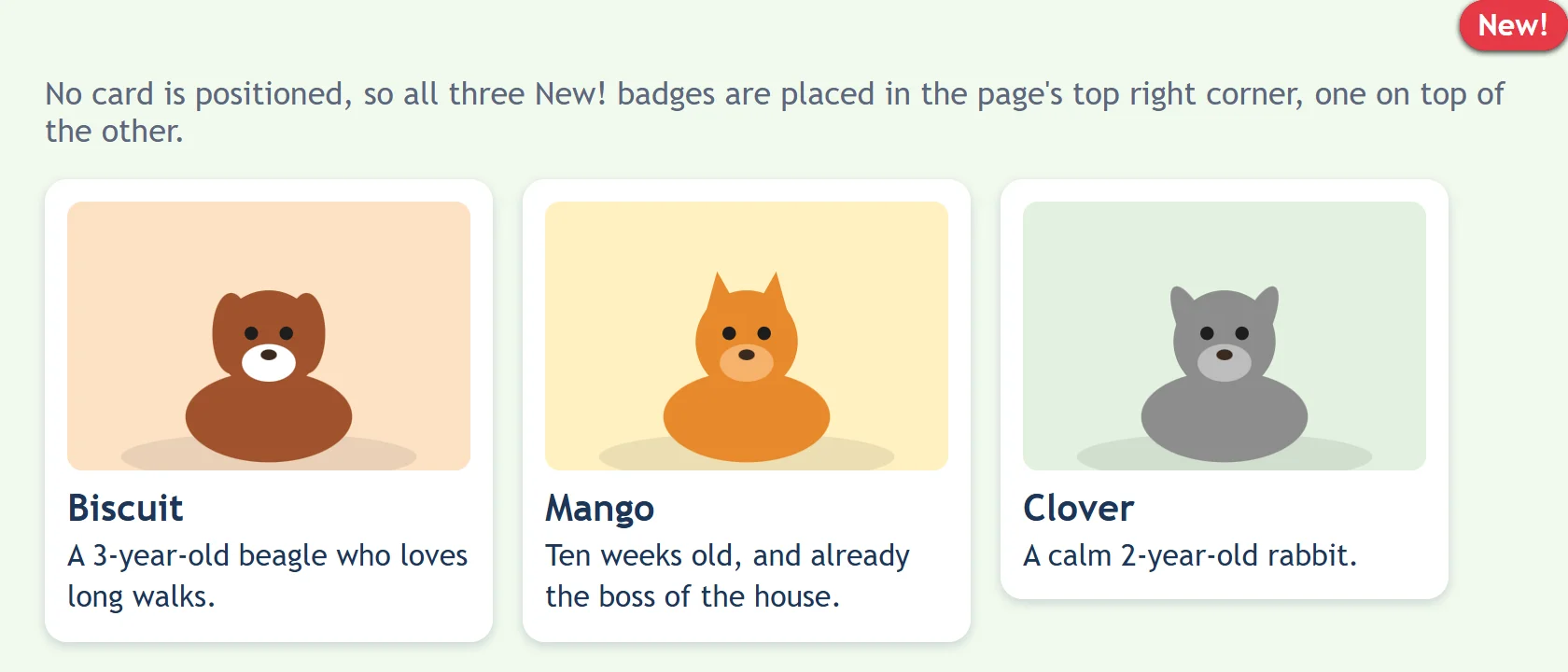
A badge in the corner of a card
The fix is one line on the parent. Give the card position: relative;, and it becomes the badge's containing block:
<article class="pet-card">
  <span class="badge">New!</span>
  <img src="images/mango.svg" alt="Mango, an orange tabby kitten, curled up asleep in a basket">
  <h2>Mango</h2>
  <p>Ten weeks old, and already the boss of the house.</p>
</article>
.pet-card {
  position: relative;
}

.badge {
  position: absolute;
  top: 8px;
  right: 8px;
}
Now each badge sits 8 pixels down and 8 pixels in from the top right corner of its own card, measured from inside the card's border. Move the card, make it wider, add more cards: each badge stays in its own card's corner. This pair, a relative parent and an absolute child, is the pattern behind nearly everything pinned to a spot: badges, close buttons, a heart on a photo.
For a badge that hangs over the corner, like a sticker on the edge of a box, use negative offsets: top: -8px; right: -8px;.
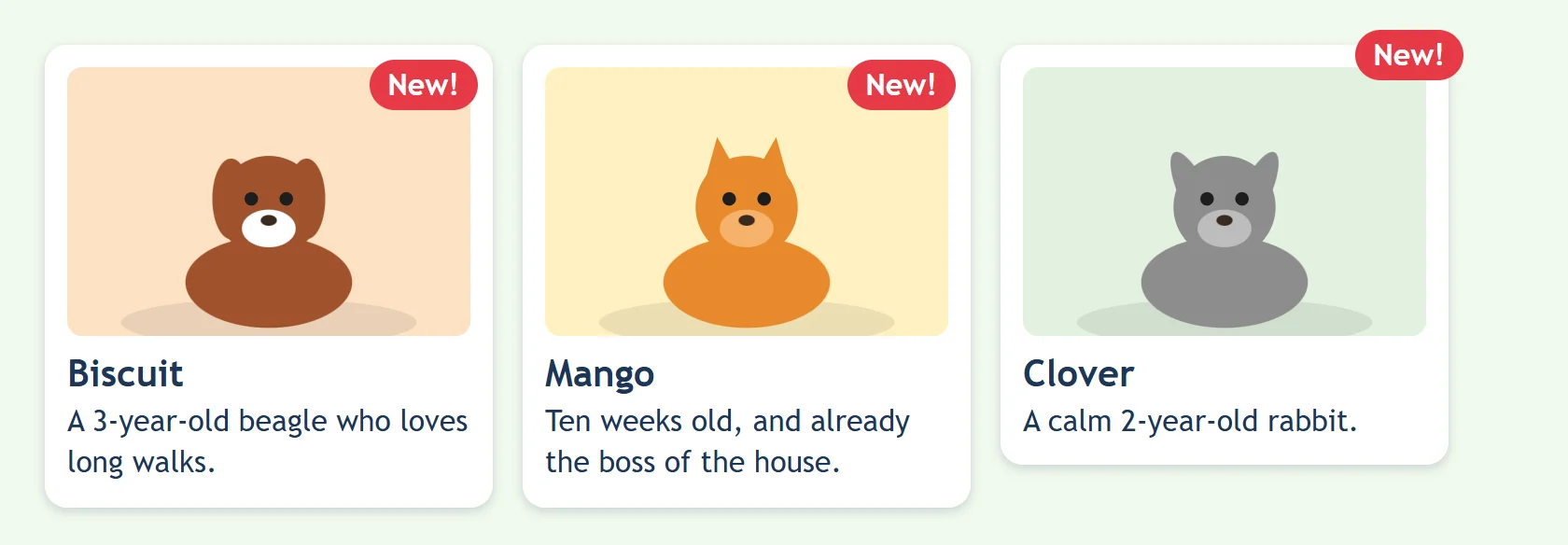
Try it. In your adoption-list folder, make badges.html with a page skeleton, a <style> element and two copies of Mango's card. Give the badge a background color so you can see it. Try the CSS without the .pet-card rule first, then add it. Then move the badge to the bottom left corner.
inset: all four offsets at once
Some pets already have an adoption on the way, and their photo gets a see-through overlay that says "Adoption pending". The overlay should cover the whole photo, so it needs all four offsets set to 0. The inset property sets all four at once:
.photo {
  position: relative;
}

.pending-overlay {
  position: absolute;
  inset: 0;
  background-color: rgb(29 53 87 / 70%);
  color: #ffffff;
}
inset: 0; means top: 0; right: 0; bottom: 0; left: 0;, so the overlay stretches from edge to edge of the photo's frame. With several values, inset goes clockwise from the top, the same order as margin and padding: inset: 8px 8px auto auto; is top 8px, right 8px, and bottom and left left as auto (not set), which is the badge's top right corner again.
Setting both left and right (or both top and bottom) stretches an absolute element between them. With only one of each, it's as small as its content, like the badge.

Check yourself
2 questions to try on the lesson page.
So what
A relative parent with an absolute child puts anything exactly where you want it inside a box, and it keeps working when the box moves, grows or repeats a hundred times down a page.