Styling a List That Stays a List
When a list should still look like a list, list-style-type, list-style-position, the list-style shorthand and ::marker change its bullets and numbers, and a few spacing rules make long and nested lists comfortable to read.
Apprentice · CSS · Updated
After this lesson you can
- Change a list's markers with list-style-type, list-style-position and the list-style shorthand
- Color and size a list's markers with ::marker, and space out a list's items and the lists nested inside it
Key takeaways
- list-style-type picks the marker. disc, circle or square bullets, decimal numbers, letters, roman numerals, none, or characters of your own in quotes, such as "✓ ".
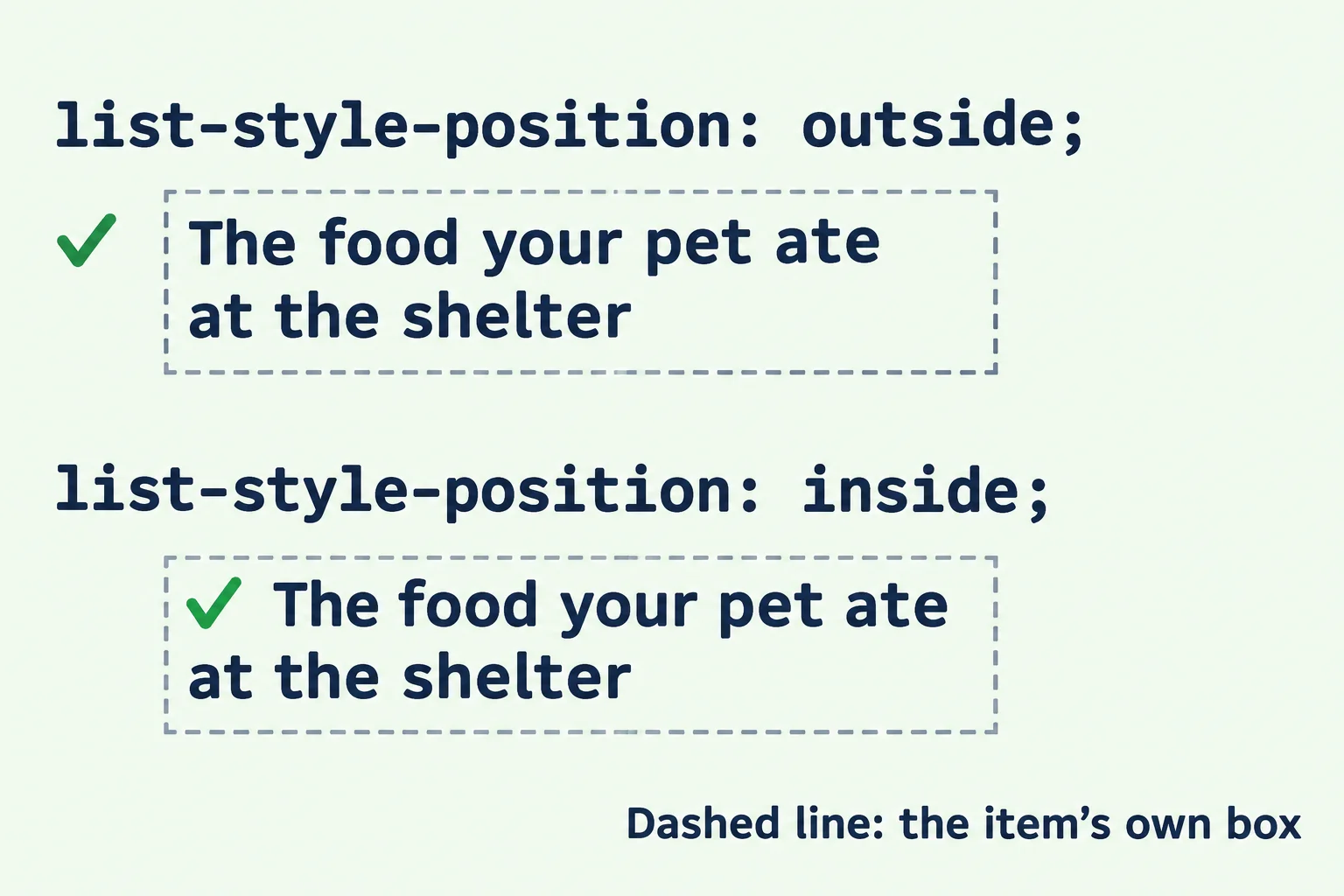
- list-style-position outside hangs the marker in the indent, so a wrapped line lines up with the text. inside puts the marker in the first line, inside the item's box.
- The list-style shorthand sets the type, the position and a picture in one line, in any order. A part you leave out goes back to its default.
- ::marker styles the marker on its own, such as its color and size. list-style goes on the ul or ol, and ::marker on the li.
- Space items apart with a margin between them, such as li + li { margin-top: 0.5rem; }, and reach a list inside a list with a descendant selector.
Recipes, instructions, a packing list for a trip, the numbered rules of a contest with lettered parts under each rule: plenty of lists on the web should still look like lists. They need to look like your lists, not the browser's black dots crammed together. This lesson changes a list's markers and spacing while it stays a list.
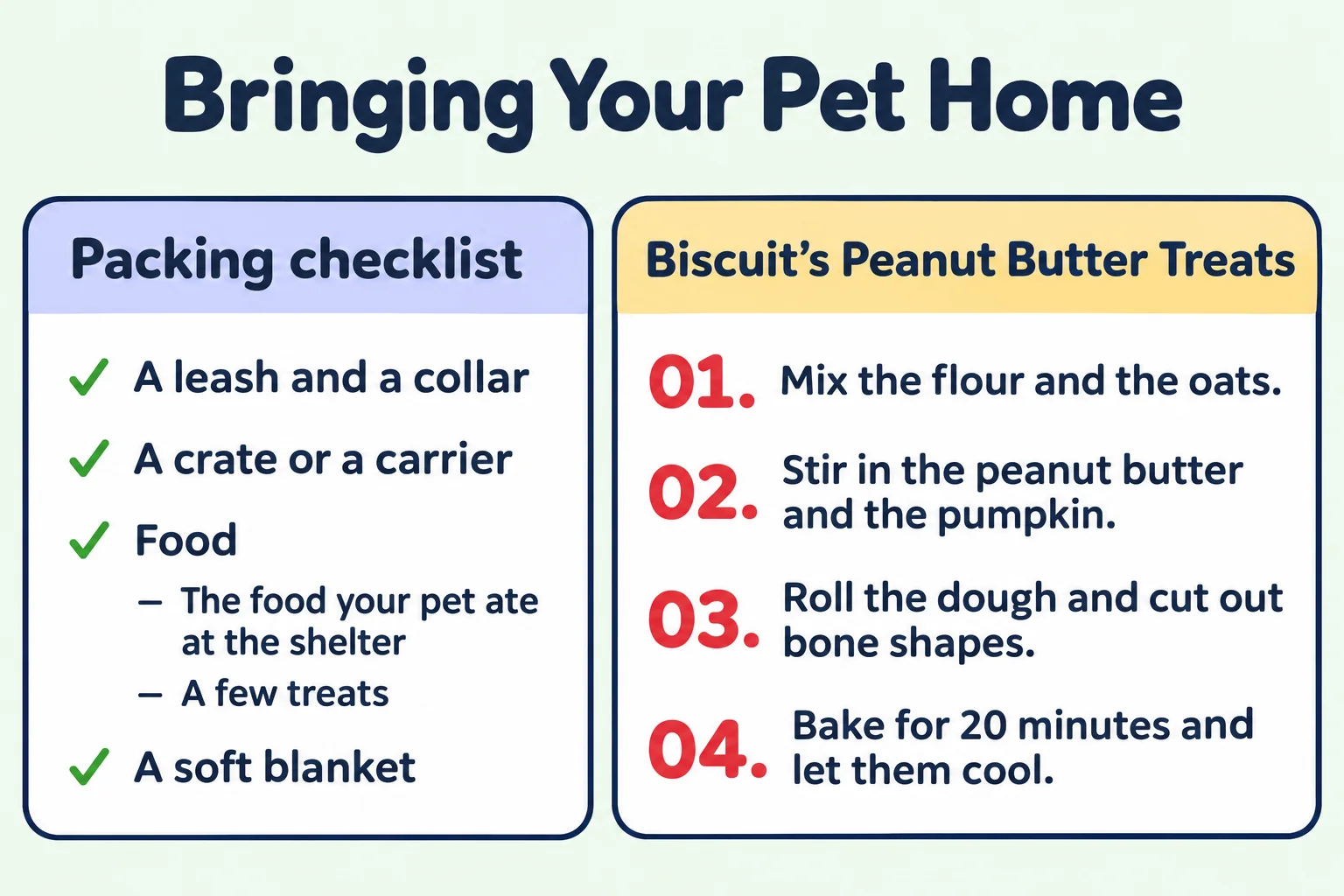
Paws & Whiskers gives every new family a page called Bringing Your Pet Home. It has two lists: a packing checklist for the day you pick up your pet, and the steps for Biscuit's Peanut Butter Treats, the dog treats the volunteers bake on Saturdays. The volunteers want checkmarks on the checklist and big red numbers on the recipe.
The plain try: type the marks yourself
The first idea most people have is to type the checkmarks and the numbers into the text:
<p>✓ A leash and a collar</p>
<p>✓ A crate or a carrier</p>
<p>1. Mix the flour and the oats.</p>
<p>2. Stir in the peanut butter and the pumpkin.</p>
It looks right, and it breaks in three ways. The paragraphs aren't a list anymore, so a screen reader can't say "list, 2 items" (Lists Hold Collections: ul, ol and What the Browser Adds showed why that matters). When a volunteer adds a step in the middle, every number after it has to be typed again. And if you put typed numbers inside an <ol>, the browser numbers them as well, so each step reads "1. 1. Mix the flour". Keep the list, and change its markers with CSS.
list-style-type: choosing the marker
The list-style-type property picks the marker in front of each item. Here are its common values:
| Value | The marker | Good for |
|---|---|---|
disc |
● a filled circle (the <ul> default) |
most bulleted lists |
circle |
○ a hollow circle | a list inside a list |
square |
■ a filled square | a change from round bullets |
decimal |
1. 2. 3. (the <ol> default) |
steps |
decimal-leading-zero |
01. 02. 03. | lists that reach 10 or more and should line up |
lower-alpha, upper-alpha |
a. b. c. and A. B. C. | choices, or parts inside a numbered step |
lower-roman, upper-roman |
i. ii. iii. and I. II. III. | outlines, chapters, contest rules |
none |
no marker at all | lists that shouldn't look like lists (the next lesson) |
"✓ " |
the characters you write, in quotes | a checkmark, a paw print, an arrow |
Put it on the list itself, the <ul> or the <ol>. It's inherited, so every <li> inside gets it:
.packing-list {
  list-style-type: "✓ ";
}

.treat-steps {
  list-style-type: decimal-leading-zero;
}
A value in quotes is a string: the marker is exactly those characters. Put a space before the closing quote, or the marker touches the first word. A string can be any character, an emoji such as "🐾 " included. Some screen readers read a string marker aloud ("check mark"), so pick one that still makes sense when it's heard.
The marker changes the look, never the meaning. A <ul> with decimal shows numbers, but a screen reader still treats it as a list whose order doesn't matter. Choose the element for what the list means, and the marker for how it should look.
Try it. In your adoption-list folder, make pet-home.html with a page skeleton, a <style> element, a <ul class="packing-list"> with four things to pack (a leash and a collar, a crate or a carrier, the food your pet ate at the shelter, a soft blanket), and an <ol class="treat-steps"> with four steps (mix the flour and the oats; stir in the peanut butter and the pumpkin; roll the dough and cut out bone shapes; bake for 20 minutes and let them cool). Try five values from the table on each list.
list-style-position: outside or inside
Long items wrap onto a second line, and where the marker sits decides how that looks. Think of a flag on a pole: the flag can hang out to the side of the pole, or be painted on the pole itself.
outside, the default, hangs the marker outside the item's box, in the list's indent. The second line of a long item lines up under the first line's text, so the marker stands alone at the left and the items are quick to scan.insideputs the marker inside the item's box, as the first thing on its first line, like the first word of a sentence. The second line starts under the marker.
.packing-list {
  list-style-position: inside;
}
Use outside for most lists of text. inside fits when each item is a box with a background or a border, because the marker then sits inside the box with its text, instead of hanging out in the white space beside it.
The list-style shorthand, and its trap
list-style sets three things in one line: the type, the position, and a picture to use as the marker (list-style-image: url(paw.png), which is rarely used now that a string marker or ::marker, below, can do the same job). The parts can come in any order:
.packing-list {
  list-style: "✓ " inside;
}
The trap is the one Pictures from CSS: Background Images showed for the background shorthand: a part you leave out isn't left alone, it goes back to its default. So this rule, meant only to move the recipe's numbers inside, turns them into bullets:
.treat-steps {
  list-style: inside;
}
The shorthand set the position, and set the type back to its default, disc. Write list-style: decimal-leading-zero inside; to keep both, or use list-style-position on its own. list-style: none; is the shorthand you'll write most often: it takes the markers away, and the next lesson builds on it.
Coloring and sizing the markers with ::marker
The volunteers want the recipe's numbers big and red, but the step text should stay dark blue. A marker has the same color and size as its item's text, so changing the <li> changes both. Pseudo-Elements: ::before, ::after and ::marker showed the tool for styling the marker on its own: the ::marker pseudo-element, read "double colon marker".
.treat-steps li::marker {
  color: #e63946;
  font-size: 1.25rem;
}
Read the selector as "the marker of each <li> in the treat steps". Two things to keep straight:
list-stylegoes on the list, and::markergoes on the item. Each<li>has its own marker, so the selector ends inli::marker.- Keep to
colorandfont-size. As of October 2026, Safari styles only those two on a marker, so the numbers are red and big in every current browser. A bold weight shows in Chrome, Edge and Firefox, but not in Safari.
Space between items, and lists inside lists
Long steps crammed one on top of another are hard to follow while your hands are covered in dough. Space them apart with a margin between the items, not above the first one:
.treat-steps li + li {
  margin-top: 0.75rem;
}
li + li, read "L I next-sibling L I", is the next-sibling combinator from Combinators: Descendant, Child and Sibling: it picks every <li> that comes right after another <li>, which is every item but the first. So the gap goes between the steps, and the list starts right where it should. A line-height of about 1.5 on the list also helps when the items wrap onto more lines.
The packing checklist has a list inside one of its items, for the food:
<ul class="packing-list">
  <li>A leash and a collar</li>
  <li>A crate or a carrier</li>
  <li>Food
    <ul>
      <li>The food your pet ate at the shelter</li>
      <li>A few treats</li>
    </ul>
  </li>
  <li>A soft blanket</li>
</ul>
As the last lesson showed, the browser gives the inner list hollow circle bullets and another 40 pixels of indent. A descendant selector (a space between two selectors) reaches it without a class of its own:
.packing-list ul {
  list-style-type: "– ";
  padding-left: 1.5rem;
}
The rule reads "any <ul> inside the packing list": the inner list gets a dash for each item and a smaller indent, so it sits clearly under Food without pushing far to the right.
Do it: number the volunteer house rules
Paws & Whiskers prints its volunteer house rules on the wall by the front desk, numbered like an old club rulebook, with lettered parts under some rules. The volunteers want the page to match the poster:
- The rules numbered with capital Roman numerals: I, II, III.
- The parts under a rule lettered in small letters: a, b.
- The numbers in front of the rules in the shelter's blue,
#457b9d, while the rules' words stay dark blue. 0.75remof space between the rules, and none above the first one.
Practiced live on the lesson page: write the CSS right there and check it.
Check yourself
2 questions to try on the lesson page.
So what
A list that stays a list can still look like it belongs on your page: checkmarks, letters, big red numbers and room to breathe, while screen readers keep hearing a list. When a list shouldn't look like a list at all, the next lesson takes all of that away.