Lists Hold Collections: ul, ol and What the Browser Adds
Menus, pet cards, tags and steps are collections of similar things, and writing them as a ul or an ol tells a screen reader how many there are, while the browser adds bullets, an indent and margins you can find in the developer tools.
Apprentice · CSS · Updated
After this lesson you can
- Choose ul or ol for a collection on a page, and say what writing it as a list tells a screen reader user
- Name what the browser adds to a list (markers, an indent and margins) and find each one in the developer tools
Key takeaways
- A list is HTML for a collection of similar things, such as menu links, cards, tags or steps. Many of the rows and grids you see on websites are lists underneath.
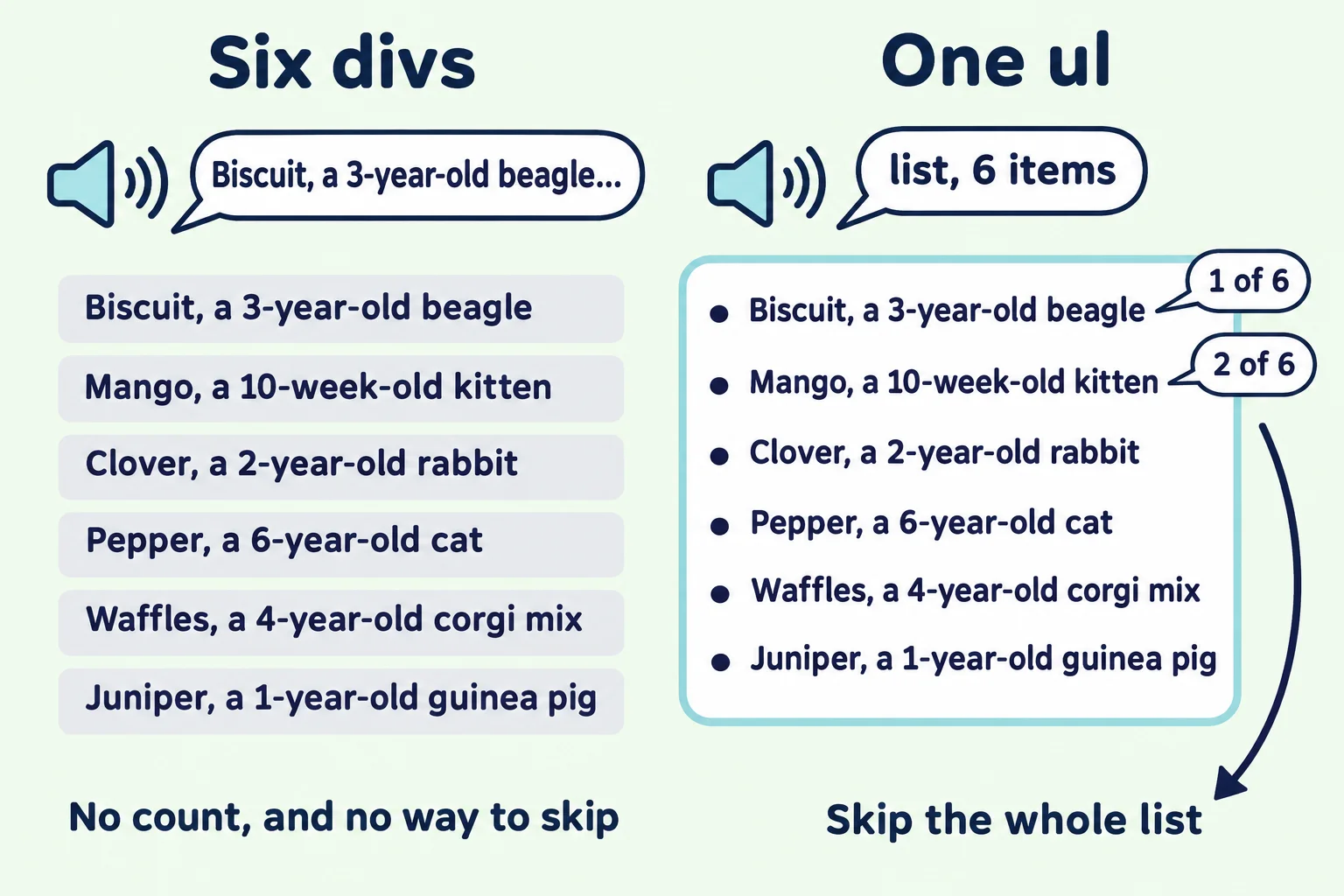
- A screen reader announces a list and its size, something like "list, 6 items", so its user knows what's coming and can skip past it. A pile of divs says none of that.
- Use ol when the order matters (steps, a top 10) and ul when it doesn't (pets, menu links, tags). Ask: would swapping two items change the meaning?
- The browser adds three things to every list. A marker (a bullet or a number) in front of each item, an indent on the left, and a margin above and below.
- In the developer tools, the user agent stylesheet shows them as list-style-type, padding-inline-start: 40px, and margin-block-start and margin-block-end: 1em.
Look at the top of any shopping site: a row of menu links. Below it, a grid of product cards, each with a few small tags such as Sale or Free shipping. At checkout, the steps: 1 Cart, 2 Address, 3 Payment. None of them looks like the bulleted list in a school report, but right-click almost any of them, choose Inspect, and you'll find <ul> and <li> underneath. Building pages means asking, over and over, "is this a collection of things?", and then making a list look like a menu, a row of cards or a set of tags. This topic teaches all of that by hand, before flexbox and grid make some of it shorter.
This lesson starts with the HTML: why those parts are lists, which kind of list to choose, and what the browser does to a list before your CSS arrives. The running example is still Paws & Whiskers, the pet adoption shelter: six pets ready for a home, a menu, and the four steps to adopt one.
Six pets, and the way a screen reader hears them
The shelter's page shows six pets. Here's a first try at the HTML, with a <div> for each pet:
<div class="pet-list">
  <div class="pet">Biscuit, a 3-year-old beagle</div>
  <div class="pet">Mango, a 10-week-old kitten</div>
  <div class="pet">Clover, a 2-year-old rabbit</div>
  <div class="pet">Pepper, a 6-year-old cat</div>
  <div class="pet">Waffles, a 4-year-old corgi mix</div>
  <div class="pet">Juniper, a 1-year-old guinea pig</div>
</div>
On screen, it looks fine: six lines, one per pet. Now listen to it. A screen reader is a program that reads a page aloud (or shows it in braille) for people who can't see the screen. It reads these six <div> elements as six separate lines of text. Nothing tells its user that the six belong together, how many there are, or where they end. To reach the "How to adopt" section below them, the user has to listen to every pet first.
Think of a waiter. One says, "We have six specials tonight," and then reads them. Another starts reading and never says how many there are, so you don't know whether to wait for the seventh. A list is the first waiter.
Here are the same six pets as a list:
<ul class="pet-list">
  <li>Biscuit, a 3-year-old beagle</li>
  <li>Mango, a 10-week-old kitten</li>
  <li>Clover, a 2-year-old rabbit</li>
  <li>Pepper, a 6-year-old cat</li>
  <li>Waffles, a 4-year-old corgi mix</li>
  <li>Juniper, a 1-year-old guinea pig</li>
</ul>
Now a screen reader says something like "list, 6 items" before the first pet, and "1 of 6", "2 of 6" as it reads them (the exact words depend on the program). Its user can also jump past the whole list with one key, or from list to list on the page. People who move around a page with the keyboard and other assistive tools get the same help.
<ul>, read "U L", is an unordered list: a list whose order doesn't change its meaning.<li>, read "L I", is a list item: one entry. Only<li>elements go directly inside a<ul>or an<ol>, but an<li>can hold anything: a heading, paragraphs, a picture, even another list.
Which parts of a page are collections
A collection is a group of things of the same kind, the ones you'd describe as "a list of something": a list of pets, a list of links, a list of tags. On the shelter's site:
| Part of the page | A collection? | Written as |
|---|---|---|
| The menu: Our pets, Visit us, How to adopt | Yes, a list of links | <ul> inside the <nav> |
| The pet cards | Yes, a list of pets | <ul>, one <li> per pet |
| The tags under a pet: Dog, Good with kids, Loves walks | Yes, a list of tags | <ul>, one <li> per tag |
| The four steps to adopt | Yes, and the order matters | <ol> |
| The shelter's opening hours paragraph | No, it's one piece of text | <p> |
| The header, the main part, the footer | No, they're different kinds of parts | <header>, <main>, <footer> |
A list doesn't have to look like a list. The menu will be a row of links and the pets a column of cards, but in the HTML they stay lists, because that's what they are. The rest of this topic changes the look.
ul or ol: does the order matter?
A shopping list works in any order: you can pick up the eggs before the milk. A recipe doesn't: you can't frost the cake before you bake it. HTML has a list for each:
<ul>for a collection whose order doesn't matter: pets, menu links, tags.<ol>, read "O L", is an ordered list: a collection whose order matters, such as steps, a top 10, or search results ranked best first.
The test is one question: would swapping two items change the meaning? Swap two pets, and the list means the same thing. Swap two of the adoption steps, and it doesn't:
<ol class="adoption-steps">
  <li>Meet the pet at the shelter.</li>
  <li>Fill in a short form at the front desk.</li>
  <li>Talk with a volunteer about your home.</li>
  <li>Take your new friend home the same week.</li>
</ol>
The browser numbers the steps by itself, and a screen reader says the numbers too. Choose <ul> or <ol> for what the list means, never for its bullets or its numbers: CSS can change the look of either one, as the next lesson shows.
Try it. In your adoption-list folder, make a file named lists.html with a page skeleton. Put the six pets in a <ul class="pet-list"> and the four steps in an <ol class="adoption-steps">, and open the page with Live Server.
What the browser adds to every list
Open lists.html with no CSS at all. The list already has a look you never wrote, and it comes from the browser's own stylesheet, the browser default styles (Browser Defaults and a Small Reset showed where they come from). For lists, the browser adds three things:
- A marker in front of each item: a round bullet (called
disc) for a<ul>, a number (calleddecimal) for an<ol>. The browser draws it; it isn't part of your text. - An indent: 40 pixels of padding on the list's left side. The markers sit in that space.
- Margins: a gap above and below the list, the height of one line of its text (
1em, 16 pixels for 16-pixel text).
To see them, right-click the pet list and choose Inspect. With the <ul> selected in the Elements panel, scroll to the bottom of the Styles pane (Firefox calls it Rules) to the rule labeled user agent stylesheet. In Chrome it looks like this, simplified a little:
ul {
  display: block;
  list-style-type: disc;
  margin-block-start: 1em;
  margin-block-end: 1em;
  padding-inline-start: 40px;
}
The names follow the direction text is written in:
padding-inline-start, read "padding inline start", is the padding on the side where a line of text starts. English is read left to right, so for an English page it's the left side: the same aspadding-left: 40px. On a page in Arabic or Hebrew, which read right to left, the indent and the markers move to the right.margin-block-startandmargin-block-endare the margins before and after the list as the page's blocks stack, which for English is the top and the bottom.
The rule for <ol> is the same, with list-style-type: decimal. Now inspect one of the <li> elements: its display is list-item. A list item is a block box, like a paragraph, that also gets a marker. That's why each pet starts on its own line.
Try it. In the Elements panel, hover over the <ul>. The page shades its padding green (the 40-pixel indent, with the bullets in it) and its margins orange (the gaps above and below). Then click inside the element.style rule at the top of the Styles pane, type padding-left: 0, and press Enter. The pets move to the left edge of the list, and the bullets now hang outside it. You can't edit the browser's own rules, but one of yours beats them, as The Cascade: How the Browser Picks a Winner explained.
A list inside a list
A list item can hold another list, and the browser handles that too. Each list inside another gets its own 40-pixel indent, so every level moves further in, and a <ul> inside a <ul> switches its bullets from disc (a filled circle) to circle (a hollow one), then to square:
<ul>
  <li>Dogs
    <ul>
      <li>Biscuit</li>
      <li>Waffles</li>
    </ul>
  </li>
  <li>Cats</li>
</ul>
The inner list belongs inside the <li> it's part of, before that item's closing </li>: Biscuit and Waffles are part of the Dogs item. A screen reader says so, too ("list, 2 items" inside the first item).
Do it: write the shelter's collections as lists
A volunteer wrote the top of Paws & Whiskers' page in a hurry. It looks fine, but a screen reader hears loose links and loose lines: nothing says the menu is a set of three, or that the adoption steps come in an order. Rewrite the HTML so it says what each part is:
- The menu in the
<nav>is a collection of three links whose order doesn't change their meaning: one list item per link. - The four adoption steps are a collection whose order matters: one list item per step, with no step left as a loose paragraph.
Practiced live on the lesson page: write the HTML right there and check it.
Check yourself
2 questions to try on the lesson page.
So what
Lists are how HTML says "these belong together", and a screen reader passes that on. The bullets, the indent and the margins are only the browser's first guess at a look. The next lessons change that look, from a nicer list to a row of cards, while the HTML keeps saying "list".