Event Logs: Why Did It Restart?
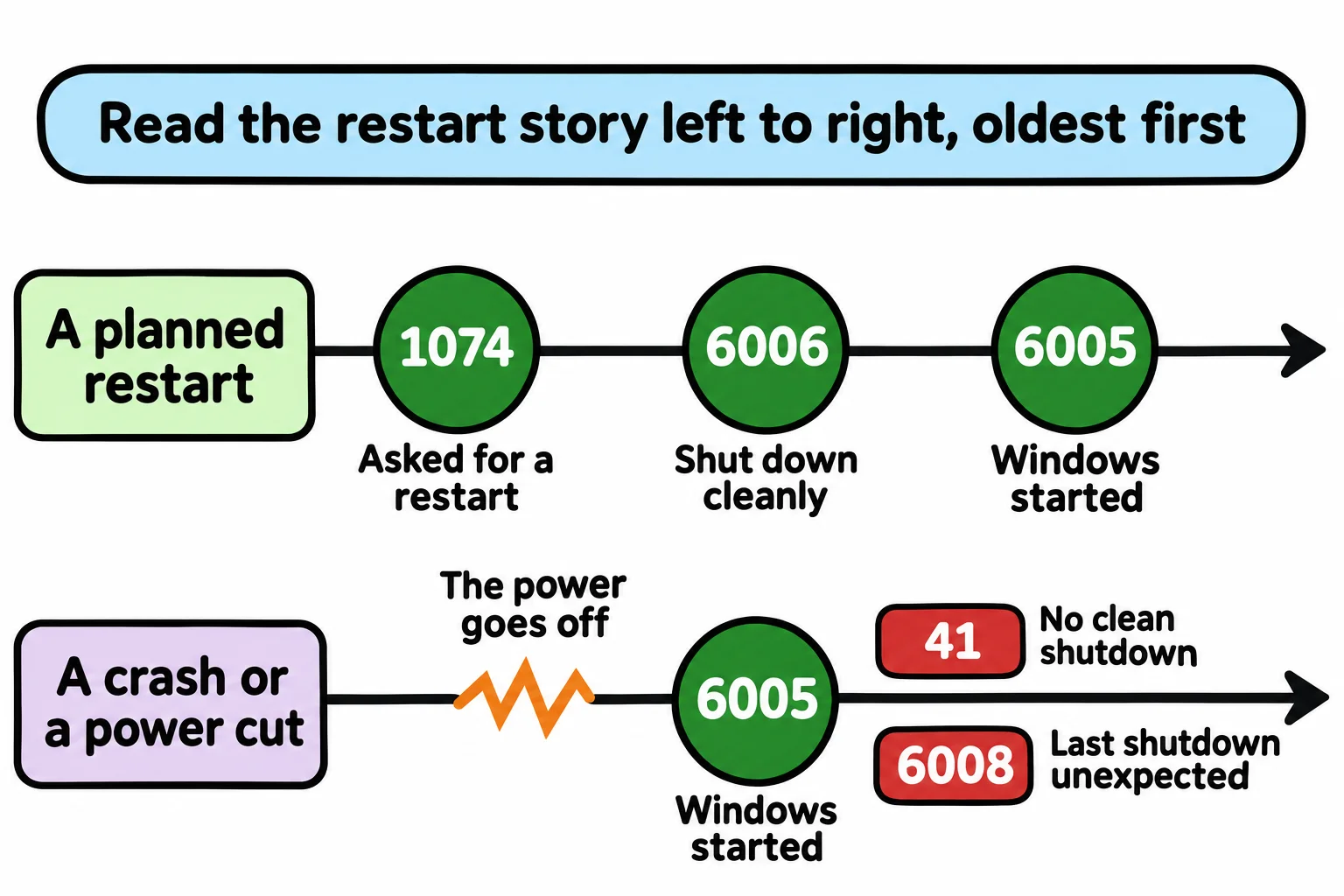
Windows writes what happens to it in event logs, and Get-WinEvent -FilterHashtable finds the events you want by log, event ID, level and start time, so the five restart IDs, 41, 1074, 6005, 6006 and 6008, tell a planned restart from a crash or a power cut.
Journeyman · PowerShell · Operating System · Updated
After this lesson you can
- Find events with Get-WinEvent -FilterHashtable, by log name, event ID, level and start time
- Tell a planned restart from a crash or a power cut with the event IDs 41, 1074, 6005, 6006 and 6008
Key takeaways
- Windows writes what happens in event logs: the System log for Windows itself, the Application log for programs. Each event has an ID, a level and a time.
Get-WinEvent -FilterHashtable @{ LogName = 'System'; Id = 6005 }asks the log for only those events, which is far quicker than reading the whole log.- 1074 means a person or program asked for the restart, 6006 is a clean shutdown and 6005 a start; 41 and 6008 mean Windows went down without shutting down cleanly.
- When nothing matches, Get-WinEvent says No events were found. In a script,
-ErrorAction SilentlyContinueturns that into an empty answer. - Event Viewer shows the same logs with the mouse, and its Filter Current Log asks the same question.
You left the PC on last night with a download running, and this morning it's at the sign-in screen: it restarted. Was it Windows Update? A crash? A power cut while you slept? Someone at the help desk hears that question every week, from "my laptop rebooted in the middle of a meeting" to "the shop's PC was off when we opened". Windows knows the answer, because it writes down what happens to it, all day long. This lesson reads those notes.
Windows keeps a diary: event logs
A ship's logbook has a line for everything that happens on board, each with a time. Windows keeps logs like that, called event logs, and each line in them is an event: a service started, a program crashed, the PC shut down. Two logs answer most questions: System, for Windows itself, and Application, for programs. Get-WinEvent -ListLog (read "get win event") shows how big they are:
Get-WinEvent -ListLog Application, System
LogMode   MaximumSizeInBytes RecordCount LogName
-------   ------------------ ----------- -------
Circular            20971520       37659 Application
Circular            20971520       38020 System
Tens of thousands of events. Circular means the oldest events are dropped once the log is full, so a log holds a few weeks, not years. A third log, Security, records sign-ins, and only a window run as administrator may read it.
Each event has an event ID, a number that says what kind of event it is, and the same ID always means the same thing. Five IDs tell the story of a restart:
| ID | Written by | What it means |
|---|---|---|
| 1074 | User32 | A person or a program asked for a restart or shutdown. Windows Update and the Start menu both write it. |
| 6006 | EventLog | Windows shut down cleanly. |
| 6005 | EventLog | Windows started. |
| 41 | Kernel-Power | Windows started again without shutting down cleanly: a crash, a power cut, or the power button held down. |
| 6008 | EventLog | The shutdown before this start was unexpected. |
Ask for only what you need: `-FilterHashtable`
You could read all 38,000 events and keep the ones you want with Where-Object. That works, but it's like reading every page of the logbook to find Tuesday: on the PC these examples ran on, it took about four seconds. -FilterHashtable hands the log a list of what you want, and the log looks it up itself, in well under a tenth of a second. The list is a hashtable, from Lists and Lookups: Arrays and Hashtables: @{ } (read "at-sign braces") with a name and a value for each thing you want, separated by ; (a semicolon):
Get-WinEvent -FilterHashtable @{ LogName = 'System'; Id = 41, 1074, 6005, 6006, 6008 } -MaxEvents 6 |
    Select-Object Id, LevelDisplayName, ProviderName, @{ Name = 'Date'; Expression = { $_.TimeCreated.ToString('yyyy-MM-dd') } }
  Id LevelDisplayName ProviderName Date
  -- ---------------- ------------ ----
6005 Information      EventLog     2026-11-03
6006 Information      EventLog     2026-11-03
1074 Information      User32       2026-11-03
6005 Information      EventLog     2026-10-26
6006 Information      EventLog     2026-10-26
1074 Information      User32       2026-10-26
The newest event comes first, so read each restart from the bottom up: on November 3, something asked for a restart (1074), Windows shut down cleanly (6006) and started again (6005). Two planned restarts, no crash. -MaxEvents 6 keeps only the six newest. Your own dates will be your PC's.
To see who asked, read the 1074 event's Message: it names the program, the reason and the account. Do that on your own screen, because it's your own name in there. Other messages are plain, such as 6006's:
Get-WinEvent -FilterHashtable @{ LogName = 'System'; Id = 6006 } -MaxEvents 1 | Select-Object -ExpandProperty Message
The Event log service was stopped.
Crashes, errors and "No events were found"
Now ask only for the two IDs that mean trouble:
Get-WinEvent -FilterHashtable @{ LogName = 'System'; Id = 41, 6008 }
Get-WinEvent: No events were found that match the specified selection criteria.
Good news, in the shape of an error: no crash and no power cut in this log. In a script, an empty answer is easier to work with than a red line, so add -ErrorAction SilentlyContinue, from Reading Errors, and -ErrorAction; then the command hands back nothing when nothing matches.
Two more keys narrow a search. Level is how serious an event is: 1 Critical, 2 Error, 3 Warning, 4 Information. StartTime is the earliest time you want, and (Get-Date).AddDays(-7) means "a week ago". Here's how many critical and error events the System log has had this week:
$problems = Get-WinEvent -FilterHashtable @{ LogName = 'System'; Level = 1, 2; StartTime = (Get-Date).AddDays(-7) }
$problems.Count
36
A healthy PC still logs some errors: a driver that retried, a service that took a while to start. Look at the events behind a number before you worry about it, and look for one that repeats.
The mouse's door: Event Viewer
Event Viewer shows the same logs in a window. Type eventvwr.msc at the prompt, or search the Start menu for Event Viewer. Under Windows Logs, click System, then Filter Current Log on the right, and type 41,1074,6005,6006,6008 in the box that reads <All Event IDs>: the same question as your -FilterHashtable, asked with the mouse. Event Viewer is good for reading one event at length; the command is good for asking the same question every week, or on many PCs. Windows PowerShell 5.1 has Get-WinEvent too, and an older Get-EventLog that PowerShell 7 doesn't have.
Check yourself
2 questions to try on the lesson page.
So what
"Why did it restart?" has an answer in the System log: ask for the five restart IDs with -FilterHashtable, read them from the bottom up, and you know whether it was planned, a crash or the power.