Reading Errors, and `-ErrorAction`
PowerShell's red text names the command that failed, what went wrong and, in a script, the file and line; some errors stop a command and some let it carry on, -ErrorAction decides what happens next, and $Error keeps a list of them.
Apprentice · PowerShell · Updated
After this lesson you can
- Read an error for the command that failed, what went wrong and, in a script, its file and line, and find it again in $Error
- Tell an error that stops a command from one that lets it carry on, and choose what happens next with -ErrorAction
Key takeaways
- Read an error in three parts: the command before the colon, the message, and the path or value it names. In a script, file.ps1:6 means line 6.
- When the screen fills with red, read the first error. The ones after it are often the same problem again.
- A non-terminating error lets a command carry on with its other items; a terminating one stops the command. Either way, a script goes on.
- -ErrorAction Stop stops a script at the line that failed. SilentlyContinue hides an error you expected. Continue, the default, shows it.
- $Error[0] is the most recent error, and $Error.Count is how many this window has seen.
You run a script that has worked for weeks, and this time the window fills with red. Many people close the window, or run it again and hope. But red text is PowerShell telling you what went wrong and where, and it usually points at the fix. Help-desk techs and developers read error messages all day. This lesson shows you how to read one calmly, and how to decide what a script does when something fails.
This chapter's practice folder is a small file-mover: a script that moves scanned receipts from an inbox to a backup drive, and must never lose one. Make the folder, with three pretend receipts (small text files with a .pdf name):
New-Item -ItemType Directory -Force -Path "$HOME\terminal-practice\mover\inbox", "$HOME\terminal-practice\mover\backup-drive" | Out-Null
Set-Location "$HOME\terminal-practice\mover"
Set-Content -Path inbox\2026-10-03-groceries.pdf -Value 'Corner Market: $54.20'
Set-Content -Path inbox\2026-10-05-gas.pdf -Value 'Gas station: $38.75'
Set-Content -Path inbox\2026-10-09-pharmacy.pdf -Value 'Pharmacy: $12.99'
They print nothing. Run them again whenever you want the three receipts back in the inbox. Then, in the mover folder, make a file named move-receipts.ps1 in VS Code or edit, with these lines:
# move-receipts.ps1: moves every receipt in the inbox to the backup drive
param($Destination = "$HOME\terminal-practice\mover\backup-drive")
$inbox = "$HOME\terminal-practice\mover\inbox"
foreach ($file in Get-ChildItem $inbox -File) {
    $to = "$Destination\$($file.Name)"
    Copy-Item -Path $file.FullName -Destination $to
    Remove-Item -Path $file.FullName
    Write-Output "Moved $($file.Name)"
}
It copies each receipt to backup-drive (a folder standing in for a USB drive), then deletes the original. Copy first, delete second: the original goes only once there's a copy. Or so the plan says.
Read the red text
Start at the prompt. The date in this name is mistyped, 30 instead of 03:
Copy-Item inbox\2026-10-30-groceries.pdf -Destination backup-drive
Copy-Item: Cannot find path 'C:\Users\Sam\terminal-practice\mover\inbox\2026-10-30-groceries.pdf' because it does not exist.
An error has three parts. Before the colon is the command that failed, Copy-Item. After it comes what went wrong. And in quotes is what it was working on, here the whole path it looked for: the first place to look for a typo.
In a script: the file and the line
Now run the script with a backup folder whose name has a typo, the way you might mistype a drive's name:
.\move-receipts.ps1 -Destination "$HOME\terminal-practice\mover\backup-drvie"
Copy-Item: C:\Users\Sam\terminal-practice\mover\move-receipts.ps1:6
Line |
   6 |      Copy-Item -Path $file.FullName -Destination $to
     |      ~~~~~~~~~~~~~~~~~~~~~~~~~~~~~~~~~~~~~~~~~~~~~~~
     | Could not find a part of the path 'C:\Users\Sam\terminal-practice\mover\backup-drvie\2026-10-03-groceries.pdf'.
Moved 2026-10-03-groceries.pdf
Copy-Item: C:\Users\Sam\terminal-practice\mover\move-receipts.ps1:6
Line |
   6 |      Copy-Item -Path $file.FullName -Destination $to
     |      ~~~~~~~~~~~~~~~~~~~~~~~~~~~~~~~~~~~~~~~~~~~~~~~
     | Could not find a part of the path 'C:\Users\Sam\terminal-practice\mover\backup-drvie\2026-10-05-gas.pdf'.
Moved 2026-10-05-gas.pdf
Copy-Item: C:\Users\Sam\terminal-practice\mover\move-receipts.ps1:6
Line |
   6 |      Copy-Item -Path $file.FullName -Destination $to
     |      ~~~~~~~~~~~~~~~~~~~~~~~~~~~~~~~~~~~~~~~~~~~~~~~
     | Could not find a part of the path 'C:\Users\Sam\terminal-practice\mover\backup-drvie\2026-10-09-pharmacy.pdf'.
Moved 2026-10-09-pharmacy.pdf
Each error starts with the command, then the script and a line number: move-receipts.ps1:6 means line 6. Under Line | is that line, with a wavy line, ~~~, under the part that failed. The last line is the message: part of the path, the folder backup-drvie, isn't there. When the screen fills with red, read the first error. The ones after it are often the same problem again, as here.
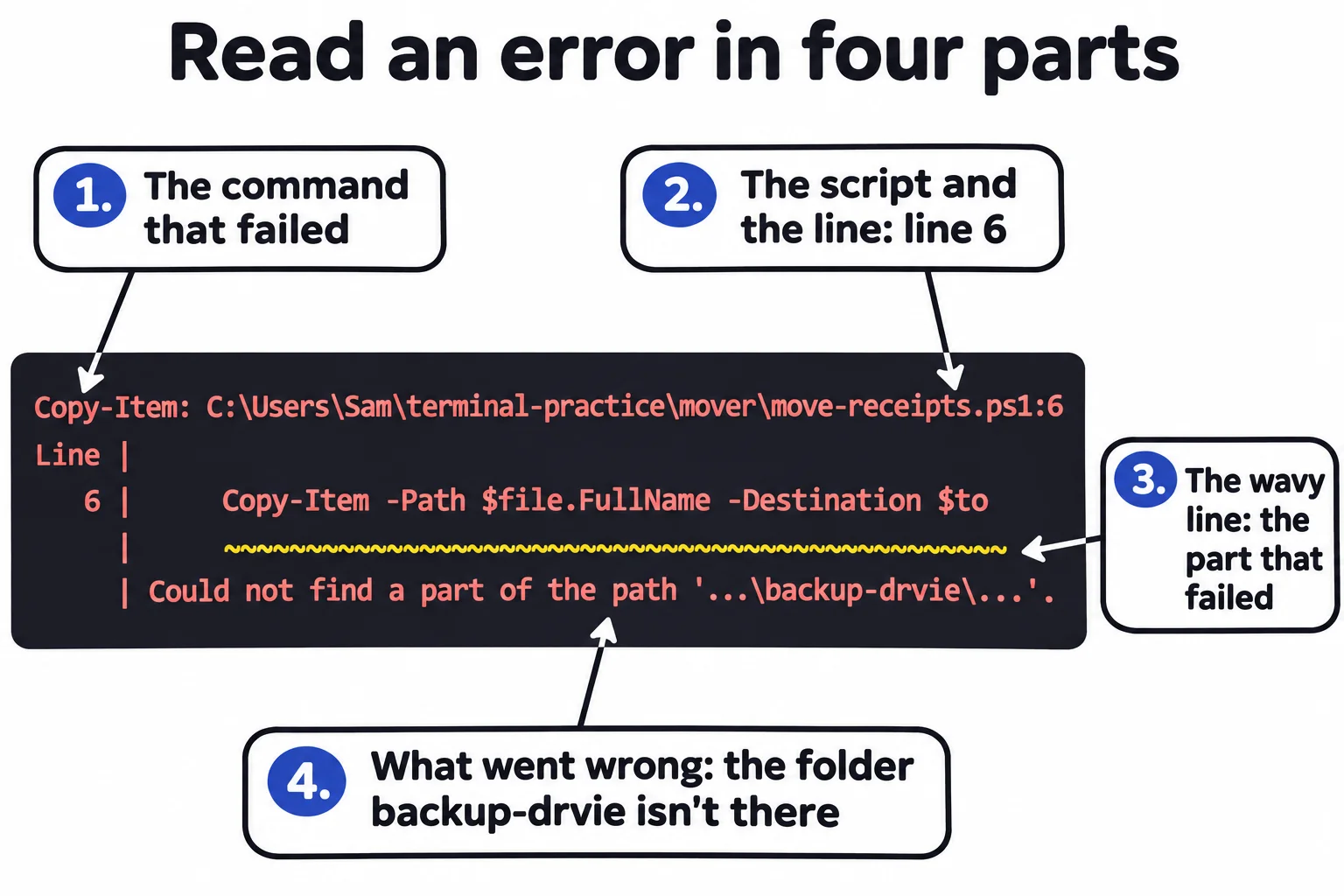
Now look between the errors: Moved, three times. Check both folders with Get-ChildItem inbox, backup-drive. It prints nothing: both are empty. The copies failed, and the script deleted the receipts anyway.
Errors that stop, and errors that don't
Think of a mail carrier: one wrong address, and the carrier brings that letter back and delivers the rest; a truck that won't start delivers nothing. Copy-Item's error was a non-terminating error: the command reports the item it couldn't do and carries on with the others. Run the practice-folder lines to get the receipts back, then copy three, one mistyped:
Copy-Item inbox\2026-10-03-groceries.pdf, inbox\2026-10-30-gas.pdf, inbox\2026-10-09-pharmacy.pdf -Destination backup-drive
Get-ChildItem backup-drive -Name
Copy-Item: Cannot find path 'C:\Users\Sam\terminal-practice\mover\inbox\2026-10-30-gas.pdf' because it does not exist.
2026-10-03-groceries.pdf
2026-10-09-pharmacy.pdf
A terminating error stops the whole command before it does anything, like a misspelled parameter:
Copy-Item inbox\*.pdf -Destinaton backup-drive
Copy-Item: A parameter cannot be found that matches parameter name 'Destinaton'.
But in a script, either kind carries on to the next line. That's what happened to the receipts: line 6 failed, and line 7 deleted them.
`-ErrorAction`: you decide
Every cmdlet takes -ErrorAction, which says what to do if this command hits an error:
-ErrorAction |
What happens |
|---|---|
Continue |
Show the error and carry on: what happens when you don't say |
Stop |
Make it a terminating error: a script stops at this line |
SilentlyContinue |
Don't show the error, and carry on |
Ignore |
Like SilentlyContinue, and don't keep it in $Error either |
Add -ErrorAction Stop to the end of line 6, so it reads Copy-Item -Path $file.FullName -Destination $to -ErrorAction Stop, save, and run the script with the typo again:
.\move-receipts.ps1 -Destination "$HOME\terminal-practice\mover\backup-drvie"
Get-ChildItem inbox -Name
Copy-Item: C:\Users\Sam\terminal-practice\mover\move-receipts.ps1:6
Line |
   6 |      Copy-Item -Path $file.FullName -Destination $to -ErrorAction Stop
     |      ~~~~~~~~~~~~~~~~~~~~~~~~~~~~~~~~~~~~~~~~~~~~~~~~~~~~~~~~~~~~~~~~~
     | Could not find a part of the path 'C:\Users\Sam\terminal-practice\mover\backup-drvie\2026-10-03-groceries.pdf'.
2026-10-03-groceries.pdf
2026-10-05-gas.pdf
2026-10-09-pharmacy.pdf
One error, and the script stopped at line 6, before Remove-Item could run: all three receipts are safe. The next lesson, try, catch and finally, turns that red text into a message a person can act on.
SilentlyContinue is for an error you expect and don't mind, such as deleting an old log that may not be there: Remove-Item old-log.txt -ErrorAction SilentlyContinue prints nothing either way. Never use it to make red text you don't understand go away. A hidden error still happened.
`$Error`: what went wrong earlier
PowerShell keeps this window's errors in a list, $Error (read "dollar error"), newest first. $Error[0] is the latest, and .Exception.Message is its message on its own:
$Error.Count
$Error[0].Exception.Message
8
Cannot find path 'C:\Users\Sam\terminal-practice\mover\old-log.txt' because it does not exist.
Eight, after this lesson's examples in a fresh window; yours counts every error since your window opened. The latest is the old log's, even though you hid it.
Windows PowerShell 5.1 shows errors in a longer form: the message, a line starting At with the file and line number, the line with ~~~ under it, and two + lines you can usually skip. On a Mac or Linux, the paths in errors use /.
Check yourself
2 questions to try on the lesson page.
So what
Red text isn't a verdict on you: it says which command failed, where and why. Read the first error, find its line, and use -ErrorAction Stop wherever carrying on could do harm.