If This, Then That: `if`, `elseif` and `else`
if runs a block of commands only when its test is True, elseif adds another test, else catches everything left, -and, -or and -not join tests together, and exit stops a script early, so a backup copies only when something changed and explains itself when it can't.
Apprentice · PowerShell · Updated
After this lesson you can
- Write an if statement with elseif and else that runs the right block for a test
- Combine tests with -and, -or and -not, and stop a script early with exit
Key takeaways
- if (test) { … } runs the commands in the braces only when the test is True. else { … } runs when it's False.
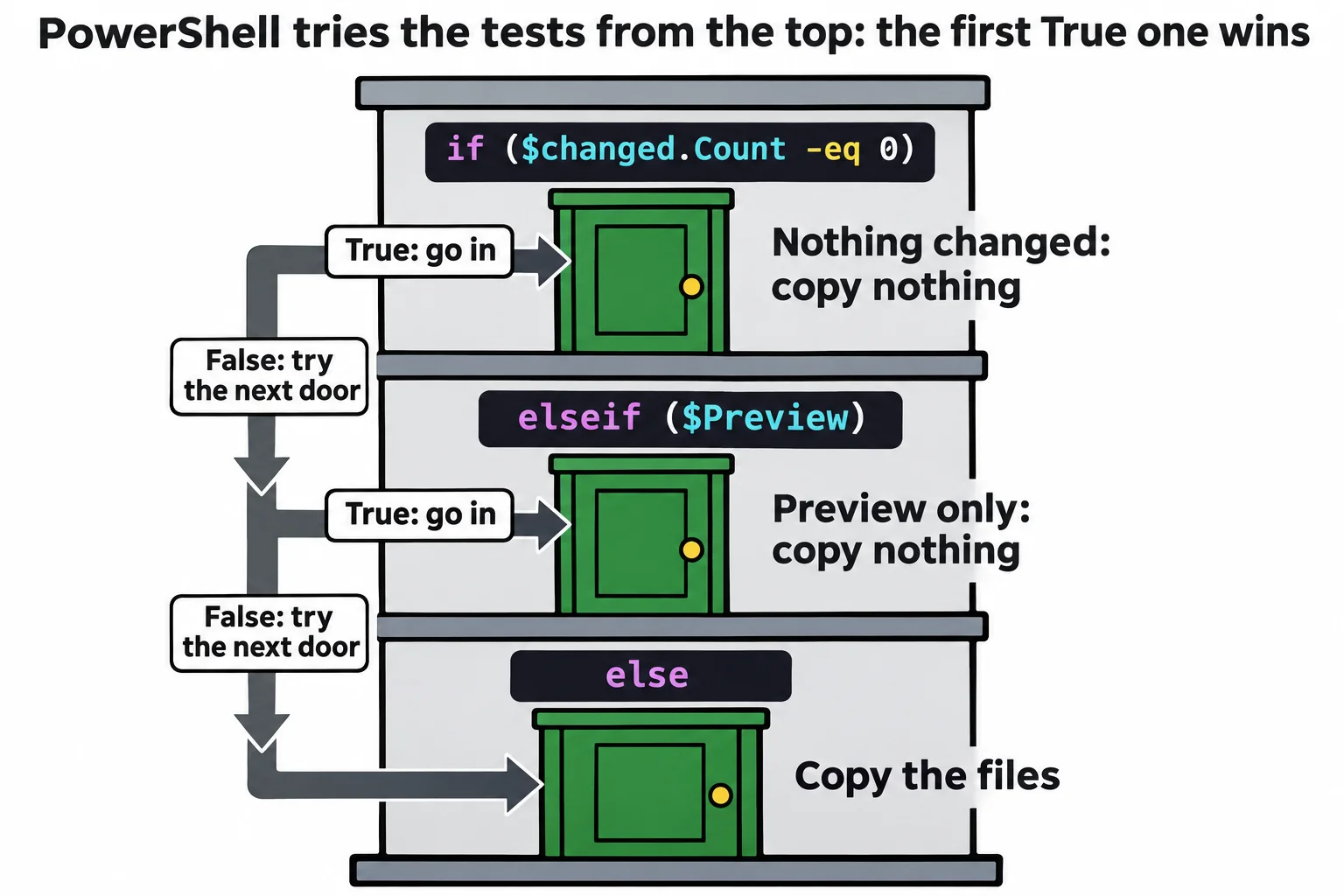
- elseif adds another test. PowerShell tries the tests in order and runs only the first block whose test is True.
- -and needs both tests True, -or needs one of them, and -not turns True into False: if (-not (Test-Path $Path)).
- exit stops a script there; exit 1 also tells $LASTEXITCODE and && that it didn't work.
- In a test, = sets a variable and > writes a file. Compare with -eq and -gt.
The backup script from Parameters: param() does the same thing every time it runs. Point it at a folder where nothing changed and it reports "Files copied: 0" as if that were news; add -Preview and it claims files were copied when none were; misspell the folder and it carries on anyway. Real applications decide. An installer checks for enough disk space before it starts, and a backup checks before it copies. Scripts that IT teams and developers run every day are full of these checks: if the disk is nearly full, send a warning; if the file is missing, say so and stop.
This lesson changes Backup-Folder.ps1 in the smart-backup folder from Parameters: param().
if and else: two roads
You decide this way all day: if it's raining, take the umbrella; else, take the sunglasses. PowerShell writes it the same way:
if ($changed.Count -eq 0) {
    "Nothing changed in $Path, so nothing was copied."
}
else {
    $changed | Copy-Item -Destination $Destination
    "Files copied: $($changed.Count)."
}
Read it aloud: "if the number of changed files equals zero, say so; else, copy them." The test goes in parentheses, and it's a comparison from Filtering: Where-Object and Comparisons: its answer is True or False, a Boolean. The commands in the first braces run only when it's True, the ones after else only when it's False. Together, that's an if statement.
In Backup-Folder.ps1, put @( ) around the Get-ChildItem line, so $changed is a list even when nothing changed (Lists and Lookups: Arrays and Hashtables), and replace the last two lines with the if statement above:
.\Backup-Folder.ps1
.\Backup-Folder.ps1 -Path club
Files copied: 2.
Nothing changed in club, so nothing was copied.
elseif: more roads
elseif (read "else if") adds another test, tried only when the tests before it were False. Put this between the first block and else:
elseif ($Preview) {
    $changed | Copy-Item -Destination $Destination -WhatIf
    "Preview only. Files that would be copied: $($changed.Count)."
}
A switch is a Boolean on its own: $Preview is True when -Preview was written.
.\Backup-Folder.ps1 -Preview
.\Backup-Folder.ps1 -Path club -Preview
What if: Performing the operation "Copy File" on target "Item: C:\Users\Sam\terminal-practice\smart-backup\homework\empty-draft.txt Destination: C:\Users\Sam\terminal-practice\smart-backup\backup\empty-draft.txt".
What if: Performing the operation "Copy File" on target "Item: C:\Users\Sam\terminal-practice\smart-backup\homework\essay.txt Destination: C:\Users\Sam\terminal-practice\smart-backup\backup\essay.txt".
Preview only. Files that would be copied: 2.
Nothing changed in club, so nothing was copied.
PowerShell tries the tests from the top and runs only the first block whose test is True, then skips the rest. For the club, "nothing changed" came first, so the preview never ran: order your tests from the most important down.
-and, -or and -not
-and (read "and") is True only when both tests are; -or ("or") when at least one is; -not ("not") turns True into False and back. ! is a short way of writing -not.
$days = 7
$days -gt 0 -and $days -lt 31
$days -lt 1 -or $days -gt 30
-not ($days -gt 0)
True
False
False
Here's the whole script with three more checks. Two go right after param(), and Where-Object now skips empty files, so an empty draft never replaces a good copy:
# Backup-Folder.ps1: copies a folder's recent changes into a backup folder.
param(
    [string]$Path = 'homework',
    [string]$Destination = 'backup',
    [int]$Days = 1,
    [switch]$Preview
)
if (-not (Test-Path $Path)) {
    "There's no folder called $Path."
    exit 1
}
if ($Days -lt 1 -or $Days -gt 365) {
    'Days must be from 1 to 365.'
    exit 1
}
$since = (Get-Date).AddDays(-$Days)
$changed = @(Get-ChildItem -Path $Path -File |
    Where-Object { $_.LastWriteTime -gt $since -and $_.Length -gt 0 })
if ($changed.Count -eq 0) {
    "Nothing changed in $Path, so nothing was copied."
}
elseif ($Preview) {
    $changed | Copy-Item -Destination $Destination -WhatIf
    "Preview only. Files that would be copied: $($changed.Count)."
}
else {
    $changed | Copy-Item -Destination $Destination
    "Files copied: $($changed.Count)."
}
-not (Test-Path $Path) reads "the folder is not there" (Is It There? Test-Path). exit (read "exit") stops the script on that line, and the 1 after it is its exit code, "it didn't work", which $LASTEXITCODE and && understand (Did It Work? $?, $LASTEXITCODE, && and ||):
.\Backup-Folder.ps1
.\Backup-Folder.ps1 -Path homwork
$LASTEXITCODE
.\Backup-Folder.ps1 -Days 0
.\Backup-Folder.ps1 -Days 7 && Write-Output 'Backup done'
.\Backup-Folder.ps1 -Path homwork && Write-Output 'Backup done'
Files copied: 1.
There's no folder called homwork.
1
Days must be from 1 to 365.
Files copied: 2.
Backup done
There's no folder called homwork.
The empty draft stays out now, the typo stops with a plain message, and && goes on to Backup done only after a backup that worked.
Two slips to watch for
In a test, = sets a variable; it doesn't compare. This test is "True" because 30 isn't zero, and $days is changed for good:
$days = 7
if ($days = 30) { 'A whole month' }
$days
A whole month
30
And > means "into a file", so if ($days > 10) prints nothing and leaves a file named 10 in the folder (Remove-Item 10 takes it away). Compare with -eq and -gt. All of this works the same in Windows PowerShell 5.1, and on a Mac or Linux.
Try it. Add a check that stops with The backup folder can't be the folder you're backing up. when -Destination is the same as -Path. Then run .\Backup-Folder.ps1 -Destination homework.
Check yourself
2 questions to try on the lesson page.
So what
With if, elseif, else and a few joined tests, a script stops doing the same thing every time and starts doing the right thing: copying only what changed, rehearsing when asked, and explaining itself when it can't go on.