Many Choices: `switch`
switch compares one value with a list of choices and runs the block of each one that matches, with default for anything else; -Wildcard and -Regex match patterns instead of exact text, and a switch on a Read-Host answer makes a simple menu.
Apprentice · PowerShell · Updated
After this lesson you can
- Match one value against many choices with switch and default, and choose switch or if for a job
- Match patterns with switch -Wildcard, and build a simple menu with Read-Host and switch
Key takeaways
- switch ($choice) { '1' { … } '2' { … } default { … } } runs the block whose value matches, and default when none does.
- switch ignores capital letters, so 'q' matches Q, and what a block outputs can be kept: $kind = switch …
- -Wildcard lets a choice be a pattern such as '*.jpg'; -Regex lets it be a regular expression.
- switch runs every block that matches, not only the first. break stops it after one.
- A few printed lines, a Read-Host and a switch make a simple menu.
Your family wants backups too, but nobody else is going to type .\Backup-Folder.ps1 -Days 7 -Preview. A menu fixes that: type 1, 2, 3 or Q and press Enter, like the menus on a parking machine or a phone line. You could pick the answer apart with if and elseif, but that means writing $choice -eq four times, and in a long ladder of elseif a choice slips out of order without anyone noticing. When one value can be one of many things, PowerShell has a statement made for it: switch. Help-desk tools, installers and setup scripts use it for exactly this kind of menu.
This lesson uses the smart-backup folder and Backup-Folder.ps1 from If This, Then That: if, elseif and else.
One value, many choices: switch
A switch statement names a value in parentheses, then lists choices in braces, each with a block of commands. It compares the value with each choice, and runs the block of the one that matches. default (read "default": anything else) catches what matched nothing:
$choice = '2'
switch ($choice) {
    '1' { "Back up today's changes" }
    '2' { "Back up this week's changes" }
    'q' { 'Bye.' }
    default { "There's no $choice on the menu." }
}
Back up this week's changes
Read it aloud: "switch on the choice: if it's 1, this; if it's 2, that; if it's q, say bye; anything else, say so." Set $choice to 'Q' and the same switch prints Bye., because switch ignores capital letters, as -eq does. Set it to '7' and you get There's no 7 on the menu.
Which to choose? switch when one value can be one of several known things: a menu choice, a file's type, a day of the week. if when the tests are about different things, such as "the folder is missing" and "days is out of range", or need -and and -or.
Patterns: -Wildcard and -Regex
With -Wildcard, a choice can be a pattern with *, the same wildcards as Wildcards and Filters. And whatever a block outputs can be kept in a variable, so a switch can work out a value:
$file = 'science-fair.jpg'
$kind = switch -Wildcard ($file) {
    '*.txt' { 'a document' }
    '*.jpg' { 'a photo' }
    '*.png' { 'a photo' }
    default { 'some other file' }
}
"$file is $kind."
science-fair.jpg is a photo.
One thing surprises everybody: switch runs every block that matches, not only the first. Both of these patterns fit the name:
switch -Wildcard ($file) {
    '*.jpg' { 'a photo' }
    '*fair*' { 'for the science fair' }
}
a photo
for the science fair
Put break (read "break": stop here) at the end of a block to stop after it: '*.jpg' { 'a photo'; break } prints only a photo. With -Regex, a choice is a regular expression from Patterns: Regular Expressions with -match: '^\d+-\d+-\d+' matches a name that starts with a date, such as 2026-11-09 notes.txt.
A simple menu
A few lines that print the choices, a Read-Host for the answer (Asking Questions: Read-Host), and a switch: that's a menu. Save this as Backup-Menu.ps1 in the smart-backup folder. Each choice runs Backup-Folder.ps1 with different parameters, so the menu needs no backup code of its own:
# Backup-Menu.ps1: a menu for Backup-Folder.ps1. Run it from the smart-backup folder.
'1) Back up today''s changes'
'2) Back up this week''s changes'
'3) Preview this week''s backup'
'Q) Quit'
$choice = Read-Host 'Pick one'
switch ($choice) {
    '1' { .\Backup-Folder.ps1 }
    '2' { .\Backup-Folder.ps1 -Days 7 }
    '3' { .\Backup-Folder.ps1 -Days 7 -Preview }
    'q' { 'Bye.' }
    default { "There's no $choice on the menu." }
}
Two single quotes in a row, '', put one ' inside single-quoted text (Text: Quotes and $( )).
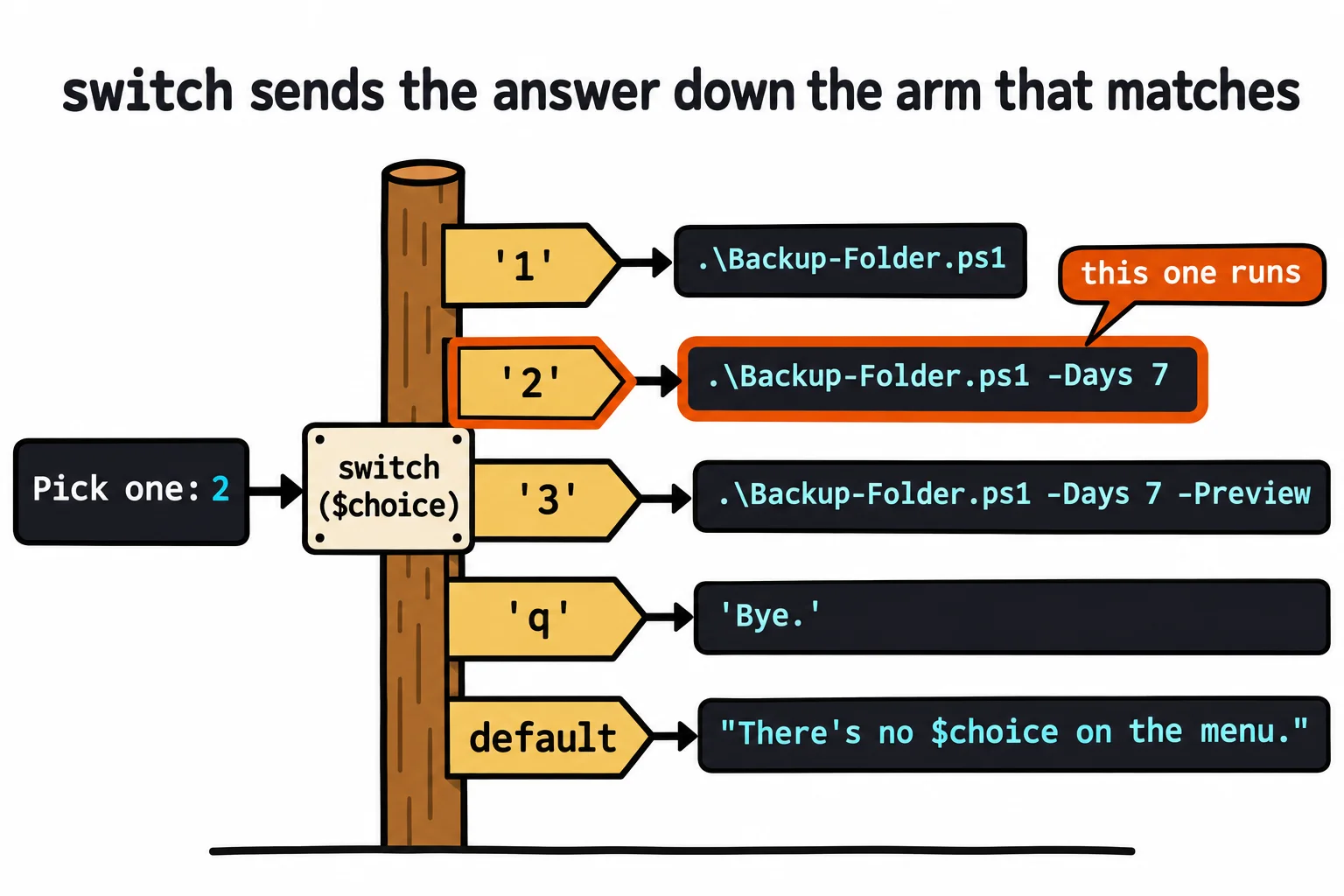
Run it twice, picking 2, then 5:
1) Back up today's changes
2) Back up this week's changes
3) Preview this week's backup
Q) Quit
Pick one: 2
Files copied: 2.
1) Back up today's changes
2) Back up this week's changes
3) Preview this week's backup
Q) Quit
Pick one: 5
There's no 5 on the menu.
A menu is the right place for Read-Host: someone is sitting there choosing. switch works the same in Windows PowerShell 5.1 and on a Mac or Linux, where you run the menu as ./Backup-Menu.ps1.
Try it. Add a choice 4) Back up the club that runs Backup-Folder.ps1 -Path club -Days 30. Then make the menu accept quit as well as q, with -Wildcard and the pattern 'q*'.
Check yourself
2 questions to try on the lesson page.
So what
switch turns "which of these is it?" into one tidy list: exact values, patterns, and a default for the rest. With a Read-Host in front of it, your scripts get a menu anyone can use.