Spreadsheets as Objects: Import-Csv
Import-Csv reads a CSV file, the plain-text kind of spreadsheet that shops, banks and apps export, and turns each row into an object with one property for each column, so you can filter, sort, group and add up the rows with the commands from Module 3.
Apprentice · PowerShell · Operating System · Updated
After this lesson you can
- Turn a CSV file into objects with Import-Csv, one object a row and one property a column
- Filter, sort, group and add up a CSV file's rows with Where-Object, Sort-Object, Group-Object and Measure-Object
Key takeaways
- A CSV file is a spreadsheet saved as plain text: one row a line, commas between the cells, and the column headings on the first line.
Import-Csvturns each row into an object, with one property for each column, named after its heading.Where-Object,Sort-Object,Group-ObjectandMeasure-Objectwork on the rows the way they work on files.- Every value arrives as text, so a column of prices sorts like words, not like numbers, until you turn it into numbers.
Maple Street Bikes sells and rents bikes from two shops in town, Downtown and Riverside. At the end of every month, the till's software exports the month's sales as a file, and the owner asks the same questions: what sold, which shop sold more, and how many inner tubes to order. In Excel that's a filter, a sort and a pivot table, clicked together again every month. A bookkeeper, a shop owner and a data analyst all live with exports like this one. PowerShell reads the file and answers each question in one line, and the same line works next month.
A spreadsheet saved as text: CSV
CSV stands for comma-separated values. It's the plainest way to save a spreadsheet: text, one row a line, with a comma between the cells. Almost every program that keeps a table can export one: a bank, a shop's till, a club's sign-up form, and Excel itself (File, Save As, CSV).
Copy these lines into PowerShell to make the shop's October export. Running them again is safe.
New-Item -ItemType Directory -Force -Path "$HOME\terminal-practice\bike-shop" | Out-Null
Set-Content -Path "$HOME\terminal-practice\bike-shop\sales-2026-10.csv" -Value 'Date,Store,Product,Qty,Price', '2026-10-01,Downtown,Helmet,2,39.99', '2026-10-01,Riverside,Bike Lock,1,24.50', '2026-10-03,Downtown,City Bike,1,449.00', '2026-10-04,Riverside,Inner Tube,4,6.99', '2026-10-06,Downtown,Bike Light,3,18.75', '2026-10-08,Riverside,City Bike,1,449.00', '2026-10-11,Downtown,Inner Tube,6,6.99', '2026-10-13,Riverside,Helmet,1,39.99', '2026-10-15,Downtown,E-Bike,1,1299.00', '2026-10-18,Riverside,Bike Light,2,18.75', '2026-10-22,Downtown,Bike Lock,2,24.50', '2026-10-27,Riverside,Inner Tube,3,6.99'
They print nothing when they work. Read the start of the file as text:
Set-Location "$HOME\terminal-practice\bike-shop"
Get-Content sales-2026-10.csv -TotalCount 4
Date,Store,Product,Qty,Price
2026-10-01,Downtown,Helmet,2,39.99
2026-10-01,Riverside,Bike Lock,1,24.50
2026-10-03,Downtown,City Bike,1,449.00
The first line is the header: the column headings, Date, Store, Product, Qty (quantity) and Price. Each line under it is one sale, its cells in the same order. A file like this is a CSV file, and its name usually ends in .csv.
Each row an object: Import-Csv
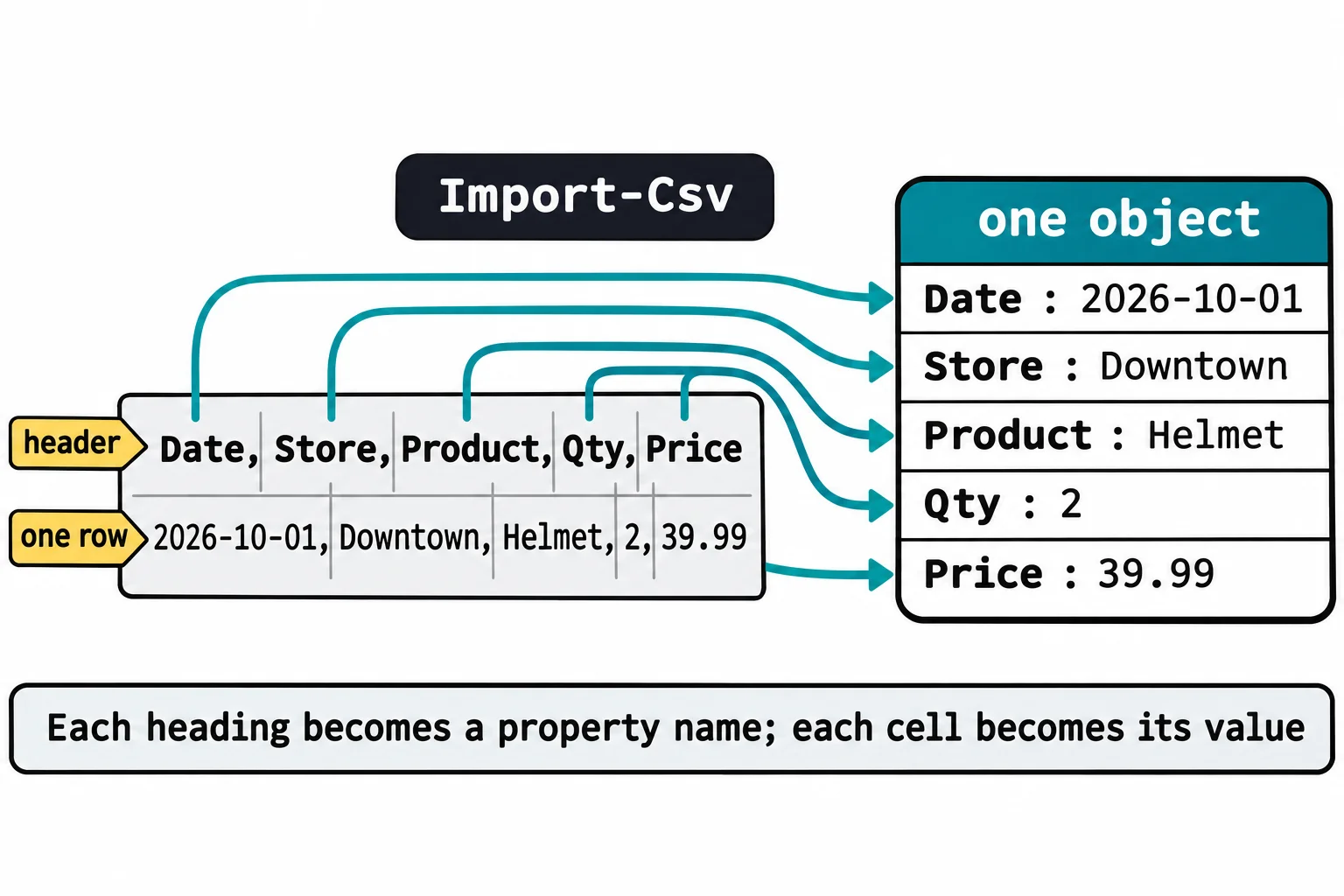
Get-Content sees lines of text. Import-Csv sees a table. It reads the header, then turns every line under it into an object, with one property for each column, named after its heading:
Import-Csv sales-2026-10.csv | Select-Object -First 2
Date    : 2026-10-01
Store   : Downtown
Product : Helmet
Qty     : 2
Price   : 39.99

Date    : 2026-10-01
Store   : Riverside
Product : Bike Lock
Qty     : 1
Price   : 24.50
Those are the first two sales, shown as lists because each has five properties (Tables and Lists: Format-Table and Format-List explains the rule). Add Format-Table to see every row as a table:
Import-Csv sales-2026-10.csv | Format-Table
Date       Store     Product    Qty Price
----       -----     -------    --- -----
2026-10-01 Downtown  Helmet     2   39.99
2026-10-01 Riverside Bike Lock  1   24.50
2026-10-03 Downtown  City Bike  1   449.00
2026-10-04 Riverside Inner Tube 4   6.99
2026-10-06 Downtown  Bike Light 3   18.75
2026-10-08 Riverside City Bike  1   449.00
2026-10-11 Downtown  Inner Tube 6   6.99
2026-10-13 Riverside Helmet     1   39.99
2026-10-15 Downtown  E-Bike     1   1299.00
2026-10-18 Riverside Bike Light 2   18.75
2026-10-22 Downtown  Bike Lock  2   24.50
2026-10-27 Riverside Inner Tube 3   6.99
Get-Member, from What an Object Is: Get-Member, shows what each row became:
Import-Csv sales-2026-10.csv | Get-Member
   TypeName: System.Management.Automation.PSCustomObject

Name        MemberType   Definition
----        ----------   ----------
Equals      Method       bool Equals(System.Object obj)
GetHashCode Method       int GetHashCode()
GetType     Method       type GetType()
ToString    Method       string ToString()
Date        NoteProperty string Date=2026-10-01
Price       NoteProperty string Price=39.99
Product     NoteProperty string Product=Helmet
Qty         NoteProperty string Qty=2
Store       NoteProperty string Store=Downtown
A PSCustomObject is an object PowerShell builds on the spot, and each column is a NoteProperty. Notice the word in front of every value: string, which is text. That word matters at the end of this lesson.
Filter, sort, group and add up
Everything Module 3 did with files works on rows. Only the Downtown shop's sales:
Import-Csv sales-2026-10.csv | Where-Object Store -eq 'Downtown' | Format-Table
Date       Store    Product    Qty Price
----       -----    -------    --- -----
2026-10-01 Downtown Helmet     2   39.99
2026-10-03 Downtown City Bike  1   449.00
2026-10-06 Downtown Bike Light 3   18.75
2026-10-11 Downtown Inner Tube 6   6.99
2026-10-15 Downtown E-Bike     1   1299.00
2026-10-22 Downtown Bike Lock  2   24.50
What sold most often? One pile per product, the biggest first:
Import-Csv sales-2026-10.csv | Group-Object Product -NoElement | Sort-Object Count -Descending
Count Name
----- ----
    3 Inner Tube
    2 Bike Light
    2 Bike Lock
    2 City Bike
    2 Helmet
    1 E-Bike
And how many inner tubes went out the door? Narrow it to the inner tubes, then add up their Qty:
Import-Csv sales-2026-10.csv | Where-Object Product -eq 'Inner Tube' | Measure-Object Qty -Sum
Count             : 3
Average           :
Sum               : 13
Maximum           :
Minimum           :
StandardDeviation :
Property          : Qty
Three sales, thirteen tubes. Next month, only the file name changes.
Prices that are really text
Now the catch. Sort by price, biggest first:
Import-Csv sales-2026-10.csv | Sort-Object Price -Descending | Select-Object Product, Price -First 6
Product    Price
-------    -----
Inner Tube 6.99
Inner Tube 6.99
Inner Tube 6.99
City Bike  449.00
City Bike  449.00
Helmet     39.99
The cheapest thing in the shop comes first, and the $1,299 e-bike isn't even in the top six. A CSV file is only text, so Import-Csv can't know that a column holds numbers: every value arrives as a string. Text sorts the way words do in a dictionary, one character at a time, so 6.99 comes after 449.00 and 1299.00, because 6 comes after 4 and 1. Where-Object Price -gt 100 goes wrong the same way: it keeps all twelve rows. Measure-Object is the exception, because it turns text into numbers itself, which is why the thirteen tubes came out right.
The next lesson, Saving Data: Export-Csv and Cleaning a CSV, shows how to tell PowerShell that a column holds numbers.
Import-Csv works the same in Windows PowerShell 5.1, and on a Mac or Linux with / in paths. Excel in some countries saves CSV files with semicolons between the cells; Import-Csv sales.csv -Delimiter ';' reads those.
Try it. Which shop sold more items in October? Add up the Qty of each shop's rows with Where-Object and Measure-Object. Then list the Riverside sales, sorted by Product.
Check yourself
2 questions to try on the lesson page.
So what
A spreadsheet export is a table written as text, and Import-Csv turns it into objects you already know how to filter, sort, group and count.