Pages and Downloads: `Invoke-WebRequest`
Invoke-WebRequest gives you the whole answer from a web address, not only its data, so you can read the status code that says whether a page is there, read the headers that describe it, and save what it sends as a file with -OutFile.
Journeyman · PowerShell · Updated
After this lesson you can
- Check whether a site is up with Invoke-WebRequest and its StatusCode, using -SkipHttpErrorCheck to see codes such as 404
- Read a response's headers, send a User-Agent, and download a file with Invoke-WebRequest -OutFile
- Choose between Invoke-RestMethod and Invoke-WebRequest for a web job
Key takeaways
Invoke-WebRequesthands back the whole answer: itsStatusCode, itsHeadersand itsContent.- A status code's first digit is its family: 2 all good, 3 moved, 4 a problem with the request (404: nothing there), 5 a problem at the server.
-SkipHttpErrorChecklets you read a 404 or a 500 as an answer instead of an error, so one line checks whether a site is up.-OutFilesaves what comes back as a file, and replaces a file of the same name without asking. Nothing it downloads is run.- For data you'll use,
Invoke-RestMethod; for the status code, the headers or a file to keep,Invoke-WebRequest.
"The bakery's website is down!" says a message from the owner, and you're the one who built it. Is it really down, or is it the shop's Wi-Fi? A browser shows you a page or a sad picture, not the facts, and it can't check twenty sites while you make coffee. Every answer from a web server starts with a short note: a number that says how it went, and labels that describe what's coming. Invoke-RestMethod, from APIs as Objects: Invoke-RestMethod, throws that note away and hands you the data. Invoke-WebRequest keeps all of it. A web developer runs it right after putting a site live, and an IT tech uses it to watch the company's sites and download reports.
The whole answer: Invoke-WebRequest
In the last lesson, an API's answer was a takeout box. Now picture how the box arrives: with a delivery slip that says whether the order went through, labels on the outside saying what's in it, and the food inside. Invoke-RestMethod unpacks the box and gives you the food. Invoke-WebRequest gives you the slip, the labels and the box.
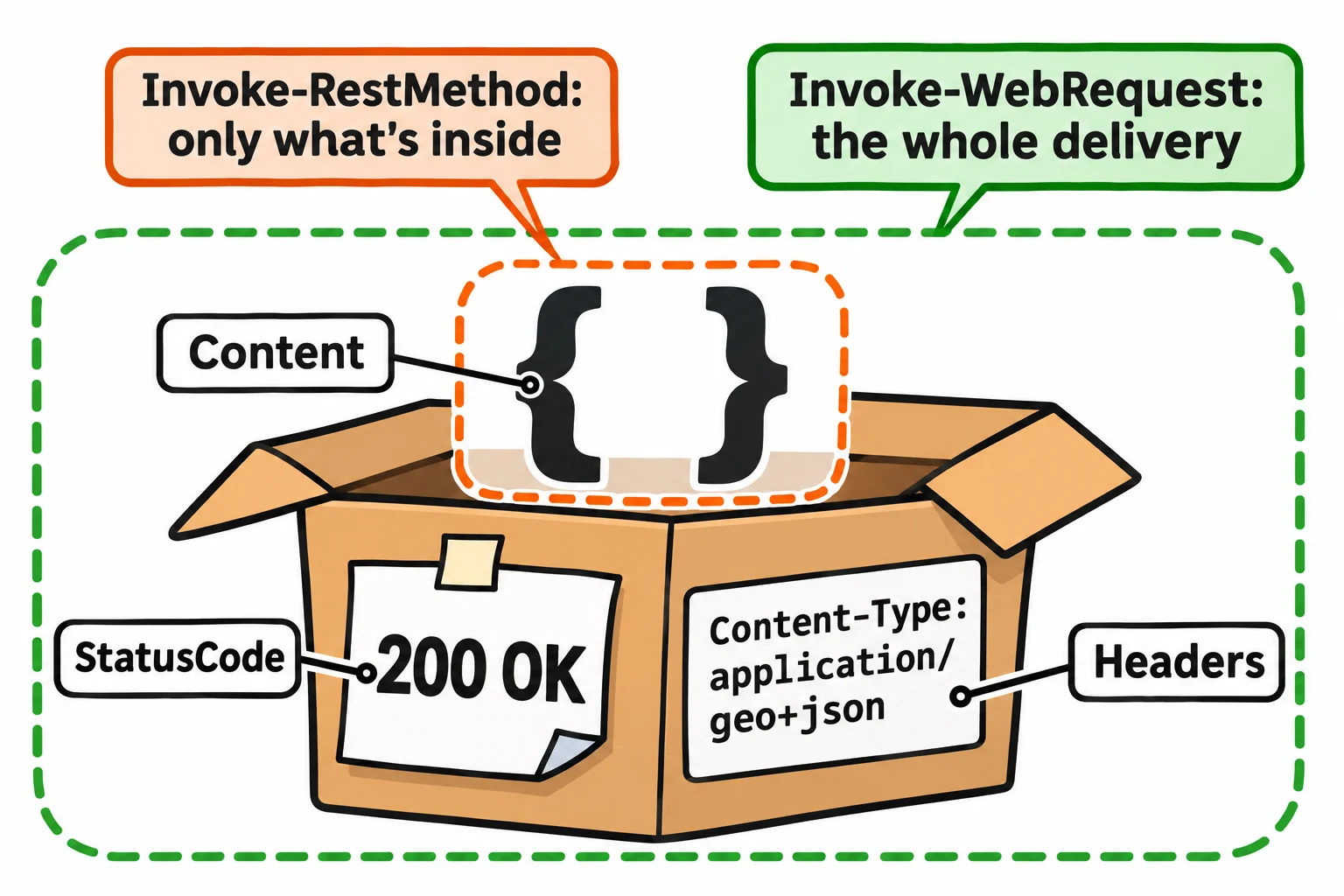
Browsers and servers talk in a language called HTTP, the http at the start of every address (the s in https means nobody in between can read it). example.com is a site kept for examples like this one; put your own site's address in its place.
Invoke-WebRequest 'https://example.com' | Select-Object StatusCode, StatusDescription, RawContentLength
StatusCode StatusDescription RawContentLength
---------- ----------------- ----------------
       200 OK                             577
StatusCode is the slip's number, StatusDescription the same in words, and RawContentLength the page's size in bytes. On its own, Invoke-WebRequest prints everything, the page's HTML included.
Status codes: is it up?
The number is called the status code, and its first digit tells you its family:
| Code | Family | It means |
|---|---|---|
| 200 | 2: all good | OK: here's what you asked for |
| 301 | 3: look elsewhere | Moved: it lives at another address now |
| 400 | 4: a problem with the request | Bad request: the server didn't understand what you asked |
| 404 | 4: a problem with the request | Not found: nothing at that address |
| 500, 503 | 5: a problem at the server | The server failed, or can't answer right now |
Here's the weather API from the last lesson, with a slip of the keyboard (forcast):
Invoke-WebRequest 'https://api.weather.gov/gridpoints/LOT/76,73/forcast'
Invoke-WebRequest: {
    "correlationId": "920126a",
    "title": "Not Found",
    "type": "https://api.weather.gov/problems/NotFound",
    "status": 404,
    "detail": "'/gridpoints/LOT/76,73/forcast' is not a valid resource path",
    "instance": "https://api.weather.gov/requests/920126a"
}
A code that starts with 4 or 5 counts as an error, so PowerShell stops and shows what the server sent. Add -SkipHttpErrorCheck, and every answer comes back as an answer:
(Invoke-WebRequest 'https://api.weather.gov/gridpoints/LOT/76,73/forcast' -SkipHttpErrorCheck).StatusCode
404
So checking whether a site is up takes one line. 200 means it is:
(Invoke-WebRequest 'https://example.com' -SkipHttpErrorCheck).StatusCode
200
When nothing answers at all, there's no code to read:
Invoke-WebRequest 'https://no-such-bakery.invalid'
Invoke-WebRequest: No such host is known.
The name leads to no server, or your own internet is down: try a site you know works. -TimeoutSec 10 gives up on a slow site after ten seconds.
Windows PowerShell 5.1 has no -SkipHttpErrorCheck (try, catch and finally, in Module 6, catches a 404 there), and needs -UseBasicParsing, or it may stop or hang trying to use Internet Explorer.
Headers: the labels on the box
The labels are called headers: a name and a value each. .Headers lists them all; a dot and a header's name, in quotes because of the dash, reads one:
(Invoke-WebRequest 'https://api.weather.gov/gridpoints/LOT/76,73/forecast').Headers.'Content-Type'
(Invoke-WebRequest 'https://api.weather.gov/gridpoints/LOT/76,73/forecast').Headers.'Cache-Control'
application/geo+json
public, max-age=3225, s-maxage=3600
Content-Type says what's inside: application/geo+json is JSON with places in it. Cache-Control says how long the answer stays fresh: max-age is the seconds left, and asking sooner gets the same forecast.
Headers go the other way too. Every request carries a User-Agent, the name of the program asking; PowerShell sends its own unless you say otherwise. weather.gov asks programs to name themselves, so it can contact the owner if one misbehaves. -UserAgent sends yours, with your own email or none; both commands have it:
(Invoke-RestMethod 'https://api.weather.gov/gridpoints/LOT/76,73/forecast' -UserAgent '(sams-weather-report, sam@example.com)').properties.periods | Select-Object -First 1 -ExpandProperty name
Today
Downloading a file: -OutFile
-OutFile saves what comes back as a file. It replaces a file of the same name without asking, so give each download its own name (not forecast.json: that's the last lesson's copy), and look first with Test-Path, from Is It There? Test-Path.
Set-Location "$HOME\terminal-practice\weather"
Test-Path forecast-today.json
False
Nothing has that name yet, so download:
Invoke-WebRequest 'https://api.weather.gov/gridpoints/LOT/76,73/forecast' -OutFile forecast-today.json
Get-Item forecast-today.json | Select-Object Name, Length
Name                Length
----                ------
forecast-today.json  13201
The download prints nothing when it works (your file's size will differ a little: it's today's forecast), and it reads back the way the last lesson read its saved copy. The same works for a PDF, a photo or a spreadsheet. A downloaded file is only a file: PowerShell doesn't open it or run it. Download from sites you trust, and never run a script you downloaded before you've read it; Why a Script Won't Run: The Execution Policy, in Module 5, shows how Windows guards against that.
If .Content ever shows a column of numbers, those are raw bytes: PowerShell doesn't treat geo+json as text. Use Invoke-RestMethod for the data.
Which one? For the data, to filter and report on: Invoke-RestMethod. For the status code, the headers or a file to keep: Invoke-WebRequest.
Try it. Check the status codes of three sites you use, one line each. Then save today's forecast with a new name, and read its first period back.
Check yourself
2 questions to try on the lesson page.
So what
Now you can ask a site how it's doing, not only what it says, and keep what it sends you.