Run It from Anywhere
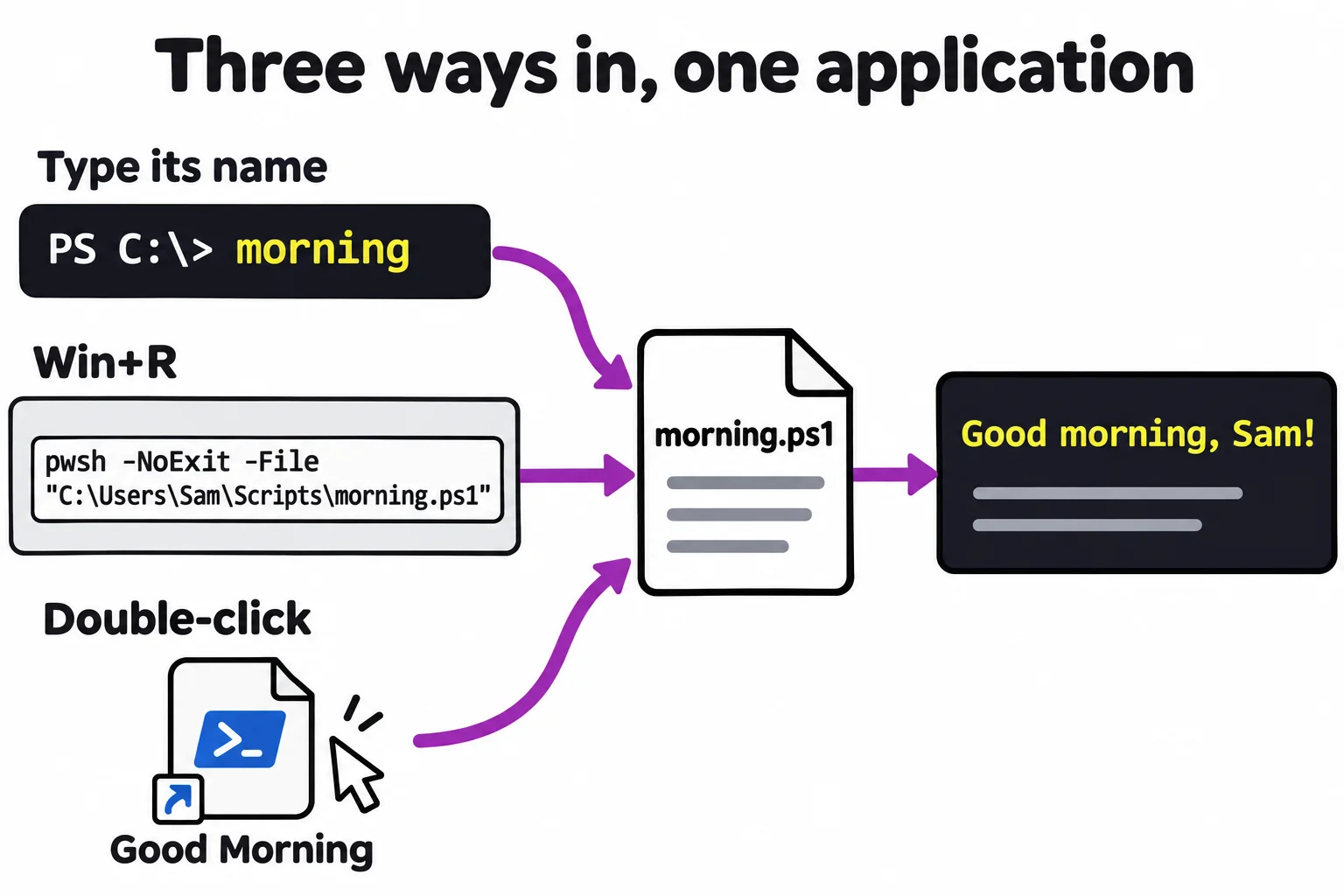
A script that reads its files from $PSScriptRoot works from any folder; a Scripts folder on your PATH lets you run it by name, pwsh -File starts it from outside PowerShell, and a desktop shortcut with pwsh -File in its target runs it with a double-click.
Apprentice · PowerShell · Updated
After this lesson you can
- Run a script by name from any folder by adding its folder to $env:PATH, with $PSScriptRoot for the files it reads beside it
- Start a script from outside PowerShell with pwsh -File, and from a desktop shortcut that runs it with a double-click
Key takeaways
- A script runs in the folder you're in, not the folder it's saved in. $PSScriptRoot is the script's own folder, so "$PSScriptRoot\todo.txt" works from anywhere.
- Put your scripts in a folder such as $HOME\Scripts and add it to $env:PATH, and they run by name from any folder, without .\ or .ps1.
- pwsh -File runs a script from outside PowerShell: the Run box, Command Prompt or a shortcut. Options such as -NoExit go before -File.
- A desktop shortcut whose target is pwsh.exe -NoExit -File and the script's path runs it with a double-click.
Your morning script works, but only when you're in its folder, and going there every morning is no shortcut. You want to open PowerShell, type morning, and have it run, the way Get-Date does. And some mornings you won't want to type at all: you'd rather double-click an icon on your desktop. Both are how a script becomes an application you actually use, and how IT techs and developers keep dozens of small tools a word or a click away.
This lesson uses the morning folder from Your First Script.
A script runs where you are
Go to your home folder and run the script by its path:
Set-Location ~
~\terminal-practice\morning\morning.ps1
Good morning, Sam!
Today is Monday, November 9.

To do:
Get-Content: C:\Users\Sam\terminal-practice\morning\morning.ps1:9
Line |
   9 |  Get-Content -Path todo.txt
     |  ~~~~~~~~~~~~~~~~~~~~~~~~~~
     | Cannot find path 'C:\Users\Sam\todo.txt' because it does not exist.

Free space on C: 805.8 GB
Everything worked but the list. A script runs in the folder you're in, not the folder it's saved in, so todo.txt meant C:\Users\Sam\todo.txt. It's like a note saying "the key is in the drawer" without saying which room.
PowerShell has an answer built in: $PSScriptRoot, read "the script's root", holds the folder the script is saved in, whichever folder you're in. Open morning.ps1 and change the Get-Content line to this:
Get-Content -Path "$PSScriptRoot\todo.txt"
Run it from your home folder again, and the list is back:
~\terminal-practice\morning\morning.ps1 | Select-Object -First 7
Good morning, Sam!
Today is Monday, November 9.

To do:
Pay the phone bill
Finish the history essay
Buy coffee beans
A Scripts folder on your PATH
Environment Variables and PATH showed that PowerShell finds a command by searching the folders on your PATH. So give your scripts a folder of their own, and put it on the list. Copy the script and its list there, and check the name isn't taken:
New-Item -ItemType Directory -Force -Path "$HOME\Scripts" | Out-Null
Copy-Item "$HOME\terminal-practice\morning\morning.ps1", "$HOME\terminal-practice\morning\todo.txt" -Destination "$HOME\Scripts"
Get-Command morning
Get-Command: The term 'morning' is not recognized as a name of a cmdlet, function, script file, or executable program.
Check the spelling of the name, or if a path was included, verify that the path is correct and try again.
Not recognized means the name is free. Pick another if Get-Command finds something: a script called ls.ps1 would never run by name, because the alias ls always comes first. Now add the folder for this window, and try it from anywhere:
$env:PATH += ";$HOME\Scripts"
Set-Location C:\
morning | Select-Object -First 2
Get-Command morning | Format-Table CommandType, Name, Source
Good morning, Sam!
Today is Monday, November 9.

   CommandType Name        Source
   ----------- ----        ------
ExternalScript morning.ps1 C:\Users\Sam\Scripts\morning.ps1
morning, from any folder, by name: no .\, no .ps1. To have it in every window, keep a copy of your profile and add that same $env:PATH line to it (Your Profile). Your to-do list now lives in $HOME\Scripts\todo.txt, beside the script.
From outside PowerShell: pwsh -File
Other programs can start your script too: the Run box (Win+R), Command Prompt, a shortcut, or later a scheduled task. They all do it the same way, by starting PowerShell, pwsh, and handing it the file:
pwsh -NoProfile -File "$HOME\Scripts\morning.ps1"
Good morning, Sam!
Today is Monday, November 9.

To do:
Pay the phone bill
Finish the history essay
Buy coffee beans

Free space on C: 805.8 GB
-File (read "run this file") starts a new PowerShell, runs the script and ends. -NoProfile skips your profile, so it starts faster. Options go before -File, because anything after the script's path is handed to the script itself. One more option matters for a shortcut: -NoExit keeps the window open after the script ends, so you can read what it printed.
Double-click to run: a desktop shortcut
Double-clicking a .ps1 file opens it in Notepad, on purpose: a stray click shouldn't run a script. And Run with PowerShell, in a script's right-click menu, uses Windows PowerShell 5.1 and closes the window the moment the script ends. A shortcut that starts pwsh does what you want. (Get-Command pwsh).Source gives you pwsh.exe's path, C:\Program Files\PowerShell\7\pwsh.exe. Then:
- Right-click an empty part of the desktop, and choose New, then Shortcut.
- For the location, type the program, its options and the script, with your own user name:
"C:\Program Files\PowerShell\7\pwsh.exe" -NoExit -File "C:\Users\Sam\Scripts\morning.ps1" - Click Next, name it
Good Morning, and click Finish.
Double-click Good Morning, and a PowerShell window opens with your greeting, your list and your free space. To run it every time you sign in, put a copy of the shortcut in your Startup folder (type shell:startup in the Run box); delete the copy to stop. That's The Terminal and the Mouse: Two Ways In at work: you write the application at the prompt, and start it however suits you.
On a Mac or Linux, desktop shortcuts work differently, but pwsh -File and a folder on your PATH work the same way.
Check yourself
2 questions to try on the lesson page.
So what
$PSScriptRoot inside, a folder on your PATH, and pwsh -File behind a shortcut: your script is now an application you start by name or with a double-click.