A Script Is an Application
Every application takes something in, does some work and gives something back, and a PowerShell script does the same from a .ps1 text file you can read, which makes it a quick-run application of your own, best at jobs made of files, data, settings and other programs.
Novice · PowerShell · Updated
After this lesson you can
- Describe a script as an application, with the input it takes, the work it does and the output it gives, in a .ps1 file you can read
- Choose jobs a PowerShell script does well, and jobs better suited to another kind of program
Key takeaways
- Every application, from a weather app to a bank's website, takes input, does work and gives output. A script has the same three parts.
- A script is an application written as a .ps1 text file. You can read it, change it in an editor and run it by name.
- Get-Command tells a script (ExternalScript) from a compiled program (Application), which is machine code you can't read.
- You've met scripts already: IT's setup scripts, a tutorial's install.ps1, and the scripts that come with PowerShell itself.
- PowerShell scripts are best at files, data, Windows settings and running programs in order. Big apps with many screens, games and phone apps suit another language.
Think of the apps you used today: the weather on your phone, your bank's website, the calculator. A team built each one, and that can feel a long way from typing commands in a window. It's closer than it looks. Say every morning you sit down and do the same few things: check the date, read your to-do list, make sure your drive isn't filling up. The program that does all of that for you is one text file of about a dozen lines, and by the end of this chapter you'll have written it. That's the idea this module is about, and the one this whole course builds to: a PowerShell script is an application, a small one you write yourself and run whenever you need it.
Input, work, output
Every application has three parts. A weather app takes input (where you are), does some work (looks up the forecast) and gives output (a sun and 72 degrees). A calculator takes two numbers, adds them and shows the total. A bank's website takes your password, checks it and shows your balance.
A script has the same three parts. In What You Can Build with PowerShell, Sam's downloads-report.ps1 took the Downloads folder (input), counted and measured its files (work) and printed three lines about them (output). The script this chapter builds, morning.ps1, works the same way:
- Input: today's date from the computer's clock, your to-do list from a file, and drive
C:. - Work: a few commands run in order, ones you know (
Get-Date,Get-Content) and one you'll meet,Get-PSDrive, which asks a drive how much space is free. - Output: a greeting, the date, your list and the free space, on your screen.
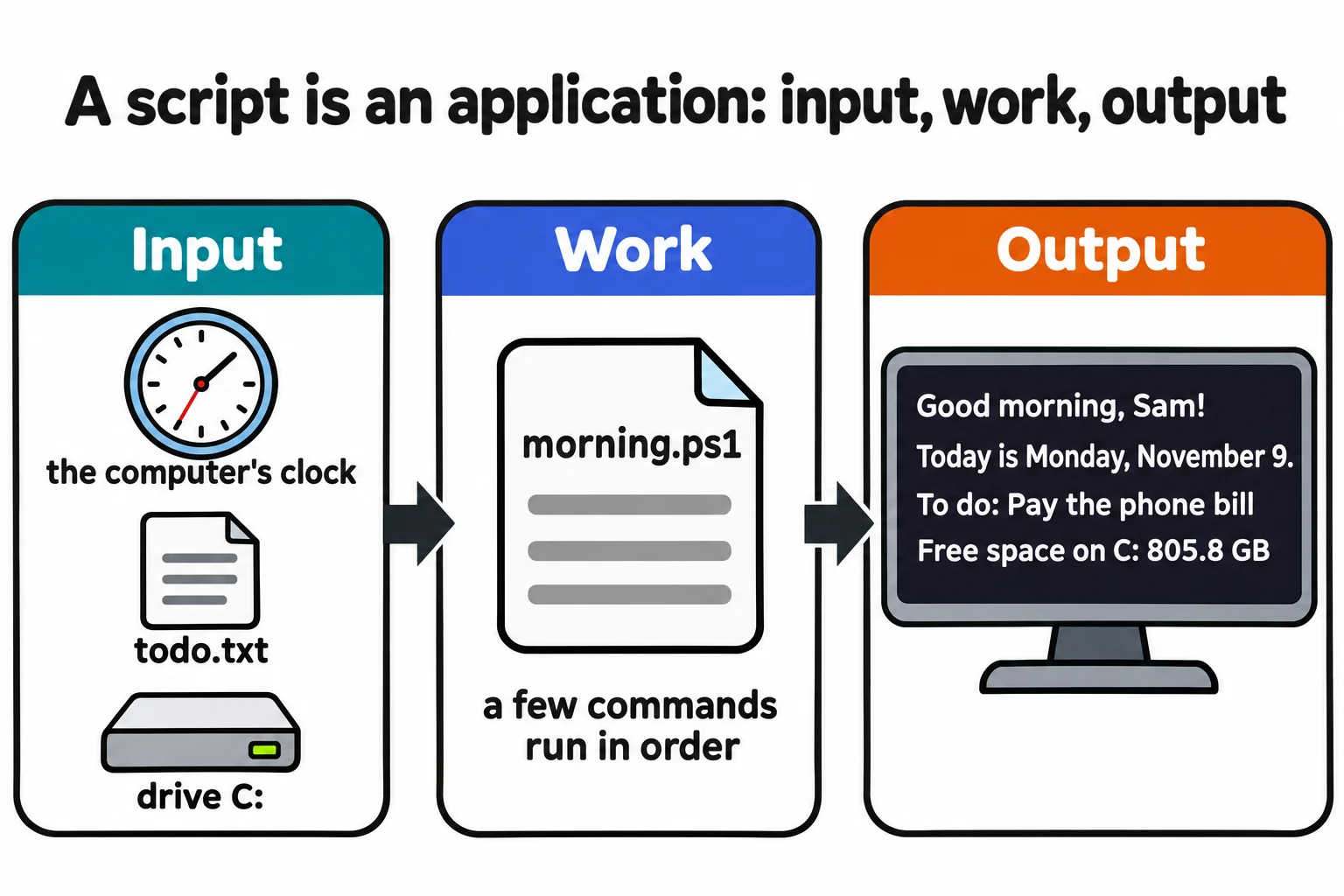
What makes it an application, and not a page of notes, is that you run it by name and it does the whole job, the same way, every time.
An application you can read
A script is a text file of PowerShell commands, saved with the extension .ps1. These lines make the one-line script from Why a Script Won't Run: The Execution Policy again, and are safe to run twice:
New-Item -ItemType Directory -Force -Path "$HOME\terminal-practice\scripts" | Out-Null
Set-Content -Path "$HOME\terminal-practice\scripts\hello.ps1" -Value 'Write-Output "Hello! This script is running."'
Set-Location "$HOME\terminal-practice\scripts"
Everything the script does is written in it as text, its source code, so you can read it, learn from it and change it. Not every program is like that. Get-Command (Finding a Command: Get-Command) tells the two kinds apart:
Get-Command .\hello.ps1, pwsh | Format-Table CommandType, Name, Source
   CommandType Name      Source
   ----------- ----      ------
ExternalScript hello.ps1 C:\Users\Sam\terminal-practice\scripts\hello.ps1
   Application pwsh.exe  C:\Program Files\PowerShell\7\pwsh.exe
ExternalScript means a script file. Application means a compiled program: its source code was turned into machine code, numbers only the processor reads, before it was shipped. PowerShell itself, pwsh.exe, is one. Open it with Get-Content and you get a screenful of symbols; open hello.ps1 and you get a line you can read.
Scripts you've already met
You've probably run scripts without knowing it. When a new work laptop gets its printers, shared folders and apps on its first morning, an IT department's setup script is often doing it. When a tutorial says "run install.ps1", that's a script that installs something.
PowerShell comes with scripts of its own. $PSHOME holds the folder PowerShell is installed in:
Get-ChildItem $PSHOME -Filter Install*.ps1 -Name
Get-Content "$PSHOME\Install-PowerShellRemoting.ps1" -TotalCount 6
Install-PowerShellRemoting.ps1
InstallPSCorePolicyDefinitions.ps1
# Copyright (c) Microsoft Corporation.
# Licensed under the MIT License.

#####################################################################################################
#
# Registers the WinRM endpoint for this instance of PowerShell.
That's the top of a 445-line script Microsoft ships with PowerShell, which sets it up so other computers can connect to it. Because a script is text, you can always read it before you run it. On a Mac or Linux, $PSHOME holds different files, but the idea is the same.
What PowerShell scripts are good at, and what they aren't
PowerShell scripts shine at the jobs you'd otherwise do by hand at a computer:
- Files and folders: renaming, sorting, copying, archiving and cleaning up, hundreds at a time.
- Data: spreadsheets (CSV), JSON and web APIs turned into reports.
- Windows itself: settings, programs, services and logs, on one PC or a hundred. That's why IT help desks and system administrators live in PowerShell.
- Running programs in order, such as setting up a new PC or building and testing an app, which is why .NET developers keep scripts too.
- Jobs that repeat: a morning check, a weekly backup, a monthly report.
An honest list of what they aren't for, so you pick the right tool:
- Big apps with many screens, such as a shop's checkout system. PowerShell can show a small window, but a large app is easier to build in a language such as C#.
- Games, phone apps and graphics.
- Heavy number crunching, such as millions of calculations a second.
- Computers without PowerShell 7. Every Windows PC has Windows PowerShell 5.1, which runs most scripts, but a Mac or Linux needs PowerShell installed first.
None of that makes a script less useful. It's the quick-run application: the one you write in an afternoon and run whenever you need the job done.
Check yourself
2 questions to try on the lesson page.
So what
A script is an application you can read: input, work and output in a .ps1 file. Everything in the rest of this module makes those applications do more.