Your Dotfiles: A Setup You Can Carry
Dotfiles are the hidden settings files that make a shell yours; keep your own in a ~/dotfiles folder, link each one into place with ln -s, and keep the folder in Git if you use it, and a new computer is set up like your old one in a minute.
Journeyman · Unix · Linux · Updated
After this lesson you can
- Keep your shell settings in a dotfiles folder and link them into place with ln -s, after checking that nothing is there already
- Set up a new computer from a dotfiles folder kept in Git, and keep passwords and keys out of it
Key takeaways
- Dotfiles are settings files whose names start with a dot, such as .bashrc and .bash_aliases. The lines you add to them are a record of how you like to work.
- Keep your own settings in one folder, ~/dotfiles, and put a symbolic link where the shell looks for each file.
- Ubuntu's .bashrc loads ~/.bash_aliases when it exists, so a link there brings in your shortcuts and prompt without changing Ubuntu's file.
- Kept in Git, the folder reaches a new computer with one git clone. Never put passwords or keys in it.
New laptop day. Or a new job's computer, a server for your club's website, or a fresh start after a reinstall. Your shortcuts, your functions and your prompt in your colors took weeks to get right, and none of them are on the new computer. People who work in terminals every day don't rebuild that from memory. They keep it in one folder they carry from computer to computer, like a travel kit with your toothbrush, your charger and the pillow you like, unpacked the same way in every hotel. Many developers even share theirs on GitHub: search for "dotfiles" and you'll find thousands.
Dotfiles: the files that make it yours
Settings files on Linux and on a Mac have names that start with a dot, which keeps them hidden: .bashrc, .zshrc, .gitconfig for Git, .nanorc for nano. That's why people call them dotfiles. Most of .bashrc is Ubuntu's; the lines you added in Startup Files: .bashrc, .zshrc and source are yours.
The plan has two parts. Your own lines go in your own files, in one folder: ~/dotfiles. Then a symbolic link, the signpost from Shortcuts to Files: ln -s, sits where the shell looks for each file and points into the folder. The shell reads the signpost and finds your file.
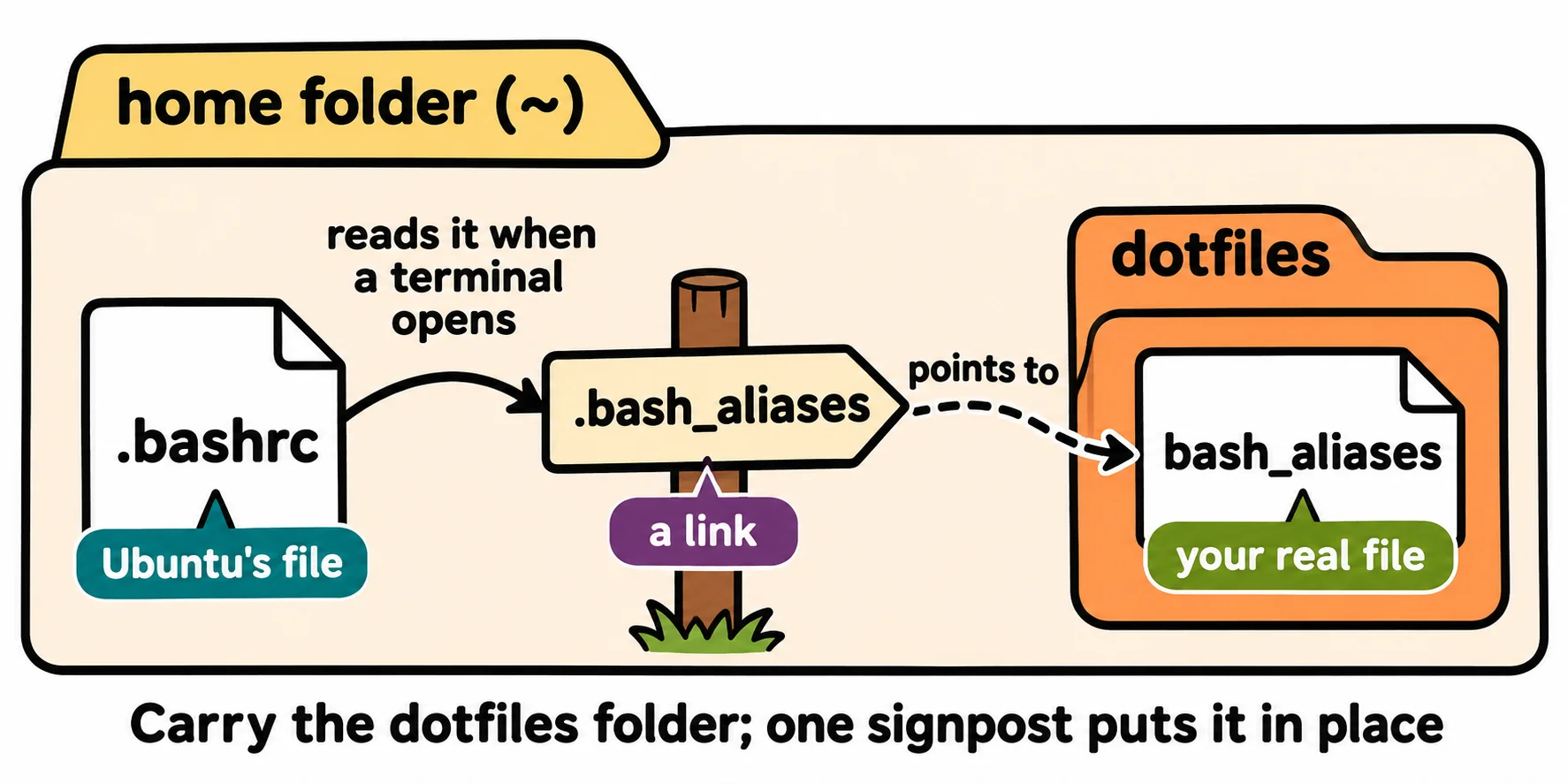
Your own file, in your own folder
You don't need to move Ubuntu's whole .bashrc. It already looks for a file of your own:
grep -n -A 2 "if \[ -f ~/.bash_aliases" ~/.bashrc
104:if [ -f ~/.bash_aliases ]; then
105-    . ~/.bash_aliases
106-fi
Read it "if there's a file named ~/.bash_aliases, then source it". So make the folder, and a file in it for your shortcuts. In the folder, the file's name has no dot, so ls shows it:
mkdir -p ~/dotfiles
nano ~/dotfiles/bash_aliases
Move your lines there from ~/.bashrc: your aliases, your functions and your PS1. Keep a backup of .bashrc first, as always. In nano, Ctrl+K cuts the line the cursor is on, so you can take each of your lines out of ~/.bashrc once it's in the new file. For the shortcuts from this chapter, ~/dotfiles/bash_aliases holds:
# My shortcuts
alias ll='ls -lah'
alias todo='cat ~/terminal-practice/shortcuts/todo.txt'
mkcd() {
  mkdir -p "$1"
  cd "$1"
}
Link it into place
Look before you link: ls -a ~ shows whether a .bash_aliases is there already. If one is, move it aside with mv ~/.bash_aliases ~/.bash_aliases.old, and copy anything you want from it into your new file. Then, from your home folder, link it, the real file first and the signpost's name second, as with cp:
cd ~
ln -s dotfiles/bash_aliases .bash_aliases
ls -l .bash_aliases
lrwxrwxrwx 1 sam sam 21 Nov 9 05:25 .bash_aliases -> dotfiles/bash_aliases
The l at the start and the arrow say it's a link. Its address, dotfiles/bash_aliases, is read from the home folder, where the link is. Open a new terminal, and todo and mkcd are there, loaded from your folder. If you run the same ln -s a second time, it refuses rather than replace what's there:
ln: Already exists
That's Ubuntu 26.04's wording; other systems word it differently, but it always means "something with that name is there already".
On a Mac, zsh doesn't read .bash_aliases. Keep your whole ~/.zshrc in the folder instead, and link it back:
mv ~/.zshrc ~/dotfiles/zshrc
cd ~
ln -s dotfiles/zshrc .zshrc
Carry it with Git
If you use Git, your folder can be a Git project, sent to a repository of your own on GitHub with the same steps as submitting an exercise:
cd ~/dotfiles
git init -b main
git add .
git commit -m "My shell setup"
On the new computer, two lines bring it back, and the link puts it in place. Check with ls -a ~ first, as before:
git clone https://github.com/your-name/dotfiles.git ~/dotfiles
cd ~
ln -s dotfiles/bash_aliases .bash_aliases
Open a new terminal, and it's your terminal again. No Git? Copy the folder on a USB stick or through a cloud folder, and make the same link.
Keep secrets out. Never put a password, an API key or any other secret in your dotfiles. A public repository can be read by anyone, and people really do search GitHub for keys left in files. Keep lines like that in a file that never goes in the folder.
Check yourself
2 questions to try on the lesson page.
So what
Your setup is no longer stuck on one computer: one folder, one link per file, and any computer you sit down at feels like yours within a minute.