Jumping Around: cd -, pushd and **
cd - switches between two folders, pushd and popd keep a stack of folders to come back to, ** reaches into every folder below once globstar is on, and CDPATH lets cd find a project's folders from anywhere.
Journeyman · Unix · Linux · Updated
After this lesson you can
- Switch between folders with cd -, and keep a stack of folders with pushd, popd and dirs
- Reach into every folder below with ** after shopt -s globstar, and reach chosen folders from anywhere with CDPATH
Key takeaways
- cd - goes back to the folder you were in before, so using it again brings you back. It's made for two folders you switch between.
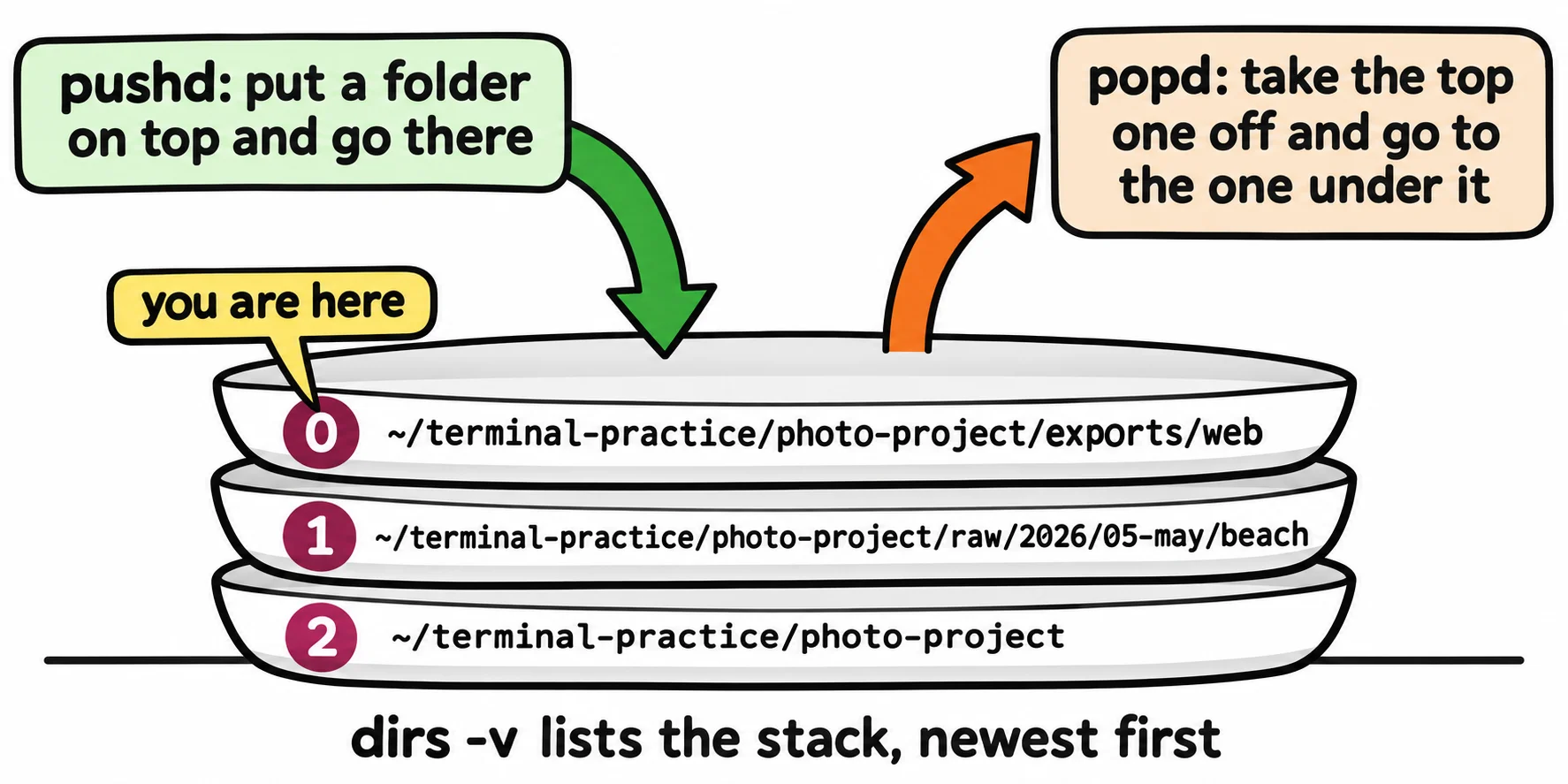
- pushd goes into a folder and remembers where you were, like a plate put on a stack. popd takes the top plate off and takes you back.
- dirs -v lists the stack, numbered from 0, which is the folder you're in now.
- After shopt -s globstar, ** matches any number of folders, so ls raw/**/*.jpg finds every .jpg below raw. zsh does it without the setting.
- CDPATH is a list of folders cd also looks in. Keep . first in it, and don't export it.
The photo project keeps each photo in two places, four folders deep: the original in raw/2026/05-may/beach, the edited copy in edited/2026/05-may/beach. Editing means going back and forth between them, with a trip to exports/web now and then. Typing those paths each time, even with Tab, gets old fast. A developer works the same way, with the code in one folder, its settings in another and the logs in a third. bash has a way back, a stack to remember places, a pattern that reaches every folder at once, and a list of favorite places for cd.
The examples use the practice folder from Keyboard Shortcuts at the Prompt.
cd -: back and forth
Moving Around: cd, .. and ~ showed cd -, which goes back to the folder you were in before. Use it again, and you're back where you started, so it flips between two folders:
cd ~/terminal-practice/photo-project/raw/2026/05-may/beach
cd ~/terminal-practice/photo-project/edited/2026/05-may/beach
cd -
cd -
/home/sam/terminal-practice/photo-project/raw/2026/05-may/beach
/home/sam/terminal-practice/photo-project/edited/2026/05-may/beach
cd - prints where it took you. It remembers one folder only: the moment you cd somewhere else, that's the one it goes back to.
pushd and popd: a stack of folders
To remember more than one place, think of a stack of plates. pushd (read "push d") goes into a folder and puts the one you were in on the stack under it. popd ("pop d") takes the top plate off and takes you to the one underneath. This stack is the directory stack. dirs -v lists it, numbered from 0, the folder you're in:
cd ~/terminal-practice/photo-project
pushd raw/2026/05-may/beach
pushd ~/terminal-practice/photo-project/exports/web
dirs -v
~/terminal-practice/photo-project/raw/2026/05-may/beach ~/terminal-practice/photo-project
~/terminal-practice/photo-project/exports/web ~/terminal-practice/photo-project/raw/2026/05-may/beach ~/terminal-practice/photo-project
 0  ~/terminal-practice/photo-project/exports/web
 1  ~/terminal-practice/photo-project/raw/2026/05-may/beach
 2  ~/terminal-practice/photo-project
Each pushd prints the whole stack on one line, newest first, with ~ for your home folder. Now come back the way you went:
popd
pwd
~/terminal-practice/photo-project/raw/2026/05-may/beach ~/terminal-practice/photo-project
/home/sam/terminal-practice/photo-project/raw/2026/05-may/beach
One more popd takes you back to photo-project. Use pushd for a side trip you'll want to come back from, and cd when you're not coming back.
**: every folder below
* matches any name in one folder (Wildcards: *, ? and [ ]). To reach every photo below raw, however deep, bash has ** (read "star star"). Out of the box, bash treats ** like *, so this looks for .jpg files one folder down only, in raw/2026, and finds none:
cd ~/terminal-practice/photo-project
ls raw/**/*.jpg
ls: cannot access 'raw/**/*.jpg': No such file or directory
The wording of that error differs from system to system. Turn on the globstar setting with shopt -s globstar, and ** matches any number of folders, none included:
shopt -s globstar
ls raw/**/*.jpg
raw/2026/04-april/park/IMG_0412.jpg  raw/2026/05-may/beach/IMG_0502.jpg
raw/2026/04-april/park/IMG_0413.jpg  raw/2026/05-may/beach/IMG_0503.jpg
raw/2026/04-april/park/IMG_0414.jpg  raw/2026/06-june/lake/IMG_0620.jpg
raw/2026/05-may/beach/IMG_0501.jpg   raw/2026/06-june/lake/IMG_0621.jpg
Every copy of one photo, raw and edited, anywhere in the project:
ls **/IMG_0501*
edited/2026/05-may/beach/IMG_0501-edit.jpg raw/2026/05-may/beach/IMG_0501.jpg
find (Finding Files: find) can do this too, and more. ** is shorter to type, and works with any command. In zsh, ** works without any setting.
CDPATH: a project's folders from anywhere
CDPATH is a list of folders, separated by :, where cd also looks for the name you give it. With the project in it, its folders are one short cd away from anywhere. $HOME is your home folder's path:
CDPATH=.:$HOME/terminal-practice/photo-project
cd ~
cd exports
cd edited
cd 2026
cd beach
/home/sam/terminal-practice/photo-project/exports
/home/sam/terminal-practice/photo-project/edited
/home/sam/terminal-practice/photo-project/edited/2026
bash: cd: beach: No such file or directory
cd prints the path when it found the folder through CDPATH. The . at the front means "the folder I'm in" is checked first, which is how cd 2026 found edited/2026. Leave it out, and cd can go somewhere you didn't expect. And cd beach failed: CDPATH looks only at the folders right inside the ones it lists.
To keep any of these settings, add shopt -s globstar and the CDPATH line to ~/.bashrc (Startup Files: .bashrc, .zshrc and source). Don't export CDPATH: scripts would get it too, and a script's cd could land in the wrong folder.
Check yourself
2 questions to try on the lesson page.
So what
cd - flips between two folders, pushd and popd remember a side trip, ** reaches every folder below, and CDPATH brings your project close, so a project four folders deep feels like one.