Objects of Your Own: `[PSCustomObject]`
[PSCustomObject]@{ } builds an object of your own with named properties, so a tool you write hands back results that Sort-Object, Where-Object and Export-Csv can work with, the way they work with PowerShell's own commands, instead of lines of text.
Journeyman · PowerShell · Updated
After this lesson you can
- Build an object of your own with [PSCustomObject]@{ } and give each property a name and a value
- Hand back objects instead of text from a function, so its results can be sorted, filtered and exported
Key takeaways
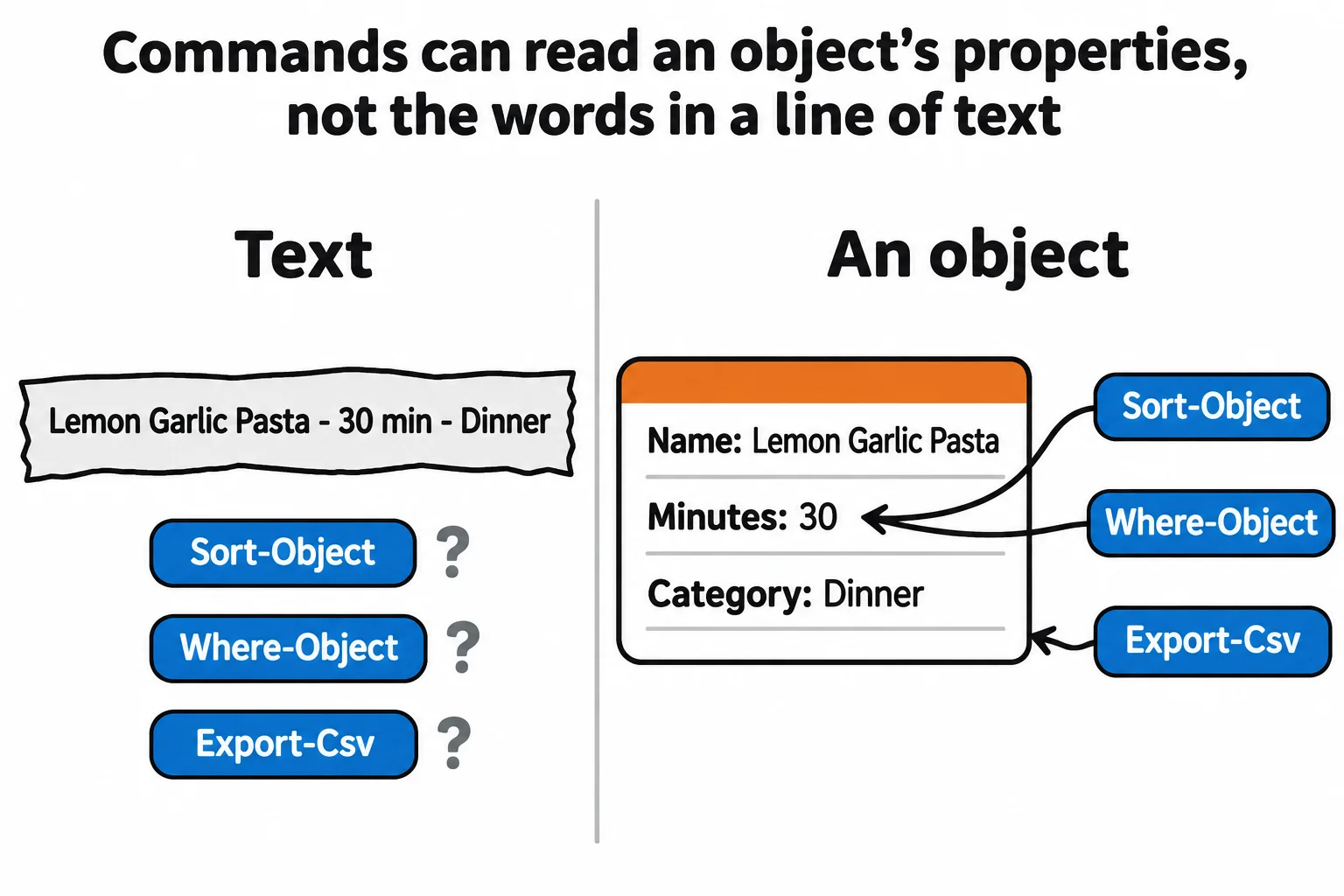
- A line of text has one property, its Length, so Sort-Object, Where-Object and Export-Csv can't get at what's inside it.
[PSCustomObject]@{ Name = 'Banana Bread'; Minutes = 70 }builds an object with the properties you name, in the order you write them.- A number written without quotes stays a number, so it sorts and compares as a number.
- A function hands back objects and leaves the formatting to whoever runs it: Format-Table inside the function breaks sorting and saving.
Your family's recipes live on index cards, in three notebooks and in a dozen browser tabs, so you start a recipe box in PowerShell: a few commands that keep every recipe in one place. The first version prints a neat line for each recipe, and it looks done. Then someone asks the first real question: "What can I make in 25 minutes?" The neat lines can't answer it.
This chapter is where the course's big idea pays off. A script is an application, and now yours becomes a real tool, with objects of its own, data it remembers, friendly output and even a window. It starts with the objects.
Text looks right, until you ask a question
Make a practice folder, then type this first version of the recipe box at the prompt (or paste it):
New-Item -ItemType Directory -Force -Path "$HOME\terminal-practice\recipe-box" | Out-Null
Set-Location "$HOME\terminal-practice\recipe-box"
function Get-Recipe {
    'Lemon Garlic Pasta - 30 min - Dinner'
    'Overnight Oats - 10 min - Breakfast'
    'Banana Bread - 70 min - Baking'
    'Black Bean Tacos - 25 min - Dinner'
}
Get-Recipe prints the four lines. Now sort them by how long they take, and save them for a spreadsheet:
Get-Recipe | Sort-Object Minutes
Get-Recipe | Export-Csv recipes.csv
Get-Content recipes.csv
Lemon Garlic Pasta - 30 min - Dinner
Overnight Oats - 10 min - Breakfast
Banana Bread - 70 min - Baking
Black Bean Tacos - 25 min - Dinner
"Length"
"36"
"35"
"30"
"34"
The sort did nothing, without a word of complaint, and the spreadsheet holds only numbers. A line of text is one thing to PowerShell: a string, whose only property is its Length. The minutes are in there for you to read, but no command can reach them.
A card with labeled lines: `[PSCustomObject]`
A good index card has labeled lines: Name:, Minutes:, Category:. Anyone can find the minutes without reading the whole card. PowerShell's version of that card is a custom object, an object you design yourself, and you build one from a hashtable:
[PSCustomObject]@{ Name = 'Lemon Garlic Pasta'; Minutes = 30; Category = 'Dinner' }
Name               Minutes Category
----               ------- --------
Lemon Garlic Pasta      30 Dinner
Read it from the right. @{ } is a lookup of names and values, from Lists and Lookups: Arrays and Hashtables: = joins each name to its value and ; separates the pairs. [PSCustomObject] in front (read "as a custom object") turns that lookup into one object, with a property for each name. It keeps the properties in the order you wrote them, so the columns come out Name, Minutes, Category. A plain hashtable shows a Name and Value row for each pair instead, in an order of its own choosing.
30 has no quotes, so it stays a number. '30' would be text, and text sorts by its first character, so '100' would come before '30'.
Your tool's results work like PowerShell's own
Now give Get-Recipe a card for each recipe. Defining it again replaces the first version:
function Get-Recipe {
    [PSCustomObject]@{ Name = 'Lemon Garlic Pasta'; Minutes = 30; Category = 'Dinner' }
    [PSCustomObject]@{ Name = 'Overnight Oats'; Minutes = 10; Category = 'Breakfast' }
    [PSCustomObject]@{ Name = 'Banana Bread'; Minutes = 70; Category = 'Baking' }
    [PSCustomObject]@{ Name = 'Black Bean Tacos'; Minutes = 25; Category = 'Dinner' }
}
Get-Recipe | Where-Object Minutes -le 25
Name             Minutes Category
----             ------- --------
Overnight Oats        10 Breakfast
Black Bean Tacos      25 Dinner
There's the answer to "what can I make in 25 minutes?". Every command from Module 3 works now: Sort-Object Minutes puts the oats first and the bread last, Group-Object Category counts two dinners, and Get-Member shows the cards for what they are:
Get-Recipe | Get-Member -MemberType NoteProperty
   TypeName: System.Management.Automation.PSCustomObject

Name     MemberType   Definition
----     ----------   ----------
Category NoteProperty string Category=Dinner
Minutes  NoteProperty int Minutes=30
Name     NoteProperty string Name=Lemon Garlic Pasta
A NoteProperty is a property you added yourself, and Minutes is an int, a whole number. Run Get-Recipe | Export-Csv recipes.csv again, and recipes.csv gets a header of "Name","Minutes","Category" and one line per recipe, ready for Excel.
That's the difference between a script that prints and a tool. The person who runs your command decides what happens next, the same way they do with Get-ChildItem or Get-Process.
Leave the formatting to the end
It's tempting to make the function's output look tidy with Format-Table on its last line. Don't. Format-Table turns the objects into instructions for drawing a table, and nothing after it can read them. Say the function collects the four cards in $recipes and ends with $recipes | Format-Table. The table looks the same, but Get-Recipe | Where-Object Minutes -le 25 shows all four recipes, and a saved spreadsheet is nonsense:
Get-Recipe | Export-Csv recipes.csv
Get-Content recipes.csv -TotalCount 3
"ClassId2e4f51ef21dd47e99d3c952918aff9cd","pageHeaderEntry","pageFooterEntry","autosizeInfo","shapeInfo","groupingEntry"
"033ecb2bc07a4d43b5ef94ed5a35d280",,,,"Microsoft.PowerShell.Commands.Internal.Format.TableHeaderInfo",
"9e210fe47d09416682b841769c78b8a3",,,,,
The same goes for Write-Host and for building a sentence around each recipe. A function's job ends at the object; Format-Table, Sort-Object and Export-Csv belong to whoever runs it. [PSCustomObject] works the same in Windows PowerShell 5.1 and on a Mac or Linux.
Check yourself
2 questions to try on the lesson page.
So what
Objects in, objects out: give your tool's results names and values with [PSCustomObject], and everything PowerShell can do with its own commands' output, it can now do with yours.