`try`, `catch` and `finally`
try runs your lines, catch runs only if one of them hits an error that stops it (which -ErrorAction Stop arranges), $_ in catch is the error, so you can tell the user what happened and what to do, and finally runs whatever happens.
Journeyman · PowerShell · Updated
After this lesson you can
- Catch an error with try and catch, adding -ErrorAction Stop so catch sees errors that don't stop on their own
- Write a catch message a user can act on with $_, and clean up in finally whatever happens
Key takeaways
- try { } holds the work; catch { } runs only if an error inside try stops it. Then the rest of try is skipped.
- catch only sees errors that stop a command, so add -ErrorAction Stop to the commands whose errors matter.
- Inside catch, $_ is the error and $_.Exception.Message is its text. Tell the user what happened, what is safe and what to do.
- finally { } runs whatever happens: after try worked, after catch, even after exit or Ctrl+C. Put the cleanup there.
The receipt mover from Reading Errors, and -ErrorAction now stops before it can lose a receipt. But it stops in red text about "a part of the path", and the person running it (a coworker, or you in six months) is left wondering: did it lose anything? What do I do now? Scripts that other people run, like the ones an IT team hands out, answer those questions themselves. That's what try and catch are for.
The examples use the mover folder from that lesson. If you don't have it, run its practice-folder lines first.
Try it, and catch what goes wrong
Think of baking: try the recipe, and if it goes wrong, catch it and do something sensible, like ordering pizza. In PowerShell, try { } holds the work, and catch { } holds what to do if the work fails. Change move-receipts.ps1 to this:
# move-receipts.ps1: moves every receipt in the inbox to the backup drive
param($Destination = "$HOME\terminal-practice\mover\backup-drive")
$inbox = "$HOME\terminal-practice\mover\inbox"
try {
    foreach ($file in Get-ChildItem $inbox -File) {
        $to = "$Destination\$($file.Name)"
        Copy-Item -Path $file.FullName -Destination $to -ErrorAction Stop
        Remove-Item -Path $file.FullName
        Write-Output "Moved $($file.Name)"
    }
}
catch {
    Write-Output 'Something went wrong.'
}
Run it with the misspelled backup folder:
.\move-receipts.ps1 -Destination "$HOME\terminal-practice\mover\backup-drvie"
Get-ChildItem inbox -Name
Something went wrong.
2026-10-03-groceries.pdf
2026-10-05-gas.pdf
2026-10-09-pharmacy.pdf
No red text. The first copy failed, PowerShell jumped straight to catch, and the rest of try was skipped: no Remove-Item, no Moved. Every receipt is still in the inbox.
catch only sees errors that stop. Take -ErrorAction Stop off the Copy-Item line and try again: Copy-Item's error is non-terminating, so it goes by in red, the script carries on, catch never runs, and the receipts are deleted, as in Reading Errors, and -ErrorAction. Whenever an error inside try matters, give its command -ErrorAction Stop.
A message someone can act on
"Something went wrong" is honest, but it doesn't help. A good message answers three questions: what happened, is anything lost, and what to do next. Inside catch, $_, read "this item" as in Filtering: Where-Object and Comparisons, is the error itself, and $_.Exception.Message is its text. Replace the catch block with this one:
catch {
    Write-Output "Couldn't copy $($file.Name) to $Destination."
    Write-Output "PowerShell says: $($_.Exception.Message)"
    Write-Output 'Every receipt that was not copied is still in the inbox.'
    Write-Output 'Check that the backup drive is plugged in and its name is right, then run the script again.'
}
Couldn't copy 2026-10-03-groceries.pdf to C:\Users\Sam\terminal-practice\mover\backup-drvie.
PowerShell says: Could not find a part of the path 'C:\Users\Sam\terminal-practice\mover\backup-drvie\2026-10-03-groceries.pdf'.
Every receipt that was not copied is still in the inbox.
Check that the backup drive is plugged in and its name is right, then run the script again.
$file still holds the receipt the loop was on, so the message can name it. Keep PowerShell's own message in yours: it's the detail someone needs to search for or report.
`finally`: clean up whatever happens
Whatever happened to the cake, you turn the oven off. finally { } is that step: it runs after try worked, after catch, and even when the script is stopped half-way. This last version goes into the inbox to work (so it can use the short names), and must bring you back to where you started. It also ends a failed run with exit 1, which stops the script and hands back exit code 1, the "it didn't work" number from Did It Work? $?, $LASTEXITCODE, && and ||:
# move-receipts.ps1: moves every receipt in the inbox to the backup drive
param($Destination = "$HOME\terminal-practice\mover\backup-drive")
$start = Get-Location
Set-Location "$HOME\terminal-practice\mover\inbox"
try {
    foreach ($file in Get-ChildItem -File) {
        $to = "$Destination\$($file.Name)"
        Copy-Item -Path $file.Name -Destination $to -ErrorAction Stop
        Remove-Item -Path $file.Name
        Write-Output "Moved $($file.Name)"
    }
}
catch {
    Write-Output "Couldn't copy $($file.Name) to $Destination."
    Write-Output "PowerShell says: $($_.Exception.Message)"
    Write-Output 'Every receipt that was not copied is still in the inbox.'
    Write-Output 'Check that the backup drive is plugged in and its name is right, then run the script again.'
    exit 1
}
finally {
    Set-Location $start
}
.\move-receipts.ps1 -Destination "$HOME\terminal-practice\mover\backup-drvie"
Get-Location
$LASTEXITCODE
Couldn't copy 2026-10-03-groceries.pdf to C:\Users\Sam\terminal-practice\mover\backup-drvie.
PowerShell says: Could not find a part of the path 'C:\Users\Sam\terminal-practice\mover\backup-drvie\2026-10-03-groceries.pdf'.
Every receipt that was not copied is still in the inbox.
Check that the backup drive is plugged in and its name is right, then run the script again.

Path
----
C:\Users\Sam\terminal-practice\mover

1
exit 1 ended the script inside catch, and finally still ran: you're back in the mover folder. Take the finally block out and run it again, and you're left standing in mover\inbox, where your next command would run. finally also runs if you press Ctrl+C half-way through, which makes it the place for anything that must be put back: a folder, a setting, a temporary file.
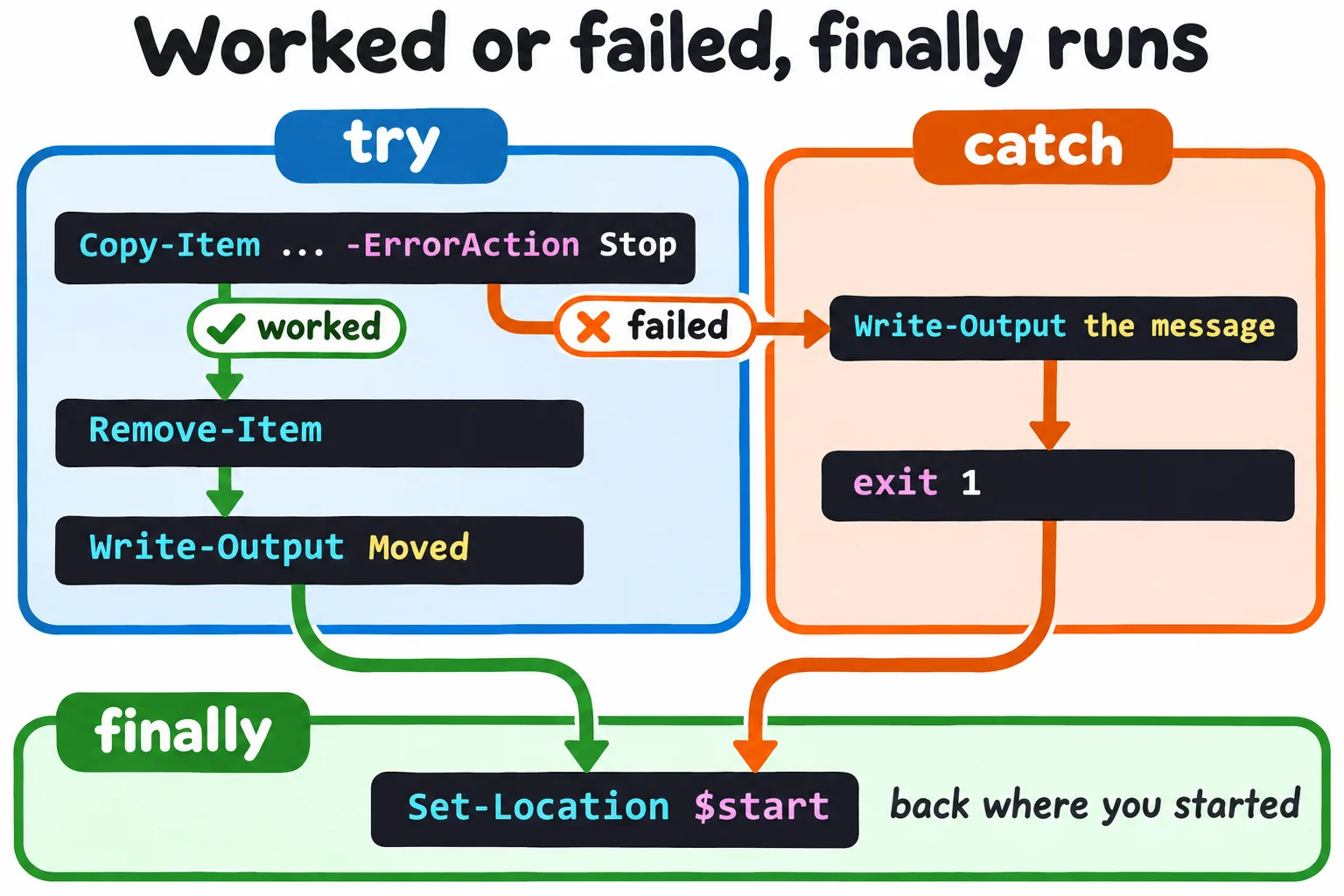
Run the script without the typo, .\move-receipts.ps1, and all three receipts move, and you're still back where you started. All of this works the same in Windows PowerShell 5.1 and on a Mac or Linux.
Check yourself
2 questions to try on the lesson page.
So what
A script other people run should fail like a good coworker: stop before it does harm, say what happened and what to do, and put things back the way it found them.