JSON: ConvertFrom-Json and ConvertTo-Json
JSON is the text format most apps keep their settings in and most websites send their data in, and PowerShell reads it into an object with ConvertFrom-Json, lets you change a value with a dot and an equals sign, and writes it back with ConvertTo-Json, whose -Depth says how many levels of boxes inside boxes it keeps.
Journeyman · PowerShell · Operating System · Updated
After this lesson you can
- Read a JSON settings file into an object with Get-Content -Raw and ConvertFrom-Json, and reach values inside it with dots
- Change a setting and save the file again with ConvertTo-Json -Depth and Set-Content, after making a backup copy
Key takeaways
- JSON writes data as labels and values:
{ }holds an object's labels and values, and[ ]holds a list. Get-Content booking-settings.json -Raw | ConvertFrom-Jsonreads the whole file into an object, and dots reach inside it:$settings.rentalPrices.eBike.- Copy the file first, change a value with
=, then save it withConvertTo-Json -Depth 5 | Set-Content. ConvertTo-Jsongoes only two levels deep unless-Depthsays more, and writes anything deeper as text such as@{weekdays=…}.
The bike shop's booking website reads its rental prices and opening hours from a settings file, booking-settings.json. From next week, e-bikes cost $28 an hour instead of $25, and the person who set up the site is away. You could open the file in Notepad and change the number, and many people do. But one missing comma or quote in a file like this, and the app won't start. Lots of programs keep their settings this way: VS Code, Windows Terminal, a game's options, a website's setup, and most web APIs send their answers in the same format. PowerShell reads the file into an object, changes one value, and writes the file back in the right shape every time. A web developer changing a site's setup and an IT tech changing one setting on fifty computers both work this way.
Labels and values: what JSON looks like
Copy these lines into PowerShell to make the settings file. Running them again is safe, and puts the file back the way it started.
New-Item -ItemType Directory -Force -Path "$HOME\terminal-practice\bike-shop" | Out-Null
Set-Content -Path "$HOME\terminal-practice\bike-shop\booking-settings.json" -Value '{', '  "shopName": "Maple Street Bikes",', '  "sendReminders": true,', '  "rentalPrices": {', '    "cityBike": 12,', '    "eBike": 25,', '    "kidsBike": 8', '  },', '  "stores": [', '    {', '      "name": "Downtown",', '      "phone": "555-0142",', '      "hours": { "weekdays": "9:00-18:00", "saturday": "10:00-16:00" }', '    },', '    {', '      "name": "Riverside",', '      "phone": "555-0178",', '      "hours": { "weekdays": "10:00-18:00", "saturday": "10:00-17:00" }', '    }', '  ]', '}'
They print nothing when they work. Read the file:
Set-Location "$HOME\terminal-practice\bike-shop"
Get-Content booking-settings.json
{
  "shopName": "Maple Street Bikes",
  "sendReminders": true,
  "rentalPrices": {
    "cityBike": 12,
    "eBike": 25,
    "kidsBike": 8
  },
  "stores": [
    {
      "name": "Downtown",
      "phone": "555-0142",
      "hours": { "weekdays": "9:00-18:00", "saturday": "10:00-16:00" }
    },
    {
      "name": "Riverside",
      "phone": "555-0178",
      "hours": { "weekdays": "10:00-18:00", "saturday": "10:00-17:00" }
    }
  ]
}
This is JSON, short for JavaScript Object Notation: it started in JavaScript, and now nearly every language and app reads it. Think of boxes inside boxes, each with labeled values:
{ }(read "curly braces") is one box, an object: labels in double quotes, a colon, then the value, with commas between them.[ ](read "square brackets") is a list.storesis a list of two boxes, one per shop, and each shop'shoursis a box of its own.- Text values are in double quotes. Numbers and
trueorfalsearen't.
A file like this, which a program reads to know how to behave, is a configuration file.
Read it: ConvertFrom-Json
ConvertFrom-Json turns JSON text into an object. Get-Content -Raw reads the file as one piece of text instead of a line at a time, so the converter gets the whole thing at once. Keep the result in a variable, a labeled box that holds a value while PowerShell stays open: $settings (read "the value of settings"). = puts the value in the box. Variables: $name, in Module 5, covers them in full.
$settings = Get-Content booking-settings.json -Raw | ConvertFrom-Json
$settings.rentalPrices
cityBike eBike kidsBike
-------- ----- --------
      12    25        8
The first line prints nothing: it fills the box. Then dots reach inside, one box at a time, as with any object's properties. In a list, [1] (read "item 1") picks one item, counting from 0:
$settings.rentalPrices.eBike
$settings.stores[1].phone
$settings.stores[0].hours.saturday
25
555-0178
10:00-16:00
Riverside's phone number, and Downtown's Saturday hours. If a file isn't valid JSON, ConvertFrom-Json stops with Conversion from JSON failed with error, and names the line and position where it got lost: often a missing comma right before it.
Change a setting
Saving writes over the whole file, so make a copy first, as in Copy and Move: Copy-Item and Move-Item. If anything goes wrong, the copy puts it right. Then give the e-bike price its new value:
Copy-Item booking-settings.json booking-settings.backup.json
$settings.rentalPrices.eBike = 28
$settings.rentalPrices
cityBike eBike kidsBike
-------- ----- --------
      12    28        8
So far only the object in $settings has changed. The file still says 25.
Save it: ConvertTo-Json and -Depth
ConvertTo-Json goes the other way: object in, JSON text out. Try it before saving, to see what it would write:
$settings | ConvertTo-Json
WARNING: Resulting JSON is truncated as serialization has exceeded the set depth of 2.
{
  "shopName": "Maple Street Bikes",
  "sendReminders": true,
  "rentalPrices": {
    "cityBike": 12,
    "eBike": 28,
    "kidsBike": 8
  },
  "stores": [
    {
      "name": "Downtown",
      "phone": "555-0142",
      "hours": "@{weekdays=9:00-18:00; saturday=10:00-16:00}"
    },
    {
      "name": "Riverside",
      "phone": "555-0178",
      "hours": "@{weekdays=10:00-18:00; saturday=10:00-17:00}"
    }
  ]
}
The price is 28, but look at hours. Counting from the outer braces, the stores list is one level in, each shop two, and each shop's hours three. ConvertTo-Json goes two levels deep unless you tell it otherwise, and writes anything deeper as text: the opening hours have become one string the website can't read. The warning says so. -Depth sets how deep it goes; any number bigger than the file needs is fine, so -Depth 5 gives room to spare:
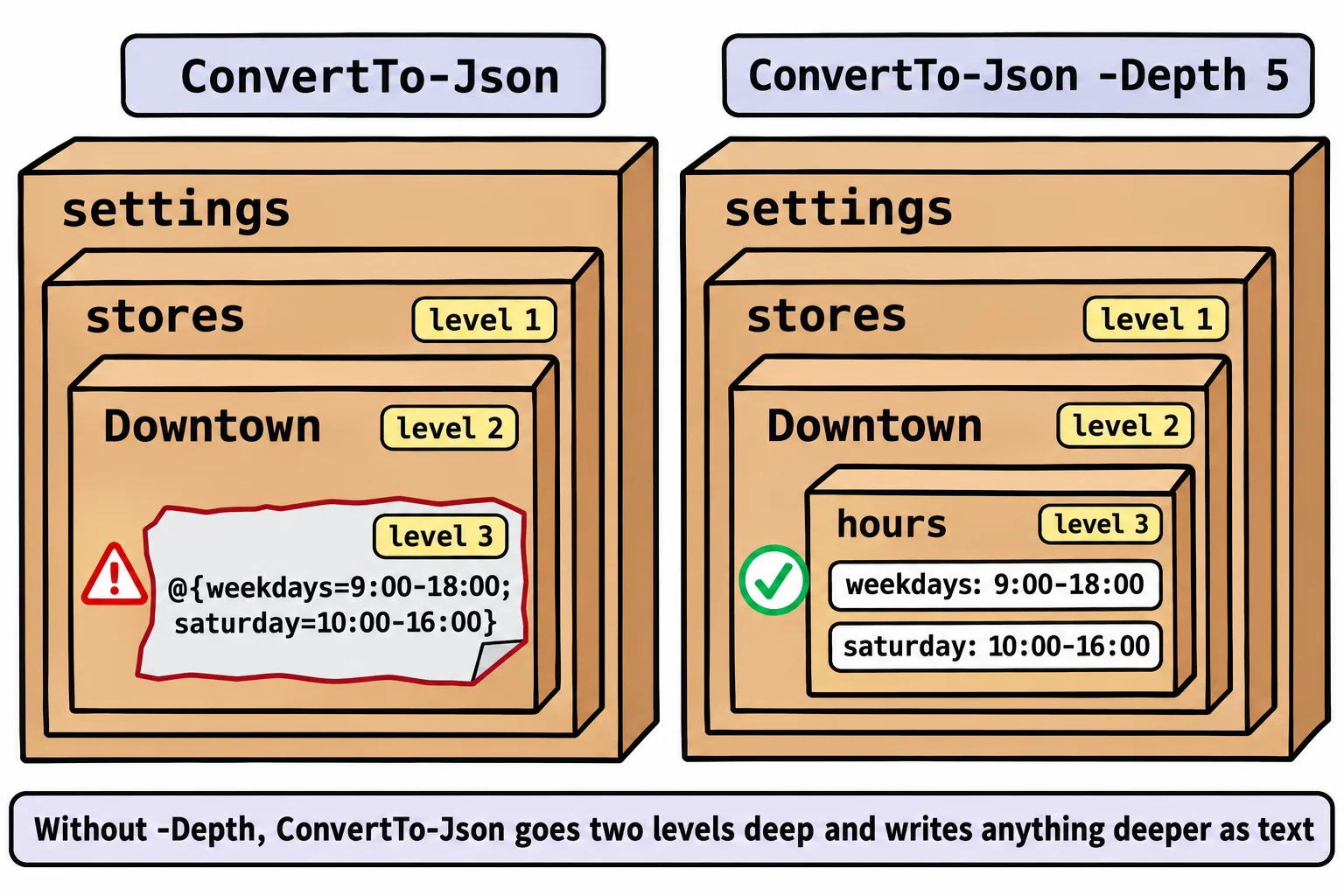
$settings | ConvertTo-Json -Depth 5 | Set-Content booking-settings.json
(Get-Content booking-settings.json -Raw | ConvertFrom-Json).stores[0].hours
weekdays   saturday
--------   --------
9:00-18:00 10:00-16:00
The second line reads the saved file back to check it: the hours are still a box of their own, and the e-bike price in the file is now 28. Set-Content, from Writing to Files: Set-Content, Add-Content and >, did the writing.
Windows PowerShell 5.1 differs: it cuts deep levels short in the same way, but with no warning, and it lines its JSON up with extra spaces. On a Mac or Linux, everything here works the same, with / in paths.
Try it. Turn off the reminder emails: set sendReminders to $false (read "false"), save with -Depth 5, and read the file back. Then put the backup back with Copy-Item booking-settings.backup.json booking-settings.json.
Check yourself
2 questions to try on the lesson page.
So what
Settings files, website data and app exports are JSON more often than not, and ConvertFrom-Json and ConvertTo-Json -Depth let you read and change them without breaking a single comma.