Calling Other Programs
Programs such as git, dotnet and npm run from PowerShell by name, hand back their output as lines of text, take arguments from variables and arrays, and run by a path with & in front; a failing program doesn't stop a script by itself, so check $LASTEXITCODE after it, or set $PSNativeCommandUseErrorActionPreference to $true.
Journeyman · PowerShell · Updated
After this lesson you can
- Run programs such as git, dotnet and npm from PowerShell, with arguments from variables and arrays, and by their path with &
- Stop a script when a program fails, by checking $LASTEXITCODE or by setting $PSNativeCommandUseErrorActionPreference
Key takeaways
- A program that isn't a PowerShell command, such as git, dotnet or npm, runs by its name, and its output comes back as text: one string per line.
- A variable after a program's name is handed over as one argument, spaces and all; an array after @ hands over one argument per item.
- A program's path in quotes needs & (read "run") in front, or PowerShell reads it as text.
- A program that fails doesn't stop a script, even with $ErrorActionPreference = 'Stop'. Check $LASTEXITCODE right after it and throw when it isn't 0.
- With $PSNativeCommandUseErrorActionPreference = $true (PowerShell 7.4 and later), a non-zero exit code is an error, and 'Stop' stops the script.
Most of a project's work is done by programs that aren't PowerShell at all. The bike shop's site keeps its history in Git, a .NET app is built with dotnet build, and a JavaScript project starts with npm install. A build script is mostly the glue between them: run this program, then that one, and stop if one of them fails. That last part is where scripts quietly go wrong, because a program that fails doesn't stop a PowerShell script the way a failing cmdlet can. This lesson shows how to call programs well, and how to notice when one fails. Every developer who automates a build or a release meets this, usually after a release that "worked" but didn't.
This lesson uses the bike-shop-site from The Scripts Every Project Has, and Git, which you've used to submit exercises.
Programs run by name
A program PowerShell starts, rather than runs itself, is a native command. You call it by its name, as in Command Prompt or bash. Ask each one for its version:
git --version
dotnet --version
npm --version
git version 2.51.1.windows.1
10.0.303
10.9.0
(Yours may differ, and dotnet and npm are there only if you've installed .NET or Node.js.) Make the site a Git repository, with a .gitignore that keeps the built dist folder out of it:
Set-Content -Path .gitignore -Value 'dist/'
git init -b main
git add .
git commit -m 'First version of the site'
Initialized empty Git repository in C:/Users/Sam/terminal-practice/bike-shop-site/.git/
[main (root-commit) 05d4acb] First version of the site
 6 files changed, 52 insertions(+)
 create mode 100644 .gitignore
 create mode 100644 README.md
 create mode 100644 build.ps1
 create mode 100644 src/index.html
 create mode 100644 src/repairs.html
 create mode 100644 src/style.css
Your commit's code, 05d4acb here, will differ. (If Git stops and asks who you are, it prints the two git config --global lines to run once, with your name and email.) A program hands back text, not objects (What an Object Is: Get-Member): one string for each line it prints, which you can keep in a variable.
$commit = git rev-parse --short HEAD
$commit
$commit.GetType().Name
05d4acb
String
Handing over arguments
Everything after the program's name is its arguments. A variable is handed over as one argument, spaces and all, so a commit message can come from the script. Add a rentals page and commit it:
Set-Content -Path src\rentals.html -Value '<!DOCTYPE html>', '<html lang="en">', '<head><title>Rentals: Maple Street Bikes</title><link rel="stylesheet" href="style.css"></head>', '<body><h1>Rentals</h1><p>A city bike for the day: $25.</p><a href="index.html">Home</a></body>', '</html>'
$message = 'Add the rentals page'
git add .
git commit -m $message
git log --oneline
[main 4beee46] Add the rentals page
 1 file changed, 5 insertions(+)
 create mode 100644 src/rentals.html
4beee46 Add the rentals page
05d4acb First version of the site
When a script builds up its arguments as it goes, keep them in an array and put @ (read "splat") in front: each item becomes one argument. Handing over a collection like this is called splatting:
$logArgs = 'log', '--oneline', '-1'
git @logArgs
4beee46 Add the rentals page
A program that isn't on your PATH (Environment Variables and PATH) runs by its full path. A path with spaces needs quotes, and then PowerShell reads it as a piece of text, not a command: 'C:\Program Files\Git\cmd\git.exe' --version stops with Unexpected token 'version' in expression or statement. Put &, the call operator (read "run"), in front:
& 'C:\Program Files\Git\cmd\git.exe' --version
git version 2.51.1.windows.1
Did it work? Check `$LASTEXITCODE`
A release gets a Git tag, a name pinned to one commit. Add a release task to build.ps1: add $version = '1.2.0' under the $ErrorActionPreference line, 'release' to the ValidateSet list, 'release' { Invoke-ReleaseTask } to the switch, and this function above the switch:
function Invoke-ReleaseTask {
    git tag "v$version"
    Write-Output "Tagged this commit as v$version"
}
Run it twice, the way a busy afternoon might:
.\build.ps1 -Task release
.\build.ps1 -Task release
Tagged this commit as v1.2.0
fatal: tag 'v1.2.0' already exists
Tagged this commit as v1.2.0
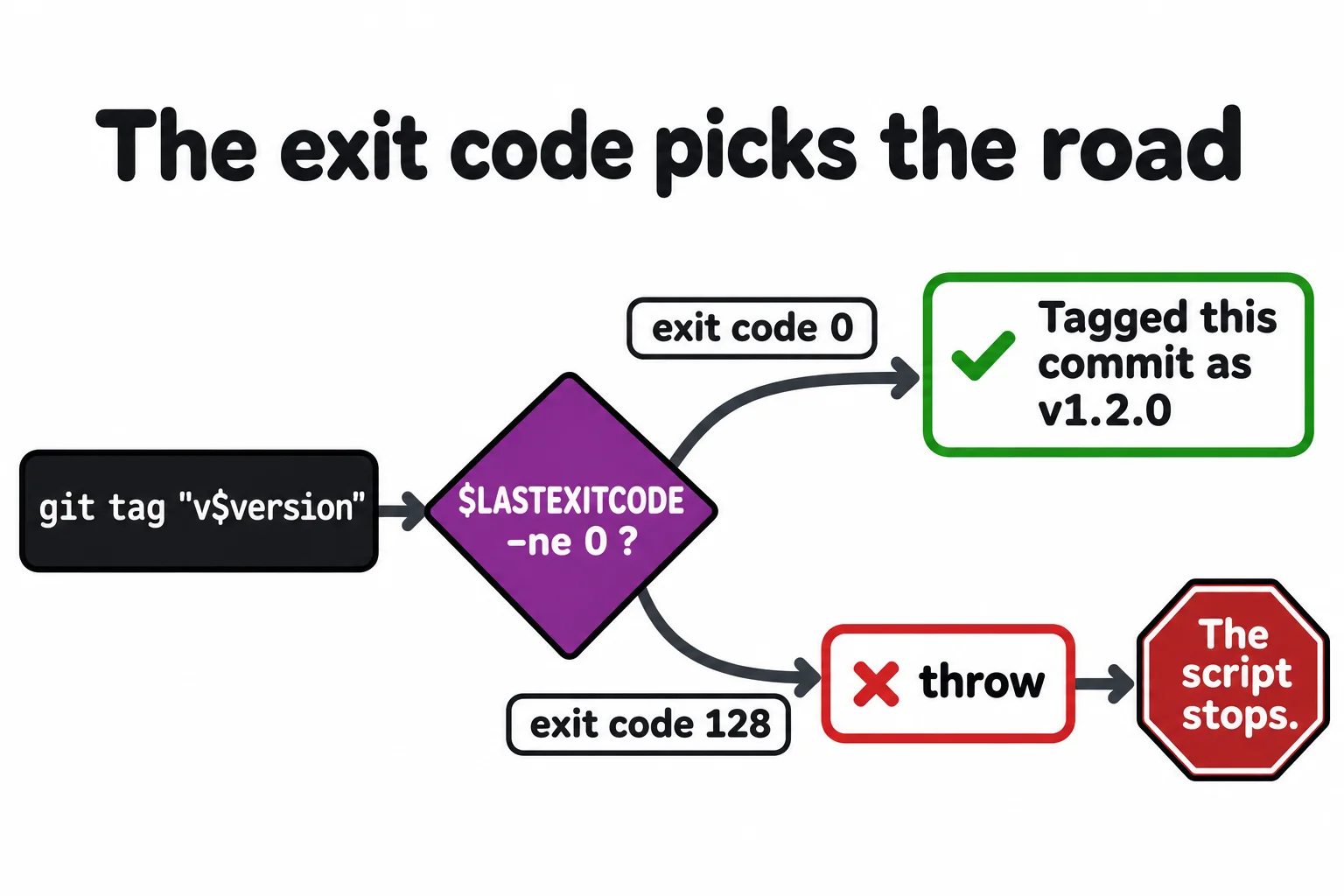
The second run failed and then said it worked, even with $ErrorActionPreference = 'Stop'. That setting covers PowerShell's errors; Git only printed a line and ended with exit code 128. Programs report through their exit code, which $LASTEXITCODE holds until the next program runs (Did It Work? $?, $LASTEXITCODE, && and ||). Check it right after the program:
function Invoke-ReleaseTask {
    git tag "v$version"
    if ($LASTEXITCODE -ne 0) {
        throw "git tag failed with exit code $LASTEXITCODE."
    }
    Write-Output "Tagged this commit as v$version"
}
.\build.ps1 -Task release
fatal: tag 'v1.2.0' already exists
Exception: C:\Users\Sam\terminal-practice\bike-shop-site\build.ps1:36
Line |
  36 |          throw "git tag failed with exit code $LASTEXITCODE."
     |          ~~~~~~~~~~~~~~~~~~~~~~~~~~~~~~~~~~~~~~~~~~~~~~~~~~~~
     | git tag failed with exit code 128.
Let PowerShell stop for you
Checking after every program gets long. PowerShell 7.4 and later can do it for you: add this line under $ErrorActionPreference = 'Stop':
$PSNativeCommandUseErrorActionPreference = $true
$PSNativeCommandUseErrorActionPreference makes any exit code but 0 an error, and 'Stop' then stops the script at the program's own line, so try and catch (try, catch and finally) can catch it too. Run the release once more:
.\build.ps1 -Task release
fatal: tag 'v1.2.0' already exists
NativeCommandExitException: C:\Users\Sam\terminal-practice\bike-shop-site\build.ps1:35
Line |
  35 |      git tag "v$version"
     |      ~~~~~~~~~~~~~~~~~~~
     | Program "git.exe" ended with non-zero exit code: 128 (0x00000080).
Leave the $LASTEXITCODE check in too: it still works in Windows PowerShell 5.1, which doesn't have this setting. Take care around programs that use other numbers for good news, such as robocopy, where anything below 8 means it worked: check those yourself. To tag again for practice, delete the tag with git tag -d v1.2.0.
A script that stops this way ends with exit code 1 when it's started with pwsh -File, which is how a build server knows a build failed:
pwsh -NoProfile -File .\build.ps1 -Task check
$LASTEXITCODE
Found git
Found pwsh
0
Programs and exit codes work the same on a Mac or Linux.
Check yourself
2 questions to try on the lesson page.
So what
Your scripts can now drive any program the way you would by hand, and, unlike a busy person, they never miss the moment one of them fails.