The Registry as a Drive
The registry is where Windows and its apps keep their settings, and PowerShell shows it as two drives, HKCU: for your own settings and HKLM: for the whole computer, where Get-ChildItem lists keys like folders and Get-ItemProperty reads their values; before changing one, rehearse with -WhatIf and back up the key with reg export.
Freelancer · PowerShell · Operating System · Updated
After this lesson you can
- Read registry keys and values like folders and files, with Get-ChildItem and Get-ItemProperty on the HKCU and HKLM drives
- Change a registry value safely, rehearsing with -WhatIf and backing up the key with reg export before Set-ItemProperty
Key takeaways
- The registry is Windows' filing cabinet of settings: keys are like folders, and values are the settings inside them.
- PowerShell shows it as drives:
HKCU:holds the signed-in user's settings,HKLM:the whole computer's. Get-ChildItemlists a key's subkeys, andGet-ItemPropertyorGet-ItemPropertyValuereads its values.- Before a change: rehearse it with
-WhatIf, and back up the key withreg export, soreg importcan put it back. - Changing
HKCU:needs only your account; changingHKLM:needs a window run as administrator.
A how-to page says: "To fix this, open the registry and change this value from 0 to 1." It sounds like surgery, and in a way it is: the registry is where Windows and most apps keep their settings, from how fast your mouse double-clicks to which version of Windows this is. Change the wrong value and Windows can stop starting. Help-desk techs and Windows administrators read it every day and change it rarely, carefully, with a backup first. This lesson does the same: it reads first, and the one change it shows is a harmless one, rehearsed and backed up.
A filing cabinet of settings, as a drive
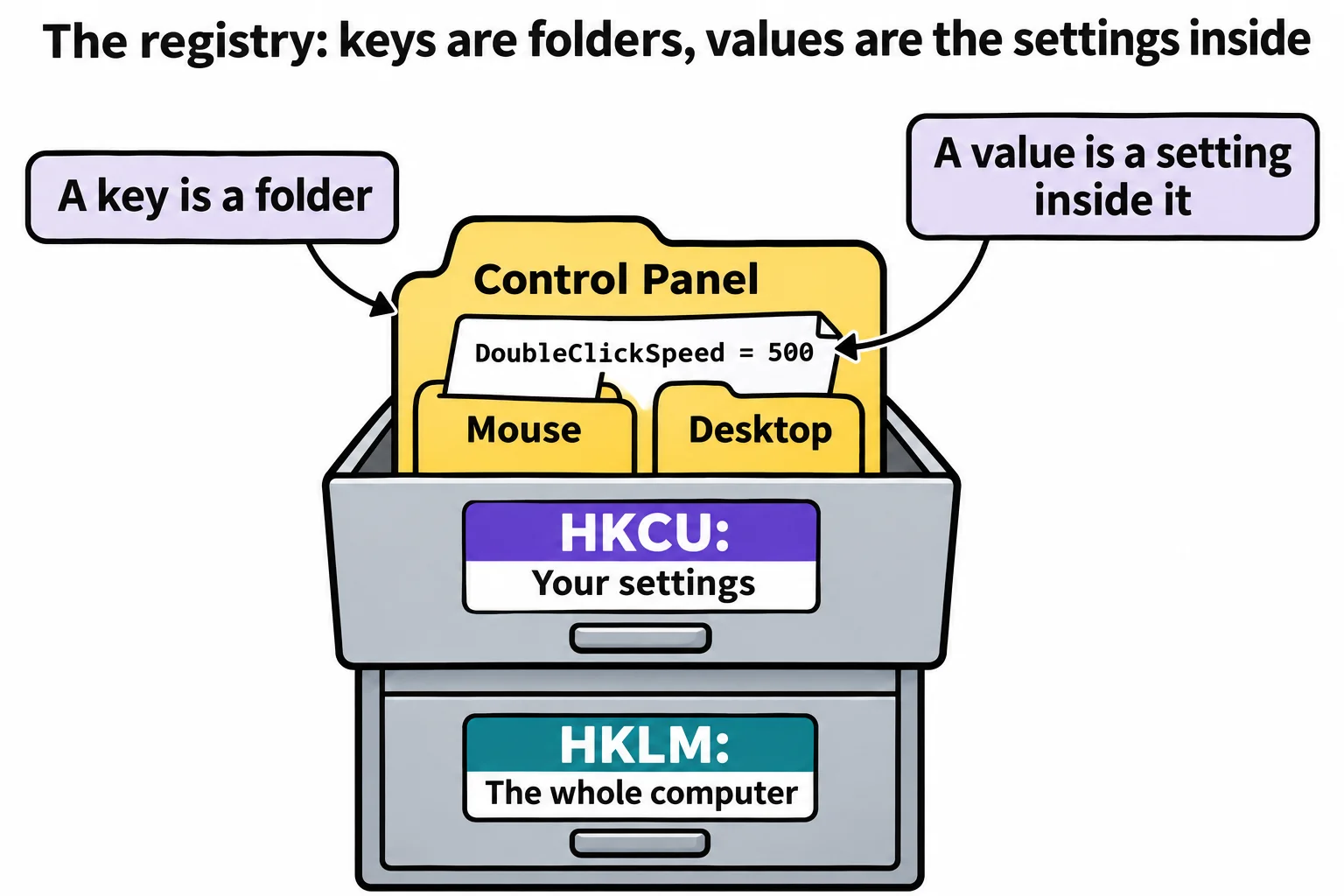
Picture a filing cabinet. Its drawers hold folders, folders hold more folders, and inside each folder are sheets with one setting each. In the registry the folders are called keys and the sheets are values: each value has a name and a setting, such as DoubleClickSpeed set to 500.
You've seen that Env: is a drive, like C:, in Environment Variables and PATH. PowerShell shows the registry the same way, as two drives:
Get-PSDrive -PSProvider Registry | Select-Object Name, Root
Name Root
---- ----
HKCU HKEY_CURRENT_USER
HKLM HKEY_LOCAL_MACHINE
HKCU: (read "H-K-C-U", short for HKEY_CURRENT_USER) holds the settings of the person signed in: your mouse, your colors, your apps' choices. HKLM: (HKEY_LOCAL_MACHINE) holds the whole computer's settings, the same for everyone who uses it. The thing that makes the registry look like a drive is called a provider; the folder commands you already know work on any drive a provider makes.
Walk around it like folders
Set-Location goes into a key, and Get-ChildItem -Name lists the keys inside it:
Set-Location 'HKCU:\Control Panel'
Get-ChildItem -Name
Accessibility
Appearance
Bluetooth
Colors
Cursors
Desktop
Input Method
International
Keyboard
Mouse
NotifyIconSettings
Personalization
PowerCfg
Quick Actions
Sound
TimeDate
UnsupportedHardwareNotificationCache
The path has a space in it, so it's in quotes. The values inside a key are its properties, and Get-ItemProperty reads them. Select-Object keeps the ones you want, because the full answer also lists PowerShell's own PSPath and PSDrive notes:
Get-ItemProperty -Path .\Mouse | Select-Object DoubleClickSpeed, MouseSpeed, SwapMouseButtons
DoubleClickSpeed MouseSpeed SwapMouseButtons
---------------- ---------- ----------------
500              1          0
DoubleClickSpeed is the time between two clicks, in milliseconds, and SwapMouseButtons 0 means the left button is the main one. For one value, Get-ItemPropertyValue hands back the value itself. Here's how many lines one notch of the mouse wheel scrolls, the same setting as Settings, Bluetooth & devices, Mouse:
Get-ItemPropertyValue -Path .\Desktop -Name WheelScrollLines
3
The whole computer: `HKLM:`
HKLM: is read the same way. Windows' own name and build are in a key that support pages often mention:
Get-ItemProperty -Path 'HKLM:\SOFTWARE\Microsoft\Windows NT\CurrentVersion' | Select-Object ProductName, DisplayVersion, CurrentBuild
ProductName    DisplayVersion CurrentBuild
-----------    -------------- ------------
Windows 10 Pro 25H2           26200
This PC runs Windows 11, and ProductName still says Windows 10: the value was never updated when Windows 11 came out. A build of 22000 or higher is Windows 11, as in Your Computer's Facts: Get-CimInstance. A value's name isn't a promise, so check it against a second source before you rely on it. The same key also holds the name Windows was registered to and a product ID, which is why this example picks three properties instead of showing them all.
Before you change anything: look, then back up
Say you want five lines per notch instead of three. The change is one Set-ItemProperty, and the safe habit has two steps before it. First, rehearse it with -WhatIf, as in Deleting Safely: Remove-Item, -WhatIf and -Confirm. Nothing changes:
Set-ItemProperty -Path 'HKCU:\Control Panel\Desktop' -Name WheelScrollLines -Value 5 -WhatIf
What if: Performing the operation "Set Property" on target "Item: HKEY_CURRENT_USER\Control Panel\Desktop Property: WheelScrollLines".
Second, back up the key. reg is Windows' own registry program, and reg export saves a key and everything in it to a .reg file. It writes the key's name with no colon:
New-Item -ItemType Directory -Force -Path "$HOME\terminal-practice\registry" | Out-Null
reg export 'HKCU\Control Panel\Desktop' "$HOME\terminal-practice\registry\desktop-backup.reg" /y
The operation completed successfully.
/y replaces an older backup without asking, so the line is safe to run twice. Now the change itself, which this lesson leaves to you. It changes a setting on your PC, a harmless one:
Set-ItemProperty -Path 'HKCU:\Control Panel\Desktop' -Name WheelScrollLines -Value 5
The value is now 5, and Windows reads it the next time you sign in. To undo it, reg import writes every value in the backup back as it was, and says The operation completed successfully.:
reg import "$HOME\terminal-practice\registry\desktop-backup.reg"
HKCU: is yours to change with a normal window. HKLM: belongs to the whole computer, and there even a rehearsal stops in a normal window with Requested registry access is not allowed.: changes there need a window run as administrator, and a reason. Windows PowerShell 5.1 works the same way; a Mac or Linux has no registry.
Check yourself
2 questions to try on the lesson page.
So what
The registry is a drive you can walk with the commands you know. Reading it is safe and often the quickest answer; changing it is a job for -WhatIf first and a reg export backup before.