Where a Tool Keeps Its Data
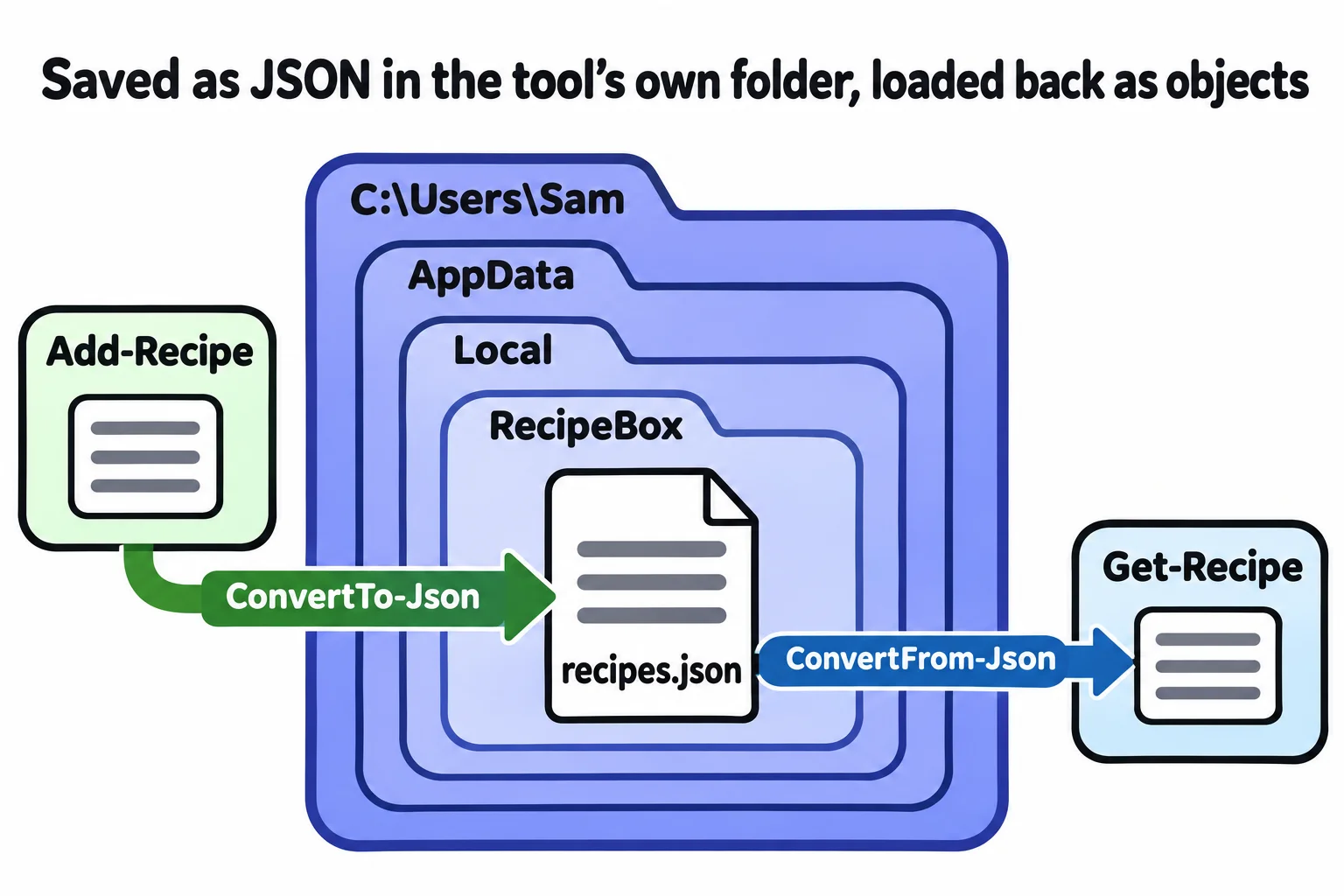
A tool keeps its data in a folder of its own under $env:LOCALAPPDATA, builds the path with Join-Path, creates the folder the first time it runs, and saves and loads its objects as JSON, so what you add today is still there tomorrow, whatever folder you're in.
Journeyman · PowerShell · Operating System · Updated
After this lesson you can
- Build the path to a tool's own data file with $env:LOCALAPPDATA and Join-Path, and create its folder on the first run
- Save a tool's objects to a JSON file and load them back with ConvertTo-Json and ConvertFrom-Json
Key takeaways
- Apps keep their data in a folder of their own under
$env:LOCALAPPDATA, such asC:\Users\Sam\AppData\Local. Join-Pathbuilds a path from its parts and puts the right separator between them for the system it runs on.- On the first run the folder isn't there yet: check with
Test-Pathand make it withNew-Item -ItemType Directory. ConvertTo-Json -AsArray | Set-Contentsaves a list of objects, andGet-Content -Raw | ConvertFrom-Jsonloads it back.- A Mac or Linux has no
$env:LOCALAPPDATA;[Environment]::GetFolderPath('LocalApplicationData')finds the place there.
You add three recipes to your recipe box, close PowerShell, and open it again the next morning. The box is empty. Everything a session makes lives in memory, and memory is cleared when the window closes. So the tool has to save its recipes in a file. But where? Save to recipes.json with no folder in front, and the file lands in whatever folder you happen to be in: Monday's recipes in your practice folder, Tuesday's in Downloads, and a box that looks empty depending on where you stand. Every app on your computer has solved this, and your tool can solve it the same way.
Every app has a drawer: `$env:LOCALAPPDATA`
Think of a shared kitchen where every roommate has a drawer with their name on it. Windows gives each app a drawer like that, inside a hidden folder in your home folder called AppData. The environment variable $env:LOCALAPPDATA holds its address (read $env: as "the environment's"):
$env:LOCALAPPDATA
C:\Users\Sam\AppData\Local
Inside it, each app keeps a folder named after itself, so the recipe box gets AppData\Local\RecipeBox. Nothing else writes there, and it's the same folder whichever folder you run the tool from. Its neighbor, $env:APPDATA (AppData\Roaming), is for settings that some work networks copy to every PC you sign in to; data that stays on this computer belongs in Local.
On a Mac or Linux, there's no $env:LOCALAPPDATA: it comes back empty. .NET, the toolbox PowerShell is built on, knows the right place on every system: [Environment]::GetFolderPath('LocalApplicationData') gives ~/.local/share on Linux and ~/Library/Application Support on a Mac, and the same AppData\Local folder on Windows.
Building the path: `Join-Path`
You could write the path as text, "$env:LOCALAPPDATA\RecipeBox\recipes.json", and on Windows it works. Join-Path (read "join path") is the safer habit: it puts the parts together with the separator the system uses, \ on Windows and / on a Mac or Linux, and never doubles one up:
Join-Path $env:LOCALAPPDATA 'RecipeBox' 'recipes.json'
C:\Users\Sam\AppData\Local\RecipeBox\recipes.json
Windows PowerShell 5.1's Join-Path takes only two parts, so there you write Join-Path $env:LOCALAPPDATA 'RecipeBox\recipes.json'.
Save and load with JSON
JSON, from JSON: ConvertFrom-Json and ConvertTo-Json, is the text format most apps keep their data in, and it keeps each recipe's property names with its values. Open your practice folder from Objects of Your Own: [PSCustomObject], $HOME\terminal-practice\recipe-box, and make a file RecipeBox.ps1 (in VS Code, or edit RecipeBox.ps1):
# RecipeBox.ps1: a recipe box that remembers. Load it with: . .\RecipeBox.ps1
function Get-RecipeFile {
    $base = $env:LOCALAPPDATA
    if (-not $base) { $base = [Environment]::GetFolderPath('LocalApplicationData') }
    Join-Path $base 'RecipeBox' 'recipes.json'
}

function Get-Recipe {
    $file = Get-RecipeFile
    if (Test-Path $file) {
        $recipes = Get-Content $file -Raw | ConvertFrom-Json
        $recipes
    }
}

function Add-Recipe {
    param([string]$Name, [int]$Minutes, [string]$Category)
    $file = Get-RecipeFile
    $folder = Split-Path $file
    if (-not (Test-Path $folder)) {
        New-Item -ItemType Directory -Path $folder | Out-Null
    }
    $recipe = [PSCustomObject]@{ Name = $Name; Minutes = $Minutes; Category = $Category }
    $all = @(Get-Recipe) + $recipe
    $all | ConvertTo-Json -AsArray | Set-Content $file
    $recipe
}
Get-RecipeFile is the one place the path is decided, so the other two can't disagree about it. Get-Recipe reads the whole file as one piece of text (-Raw) and turns it back into objects. Add-Recipe loads what's there, adds the new card and saves the lot. -AsArray keeps the file a list even when it holds one recipe; Windows PowerShell 5.1 doesn't have it, so there write ConvertTo-Json -InputObject $all | Set-Content $file.
The first run
The first time Add-Recipe runs, the RecipeBox folder isn't there, and Set-Content can't save into a folder that doesn't exist. Split-Path cuts the file's name off the path, leaving its folder; Test-Path checks for it, and New-Item -ItemType Directory makes it, once. Load the file by dot-sourcing it, from Your Profile, and try it:
. .\RecipeBox.ps1
Get-Recipe
Test-Path (Split-Path (Get-RecipeFile))
Add-Recipe -Name 'Lemon Garlic Pasta' -Minutes 30 -Category Dinner
Test-Path (Split-Path (Get-RecipeFile))
False

Name               Minutes Category
----               ------- --------
Lemon Garlic Pasta      30 Dinner

True
Get-Recipe printed nothing, and no error: an empty box is a normal first day. Add Add-Recipe -Name 'Overnight Oats' -Minutes 10 -Category Breakfast too, then look in the drawer with Get-Content (Get-RecipeFile):
[
  {
    "Name": "Lemon Garlic Pasta",
    "Minutes": 30,
    "Category": "Dinner"
  },
  {
    "Name": "Overnight Oats",
    "Minutes": 10,
    "Category": "Breakfast"
  }
]
Now close PowerShell, open a new window, go back to the practice folder and load the box again:
. .\RecipeBox.ps1
Get-Recipe | Sort-Object Minutes
Name               Minutes Category
----               ------- --------
Overnight Oats          10 Breakfast
Lemon Garlic Pasta      30 Dinner
The recipes came back as objects, ready to sort, from any folder. To start over, look before you delete: Remove-Item (Split-Path (Get-RecipeFile)) -Recurse -WhatIf says which folder would go, and the same line without -WhatIf removes it and every recipe in it.
Check yourself
2 questions to try on the lesson page.
So what
A tool that remembers needs one fixed place for its data: its own folder under $env:LOCALAPPDATA, a path built with Join-Path, a folder made on the first run, and JSON that turns objects into text and back.